Text-to-Speech
Listen to AI responses with built-in or external TTS.
Overview
OpenCode Manager supports two TTS providers:
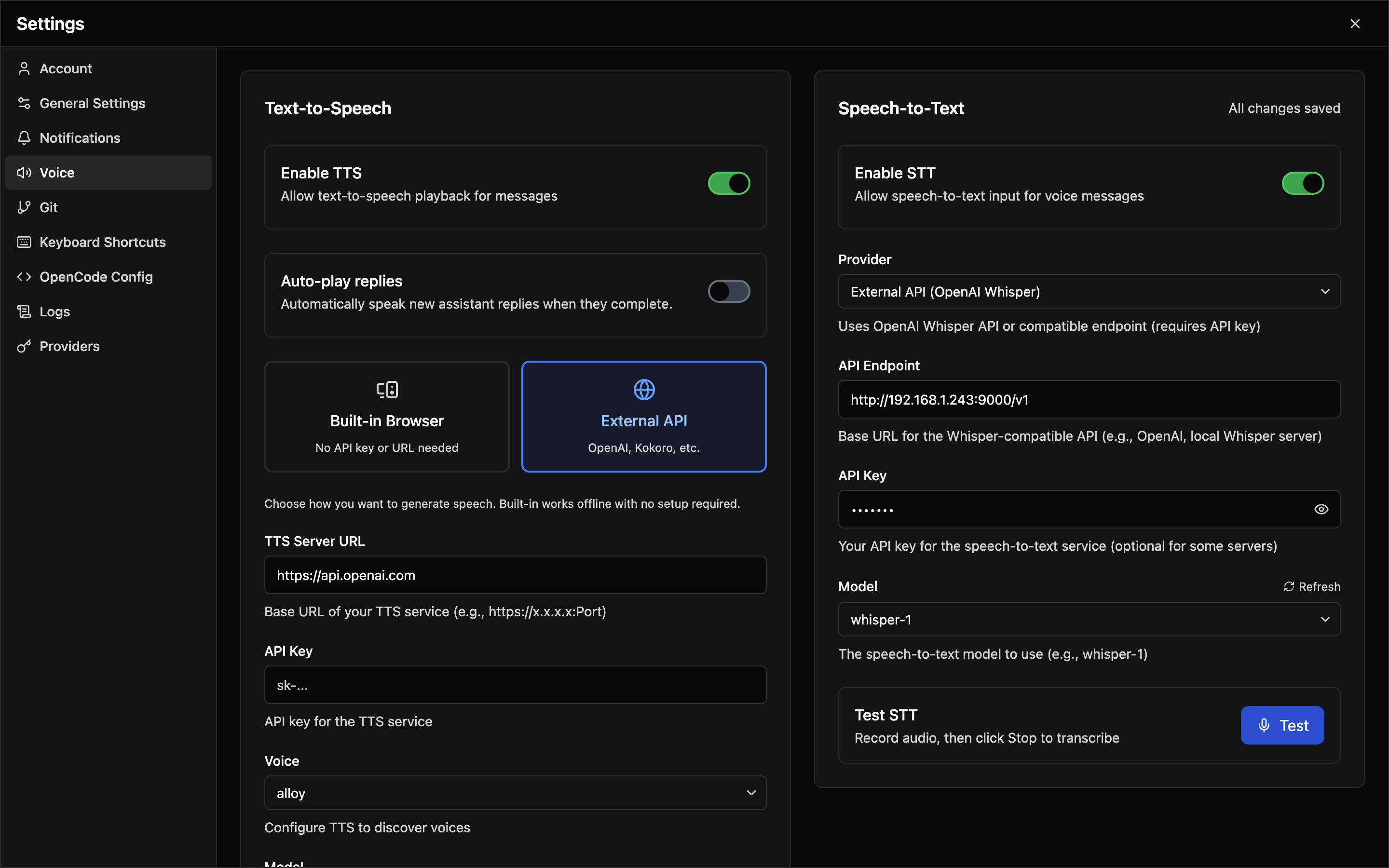
- Built-in Browser - Uses your browser's Web Speech API
- External API - OpenAI-compatible TTS endpoints
Built-in Browser TTS
Uses your browser's built-in speech synthesis via Web Speech API.
Advantages
- No API key required
- Works offline
- No server communication needed
- Free to use
Limitations
- Voice quality varies by browser/OS
- Limited voice selection
- No audio caching
- Requires browser support
Browser Support
Works in modern browsers:
- Chrome, Edge, Safari, Firefox
Setup
- Go to Settings > Voice
- Turn on Enable TTS
- Select Built-in Browser provider
- Choose a Browser Voice (use Check for Voices if none appear)
- Adjust Speed if desired
- Click Test to verify
Voice Selection
Available voices depend on your operating system:
- Chrome - Google voices and system voices
- Safari - macOS voices (Alex, Samantha, etc.)
- Firefox - System voices
- Edge - Microsoft voices
Web Speech API Detection
The system automatically detects if your browser supports Web Speech API. If not supported, you'll see a warning and should switch to External API.
External API TTS
Connect to OpenAI-compatible TTS endpoints for higher quality voices.
Advantages
- Higher quality voices
- Consistent across devices
- Audio caching on server (
<workspace>/cache/tts, kept for 24 hours, up to 200 MB) - More voice options
- Composite voice support
Limitations
- Requires API key and endpoint
- Requires network connection
- Server-side processing
Setup
- Go to Settings > Voice
- Turn on Enable TTS
- Select External API provider
- Enter the TTS Server URL:
- OpenAI:
https://api.openai.com - Kokoro:
https://your-kokoro-server.com:port
- OpenAI:
- Enter your API Key
- Wait for voice/model discovery
- Choose voice and model
- Click Test to verify
Compatible Services
Any OpenAI-compatible TTS API works:
- OpenAI TTS
- Kokoro TTS
- Azure OpenAI
- Local TTS servers
- Self-hosted alternatives
Voice Configuration
Voice Discovery
The system automatically discovers available voices and models:
- On first connection with API key, voices/models are fetched
- Voice list is cached for 1 hour
- Click Refresh under Refresh Discovery Data to force re-discovery if voices change
Composite Voices
Kokoro-style composite voices are supported. Combine multiple voices for unique effects:
- Example:
am_adam+am_echo - Example:
af_bella+af_nova
Audio Playback
Playing Responses
To listen to an AI response:
- Click the Read aloud button on a message, or on a scheduled run's report in Run History
- Audio streams and plays
Auto-play
Turn on Auto-play replies in Settings > Voice to speak each new assistant reply when it completes.
When the prompt is empty and the session is idle, a floating speaker button above the chat input plays the latest reply (Play latest reply); once you have scrolled up it reads the replies visible on screen instead (Read visible replies). Tap it again to stop. Press and hold it to turn auto-play on or off.
Speak Visible Messages
On desktop, press the leader key (Ctrl+X by default) then S to read the assistant messages currently visible in the session, in order. Pressing it again while audio is playing stops it. TTS must be enabled, and the shortcut (listed as Speak Visible in Settings → Keyboard Shortcuts) can be rebound.
Mobile Replies
When you send a prompt from a phone-sized viewport, the agent is told to write short, plain, conversational replies that read well aloud, avoiding tables, headings, code blocks, long or nested lists, file paths, URLs, and raw symbols unless you ask for them. This only changes how replies are written, not how thoroughly the agent works. It applies to the session until a prompt is sent from a desktop-sized viewport.
Playback Controls
While audio is playing:
- Stop playback - End playback immediately
- Audio stops if you navigate away
Voice Conversation
In a hands-free voice conversation, every completed reply is read aloud automatically as it arrives when TTS is enabled, with a pause and resume control and a Continue reading action when a reply was held mid-read. Auto-play and the per-message Read aloud button still work as usual outside a conversation.
Markdown Sanitization
Before sending text to TTS, markdown is cleaned for better speech:
- Code blocks removed entirely
- Inline code:
code→ code - Links:
[text](url)→ text - Images:
→ alt - Bold/italic/strikethrough markers removed
- Headers: ### Header → Header
- List markers removed
- Tables converted to readable text
- HTML tags removed
- Whitespace cleaned up
This ensures natural, readable speech playback.