Schedules & Recurring Jobs
Create recurring repo jobs that run reusable prompts against a repository, store run history, and link every run back to a normal OpenCode session.
What Schedules Are Good For
Schedules make OpenCode Manager proactive instead of purely session-driven. Good examples include:
- Repo health reports for a quick morning review
- Dependency watchlists to catch upgrade pressure early
- Release readiness checks before a ship window
- Docs drift reviews to spot stale setup instructions
- Tech debt triage for recurring cleanup planning
Each run is stored with status, timestamps, logs, assistant output, and a linked session you can open and continue.
Cancelling during startup stops model loading and prevents later prompt submission. If session creation was already in flight, the returned session is interrupted rather than prompted.
Creating a Schedule
- Open a repository
- Click Schedules
- Click New Schedule
- Configure the job name, prompt, timing, and optional overrides
- Save the schedule
The schedule is scoped to the current repository.
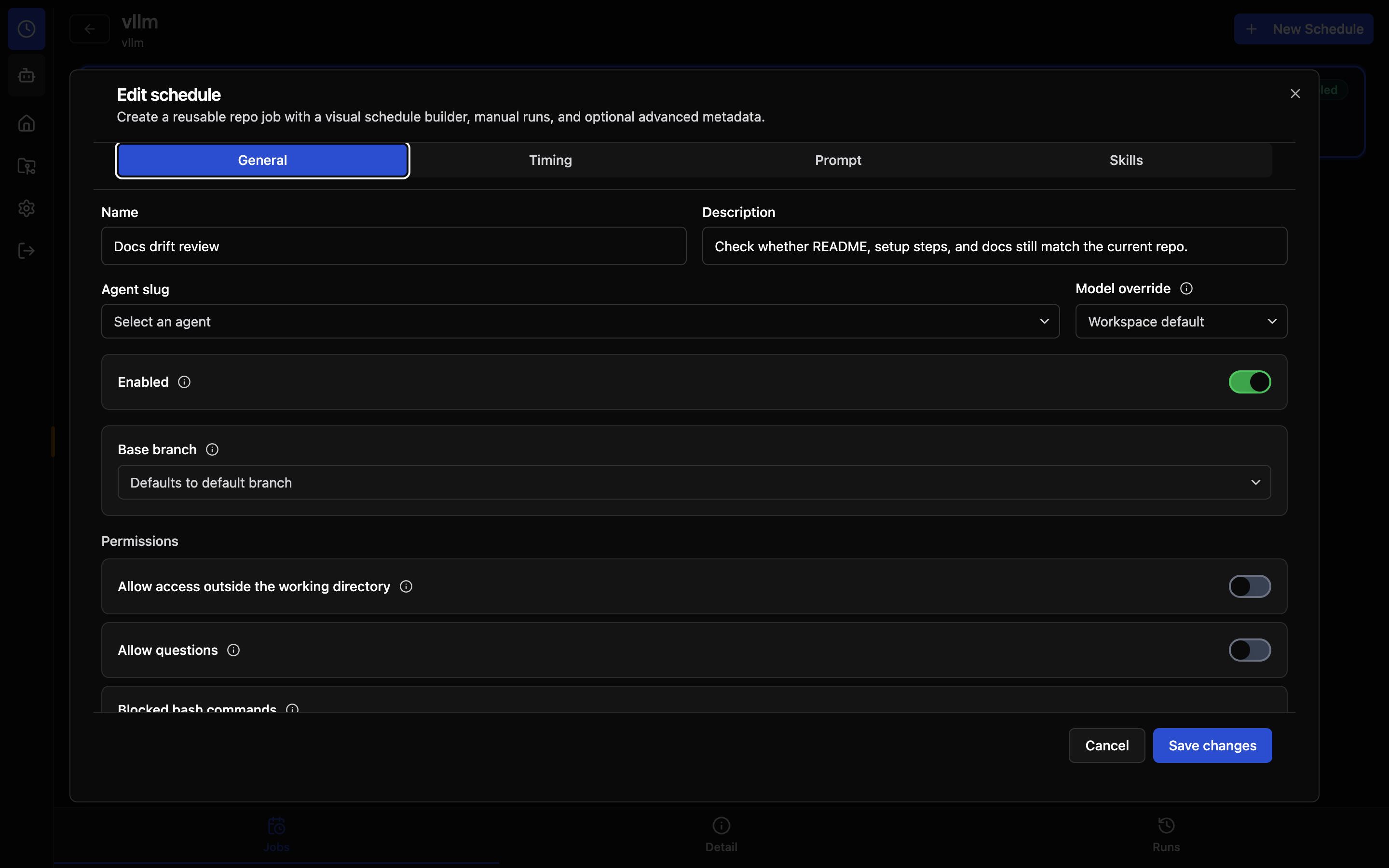
Timing Options
The schedule builder supports both simple presets and advanced cron:
- Interval - Repeat every N minutes
- Hourly - Run once each hour at a chosen minute
- Daily - Run once per day at a chosen time
- Weekdays - Run Monday through Friday
- Weekly - Pick one or more weekdays and a time
- Monthly - Run on a day of the month
- Advanced - Enter a cron expression directly
Cron-based schedules also store a timezone so runs happen when expected.
Prompt Templates
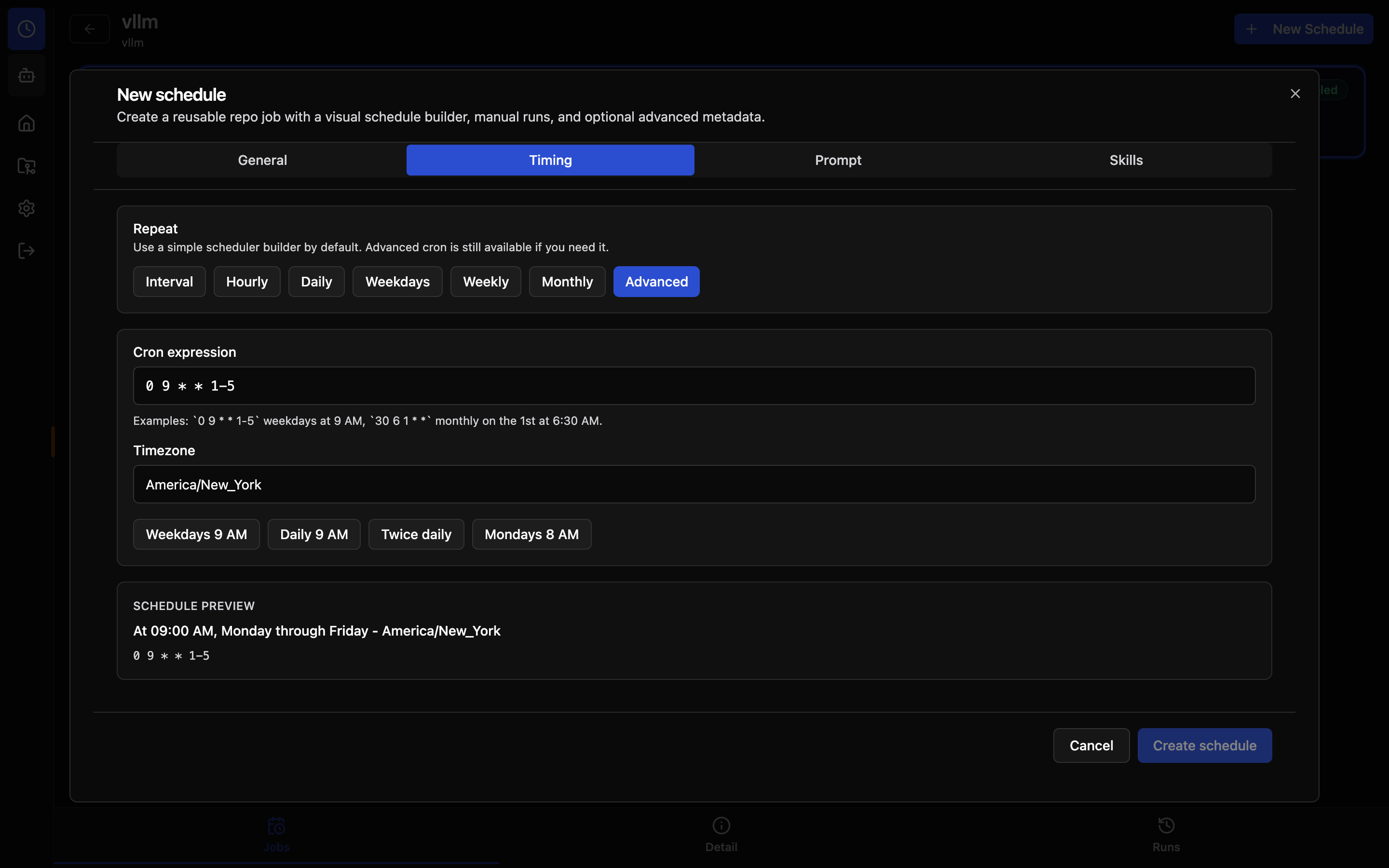
Built-in prompt templates help you start quickly with recurring jobs like:
- Repo health report
- Dependency watchlist
- Release readiness review
- Test stability audit
- Docs drift review
- Tech debt triage
- Security and config review
- CI and ops review
Applying a template fills the schedule name, description, and prompt so you can customize from a strong default instead of starting from scratch.
Agent and Model Overrides
Schedules can run with:
- the default workspace agent and model
- a custom agent slug
- a specific model override when needed
OpenCode Manager allows up to 15 seconds for a fresh worktree's model catalog to load before treating a missing requested or configured model as unavailable. It prefers the schedule override, then the configured model, then OpenCode's default, then the first enabled model. A fallback can use a different provider. Model-catalog requests are bounded by that deadline.
Skills
Each schedule can optionally attach skill slugs and notes. Skills modify the agent's behavior during the run — for example, you could attach a review-focused skill to a weekly code review schedule.
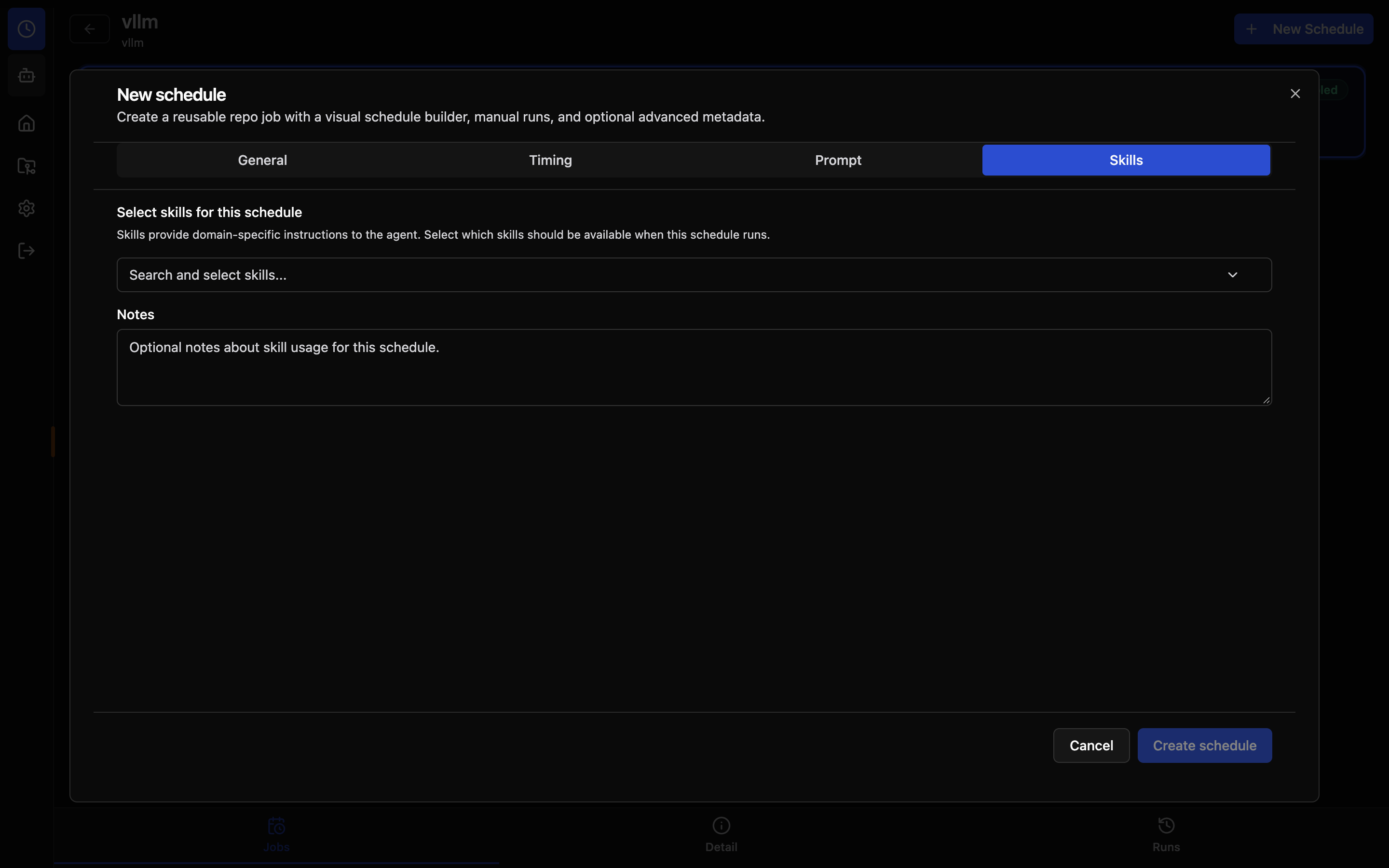
The Skills tab in the schedule dialog lets you:
- Select one or more skill slugs from a multi-select input
- Add free-form notes (max 2000 characters) that the agent receives as additional context
When the run starts, the Manager resolves the selected skill slugs against the skills available in the run's location and attaches the matching skills directly to the submitted prompt, making them available to the agent for that run only. Skill slugs that are not available in the location are omitted, and if the available skills cannot be listed the run continues without any skill attachments.
MCP Servers
The MCP tab attaches MCP servers to a schedule. Each run starts in a fresh worktree, which OpenCode treats as a new location. MCP servers you connected by hand in the repo are not connected there, so any server a run needs has to be attached here.
- Configured MCP servers - Choose from the servers available in the repo, including ones turned off in the OpenCode configuration. Each run connects the selected servers before it starts.
- Schedule-only MCP servers - Define a local or remote server that exists only for this schedule. It is added to each run's location and never written to the OpenCode configuration. The definition is stored with the schedule, so use
{env:NAME}or{file:path}placeholders instead of pasting secrets.
The Manager connects every attached server before it creates the run's session. The run fails with the server name and reason if a server is not configured for the location, cannot connect, or needs OAuth authorization. Runs are unattended and cannot complete an OAuth flow, so authorize OAuth servers in Settings > MCP Servers before attaching them.
Connections are made at the run's directory, so they do not affect other sessions. OpenCode stops a run location's MCP servers once that location has been idle for about an hour. Schedules without a worktree, such as Assistant schedules, run in the repo directory itself. There, a connection stays until OpenCode restarts, just like turning on the server in the repo's MCP dialog.
Worktree Isolation
Each scheduled run executes in a throwaway git worktree — an isolated working copy branched off the repository's base branch. This provides two key guarantees:
- Separate checkout — ordinary checkout changes and branch switches happen in the run's worktree. A worktree is not a filesystem jail: shell commands may affect other accessible paths, including the main checkout.
- Clean state per run — every run starts from a fresh branch (
schedule/{jobId}/run-{runId}) based off the latest remote state.
When the run completes or fails, finalization commits changed files locally to the run branch (schedule/{jobId}/run-{runId}), records the commit hash, and removes the worktree. A branch with a commit is retained; a branch without a commit is deleted. Manager does not automatically push these commits, but an agent with shell access can push explicitly. Deleting a run or clearing its history removes the run branch; it does not guarantee immediate erasure of Git objects or outputs saved elsewhere.
Branch Configuration
By default, runs branch off the repository's default branch. You can override this by specifying a base branch in the schedule settings — the worktree branches off your chosen branch instead.
Permission Configuration
Every schedule includes a Permissions section in the General tab. These settings control what the agent can access and execute during unattended runs.
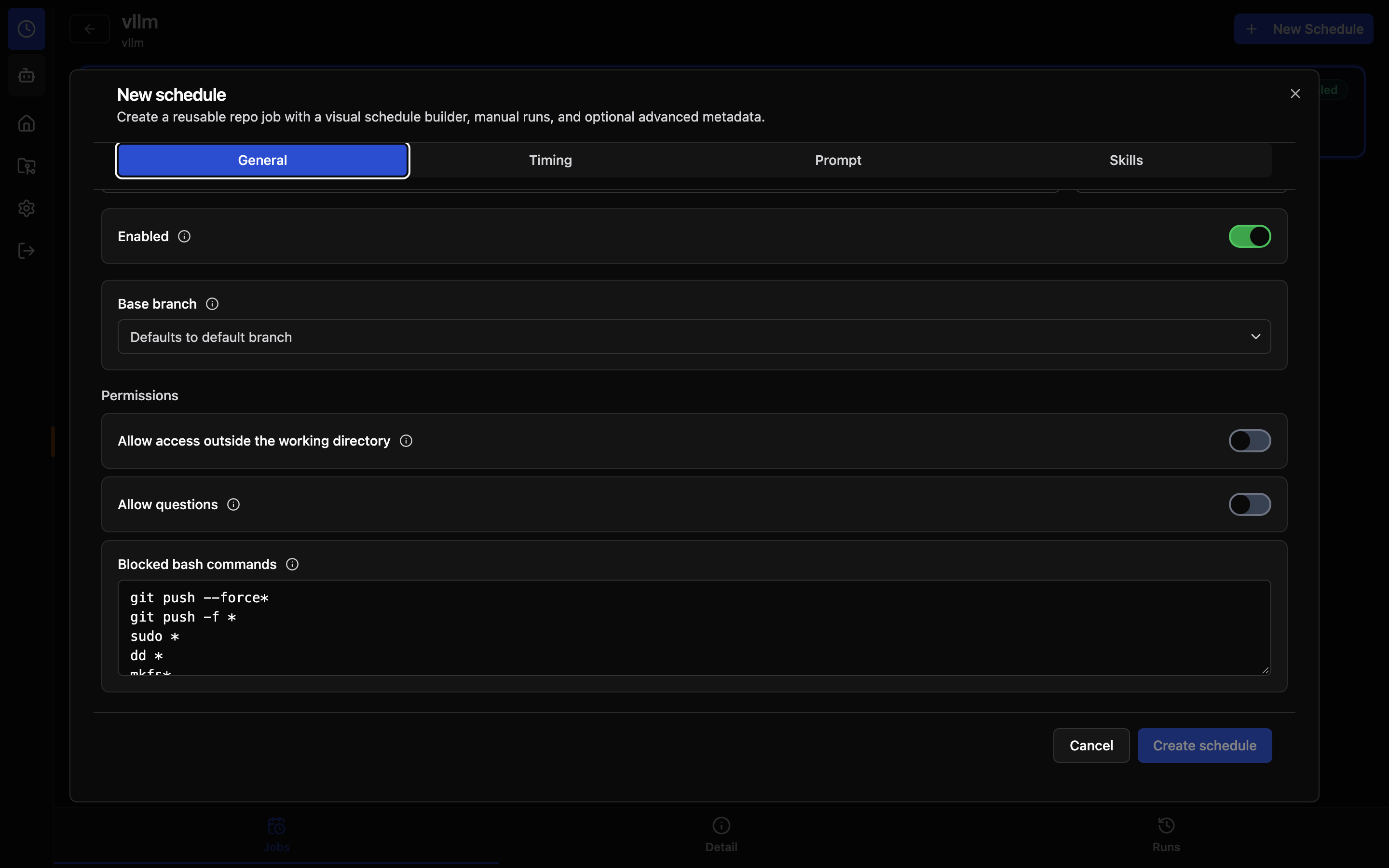
Allow Access Outside the Working Directory
When disabled (the default), OpenCode's external_directory permission is denied. This blocks file-tool operations that request that permission; it is not comprehensive filesystem confinement. Enable this if the schedule requires file tools to access paths outside its working directory (e.g., a shared configuration directory).
This is a file-tool boundary, not a per-worktree jail for shell commands. A sandboxed shell command can read and write every project root mounted into the sandbox, including other repositories and worktrees; see Agent Sandboxing.
Allow Questions
When disabled (the default), the agent's question tool is denied so an unattended run cannot stall waiting for an answer nobody is there to give. Enable it only when the run is supervised, since an unattended run that asks a question can stall waiting for an answer.
Blocked Bash Commands
The following bash command patterns are always blocked by default:
git push --force*
git push -f *
sudo *
dd *
mkfs*
shutdown*
reboot*
halt*
kill -9 *
killall *
These patterns prevent dangerous commands whose blast radius escapes the throwaway worktree. File-mutating commands (rm -rf, git reset --hard, etc.) are intentionally omitted because the worktree itself is disposable; a shell command can still reach paths outside the worktree, so treat the deny list as a guard against the worst host-level commands rather than a complete sandbox.
You can customize the deny list by adding or removing glob patterns. One pattern per line. Changes apply to all future runs of that schedule.
Run History
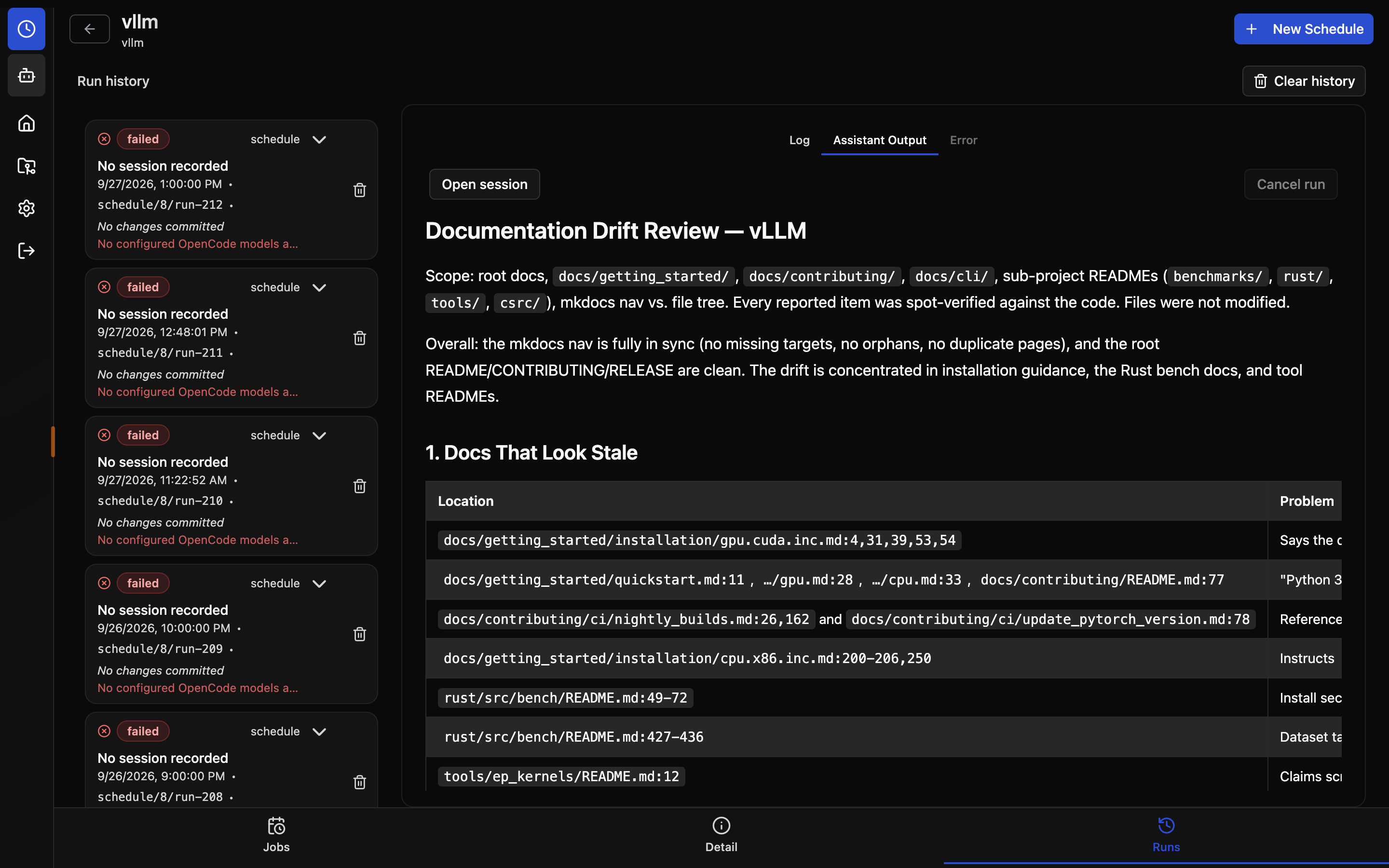
Each schedule stores a run history panel with:
- Status - Running, completed, failed, or cancelled (a running run can be stopped with Cancel run)
- Trigger source - Manual or scheduled
- Log output - Execution metadata and captured results
- Assistant output - Rendered markdown, with a Read aloud button when Text-to-Speech is enabled
- Errors - Failure details when a run does not complete
This makes recurring jobs easy to review without digging through raw session data first.
Linked Sessions
Every run creates or attaches to a normal OpenCode session.
Use Open session to continue from the generated report, answer follow-up questions, or debug provider, permission, or tool issues.
What it opens depends on where the run worked:
- In the repository, or still running: the run's own session.
- In a temporary worktree that has finished: the worktree is removed when the run ends, so the original session can no longer do any work. Instead, a new session opens in the repository with the run's full output, any error, and the branch and commit holding the run's changes added as context. It uses your normal permissions rather than the run's unattended ones, and nothing is sent to the model until you write a message.
This keeps automation connected to the rest of the OpenCode Manager workflow instead of creating a separate silo.
Best Practices
- Keep prompts focused on one recurring outcome
- Prefer a few high-value schedules per repo over many overlapping jobs
- Use manual runs to validate a prompt before relying on the schedule
- Review failed runs quickly so broken provider or permission setups do not go unnoticed
- Treat schedules as reusable repo routines, not long-running background workers
Troubleshooting
Run Failed
- Open the run from Run History
- Check the Error tab for the failure message
- Use Open session to follow up on the failure with the agent
- Verify provider credentials, model availability, and any pending agent questions or permissions
No Assistant Output
If a run starts but does not produce assistant output:
- Open the linked session
- Check for a provider error
- Check whether the agent asked a question or needed permission
- Re-run the schedule manually after fixing the issue
Prompt Needs Iteration
Use Run now to test prompt changes immediately before waiting for the next scheduled run.