MCP Servers
Configure Model Context Protocol (MCP) servers to extend AI capabilities.
What is MCP?
MCP (Model Context Protocol) allows AI models to interact with external tools and data sources. Servers provide:
- Tools - Functions the AI can call
- Resources - Data the AI can access
- Prompts - Pre-defined prompt templates
Adding Servers
Local Servers (Command-based)
Local servers run as processes on your machine:
- Open a repository and click MCP in the sidebar
- Click Add Server
- Select Local (Command)
- Configure:
{
  "mcp": {
    "servers": {
      "filesystem": {
        "type": "local",
        "command": [
          "npx",
          "-y",
          "@modelcontextprotocol/server-filesystem",
          "/workspace"
        ]
      }
    }
  }
}| Field | Description |
|---|---|
Name (key under mcp.servers) | Unique identifier |
command | Executable and its arguments, as one array |
environment | Environment variables (optional) |
Remote Servers (HTTP)
Remote servers are accessed over HTTP/SSE:
- Go to Settings → OpenCode Config → MCP Servers
- Click Add Server
- Select Remote (HTTP)
- Configure:
{
  "mcp": {
    "servers": {
      "remote-tools": {
        "type": "remote",
        "url": "https://mcp.example.com/sse"
      }
    }
  }
}| Field | Description |
|---|---|
Name (key under mcp.servers) | Unique identifier |
url | Server endpoint |
headers | HTTP headers (optional) |
Server Templates
Pre-built configurations for common MCP servers, in the OpenCode 2 mcp.servers shape the Manager writes:
Filesystem
Access local files and directories:
{
  "mcp": {
    "servers": {
      "filesystem": {
        "type": "local",
        "command": [
          "npx",
          "-y",
          "@modelcontextprotocol/server-filesystem",
          "/path/to/dir"
        ]
      }
    }
  }
}
GitHub
Interact with GitHub repositories:
{
  "mcp": {
    "servers": {
      "github": {
        "type": "local",
        "command": [
          "npx",
          "-y",
          "@modelcontextprotocol/server-github"
        ],
        "environment": {
          "GITHUB_TOKEN": "your-token-here"
        }
      }
    }
  }
}
PostgreSQL
Query PostgreSQL databases:
{
  "mcp": {
    "servers": {
      "postgres": {
        "type": "local",
        "command": [
          "npx",
          "-y",
          "@modelcontextprotocol/server-postgres"
        ],
        "environment": {
          "DATABASE_URL": "postgres://user:pass@host:5432/db"
        }
      }
    }
  }
}
Brave Search
Web search capabilities:
{
  "mcp": {
    "servers": {
      "brave-search": {
        "type": "local",
        "command": [
          "npx",
          "-y",
          "@modelcontextprotocol/server-brave-search"
        ],
        "environment": {
          "BRAVE_API_KEY": "your-api-key"
        }
      }
    }
  }
}
Managing Servers
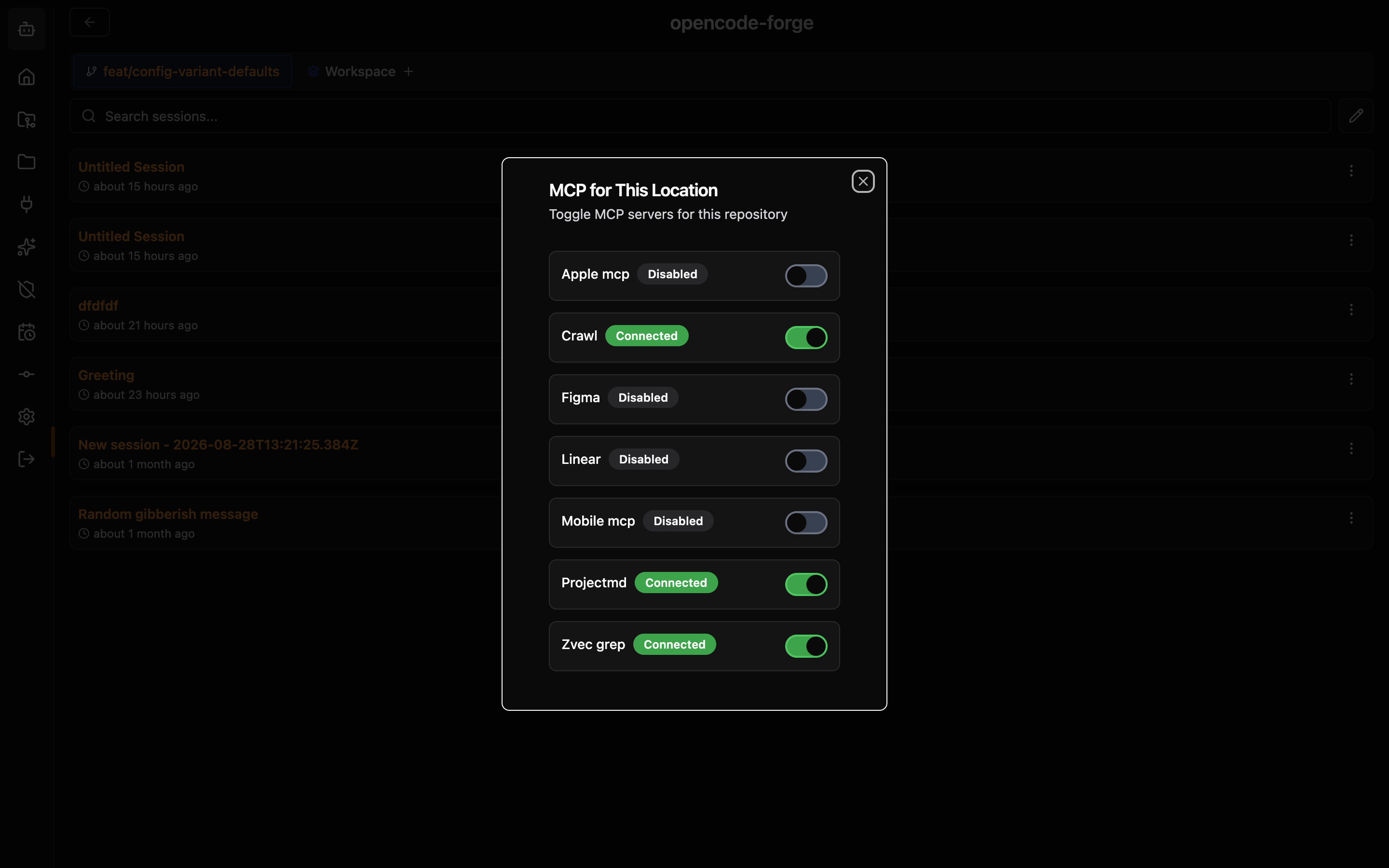
Enable/Disable
Toggle servers on/off:
- Go to Settings → OpenCode Config → MCP Servers
- Find the server
- Click the toggle switch
Disabled servers won't be started or connected.
Delete Server
Remove a server:
- Click the Delete Server action
- Confirm deletion
Refresh Status
Use the refresh button in Settings → OpenCode Config → MCP Servers to reload the current connection status after changing a server outside the UI or completing OAuth.
Configuration Shape
The Manager writes and edits the OpenCode 2 shape, mcp.servers.<name>, with disabled for the toggle. OpenCode also still accepts the older flat mcp.<name> shape with enabled and normalizes it on load, so a configuration written by an earlier version (or by hand) keeps working. The Manager manages only mcp.servers entries; move a flat entry under mcp.servers to manage it.
Saving an MCP change reloads the OpenCode configuration, which reconnects only the servers whose configuration changed, with {env:} and {file:} values expanded. A remote server that has gone through OAuth in the Manager holds a runtime override that takes precedence over the file, so later edits to that server take effect after an OpenCode restart from Settings.
Server Status
Monitor server health:
| Status | Description |
|---|---|
| Connected | Server is active and connected |
| Connecting | Connection is pending |
| Disabled | Server is configured but disabled |
| Auth Required | Remote server needs OAuth authentication |
| Failed | Server failed to start or connect |
Tool Permissions
The MCP server manager adds, toggles, authenticates, and deletes server configurations. Tool access is controlled by the active OpenCode configuration and any custom agent configuration, not by a separate global MCP permission mode in this screen.
Troubleshooting
Server Won't Start
- Check the command is installed:
npx -y @modelcontextprotocol/server-<name> - Verify environment variables are set
- Check the displayed status error
- Try running the command manually
Tools Not Appearing
- Verify server status is "Connected"
- Check server provides the expected tools
- Refresh server status
- Check AI model supports tool use
Connection Issues
For remote servers:
- Verify URL is correct
- Check network connectivity
- Verify authentication headers
- Check server is running and accessible