Speech-to-Text
Dictate messages to AI agents, or hold a hands-free voice conversation with one.
Overview
OpenCode Manager supports two STT providers:
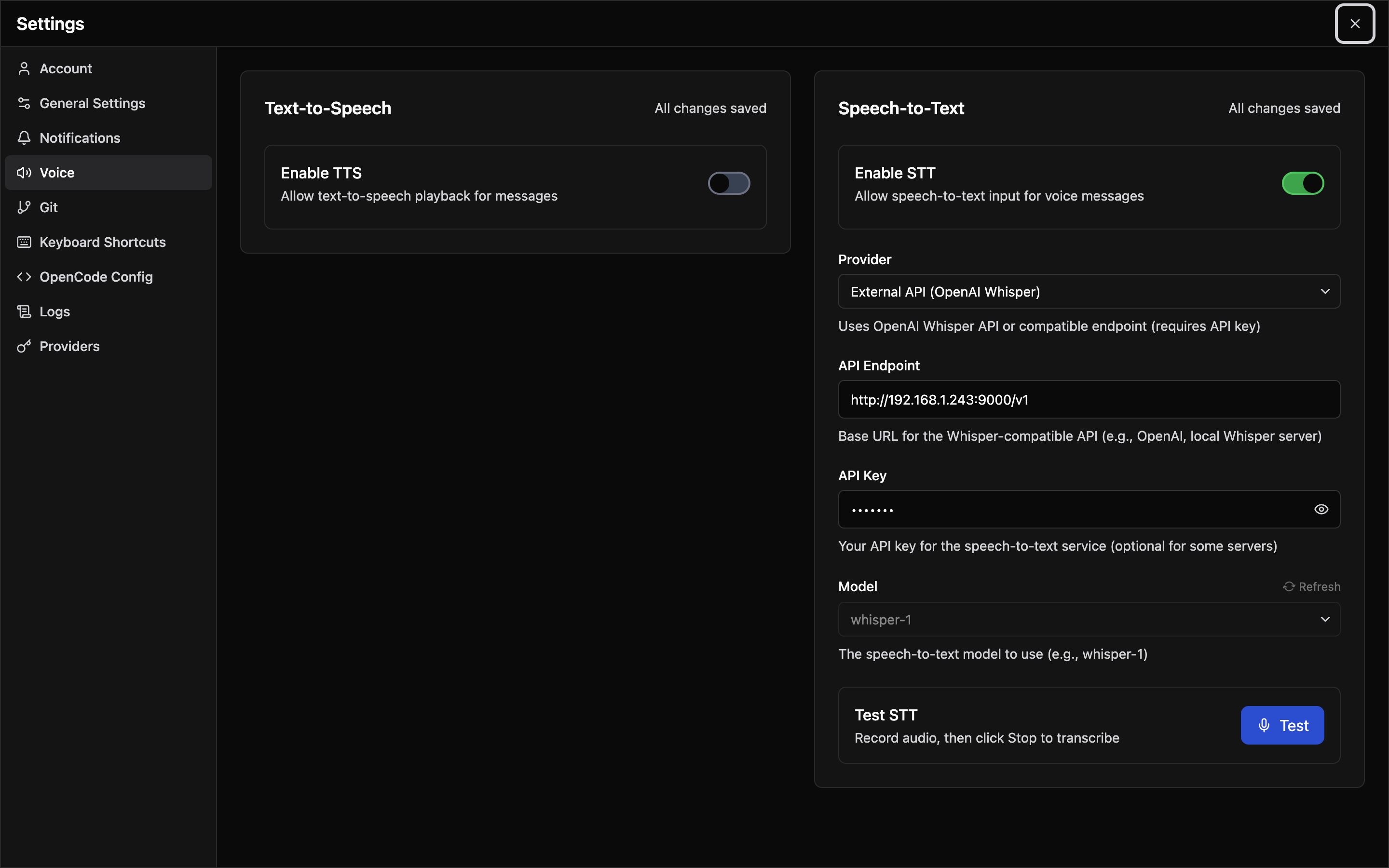
- Built-in Browser - Uses your browser's Web Speech API
- External API - OpenAI-compatible STT endpoints (Whisper)
Both providers drive the composer's voice conversation, which listens, sends each turn, reads the reply aloud, and listens again. The providers differ in how a turn is transcribed and in how it detects the end of your speech.
Built-in Browser STT
Uses your browser's built-in speech recognition via the Web Speech API.
Advantages
- No API key required
- Works without server communication
- Free to use
- Partial results appear live in the Test STT panel; in a voice conversation the words appear in the bar as you speak
Limitations
- Voice recognition quality varies by browser/OS
- Not supported in all browsers
- Language support depends on browser
Setup
- Go to Settings > Voice
- Under Speech-to-Text, turn on Enable STT
- Set Provider to Built-in Browser (listed only when the browser supports the Web Speech API)
- Optionally configure Language
- Use Test STT to verify
External API STT
Connect to OpenAI-compatible STT endpoints for higher accuracy transcription.
Advantages
- Higher accuracy transcription
- Consistent across devices
- Supports many languages
Limitations
- Requires API key and endpoint
- Requires network connection
- Server-side processing
Setup
- Go to Settings > Voice
- Under Speech-to-Text, turn on Enable STT
- Set Provider to External API (OpenAI Whisper)
- Enter the API Endpoint:
- OpenAI:
https://api.openai.com
- OpenAI:
- Enter your API Key
- Wait for model discovery
- Choose a Model (e.g.,
whisper-1) - Optionally set Language
- Use Test STT: record, then click Stop to transcribe
Compatible Services
Any OpenAI-compatible transcription API works:
- OpenAI Whisper
- Azure OpenAI
- Self-hosted Whisper servers
- Local STT servers with OpenAI-compatible API
Voice Input
Voice Conversation
The microphone button in the composer starts a hands-free voice conversation with the session: it listens, sends each turn, reads the reply aloud, and listens again. Both STT providers drive it.
Starting and Stopping
- Turn on STT under Settings → Voice. The microphone button appears only while STT is enabled and the selected provider is supported, and is hidden while a permission request is waiting for the session.
- Tap the microphone button (Start voice conversation). The composer is replaced by the conversation bar.
- Speak. When your turn ends it is transcribed and sent to the session; the reply is read back to you, and the loop starts listening again.
- Leave with × (Exit voice conversation), or use the pencil (Edit in text box) to stop the conversation and move the words you were speaking into the composer, after any text already there.
Phases
The bar names the current phase on its first line, with the latest dictated words beside it, and a hint under the orb names what a tap does:
| Status | Orb tap | What is happening |
|---|---|---|
| Listening | Send now | The microphone is capturing your turn |
| Sending… | - | The transcript is on its way to the session |
| Working | Add a message | The agent is producing the reply; a tap records a message that is queued to the session |
| Needs your approval | - | A permission request or a question form is waiting; View opens it |
| Speaking | Skip reply, or add a message while the agent is still busy | The reply is being read aloud |
| Adding to queue | Send to queue | A message recorded while the agent worked is being finalized |
| Paused | Tap to talk, or tap to continue a held reading | The loop stopped listening |
While the conversation runs, Pause stops it without leaving, Resume continues, and the square button stops the agent.
End of Speech
- Built-in Browser uses the browser's own end-of-speech detection. Settings → Voice → Speech-to-Text → Pause before sending sets how much silence ends a turn: 0.8 s to 3.0 s, 1.2 s by default.
- External API providers do not detect silence; tap the orb to send the current turn.
Ten seconds without any words pauses the loop with Didn't catch that (Built-in Browser only), and a listening turn is capped at two minutes before it sends whatever it captured. A turn that produced no speech pauses the loop instead of reopening the microphone.
Reading Replies
Every completed assistant reply is read aloud as soon as it arrives, including replies to the messages you queued during the turn.
- With TTS turned off, replies are marked as heard without being spoken, so the loop keeps its rhythm silently.
- Tap the orb while it reads to skip the reply, or to add a message when the agent is still busy.
- Leaving the conversation stops the reading; pausing it holds the reading and Continue reading picks it up from where it stopped.
- A reading that stops responding is stopped and reported.
Pausing and Resuming
The conversation pauses on its own when the page is hidden, when a turn produced no speech, and when a send fails. It holds on Needs your approval without listening while the session waits for a tool or a form, and the View button opens the request. Resume returns to listening, or continues a reply that was held mid-read.
Errors
- A failed capture pauses with Allow microphone access, then tap to retry, because the microphone, not the request, is the usual cause.
- A failed send pauses with the session's error message, and the turn is not queued.
- A failed read pauses with Reading the reply failed; resuming retries the reply.
Voice-Mode Replies
While the conversation runs, the session carries a voice-mode instruction that asks the agent for short, plain, spoken sentences without file paths, code, commands, markdown, lists, or symbols, leading with the outcome. It changes only how replies are written, not how thoroughly the agent works. If the instruction cannot be installed, the bar notes Replies may include code and paths.
Settings
| Setting | Location | Effect |
|---|---|---|
| Enable STT | Settings → Voice → Speech-to-Text | Whether the microphone button and voice conversation are available |
| Pause before sending | Settings → Voice → Speech-to-Text (Built-in Browser) | Silence that ends a turn; 1.2 s by default |
| Enable TTS | Settings → Voice → Text-to-Speech | Whether replies are read aloud; off runs the loop silently |
Mobile and iOS
The microphone button sits in the composer's control row on phones as well as on desktop, and the bar replaces the composer while the conversation runs. Sending a turn and starting the conversation give a short impact vibration on a device with haptics.
On iOS, starting the conversation with a tap is also what lets the browser play the replies that arrive later from an external TTS provider, so no second tap is needed for audio. The conversation pauses whenever the page is hidden, which includes switching apps, locking the screen, or changing tab, and Resume picks it up again.