Linked Servers
OpenCode Manager normally drives the OpenCode server it starts itself. Link another machine's opencode serve instance and you can open that machine's projects, sessions, and terminals from the same Manager, alongside your local work.
The Manager's own server is always OC Manager. Anything that does not name a server keeps using OC Manager, so existing repositories, sessions, schedules, and settings stay where they are.
What You Can Do on a Linked Server
- Browse the server's projects and sessions, and start a session in any directory on it.
- Chat, answer permission requests and forms, set session goals and permission modes.
- View source control status and diffs in a read-only panel.
- Open terminals on the linked machine.
- Connect and disconnect MCP servers, and load skills the server exposes.
- Run schedules and multi-runs against the server's projects.
- See activity and receive push notifications for that server's sessions.
Some Manager features stay local to the server the Manager runs on. See What Stays Local.
Requirements
- A remote OpenCode 2 server at 2.1.2 or newer, run either as the OpenCode background service (
opencode serve --service) or with a bareopencode serve. OpenCode 3 is not supported yet. The connection test reports the version and marks anything outside the supported range. - Network access from the Manager to the server's base URL. Your browser never contacts the linked server directly; the Manager proxies every request.
- The server's HTTP Basic auth username and password. The default username is
opencode.ocm linkreads them from the OpenCode service when it runs on that machine; otherwise enter them in the Manager.
Scanning a pairing QR code needs camera access, which browsers only grant on HTTPS or localhost. On a plain-HTTP Manager, paste the pairing link instead.
Adding a Server
- Open Settings → Servers.
- Click Add server.
- Either pair from a QR code, or enter the server manually.
- Click Test connection to check the URL and credentials, then Add server.
Manual setup takes a Name (shown in the switcher), the base URL, the Username, and the Password. The enabled switch controls whether the server is used at all; disabled servers stay configured but do not connect, appear in the switcher, or contribute activity.
Pairing takes a terminal QR code or an ocm://link URL from ocm link. Click Scan QR to use the camera, or paste the link and click Use link. Scanning only fills in the form — you still review the details and click Add server.
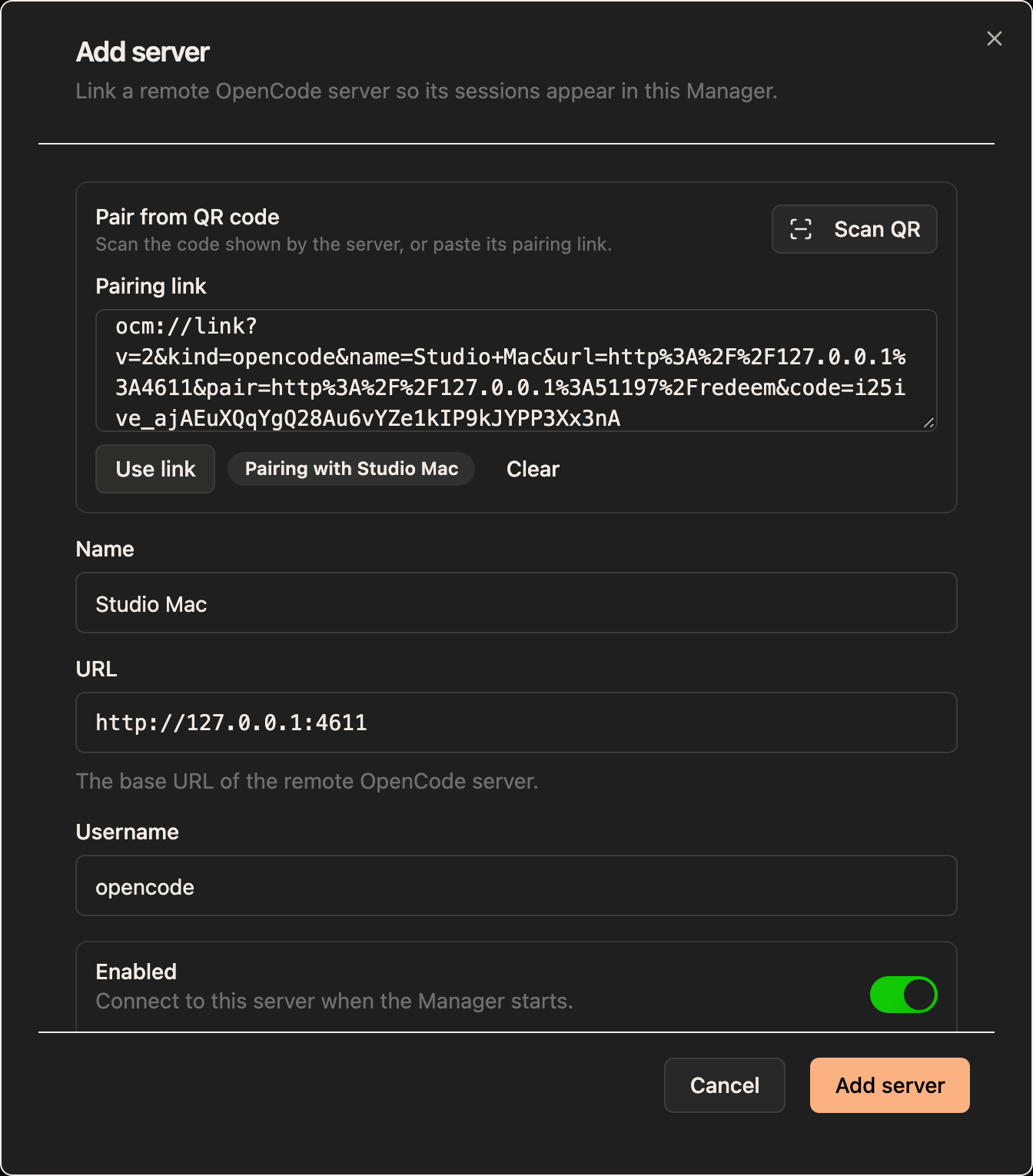
Saving a paired server redeems the one-time pairing code through the Manager. The password is stored encrypted (AES-256-GCM, in the Manager's secrets table), responses only report whether a password is set, and the Manager adds Basic auth to each proxied request server-side. The browser never receives the credential.
Each saved server row shows its URL and username, whether a password is set, and whether it is disabled. Use the switch to enable or disable it, Test to probe it again, the pencil to edit it, and the trash button to delete it. Editing leaves the current password in place unless you type a new one or tick Clear stored password.
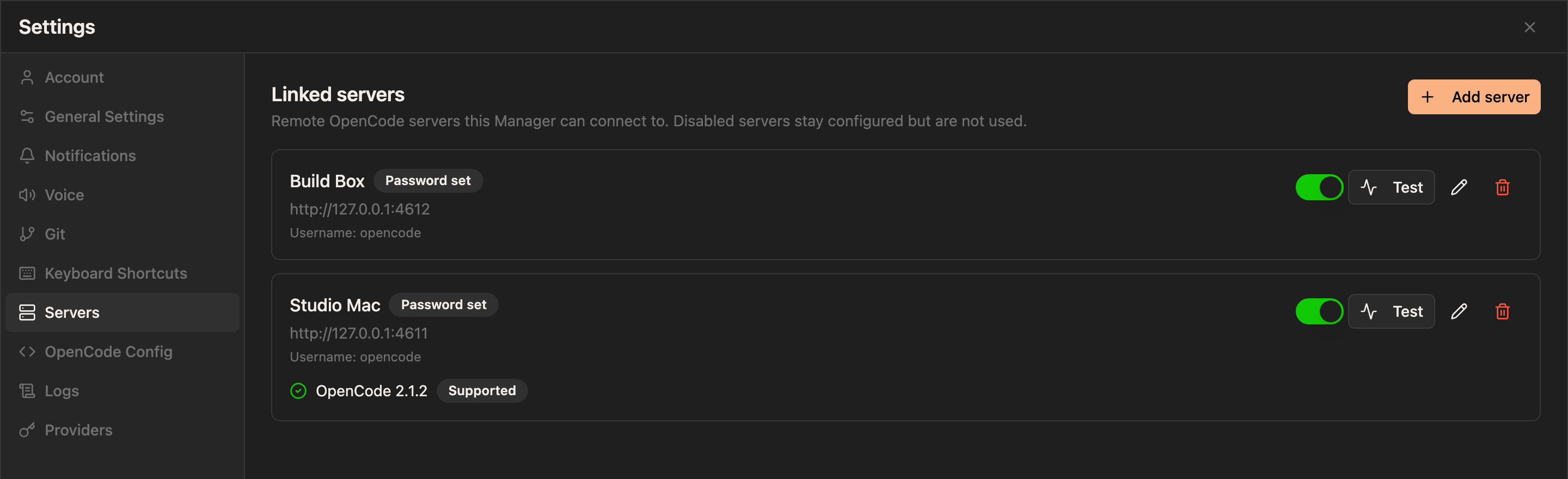
Deleting a server only removes it from the Manager. Its sessions and files stay on the remote machine.
Pairing with ocm link
On the machine that runs the OpenCode service (opencode serve --service), run:
ocm linkThe command detects the service and reuses its stored password, so no flags are needed. With an explicit password it looks like this:
OPENCODE_SERVER_PASSWORD=your-server-password ocm link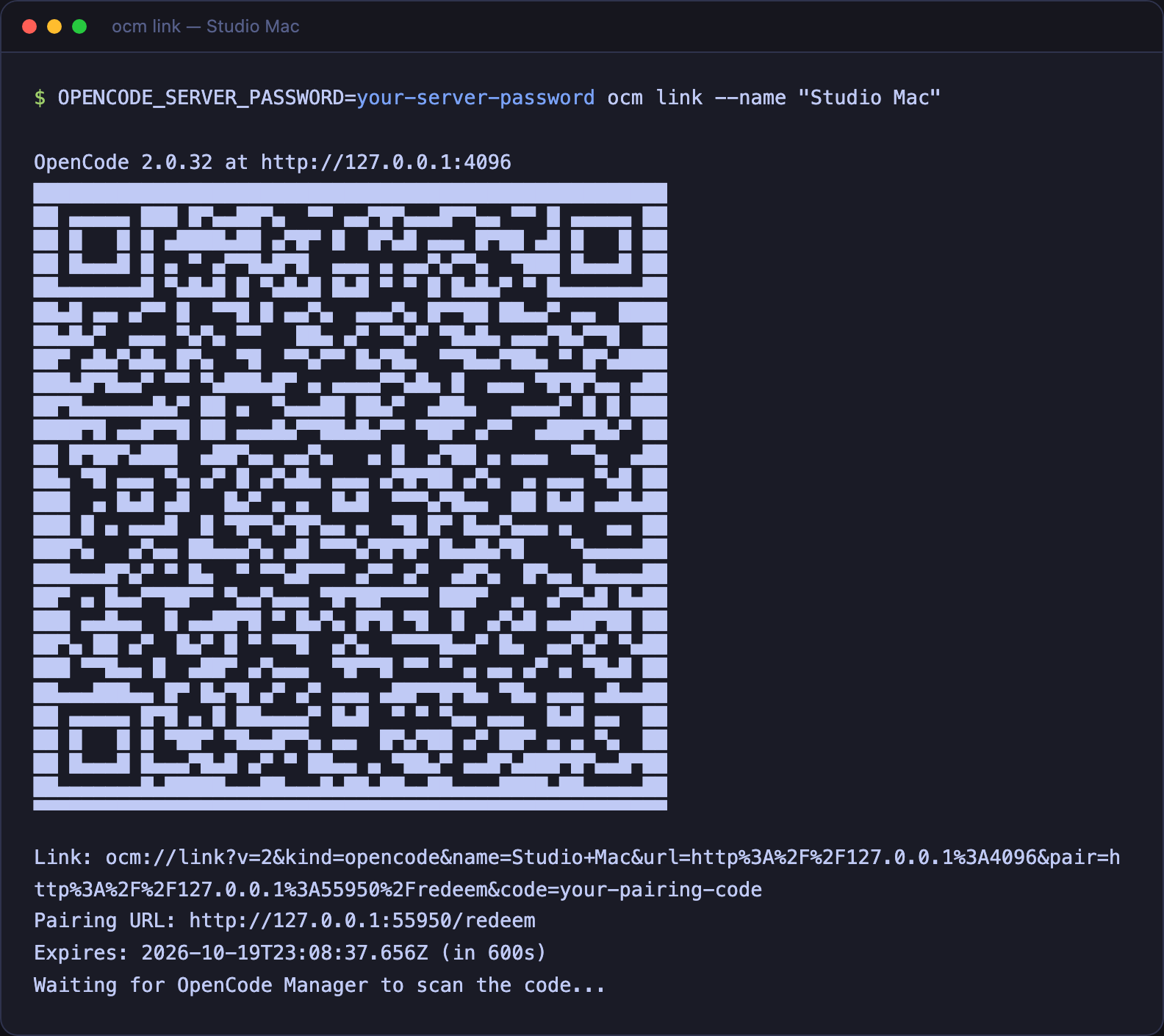
ocm link reads the service registration in $XDG_STATE_HOME/opencode/service.json, then the opencode service config in $XDG_CONFIG_HOME/opencode/service.json, which supplies the hostname (default 127.0.0.1), the port (default 49374, or 45278 on Windows), and the password. A wildcard host such as 0.0.0.0 is replaced with the machine's LAN IPv4 address, and a service that only listens on loopback gets a warning, because a remote Manager cannot reach it — run opencode service set hostname 0.0.0.0 to expose it.
An explicit --url or $OPENCODE_SERVER_URL skips that detection, so pass the password too:
OPENCODE_SERVER_PASSWORD=your-server-password ocm link --url http://192.168.1.20:4096The command checks GET /api/info, prints a terminal QR code and an ocm://link URL, and waits for the Manager to redeem it. Keep it running until the Manager finishes saving; it prints Linked and exits after a successful pairing.
| Flag | Default |
|---|---|
--url <url> | $OPENCODE_SERVER_URL, else the detected OpenCode service URL, else the first non-internal IPv4 address at port 4096; an explicit value skips service detection |
--password <pw> | $OPENCODE_SERVER_PASSWORD, else the detected OpenCode service password; an explicit URL needs one of the two |
--username <name> | $OPENCODE_SERVER_USERNAME, else opencode |
--name <name> | the machine hostname |
--pair-host <host> | the host of --url |
--pair-port <port> | 0 (an ephemeral port) |
--ttl <seconds> | 300 |
--no-qr | print only the link |
A wrong password stops the command with 401. An unreachable server only warns and still prints a code, so you can pair first and fix reachability later.
The pairing listener must be reachable from the Manager, not from your browser. It serves one POST /redeem, accepts a code for five minutes by default, and exits after three wrong attempts. Links use version v=2; a Manager that expects a different version rejects the link with a message to update one side.
Switching Servers
When at least one linked server is enabled, the sidebar shows a server switcher above Sessions:
- The trigger names the current server, OC Manager or the selected linked server, and shows its activity and, for a linked server, its connection dot.
- The menu lists OC Manager and every enabled linked server. Linked rows show a connection dot and the same running or needs-input indicator as a repository.
- A dot on the trigger flags activity on any server other than the selected one.
- In the collapsed desktop rail the switcher becomes a single icon.
- On mobile the same switcher sits in the sessions sheet, beside its search field.
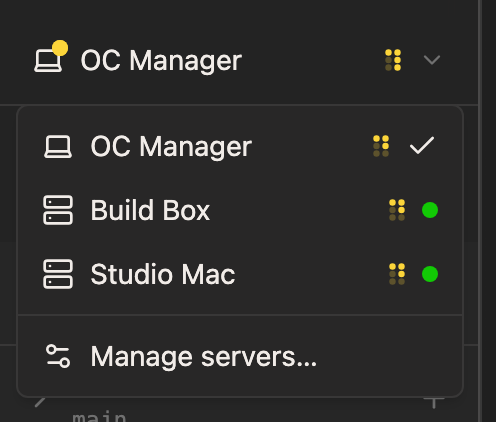
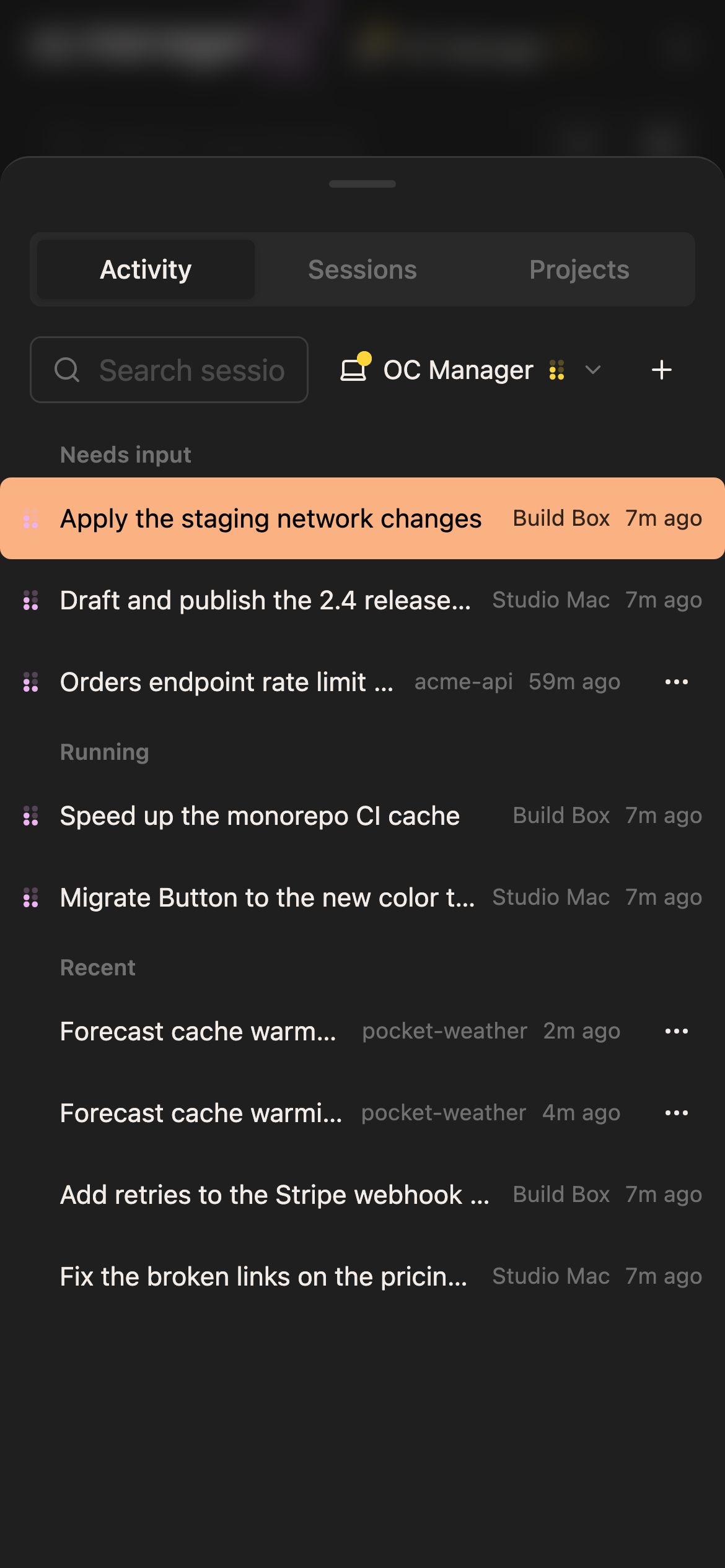
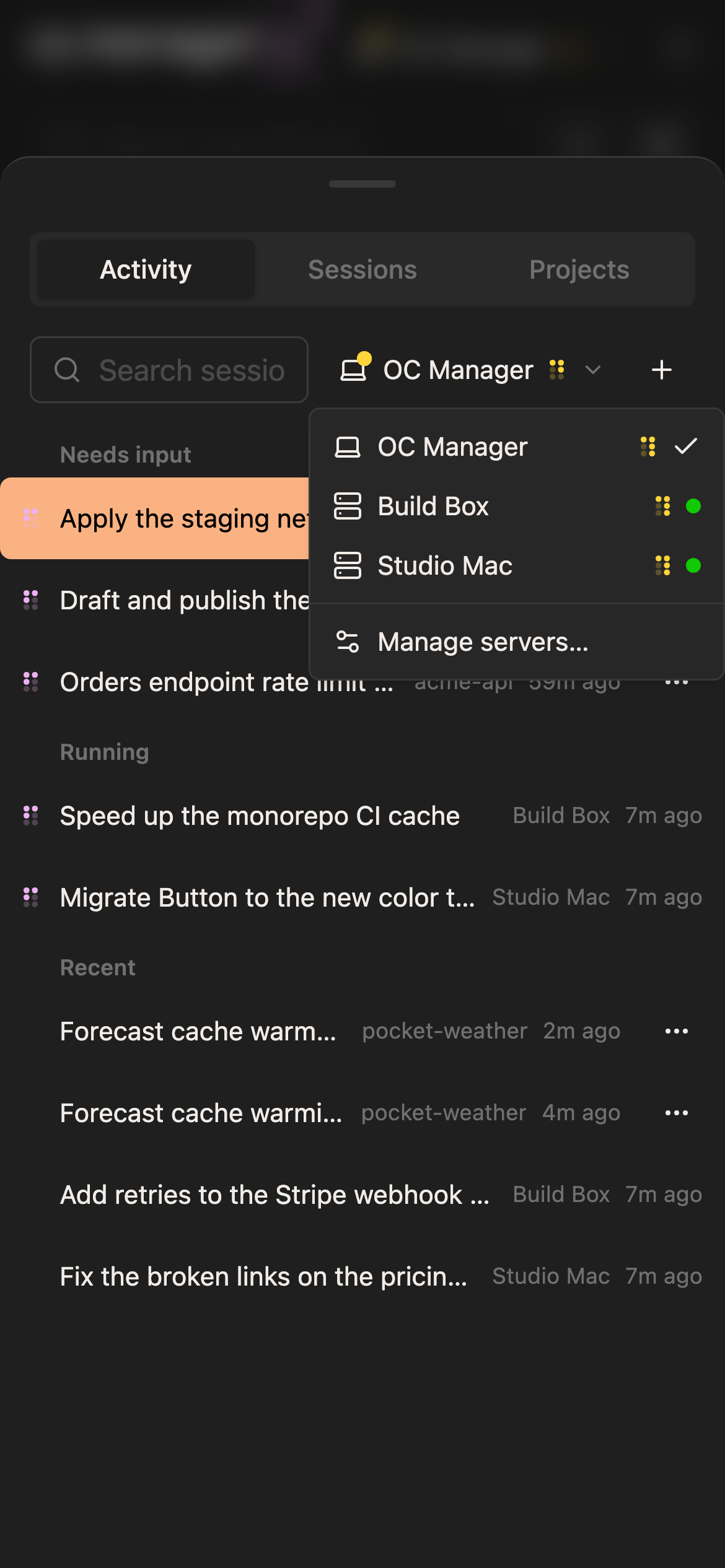
Selecting a server changes what the sidebar and the home page list; it does not navigate. Opening a local repository or the Assistant moves the selection back to OC Manager, and opening a linked-server project or session selects that server. A link to /servers/<id> selects that server and redirects to /, and a selected server that is deleted or disabled falls back to OC Manager in the switcher. Manage servers… opens Settings → Servers.
With a linked server selected, the sidebar lists its projects and recent sessions, and search stays inside that server.
Remote Projects and Sessions
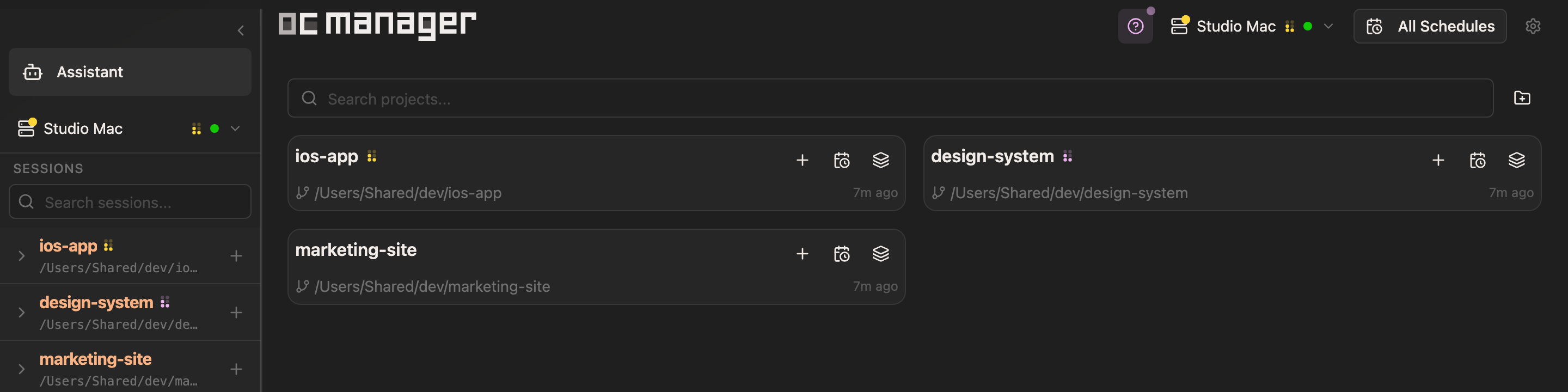
The home page follows the switcher. With a linked server selected, / lists that server's projects instead of local repositories, using the same cards, search, and row actions:
- Each card shows the project name, its directory, a git branch icon for a git project, a folder icon otherwise, its activity, and when the server last updated it.
- New session, Schedules, and Multi-run are inline icons on desktop and a ⋮ menu on mobile.
- The folder button beside the search field opens Open directory, which starts a session in any absolute path on that machine. It is the way to reach a directory the server does not list as a project yet.
- The header's server switcher shows the selected server's activity and connection dot, and its menu ends with Manage servers…. All Schedules is desktop-only, and Settings opens the settings dialog on every screen size.
- A server that is unreachable gets a card with the error and Retry; a server that is disabled or no longer configured gets a card that opens Settings → Servers.
On mobile the tab bar keeps Sessions, Assistant, Schedules, and More while a linked server is selected; Files stays on local routes.
Opening a project goes to /servers/<id>/projects?directory=<path>. The page shows the project's branch and linked server, its session list, and the same new-session, schedules, and multi-run actions. Its back button returns to /. On desktop the tool rail offers Sessions, MCP, Skills, Source Control, and Terminal; on mobile these open from the More drawer.
A remote session lives at /servers/<id>/sessions/<sessionId>. Its header names the linked server and directory, and its back button returns to that project page; on mobile, swiping back from the screen edge goes there too. Prompts, permission answers, forms, and session updates all go to the server that owns the session.
What Works on a Linked Server
- Chat & sessions — prompts, agent and model selection from the server's catalog, permissions, forms, session goals, permission modes, session picker, and the session keyboard shortcuts. Favorites, recents, and variants are shared with every other server; the picker only lists models in that server's catalog.
- Source Control — read-only Working changes and Branch changes with per-file diffs. See Remote source control.
- Terminal — terminals open on the linked machine and survive a page reload the same way local terminals do. See Terminal.
- MCP — list, connect, and disconnect the server's MCP servers for a directory.
- Skills — list the skills available to the server and load one into a session.
- Schedules — recurring jobs that run in place in a project directory.
- Multi-run — run one prompt across several models, isolated on the linked machine or shared in the project directory, and fuse the results.
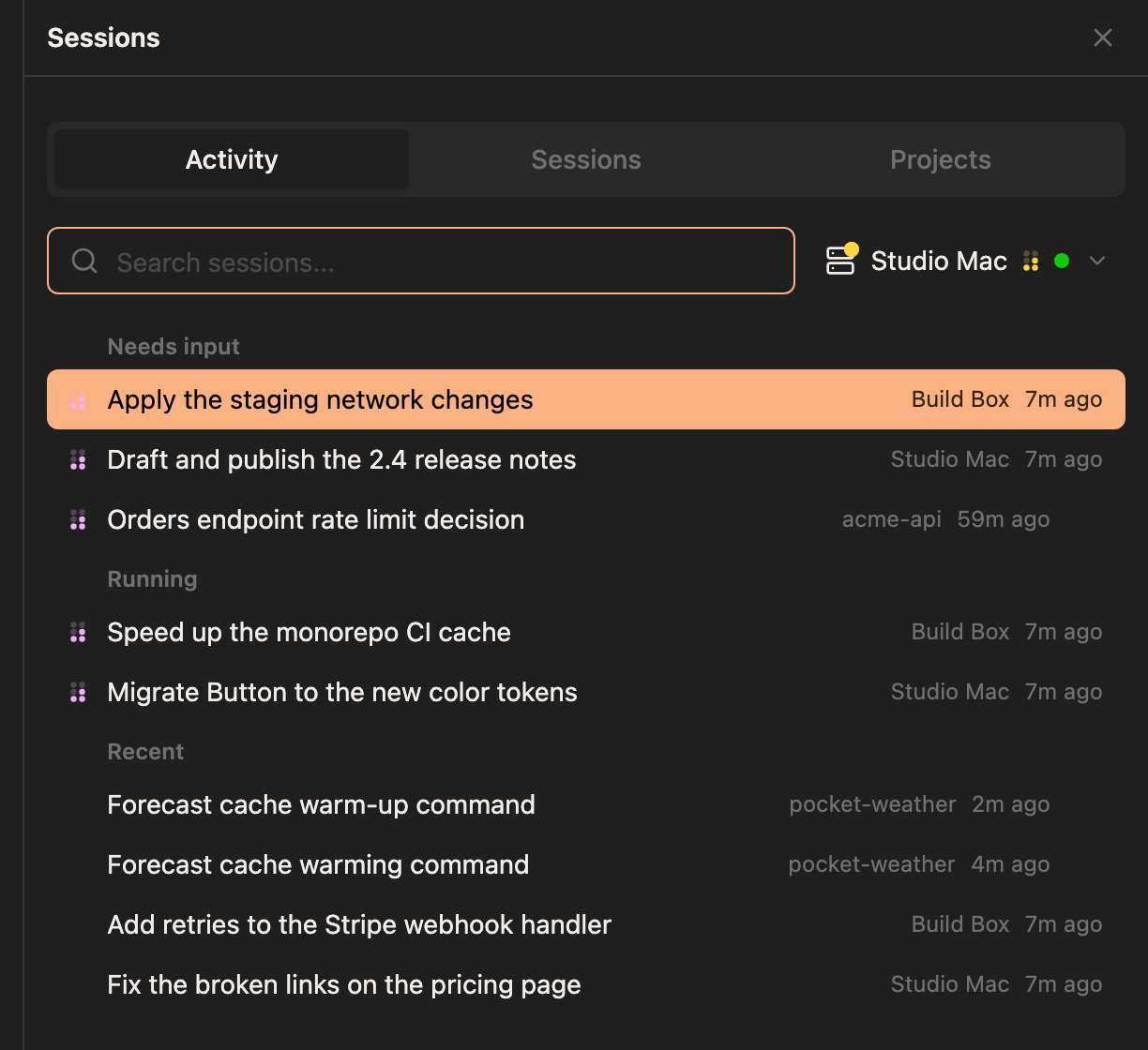
- Activity & notifications — activity lists sessions from every enabled linked server, and push notifications open the linked-server session with the server name.
What Stays Local
These Manager features still run only against the Manager's own server and local filesystem, and are hidden or unavailable on linked-server routes:
- Repository management: cloning, discovery, deletion, worktrees, and branch integration.
- The file browser and file editing.
- Preview.
- Project actions.
- Change walkthroughs.
- Agent sandboxing (and the per-session sandbox toggle).
- Schedule worktree workspace modes. Schedules on a linked server always run in place.
- MCP OAuth sign-in. Authorize an OAuth MCP server where the remote OpenCode runs.
- Skill installation, deletion, and the Manager's managed skill library.
- The Assistant workspace and its internal API.
- Reset Permissions for a repository.
Remote source control is read-only because OpenCode exposes status and diffs, not commit, stage, or push operations. Use a terminal on the linked server for those.
Related
- OpenCode Server Health — the Manager's own OpenCode server.
ocmCLI —ocm linkand the rest of the CLI.- Authentication — securing the Manager itself.