Mobile & PWA
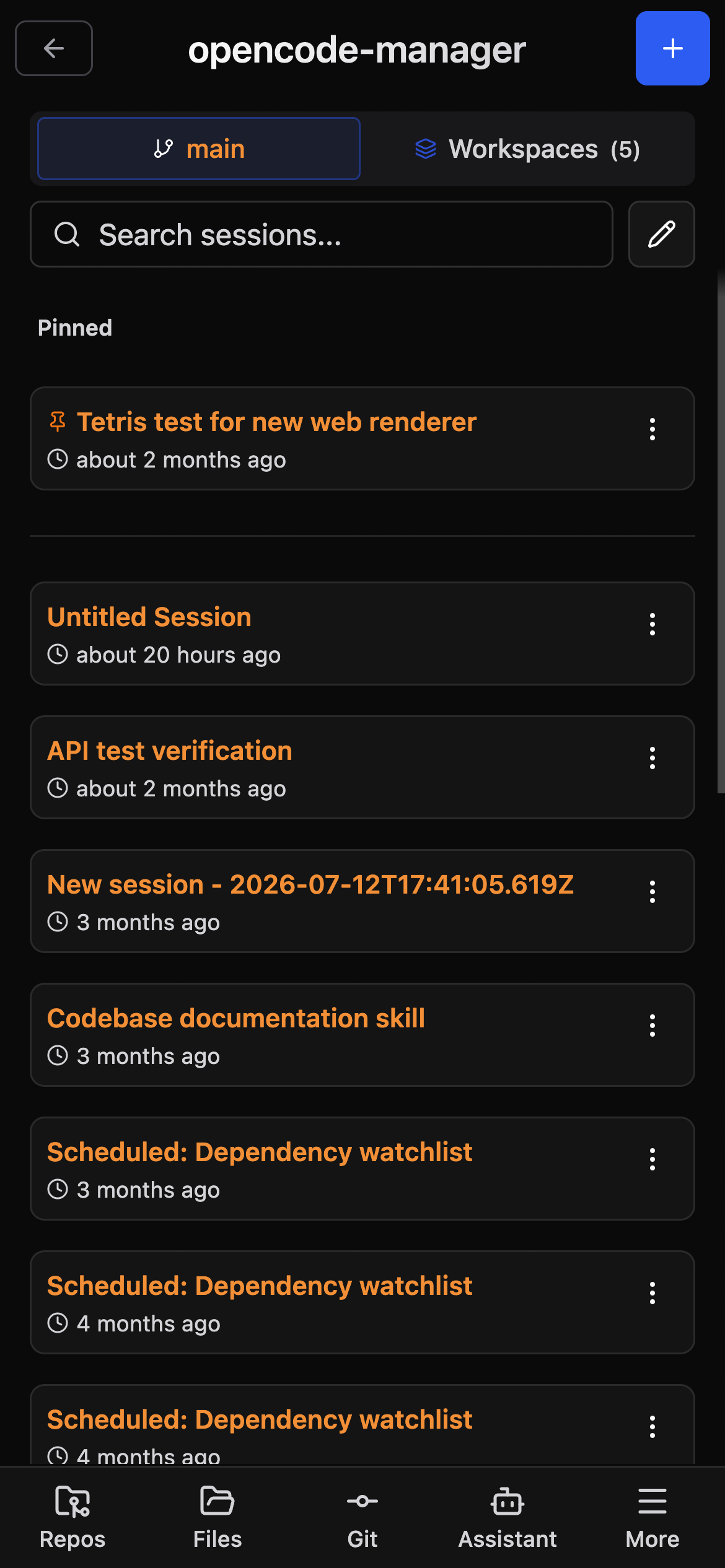
OpenCode Manager is designed mobile-first and works as a Progressive Web App.
Mobile-First Design
The UI is optimized for mobile devices:
- Touch-friendly controls
- Responsive layouts
- Adaptive components
- Gesture support
Installing as PWA
iOS
- Open OpenCode Manager in Safari
- Tap the Share button (square with arrow)
- Scroll down and tap Add to Home Screen
- Name the app and tap Add
Android
- Open OpenCode Manager in Chrome
- Tap the menu (three dots)
- Tap Install app or Add to Home Screen
- Confirm installation
Desktop
Chrome
- Look for the install icon in the address bar
- Click Install
- App opens in its own window
Edge
- Click the menu (three dots)
- Select Apps > Install this site as an app
- Name and install
PWA Features
App Shell Caching
Static assets are cached for faster loads:
- App shell (HTML, CSS, JS)
- Icons and images
- Fonts and static assets
Full functionality requires network connection to the backend.
Background Updates
The PWA updates automatically:
- New versions download in background
- Prompt to refresh when ready
- No manual update needed
Native-Like Experience
- Runs in its own window
- No browser chrome
- App icon on home screen
- Task switcher integration
Mobile Keyboard
iOS Keyboard Handling
Special handling for iOS virtual keyboard:
- Input field stays above keyboard
- Viewport adjusts automatically
- No content hidden behind keyboard
Enter Key Behavior
On mobile, pressing Enter:
- Closes the virtual keyboard
- Sends the message
Use Shift+Enter for new lines.
Keyboard Shortcuts
Mobile keyboards have limited shortcut support. Type directly in the composer:
- Type @ to mention files
- Type / to access commands
- Toggle Plan/Build modes with the mode selector
- Use the composer + menu to accept all permissions, arm goal mode, or attach an image or PDF
Swipe Navigation
Navigate with gestures:
Swipe Right
Swipe from the left edge to go back to the previous view, wherever a back target exists.
Swipe Left
On a session route, swipe from the right edge to open the More drawer.
Swipe Requirements
- Start from the left edge (first 30px) to go back
- Swipe at least 80px right
Touch Optimizations
Larger Touch Targets
All interactive elements have minimum 44x44px touch targets for easy tapping.
Row Actions
Per-item actions are available without a context menu:
- Files: open the ⋯ menu on a row for download, rename, and delete
- Messages: use the copy button on a message block
- Sessions: swipe a session left to reveal delete, or use manage mode to delete several