Chat & Sessions
Real-time chat interface for interacting with AI agents.
Real-time Streaming
Messages stream in real-time using Server-Sent Events (SSE):
- See responses as they're generated
- No waiting for complete responses
- Can interrupt generation if needed
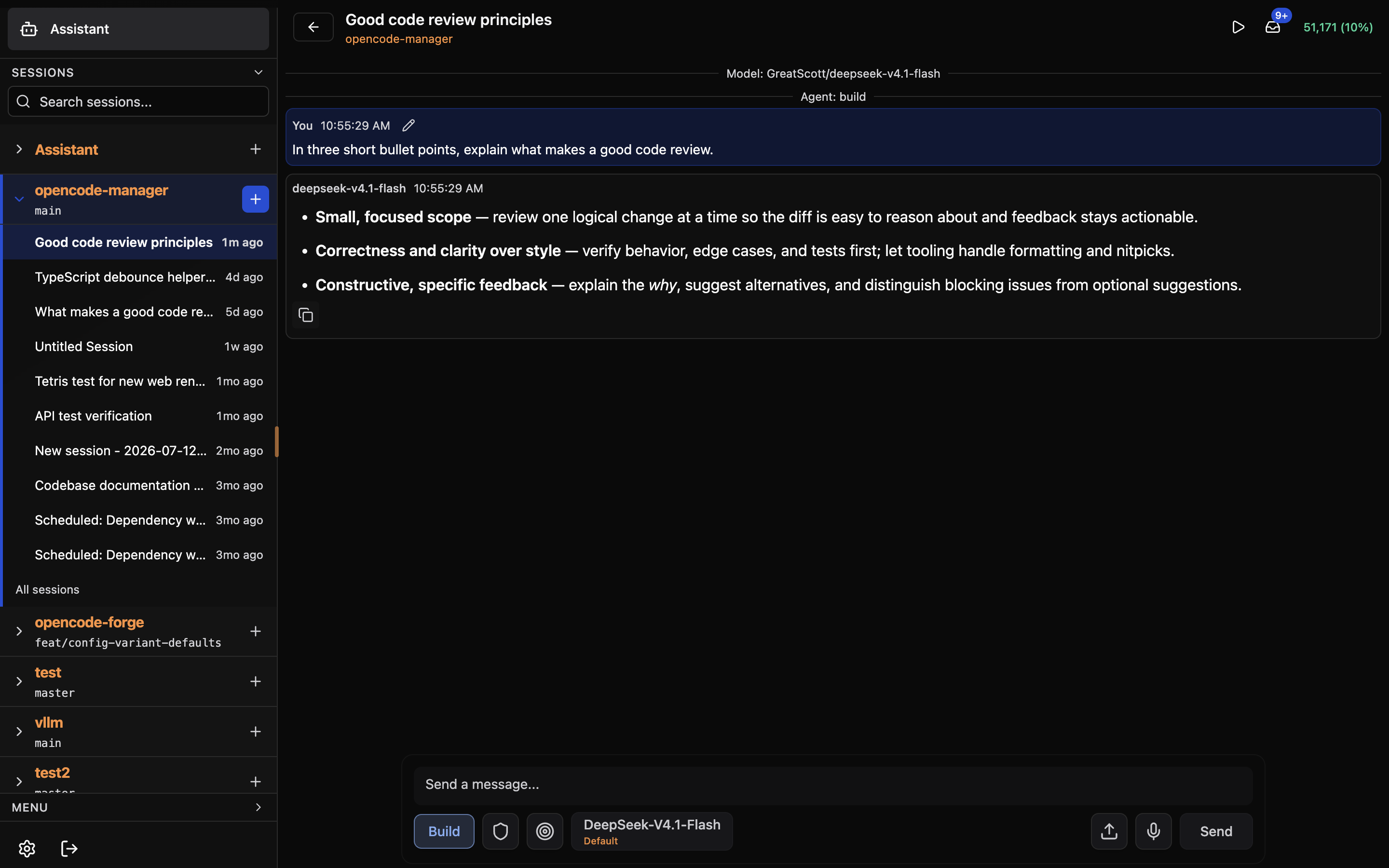
Background Work
While a shell command or subagent is running, Move to background above the prompt lets it keep running while the session continues. The background tasks bar lists each background shell and subagent with its status:
- running - still working
- completed / failed - finished, using the shell exit code or the subagent outcome
- killed - you stopped the shell from the bar
- interrupted - the subagent was interrupted
- unavailable - OpenCode no longer knows the shell and the session has no completion notice for it
Shell rows can show live output and be killed; subagent rows open the child session. Statuses are reconciled when the connection returns, so work that finished while you were away is shown as finished. After a page reload, a shell you killed is shown as failed, which matches OpenCode's own notice for it.
Model Selection
Click the model name in the chat prompt area to open the quick model switcher, where you can switch models, mark favorites, and pick variants without leaving the chat. Switching agents applies that agent's configured model. See AI Configuration for the full reference.
Slash Commands
Type / to see available commands. Built-in commands are covered in the Quick Start. OpenCode's own commands, such as /init and /review, appear in the same list.
The fork keyboard shortcut opens the same message picker as /fork.
Custom Commands
Create your own commands in Settings → OpenCode Config → Commands:
name: review
description: Request a code review
template: |
  Please review the following code for:
  - Security vulnerabilities
  - Performance issues
  - Best practices
  - Code style

  {{selection}}
Use with /review in chat. A custom command with the same name as a built-in command replaces the built-in.
File Mentions
Reference files and folders in prompts with @. Type @, start typing a name, and select from the autocomplete dropdown; the AI then has access to that file's contents.
Multiple Files
You can mention multiple files in one message:
@src/components/Button.tsx @src/styles/button.css
Can you refactor the Button component to use CSS modules?
Folder Mentions
Mention entire folders to include all files:
@src/utils/
Review all utility functions for consistency
Plan/Build Mode
Toggle between two operational modes:
Plan Mode (Read-Only)
- AI can read and analyze files
- AI cannot modify, create, or delete files
- Safe for exploration and planning
Build Mode (Full Access)
- AI can create new files
- AI can edit existing files
- AI can delete files
- Use for implementation tasks
Toggle modes using the mode selector in the composer toolbar.
Permission modes
Control who answers OpenCode permission requests for a session. The shield button in the composer toggles between two modes:
- Ask every time (default) - each permission request waits for you in the permission dialog.
- Accept everything - every "ask" request is answered automatically.
The mode is owned by the backend, so a session in Accept everything keeps working while the browser is closed. Accept everything answers each request once and never saves a permanent rule, and it never overrides a deny rule. When you switch a session to Accept everything, requests already waiting are answered immediately.
Child sessions inherit the mode of their root session and cannot change it, and the composer toggle is disabled for them with an explanation. A session forked from another starts with the source session's mode, except that forks of scheduled runs stay Ask every time.
Sessions started by a scheduled run always use their schedule's own permission configuration; the composer toggle is disabled there with an explanation. Sessions created or forked by an agent through the ocm tool always start in Ask every time, regardless of the default, though an agent can still send follow-ups to a session you switched to Accept everything.
If Manager restarts or loses its connection to OpenCode, permission requests already waiting in Accept everything sessions are answered when it reconnects.
To change the default for new sessions, go to Settings → General → Sessions and pick a Default permission mode for new sessions. The default is stamped onto a session when it is created, so changing it only affects sessions created afterwards, never existing ones.
Auto-accepted requests send no push notification, so you are not alerted for a request the session answered itself.
Session goals
A goal keeps a session working on an objective until an auditor model decides it is done or blocked, without you sending follow-up messages.
Arm goal mode with the target button in the composer, then send your message. That message becomes the goal objective, and it is sent to the session as usual. Goals cannot be started on scheduled-run sessions or subagent (child) sessions, and the goal button is disabled there. If you arm a goal and send while the agent is still responding, the message is queued and the goal starts; auditing begins after that queued turn. While a goal is active, each time the session goes idle the auditor decides the next step:
- done - the objective is verifiably achieved, and the goal completes.
- blocked - the agent needs a decision or access it cannot obtain. Three consecutive blocked verdicts stop the goal as blocked.
- continue - the agent keeps working toward the objective.
The auditor only sees the objective and the agent's latest reply; it cannot run tools or read files. Automatic continuations are capped by Max automatic continuations, and you can also set a Token budget per goal to stop a goal once it has spent that many tokens. A failed turn stops the goal, an interrupted turn pauses it, and deleting the session stops it.
The goal is persisted and driven by the backend, so it survives closing the browser and a Manager restart: an active goal resumes auditing once the session is idle again.
A status bar above the message list shows the goal state, the turn count, token usage, and the latest reason, with Pause (or Resume), Cancel, and Dismiss actions.
Goal settings live in Settings → General → Sessions:
- Goal auditor model - the model that decides whether the goal is done, as
provider/model. Leave empty to use the OpenCode default model. - Max automatic continuations - how many times a goal may continue before it stops (1-200, default 20).
- Token budget per goal - stop once the goal has spent this many tokens. Empty means no limit.
Mermaid Diagrams
AI responses can include Mermaid diagrams that render automatically:
graph TD
    A[User Request] --> B[AI Processing]
    B --> C{Valid?}
    C -->|Yes| D[Execute]
    C -->|No| E[Error Response]
    D --> F[Return Result]
Supported diagram types:
- Flowcharts
- Sequence diagrams
- Class diagrams
- State diagrams
- Entity-relationship diagrams
- Gantt charts
- And more...
Session Management
Viewing Sessions
Access your sessions from the sidebar:
- Sessions are organized by repository; the current repository is expanded and one repository is open at a time
- Pinned sessions appear first, followed by the most recent sessions
- A live indicator marks sessions that are working, retrying, or compacting
- All sessions opens the repository's full session list when it has more sessions than the sidebar shows
- Repositories that are still cloning, or whose clone failed, show Repository not ready until they are ready
- On desktop, type in the sidebar search box and press Enter to search sessions across all repositories; press Escape to clear
- Click a session to resume
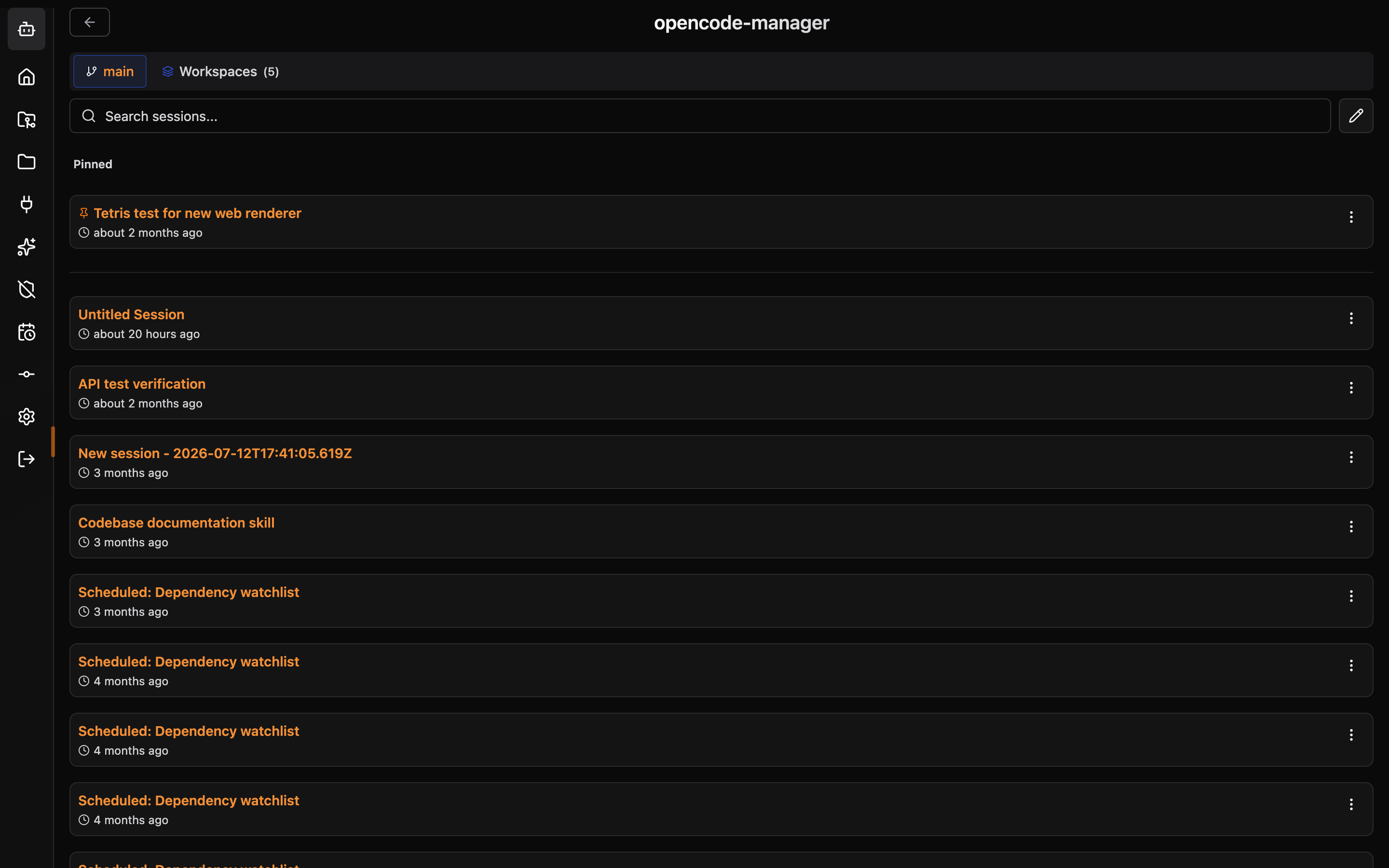
Searching Sessions
Find sessions by title:
- Type in the always-visible Search sessions... box in the sessions panel
- Results filter as you type
Pinning Sessions
Pin important sessions to the top of the list. See Session Pinning for details.
Deleting Sessions
Remove sessions you no longer need:
- Swipe a session left to reveal the delete button, then tap it
- Or click the Manage sessions icon and use the trash button on a session
- Confirm deletion
Bulk Delete
Remove multiple sessions at once:
- Click the Manage sessions icon in the sessions panel
- Check the sessions to delete
- Click Delete
- Confirm deletion
Context Management
Sessions maintain context of your conversation. As context grows, you may need to manage it:
Compacting Context
Use /compact to reduce context size:
- Summarizes earlier messages
- Preserves important information
- Frees up context for new messages
Starting Fresh
Use /new to start a new session when:
- Context is too large
- Topic has changed significantly
- You want a clean slate
Keyboard Shortcuts
| Shortcut | Action |
|---|---|
/ | Open command menu |
@ | Open file mention menu |
Escape | Close autocomplete menus |
To edit a message, use the edit action on the last user message while the session is idle.