Push Notifications
Send background notifications when the OpenCode Manager PWA is closed, keeping you informed of agent activity without keeping the app open.
Overview
Push notifications allow you to receive alerts on your mobile device or desktop when:
- The agent needs permission to continue (file operations, tool use, etc.)
- The agent has a question for you (clarifications, confirmations)
- A session encounters an error during execution
- A session completes successfully
A notification is suppressed when a visible tab is already viewing the session that raised it, preventing duplicate alerts while you're actively monitoring that session. Subagent sessions never notify. A permission request that a session answers automatically (Accept everything mode) sends no notification. Goal outcome pushes are not sent when you paused or cancelled the goal yourself, when the turn failed (the regular error notification covers it), or while you are viewing the session.
Supported Events
| Event | Description | Default |
|---|---|---|
permissionAsked | Agent requests permission for an action | Enabled |
questionAsked | Agent asks a clarifying question | Enabled |
sessionError | Session encounters an error | Enabled |
sessionIdle | Session completes successfully | Disabled |
goalOutcome | A session goal completes, is blocked, stops, or pauses | Enabled |
Content and Click Behaviour
The title is the action (Run Command, Edit File, Question, Error, Session complete) and the body is <repo> · <detail>, for example oc-manager · pnpm test. Bodies are truncated to 140 characters. Permission and question notifications stay on screen until dismissed; every notification carries the event timestamp and re-alerts when a newer event for the same session replaces it.
Clicking a notification opens the session that raised it (/repos/<id>/sessions/<sessionId>). The exception is a Session complete or Session error event for a session started by a scheduled run: those open the run's report (/schedules?scheduleTab=runs&runId=<runId>) instead, landing on the run history rather than the raw session. The service worker prefers a tab already showing that session, then the focused tab, then any visible tab, and only that one tab navigates; with no tab open a new window is opened. Sessions running in OpenCode worktrees or opencode-forge loop worktrees resolve to their parent repository through the shared OpenCode project id, and Assistant sessions open with the assistant=1 parameter the Assistant view requires.
Browser Compatibility
Push notifications require HTTPS (except on localhost) and browser support:
| Browser | Support | Notes |
|---|---|---|
| Chrome/Edge | ✅ Full | Works well |
| Firefox | ✅ Full | Works well |
| Safari (iOS/macOS) | ✅ Full | Requires mailto: VAPID subject |
| Android browser | ✅ Full | Works well |
iOS/Safari Requirements
Apple's Push Notification Service (APNs) has strict requirements:
- HTTPS is required -
localhosttesting requires Safari Dev Tools - VAPID_SUBJECT must use
mailto:format -https://subjects are rejected
Correct: VAPID_SUBJECT=mailto:you@yourdomain.com
Incorrect: VAPID_SUBJECT=https://yourdomain.com
Setup
1. Generate VAPID Keys
Generate VAPID public/private key pair:
pnpm dlx web-push generate-vapid-keysOutput:
=======================================
Public Key:
BMx-123456... (your public key here)

Private Key:
abcd1234... (your private key here)

Subject:
mailto:your-email@example.com
=======================================
2. Configure Environment Variables
Add to your .env file:
VAPID_PUBLIC_KEY=BMx-123456...
VAPID_PRIVATE_KEY=abcd1234...
VAPID_SUBJECT=mailto:you@yourdomain.com
3. Subscribe Devices
- Open OpenCode Manager in your browser
- Go to Settings → Notifications
- Click Enable Push Notifications
- Allow browser permission when prompted
- Your device is now subscribed
Managing Subscriptions
View Subscribed Devices
Navigate to Settings → Notifications to see all registered devices:
- Device name, or a truncated endpoint when the device has no name
- One relative timestamp: when it was last used, or when it was added if it has never been used
Remove a Device
Click the trash icon next to a device to remove it from receiving notifications.
Test Notifications
Go to Settings → Notifications and click Send Test Notification to verify your setup is working.
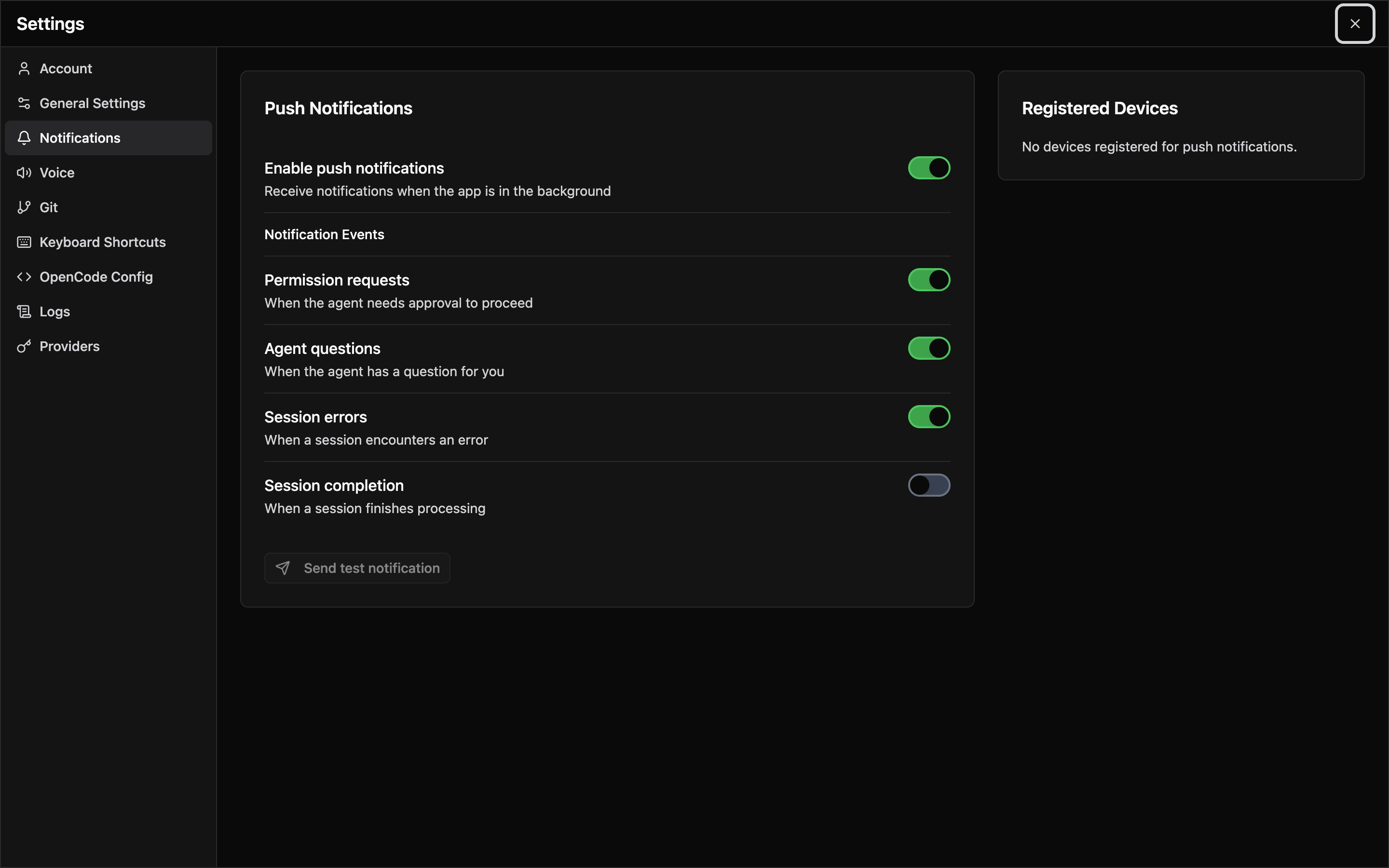
Notification Preferences
Control which events trigger notifications:
Notification Settings:
- Enable Push Notifications - Master toggle (default: off)
- Permission requests - Get notified when agent needs permission (default: on)
- Agent questions - Get notified when agent has a question (default: on)
- Session errors - Get notified on session errors (default: on)
- Session completion - Get notified when session finishes (default: off)
- Goal outcomes - Get notified when a session goal completes, is blocked, stops, or pauses (default: on)