File Browser
Navigate, view, and manage files within your repositories.
Directory Navigation
Tree View
The file browser displays your repository as an expandable tree:
- Click folders to expand/collapse
- Click files to preview content
- Icons indicate file types
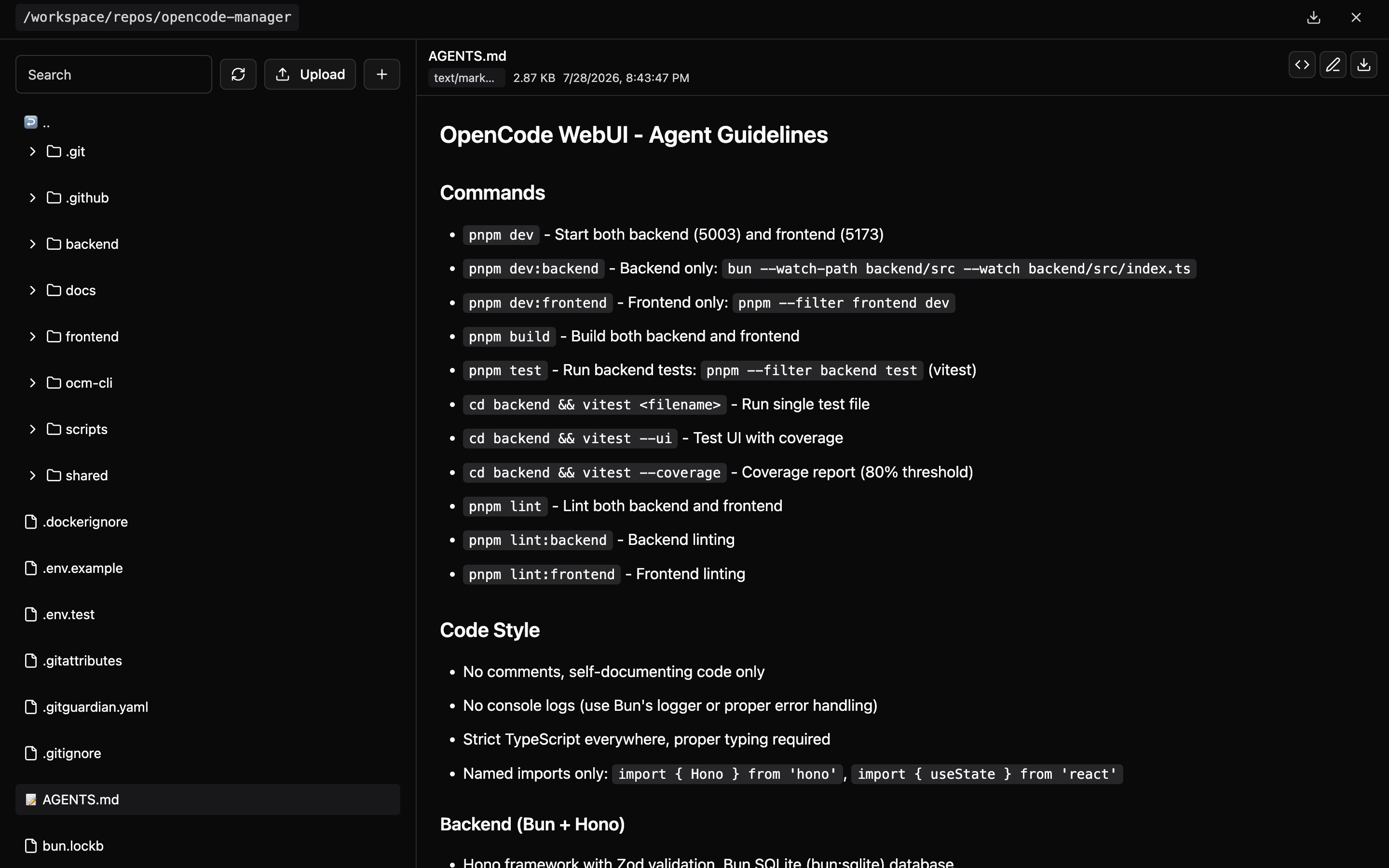
Breadcrumbs
Navigate quickly using the breadcrumb path at the top:
- Click any segment to jump to that directory
- Shows current location in the file tree
Search
Filter files by name:
- Type in the always-visible Search box
- Results update as you type
File Preview
Click any file to preview with:
- Syntax Highlighting - Support for common languages
- Line Numbers - Easy reference for code discussions
- Large File Support - Virtualization for files with many lines
Supported Languages
Syntax highlighting is provided for common languages including:
- JavaScript, TypeScript, JSX, TSX
- Python, Ruby, Go, Rust
- HTML, CSS, SCSS
- JSON, YAML, TOML, XML
- Markdown, SQL, Shell scripts
- And many more...
File Operations
Create File
- Click the + button in the file browser toolbar
- In the Create New dialog, choose File
- Enter a filename with extension
- Click Create; the list refreshes with the new file
Create Folder
- Click the + button in the file browser toolbar
- In the Create New dialog, choose Folder
- Enter a folder name
- Click Create; the folder is created in the current directory
Rename
- Click the rename action on a file or folder
- Enter new name
- Press Enter to confirm
Delete
- Click the delete action on a file or folder
- Confirm deletion
File Upload
Drag and Drop
Upload files by dragging them into the browser:
- Open the target folder
- Drag files from your computer
- Drop into the file browser area
- Files are uploaded to current directory
Multiple Files
You can drag multiple files at once. They'll all be uploaded to the current directory.
Upload Limitations
- Large files may take time to upload
- Binary files are supported
- File permissions are set by the server
ZIP Download
Download directories or repositories as ZIP archives directly from the file browser:
Download Options
Click the download icon in the file browser header to access download options:
Current Directory
- Downloads the folder you're currently viewing
- Includes all subfolders and files
- Useful for archiving specific parts of a project
Entire Repository
- Downloads the complete repository
- Same as the download button on repository cards
- Perfect for full repository backups
Download Process
Both download options follow the same process:
- Click the download icon in the file browser header
- Choose Current Directory or Entire Repository
- Review the confirmation dialog showing what will be downloaded
- Click Download to begin
- Wait while the ZIP archive is created (progress indicator shown)
- ZIP automatically downloads to your computer
Archive Features
The ZIP archives:
- Respects
.gitignore- ignored files are excluded - Excludes
.gitdirectory - Uses compression to reduce file size
- Includes proper file permissions
- Preserves directory structure
Large File Handling
For files with many lines, the viewer uses virtualization:
- Only visible lines are rendered
- Smooth scrolling through large files
- Memory-efficient display