Source: https://opencodemanager.app/docs
# OpenCode Manager
Mobile-first web interface for [OpenCode](https://opencode.ai) AI agents. Manage, control, and code from any device - your phone, tablet, or desktop.
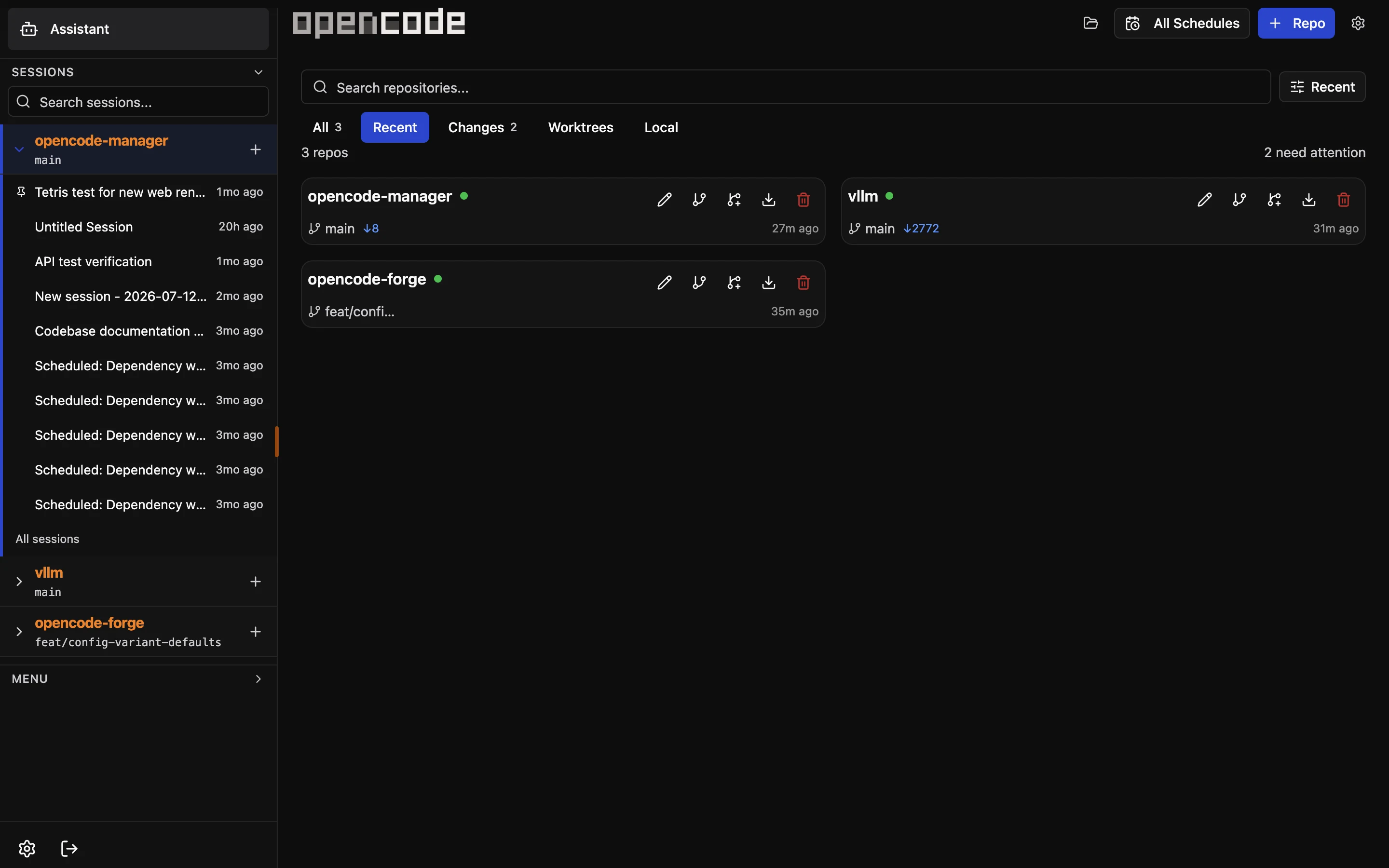
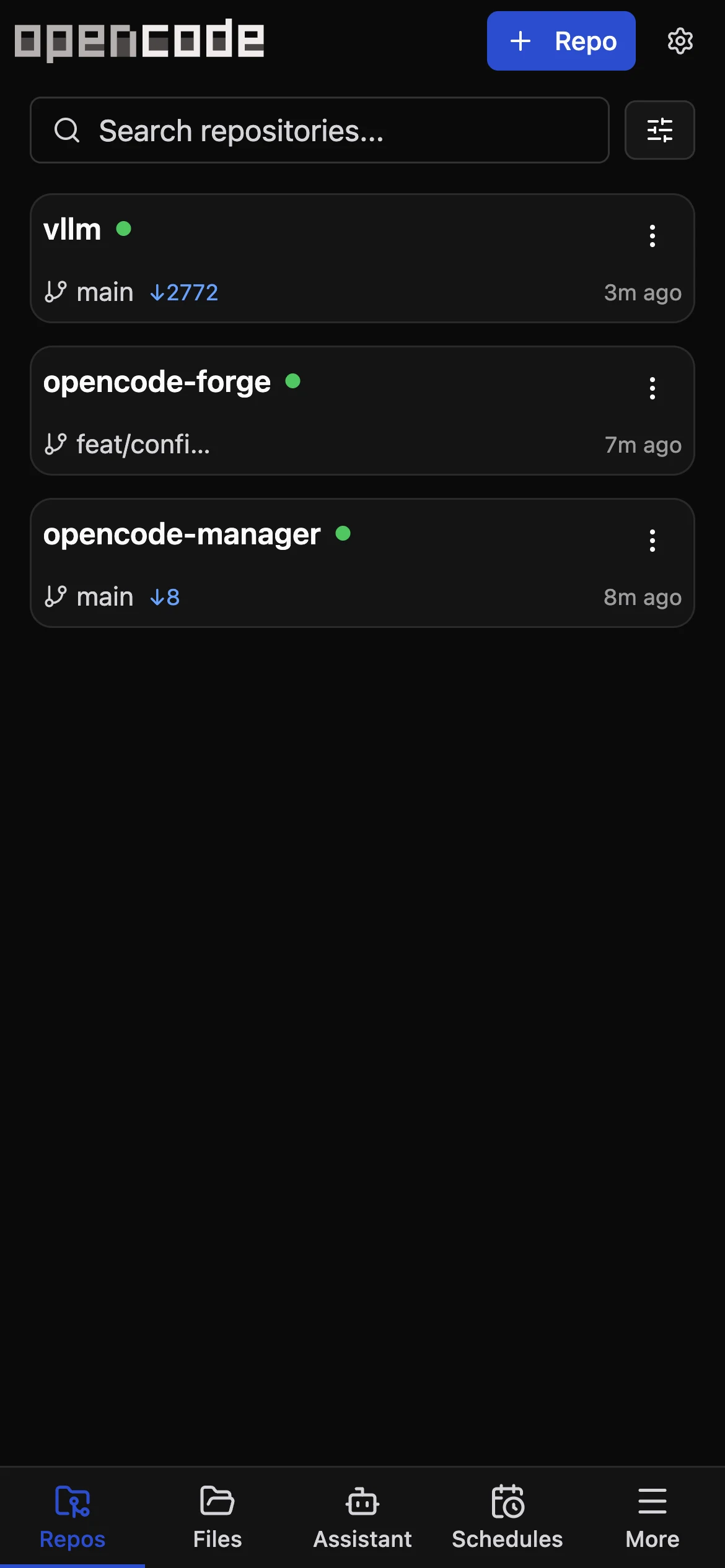
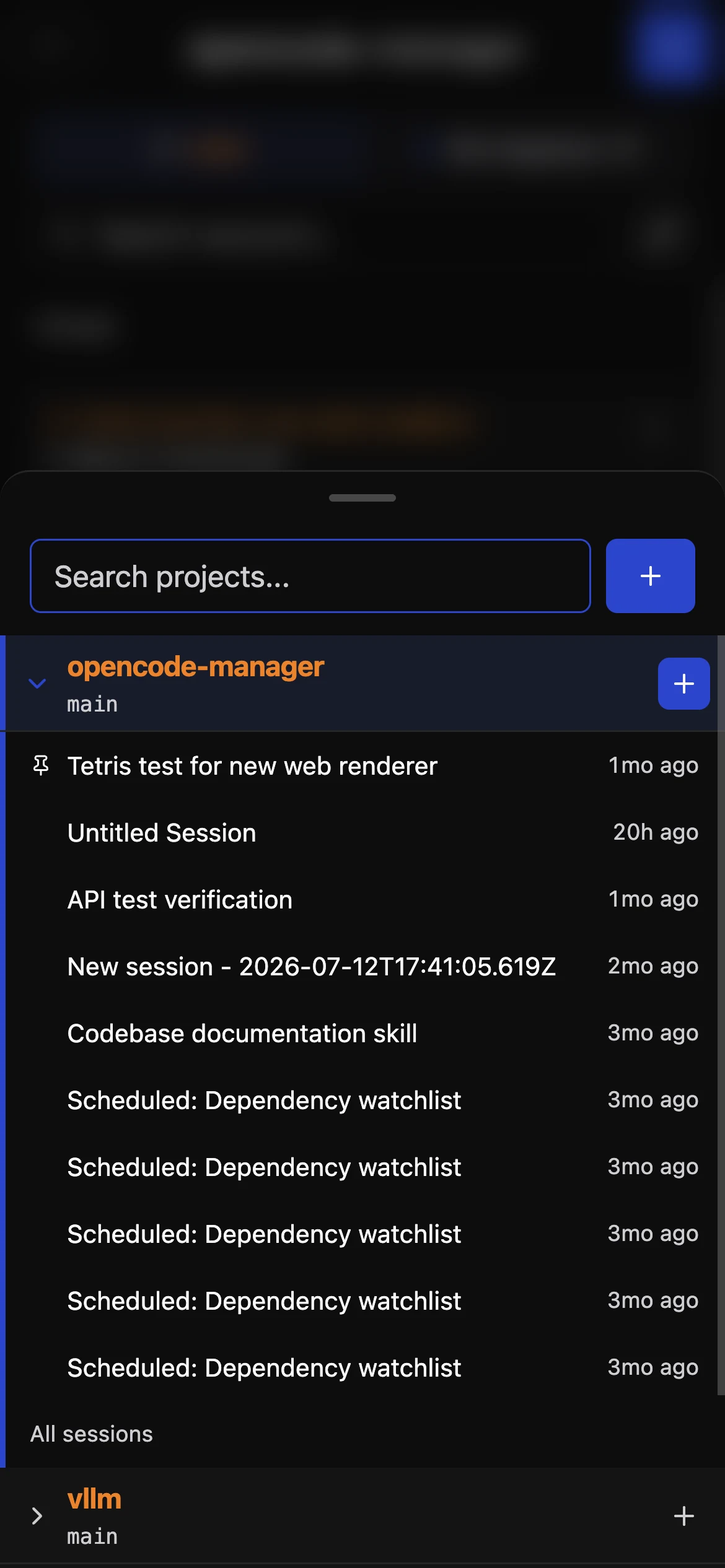
:::warning[Requires OpenCode 2]
OpenCode Manager requires **OpenCode 2.x at 2.1.2 or newer** (bundled 2.1.2); OpenCode 1.x is not supported. Upgrading from 1.x? See the [v1 → v2 migration guide](https://opencode.ai/v2/docs/migrate-v1).
:::
:::tip[Using an AI agent?]
Point it at [llms.txt](https://opencodemanager.app/llms.txt) for a compact map of these docs, or [llms-full.txt](https://opencodemanager.app/llms-full.txt) for every page in one file.
:::
## Quick Start
Requires Docker with Compose v2.
```bash
curl -fsSL https://opencodemanager.app/install | sh
```
Open [http://localhost:5003](http://localhost:5003) and create your admin account. That's it! See [Installation](https://opencodemanager.app/docs/getting-started/installation) for what the installer asks and for running Docker Compose yourself.
## What is OpenCode Manager?
OpenCode Manager is a mobile-first web interface for [OpenCode](https://opencode.ai) AI agents. It combines repository management, chat/session control, Git and file tools, schedules, AI configuration, MCP server management, push notifications, and full PWA support into a single responsive application.
- **Repository management** — Clone, discover, and manage multiple Git repos with SSH authentication and worktree support
- **Chat & sessions** — Real-time SSE streaming with slash commands, `@file` mentions, Plan/Build modes, and agent switching with configured models
- **Multi-run & goals** — Send one prompt to up to 5 models and fuse the results in a new worktree; set session goals and permission modes
- **Schedules** — Recurring repo jobs on cron or interval in fresh, kept, or shared worktrees, with reusable prompts, attached MCP servers, run history, and linked sessions
- **AI configuration** — Model/provider setup, OAuth for Anthropic/GitHub Copilot, custom agents
- **MCP & Skills** — MCP server management and skill support
- **Audio** — Text-to-speech and speech-to-text (browser + OpenAI-compatible)
- **Mobile & notifications** — Installable PWA with push notifications and mobile-first navigation
## How It Works
OpenCode Manager runs as a pnpm workspace:
- The Bun/Hono backend initializes SQLite, Better Auth, settings, schedules, notifications, and an OpenCode client.
- A supervised OpenCode server handles agent sessions while the backend proxies API calls and streams events over SSE.
- The React/Vite frontend uses React Router and TanStack Query to render repositories, sessions, schedules, settings, and mobile navigation.
- The shared package keeps config, schemas, and TypeScript types aligned between backend and frontend.
- The `ocm-cli/` package provides the `ocm` CLI that attaches a local OpenCode TUI to a Manager-hosted repo.
## Key Features
- **Repositories & Git** — Multi-repo management, local discovery, SSH auth, worktrees, unified diffs, branch/commit management — [Learn more](https://opencodemanager.app/docs/features/git)
- **Chat & Sessions** — Real-time SSE streaming, slash commands, `@file` mentions, Plan/Build modes, Mermaid diagrams — [Learn more](https://opencodemanager.app/docs/features/chat)
- **Files** — Directory browser with tree view, syntax highlighting, create/rename/delete, ZIP download — [Learn more](https://opencodemanager.app/docs/features/files)
- **Terminal & Dev Loop** — Repo terminals, project actions, and an authenticated dev-server preview — [Learn more](https://opencodemanager.app/docs/features/terminal)
- **Multi-run** — Send one prompt to up to 5 models, compare the runs, and fuse the best results in a new worktree — [Learn more](https://opencodemanager.app/docs/features/multi-run)
- **Session Goals & Permission Modes** — Give a session a goal it works toward and choose how it answers permission requests — [Learn more](https://opencodemanager.app/docs/features/chat#session-goals)
- **Schedules** — Recurring repo jobs on cron or interval in fresh, kept, or shared worktrees, with reusable prompts, attached MCP servers, run history, linked sessions — [Learn more](https://opencodemanager.app/docs/features/schedules)
- **Session Pinning** — Pin important sessions to the top of the session list — [Learn more](https://opencodemanager.app/docs/features/session-pins)
- **Assistant Mode** — Dedicated AI workspace with auto-provisioned skills for schedule management, notifications, settings, repo listing, and session management — [Learn more](https://opencodemanager.app/docs/features/assistant-mode)
- **AI Configuration** — Model/provider setup, OAuth for Anthropic/GitHub Copilot, custom agents — [Learn more](https://opencodemanager.app/docs/features/ai-config)
- **Server Health & Restart** — Monitor server status, graceful restarts with session resume, auto-recovery — [Learn more](https://opencodemanager.app/docs/features/server-health)
- **Manager Logs** — Manager log lines plus captured OpenCode server stdout/stderr in Settings, with level/source filters, search, and pause/copy controls — [Learn more](https://opencodemanager.app/docs/features/logs)
- **MCP Servers** — Add local or remote MCP servers with OAuth support — [Learn more](https://opencodemanager.app/docs/features/mcp)
- **Skills** — Skill support for extended agent capabilities — [Learn more](https://opencodemanager.app/docs/features/skills)
- **Agent Sandboxing** — Run agent shell commands inside an isolated microVM — [Learn more](https://opencodemanager.app/docs/features/sandboxing)
- **`ocm` CLI** — Attach your local OpenCode TUI to a Manager-hosted repo — [Learn more](https://opencodemanager.app/docs/ocm-cli)
- **Mobile & PWA** — Responsive UI, installable on any device, iOS-optimized — [Learn more](https://opencodemanager.app/docs/features/mobile)
- **Push Notifications** — Background alerts for agent events — [Learn more](https://opencodemanager.app/docs/features/notifications)
- **Audio** — Text-to-speech and speech-to-text (browser + OpenAI-compatible) — [Learn more](https://opencodemanager.app/docs/features/tts) | [Learn more](https://opencodemanager.app/docs/features/stt)
## Project Layout
- `backend/` — Bun + Hono API routes, services, database migrations, auth, schedules, and OpenCode integration.
- `frontend/` — React + Vite app, pages, components, hooks, API clients, stores, contexts, and PWA assets.
- `shared/` — Workspace package for schemas, types, config, and utilities.
- `ocm-cli/` — `ocm` CLI that attaches a local OpenCode TUI to a Manager-hosted repo.
- `scripts/`, `Dockerfile`, `docker-compose.yml` — Setup, build, and deployment support.
## Next Steps
- [Installation Guide](https://opencodemanager.app/docs/getting-started/installation) - Detailed setup instructions
- [Quick Start](https://opencodemanager.app/docs/getting-started/quickstart) - Get up and running fast
- [Development Setup](https://opencodemanager.app/docs/development/setup) - Local environment, scripts, and testing
- [Contributing](https://opencodemanager.app/docs/development/contributing) - How to contribute to OpenCode Manager
- [Features Overview](https://opencodemanager.app/docs/features/overview) - Explore all features
- [Schedules & Recurring Jobs](https://opencodemanager.app/docs/features/schedules) - Automate recurring repo reviews and follow-ups
- [Configuration](https://opencodemanager.app/docs/configuration/environment) - Environment variables and setup
---
Source: https://opencodemanager.app/docs/getting-started/installation
# Installation
Choose your preferred installation method.
## Installer (Recommended)
The installer is the fastest way to get started. It needs [Docker](https://docs.docker.com/get-docker/) with Compose v2 (`docker compose`), which Docker Desktop includes.
```bash
curl -fsSL https://opencodemanager.app/install | sh
```
Open [http://localhost:5003](http://localhost:5003) in your browser and create your admin account.
The installer:
1. Checks that Docker and Docker Compose v2 are installed and running, and that no other OpenCode Manager install is using the `opencode-manager` container
2. Creates `~/opencode-manager` (override with `OCM_DIR`) and saves the release Compose file (`docker-compose.release.yml`) there as `docker-compose.yml`. It refuses to install into a source checkout
3. Asks before sharing anything from your machine. Every question defaults to **no** except network sign-in, and nothing is asked when there is no terminal:
- **Import OpenCode**: when it finds an existing OpenCode install, it offers to copy its config, provider logins, and chat history into the Manager. The folders are mounted read-only and copied once on first start; large caches and worktrees are skipped (see [Import Existing OpenCode Chats](https://opencodemanager.app/docs/configuration/docker#import-existing-opencode-chats-from-your-host))
- **Share a repositories folder**: mounts a folder of your existing repositories read-write at the same path, so agents can work on them. Add it in the app with **Add Repository → Folder**
- **Sign in from your phone**: adds your local network address (for example `http://192.168.1.24:5003`) to `AUTH_TRUSTED_ORIGINS` so other devices on your network can sign in
4. Writes your answers to `.env` and `docker-compose.override.yml`. On Linux (as a non-root user), choosing any import or folder share also sets `PUID`/`PGID` to your user so files stay owned by you
5. Pulls the published image (about 1.2 GB the first time), starts it, and waits until it is healthy
Re-run the installer to update to the latest release. It keeps `.env` and `docker-compose.override.yml`, replaces `docker-compose.yml`, and does not ask again.
:::note[Already running from a source checkout?]
Nothing changes for a source checkout: `git pull` and `./scripts/docker-upgrade.sh` keep building from source. The installer and the release Compose file use the Compose project name `ocm`, so their volumes (`ocm_opencode-data` and so on) are separate from a checkout's, and the installer stops while a checkout's container is running instead of sharing its data.
:::
## Docker Compose
To run the published image without the installer, download the release Compose file:
```bash
mkdir opencode-manager && cd opencode-manager
curl -fsSL https://raw.githubusercontent.com/chriswritescode-dev/opencode-manager/main/docker-compose.release.yml -o docker-compose.yml
docker compose up -d
```
Open [http://localhost:5003](http://localhost:5003) in your browser.
### What Docker Sets Up
The container automatically:
- Generates `AUTH_SECRET` on first start when it is not set, and keeps it in the data volume
- Installs OpenCode 2 if not present (bundled 2.1.2; 2.x at 2.1.2 or newer required)
- Serves the prebuilt frontend
- Creates persistent volumes for the workspace, database, and OpenCode binary
- Configures health checks and auto-restart
### Docker Commands
```bash
# Start the container
docker compose up -d
# Update to the latest release
docker compose pull
docker compose up -d
# Stop and remove containers (named volumes are preserved)
docker compose down
# Stop and remove containers and all named volumes (workspace, database, OpenCode binary)
docker compose down -v
# View logs
docker compose logs -f
# Restart
docker compose restart
# Access container shell
docker exec -it opencode-manager sh
```
To build the image yourself instead of pulling it, see [Building From Source](https://opencodemanager.app/docs/configuration/docker#building-from-source).
### Volumes
| Volume | Container Path | Purpose |
|--------|---------------|---------|
| `opencode-workspace` | `/workspace` | Repository storage, plus OpenCode configuration and state |
| `opencode-data` | `/app/data` | SQLite database and the generated `AUTH_SECRET` |
| `opencode-bin` | `/home/node/.opencode/bin` | OpenCode versions installed from Settings, persisted across container recreations (the bundled binary is part of the image) |
## Local Development
For contributors who want to develop locally instead of using Docker.
### Prerequisites
- [Git](https://git-scm.com/downloads) - Required; `pnpm dev` checks for it
- [Node.js 24](https://nodejs.org/en/about/previous-releases) - Matches the Docker image
- [pnpm](https://pnpm.io/installation) 10 - Package manager (required for workspaces; the repo pins `pnpm@10.28.1`)
- [Bun](https://bun.sh) - Backend runtime
- [OpenCode TUI](https://opencode.ai) 2.x, 2.1.2 or newer - `curl -fsSL https://opencode.ai/v2/install | bash`
### Setup
```bash
# Clone the repository
git clone https://github.com/chriswritescode-dev/opencode-manager.git
cd opencode-manager
# Install dependencies
pnpm install
# Copy environment configuration
cp .env.example .env
# Start development servers
pnpm dev
```
This starts:
- Backend on http://localhost:5003
- Frontend on http://localhost:5173 (with HMR)
## Verifying Installation
After starting the application:
1. Open your browser to the appropriate URL
2. You should see the login page or setup wizard
3. Check logs if you encounter issues: `docker compose logs -f`
## Next Steps
- [Quick Start](https://opencodemanager.app/docs/getting-started/quickstart) - First steps after installation
- [First Run Setup](https://opencodemanager.app/docs/getting-started/first-run) - Creating your admin account
- [Docker Configuration](https://opencodemanager.app/docs/configuration/docker) - Advanced Docker settings
---
Source: https://opencodemanager.app/docs/getting-started/quickstart
# Quick Start
Get up and running with OpenCode Manager in minutes.
## 1. Start the Application
::::tabs
:::tab[Installer]
```bash
curl -fsSL https://opencodemanager.app/install | sh
```
Needs Docker with Compose v2. The installer asks before sharing anything from your machine, then starts the Manager. See [Installation](https://opencodemanager.app/docs/getting-started/installation#installer-recommended) for each question.
Open [http://localhost:5003](http://localhost:5003)
:::
:::tab[Docker Compose]
```bash
mkdir opencode-manager && cd opencode-manager
curl -fsSL https://raw.githubusercontent.com/chriswritescode-dev/opencode-manager/main/docker-compose.release.yml -o docker-compose.yml
docker compose up -d
```
Open [http://localhost:5003](http://localhost:5003)
:::
:::tab[Local Development]
```bash
git clone https://github.com/chriswritescode-dev/opencode-manager.git
cd opencode-manager
pnpm install
cp .env.example .env
pnpm dev
```
Open [http://localhost:5173](http://localhost:5173)
:::
::::
## 2. Create Admin Account
On first launch, you'll be redirected to the setup page:
1. Enter your **name**
2. Enter your **email**
3. Create a **password**
4. Click **Create Admin Account**
:::tip[Pre-configured Admin]
For automated deployments, you can skip this step by setting `ADMIN_EMAIL` and `ADMIN_PASSWORD` environment variables.
:::
## 3. Configure AI Provider
If you imported your OpenCode install with the installer, your providers are already connected and you can skip this step. Otherwise, configure at least one AI provider before chatting:
1. Go to **Settings** (gear icon)
2. Select **Providers**
3. Choose a provider (e.g., Anthropic, OpenAI)
4. Enter your **API key** or click **Add OAuth** for supported providers
5. Click **Save**
## 4. Add Repositories
Choose the onboarding flow that matches your setup:
### Clone a Remote Repository
1. Open **Home** (the repository list) from the sidebar footer
2. Click **Add Repository**
3. Select **Remote**
4. Paste a repository URL (HTTPS or SSH)
5. Click **Add Repository**
### Discover Existing Local Repositories
1. Open **Home** (the repository list) from the sidebar footer
2. Click **Add Repository**
3. Select **Folder**
4. Enter a parent folder such as `/Users/you/Development`
5. Click **Discover Repositories**
If you already used standalone OpenCode in those repositories, existing chats appear as soon as the discovered repo path matches the original OpenCode path.
:::note[Private Repositories]
For private repos, configure a GitHub Personal Access Token in Settings > Git > Credentials first.
:::
## 5. Start Chatting
1. Select your repository from the sidebar or **Home**
2. Click **New Session** or type `/new`
3. Type your message
4. Press **Cmd+Enter** (`Ctrl+Enter` on other platforms) to send, or **Enter** on mobile
### Useful Commands
| Command | Description |
|---------|-------------|
| `/help`, `/settings` | Open settings |
| `/new`, `/clear` | Start a new session |
| `/sessions`, `/resume`, `/continue` | List and switch between sessions |
| `/model`, `/models` | Open the model picker, also while a response is running |
| `/agent` | Switch to the next primary agent |
| `/variants` | Cycle the model's reasoning variant |
| `/compact` | Reduce session context |
| `/rename [title]` | Rename the session; with no title, regenerate it |
| `/fork` | Fork the session from a chosen message, or the entire conversation |
| `/timeline` | Jump to a loaded message in the conversation |
| `/walkthrough` | Walk through changes step by step |
| `/btw ` | Ask a side question without adding it to the conversation |
| `/copy` | Copy the full transcript as Markdown |
| `/export` | Download the full transcript as Markdown |
| `/undo`, `/redo` | Undo or redo the last message; undoing while a response is running stops it first |
| `/details` | Toggle tool execution details |
| `/mcp` | Manage MCP servers |
| `/skills` | Load a skill |
| `/connect` | Connect a provider |
Press **Enter** to run a command once its name is complete; use **Shift+Enter** to continue its text on a new line. Built-in commands use only the command text. Attached files and images are kept in the composer for your next message.
### File Mentions
Reference files in your prompts:
1. Type `@` in the chat input
2. Start typing a filename
3. Select from the autocomplete dropdown
4. The AI will have access to that file's contents
## 6. Explore Features
Now that you're set up, explore more features:
- **[Git Integration](https://opencodemanager.app/docs/features/git)** - View diffs, manage branches
- **[File Browser](https://opencodemanager.app/docs/features/files)** - Navigate and edit files
- **[MCP Servers](https://opencodemanager.app/docs/features/mcp)** - Add tools and integrations
- **[Mobile PWA](https://opencodemanager.app/docs/features/mobile)** - Install on your phone
## Keyboard Shortcuts
| Shortcut | Action |
|----------|--------|
| `Cmd+Enter` / `Ctrl+Enter` | Send message |
| `Enter` | Run a slash command, such as `/btw `; otherwise a new line on desktop, send on mobile |
| `Shift+Enter` | New line |
Additional shortcuts use a leader key (`Ctrl+X` on every platform) followed by a letter, matching the OpenCode TUI. See the full list in [Chat → Keyboard Shortcuts](https://opencodemanager.app/docs/features/chat#keyboard-shortcuts); customize them or import your TUI keybinds in **Settings → Keyboard Shortcuts**.
---
Source: https://opencodemanager.app/docs/getting-started/first-run
# First Run Setup
On your first visit to OpenCode Manager, you'll complete a guided setup process.
## Interactive Setup
When no admin account exists, you'll be automatically redirected to the setup page.
### Step 1: Create Admin Account
Fill in your account details:
- **Name** - Your display name
- **Email** - Used for login
- **Password** - At least 8 characters (required)
Click **Create Admin Account** to continue.
### Step 2: Configure Provider (Optional)
After account creation, configure an AI provider:
1. Navigate to **Settings > Providers**
2. Select a provider
3. Enter API key or connect via OAuth
4. Save configuration
You can skip this and configure providers later.
## Pre-Configured Admin
For automated or headless deployments, skip interactive setup by setting environment variables:
```bash
# In docker-compose.yml or .env
ADMIN_EMAIL=admin@example.com
ADMIN_PASSWORD=your-secure-password
```
When these are set:
- Admin user is created automatically on first startup
- Setup wizard is skipped
- Registration is disabled, so no new accounts can be created
- `ADMIN_PASSWORD` sets the password only when the admin is first created, or when `ADMIN_PASSWORD_RESET=true`; changing it later has no effect otherwise
## Adding Passkeys
After initial setup, you can add passkey authentication for passwordless login:
1. Go to **Settings > Account**
2. Optionally enter a passkey name (e.g., "MacBook Touch ID")
3. Click **Add Passkey**
4. Follow your browser/device prompts
Passkeys provide:
- Passwordless login
- Phishing-resistant authentication
- Biometric support (Touch ID, Face ID, Windows Hello)
## Password Reset
If you forget your password:
1. Set environment variables:
```bash
ADMIN_EMAIL=your@email.com
ADMIN_PASSWORD=new-password
ADMIN_PASSWORD_RESET=true
```
2. Recreate the container so it picks up the new environment variables:
```bash
docker compose up -d --force-recreate app
```
3. Log in with new password
4. **Important:** Remove `ADMIN_PASSWORD_RESET=true` and recreate the container again:
```bash
docker compose up -d --force-recreate app
```
## Security Recommendations
### Production Deployments
- Keep `AUTH_SECRET` stable. Docker generates a strong one and keeps it in the data volume; outside Docker, set it yourself
- Use HTTPS with valid SSL certificate
- Use strong, unique passwords
- Enable passkey authentication
- Regularly rotate API keys
### Generate AUTH_SECRET
Only needed outside Docker, or to manage the secret yourself:
```bash
openssl rand -base64 32
```
Add to your environment:
```bash
AUTH_SECRET=your-generated-secret-here
```
## Next Steps
- [Configure OAuth Providers](https://opencodemanager.app/docs/configuration/oauth) - Enable social login
- [Environment Variables](https://opencodemanager.app/docs/configuration/environment) - All configuration options
- [Features Overview](https://opencodemanager.app/docs/features/overview) - Explore capabilities
---
Source: https://opencodemanager.app/docs/features/overview
# Features Overview
OpenCode Manager provides a comprehensive web interface for managing OpenCode AI agents.
## Core Features
### Repository & Git
- **Multi-Repository Support** - Clone and manage multiple git repos with private repo support via GitHub PAT
- **SSH Authentication** - SSH key authentication for git repositories
- **Git Worktrees** - Work on multiple branches simultaneously, integrate a worktree branch into another branch, and delete worktrees with optional local and remote branch cleanup
- **Source Control Panel** - View changes, commits, branches, and stashes in a unified interface
- **Diff Viewer** - Unified diffs with line numbers and change counts
- **Conflict Resolution** - Continue or abort merge, rebase, and cherry-pick operations, or hand conflicts to an agent session
- **AI Commit Messages** - Generate commit messages from staged changes using OpenCode's default model
- **Per-Repository Identities** - A default git identity plus saved presets, written to each repository's git config (shared by its worktrees) for Manager commits and agent shells
[Learn more →](https://opencodemanager.app/docs/features/git)
### File Management
- **Directory Browser** - Navigate files with tree view and search
- **Syntax Highlighting** - Code preview with highlighting for common languages
- **Inline Editing** - Edit and save text files from the preview, with rendered Markdown and HTML previews
- **Inline Images** - Images in Markdown previews and chat replies render inline and expand on tap
- **File Operations** - Create, rename, delete, and drag-and-drop upload
- **ZIP Download** - Download repos as ZIP (respects .gitignore)
[Learn more →](https://opencodemanager.app/docs/features/files)
### Terminal & Dev Loop
- **Terminal** — Interactive PTY terminals scoped to a repo or workspace directory, with tabs and reconnect after reload
- **Project Actions** — Run and stop repo commands from the header menu, with shared `.ocm/project.json` actions and worktree setup commands
- **Secrets & Variables** — Global, per-repository, and per-environment values mapped into a repository's shell environment with `${{ secrets.NAME }}` / `${{ vars.NAME }}` in `.ocm/project.json`
- **Preview** — View a running dev server through an authenticated, same-origin-safe preview gateway with HMR support
- **Docked Tool Panel** — On desktop, Sessions, Files, Source Control, Terminal, Preview, MCP, Skills, Actions, Schedules, Secrets and Walkthrough open in a side panel beside the page, chosen from an icon rail on the right edge; on mobile they open from the More drawer
[Terminal →](https://opencodemanager.app/docs/features/terminal) · [Project Actions →](https://opencodemanager.app/docs/features/project-actions) · [Secrets & Variables →](https://opencodemanager.app/docs/features/secrets) · [Preview →](https://opencodemanager.app/docs/features/preview)
### Chat & Sessions
- **Session Picker** - Search and jump to any session across all projects with `/sessions` or `Ctrl+X` `L`
- **Slash Commands** - Built-in and custom commands with fuzzy matching and recent commands first
- **Mentions** - Reference files, agents, and skills with fuzzy `@` autocomplete
- **Shell Mode** - Run a shell command in the session by starting the prompt with `!`
- **Agent Picker** - Switch between Plan, Build, and custom primary agents
- **Permission Modes** — Ask every time or Accept everything, per session, with a default for new sessions
- **Session Goals** — Keep a session working toward an objective until an auditor model says it is done or blocked
- **Multi-run & Fusion** — Run one prompt across up to five models at once, optionally each in its own worktree, then fuse the best results in a new worktree
- **Change Walkthroughs** — An agent-built HTML walkthrough of a session's changes, uncommitted/staged/unstaged changes, a branch against its base, or a pull request (`/walkthrough`)
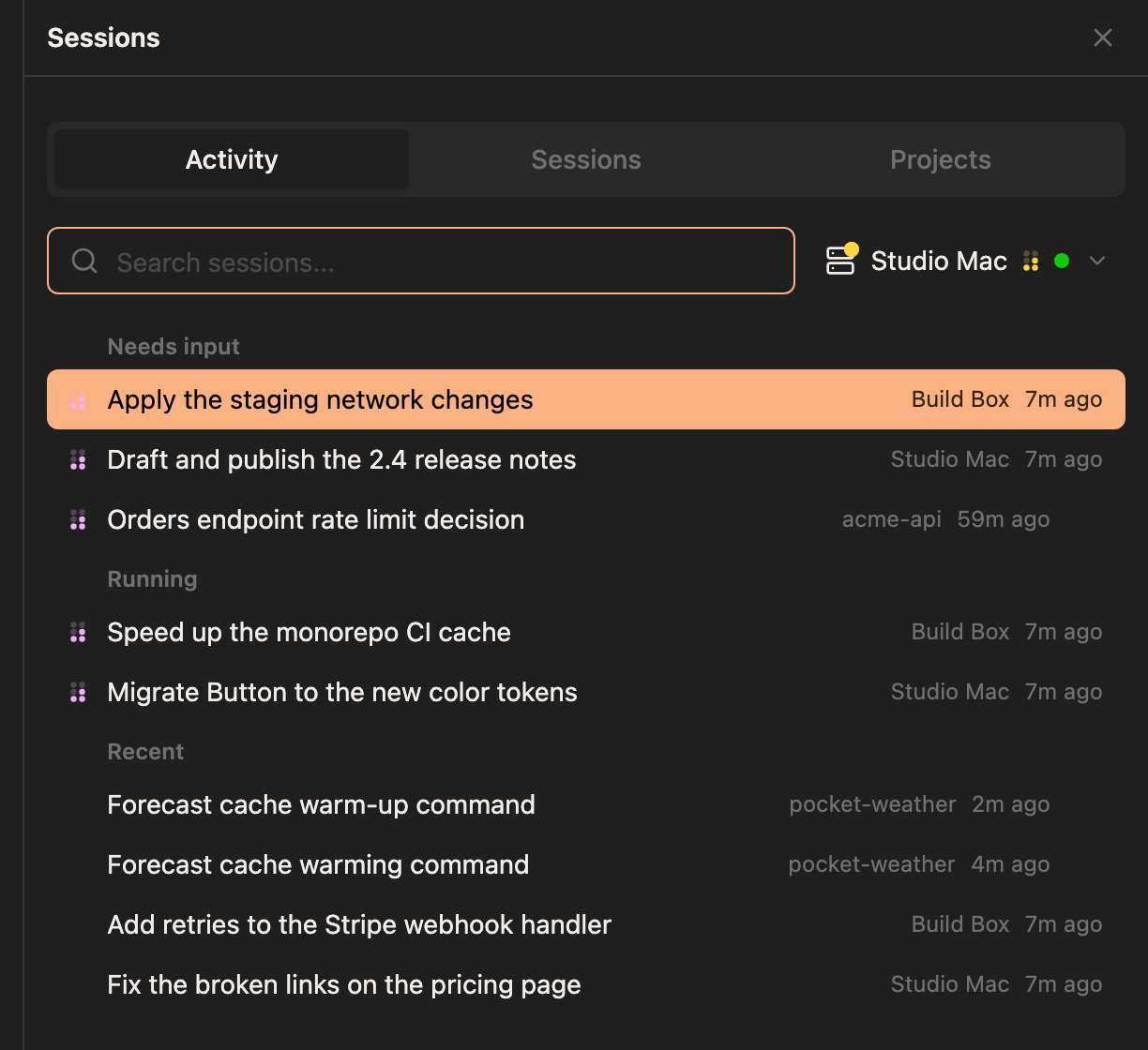
- **Active Work** — A **Sessions** tool in the desktop tool rail, and a **Sessions** tab on mobile, opening the session picker with an **Activity** list of the sessions that need input, are running, or changed recently, plus a needs-input/running count on the rail button
- **HTML Artifacts** — An agent can write a self-contained HTML file and render it inline in the chat in a sandboxed frame
- **Grouped Exploration** — Consecutive reads, searches, and fetches collapse into one summary line
- **Agent Model Selection** — Switching agents applies that agent's configured model
- **Session Pinning** — Pin important sessions to a dedicated section at the top of the session list
- **Session Picker** — `/sessions` picker with type-to-filter, keyboard navigation, **This project / All sessions** scope and delete, plus **Activity**, **Sessions**, and **Projects** tabs (the **Projects** tab jumps straight to a repository)
- **Keyboard Shortcuts** — App-wide TUI-style leader (`Ctrl+X`) and direct shortcuts, customizable in Settings, with import from your OpenCode TUI keybinds
- **Mermaid Diagrams** - Visual diagram rendering in chat
[Learn more →](https://opencodemanager.app/docs/features/chat)
### Schedules & Recurring Jobs
- **Recurring Repo Jobs** - Run reusable prompts against a repository on an interval or cron schedule
- **Prompt Templates** - Start with built-in reviews for repo health, dependencies, release readiness, docs drift, and more
- **Run History** - Inspect statuses, logs, errors, and assistant output from past runs
- **Session Handoff** - Open the linked OpenCode session for any run and continue from there
- **Manual Runs** - Trigger the same job on demand when you want a fresh report immediately
[Learn more →](https://opencodemanager.app/docs/features/schedules)
### AI Configuration
- **Model Selection** - Browse and filter available AI models
- **Provider Management** - Configure API keys or OAuth for providers
- **OAuth Support** - Secure OAuth login for Anthropic and GitHub Copilot
- **Custom Agents** - Create agents with custom system prompts and tool permissions
[Learn more →](https://opencodemanager.app/docs/features/ai-config)
### MCP Servers
- **Local Servers** - Add command-based MCP servers
- **Remote Servers** - Connect to HTTP-based MCP servers
- **Management** - Enable, disable, and configure servers
[Learn more →](https://opencodemanager.app/docs/features/mcp)
### Skills
- **Reusable Instructions** - `SKILL.md` instruction sets that give agents domain-specific workflows
- **Global and Project Scopes** - Share skills across all repositories or scope them to one repo
[Learn more →](https://opencodemanager.app/docs/features/skills)
### Agent Sandboxing
- **Isolated Shell Commands** - Run agent `shell` tool commands inside a microVM instead of the Manager container
- **Same Files, Separate Kernel** - Repositories are bind-mounted at the same paths, without access to Manager configuration, provider credentials, or SSH keys
- **Per-Session Sandboxing** - Turn sandboxing on or off for a single session from the composer's options menu, with its own CPU and memory; child sessions inherit their parent's setting
[Learn more →](https://opencodemanager.app/docs/features/sandboxing)
### `ocm` CLI
- **Local TUI, Remote Repo** - Attach your local OpenCode TUI to a repo hosted on the Manager
- **Push and Pull** - Sync a local working tree with the Manager repo
[Learn more →](https://opencodemanager.app/docs/ocm-cli)
### Text-to-Speech
- **Browser TTS** - Built-in Web Speech API support
- **External TTS** - Connect to OpenAI-compatible endpoints
- **Audio Caching** - 24-hour cache with 200MB limit
- **Voice Controls** - Configurable voice and speed settings
- **Speak Visible Messages** - Read the assistant messages currently on screen with a keyboard shortcut (leader then `S`)
[Learn more →](https://opencodemanager.app/docs/features/tts)
### Speech-to-Text
- **Browser STT** - Built-in Web Speech API support
- **External STT** - Connect to OpenAI-compatible Whisper endpoints
- **Voice Input** - Dictate messages with microphone button
[Learn more →](https://opencodemanager.app/docs/features/stt)
### Mobile & PWA
- **Mobile-First Design** - Responsive UI optimized for mobile
- **PWA Installable** - Add to home screen on any device
- **iOS Optimized** - Proper keyboard handling and swipe navigation
- **Prompt Key Bar** - `/`, `@`, and `!` keys in the composer, with full-height suggestions and swipe-to-run commands
- **Tab Bar** - Sessions, Files, Git, Assistant, Schedules, and More at the bottom of the screen
[Learn more →](https://opencodemanager.app/docs/features/mobile)
### Appearance & Themes
- **Appearance** - Switch between light, dark, or system to match your device
- **Theme** - Choose the Manager palette or one of 36 bundled OpenCode color themes
- **Server-Stored** - Appearance preferences are saved on the Manager server, not only in your browser
Both pickers live under **Settings → General**.
### Push Notifications
- **Background Alerts** - Receive notifications when the app is closed
- **Agent Events** - Get alerted for permissions, questions, errors, and completions
- **Multi-Device** - Subscribe multiple devices (phone, tablet, desktop)
- **Customizable** - Control which events trigger notifications
[Learn more →](https://opencodemanager.app/docs/features/notifications)
### Assistant Mode
- **Dedicated AI Workspace** — Isolated assistant directory with managed configuration and a built-in bearer-token API
- **Auto-Provisioned Skills** — Schedule management, notifications, settings, repo listing, and session management skills available out of the box
- **Session Management** — List, create, follow up, read the reply of, and fork sessions through the `ocm` tool
- **Session Continuity** — Navigating to the assistant always resumes the most recent session or creates one automatically
[Learn more →](https://opencodemanager.app/docs/features/assistant-mode)
### Linked Servers
- **One UI, Several Machines** — Link other machines' `opencode serve` instances and open their projects, sessions, and terminals from the same Manager
- **Server Switcher** — Choose **OC Manager** or a linked server from the sidebar, the collapsed rail, or the mobile sessions sheet, with activity and connection state on each row; the home page lists the selected server's projects
- **Remote Sessions** — Chat, permissions, goals, permission modes, a read-only Source Control panel, terminals, MCP, Skills, schedules, and multi-runs on linked-server projects
- **Activity Everywhere** — Activity, attention dots in the switcher, and push notifications include every enabled linked server
[Learn more →](https://opencodemanager.app/docs/features/linked-servers)
### OpenCode Server Health
- **Live Status** — Server health indicator in Settings (Healthy/Unhealthy)
- **Graceful Restart** — Interrupted sessions resume natively after restart
- **Auto-Recovery** — Configurable health monitoring with automatic recovery on failure
- **Version Management** — View current versions and trigger OpenCode 2 upgrades from the UI
[Learn more →](https://opencodemanager.app/docs/features/server-health)
### Manager Logs
- **In-App Log Viewer** — Manager and OpenCode server output in the Settings Logs tab, no shell access needed
- **Filtering** — Minimum severity, source, and case-insensitive text search
- **Live Controls** — Pause/resume, clear, copy, and automatic follow scrolling
- **Bounded Memory** — In-memory ring buffer with explicit dropped-entry notice
[Learn more →](https://opencodemanager.app/docs/features/logs)
---
Source: https://opencodemanager.app/docs/features/linked-servers
# Linked Servers
OpenCode Manager normally drives the OpenCode server it starts itself. Link another machine's `opencode serve` instance and you can open that machine's projects, sessions, and terminals from the same Manager, alongside your local work.
The Manager's own server is always **OC Manager**. Anything that does not name a server keeps using OC Manager, so existing repositories, sessions, schedules, and settings stay where they are.
## What You Can Do on a Linked Server
- Browse the server's projects and sessions, and start a session in any directory on it.
- Chat, answer permission requests and forms, set session goals and permission modes.
- View source control status and diffs in a read-only panel.
- Open terminals on the linked machine.
- Connect and disconnect MCP servers, and load skills the server exposes.
- Run schedules and multi-runs against the server's projects.
- See activity and receive push notifications for that server's sessions.
Some Manager features stay local to the server the Manager runs on. See [What Stays Local](https://opencodemanager.app/docs/features/linked-servers#what-stays-local).
## Requirements
- A remote OpenCode 2 server at **2.1.2 or newer**, run either as the OpenCode background service (`opencode serve --service`) or with a bare `opencode serve`. OpenCode 3 is not supported yet. The connection test reports the version and marks anything outside the supported range.
- Network access from the Manager to the server's base URL. Your browser never contacts the linked server directly; the Manager proxies every request.
- The server's HTTP Basic auth username and password. The default username is `opencode`. [`ocm link`](https://opencodemanager.app/docs/features/linked-servers#pairing-with-ocm-link) reads them from the OpenCode service when it runs on that machine; otherwise enter them in the Manager.
:::warning[Use HTTPS or a private network]
Linked servers and the pairing listener use plain HTTP unless you put them behind TLS. Credentials travel unencrypted over plain HTTP, so use an HTTPS URL or a private network. The add-server form warns when a non-HTTPS URL is not a private address.
:::
Scanning a pairing QR code needs camera access, which browsers only grant on HTTPS or `localhost`. On a plain-HTTP Manager, paste the pairing link instead.
## Adding a Server
1. Open **Settings → Servers**.
2. Click **Add server**.
3. Either pair from a QR code, or enter the server manually.
4. Click **Test connection** to check the URL and credentials, then **Add server**.
Manual setup takes a **Name** (shown in the switcher), the base **URL**, the **Username**, and the **Password**. The enabled switch controls whether the server is used at all; disabled servers stay configured but do not connect, appear in the switcher, or contribute activity.
Pairing takes a terminal QR code or an `ocm://link` URL from [`ocm link`](https://opencodemanager.app/docs/ocm-cli#link-a-remote-opencode-server). Click **Scan QR** to use the camera, or paste the link and click **Use link**. Scanning only fills in the form — you still review the details and click **Add server**.
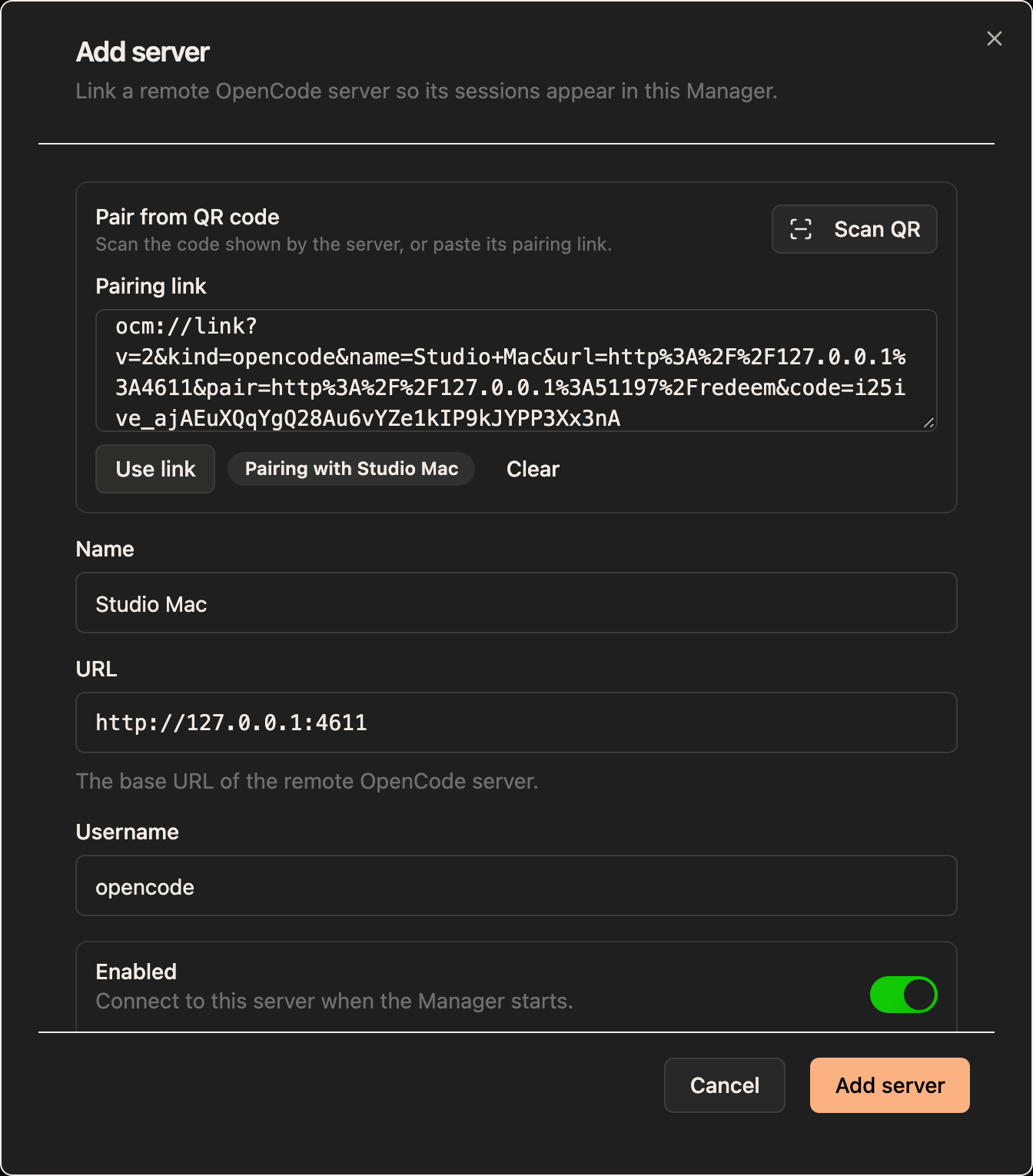
Saving a paired server redeems the one-time pairing code through the Manager. The password is stored encrypted (AES-256-GCM, in the Manager's secrets table), responses only report whether a password is set, and the Manager adds Basic auth to each proxied request server-side. The browser never receives the credential.
Each saved server row shows its URL and username, whether a password is set, and whether it is disabled. Use the switch to enable or disable it, **Test** to probe it again, the pencil to edit it, and the trash button to delete it. Editing leaves the current password in place unless you type a new one or tick **Clear stored password**.
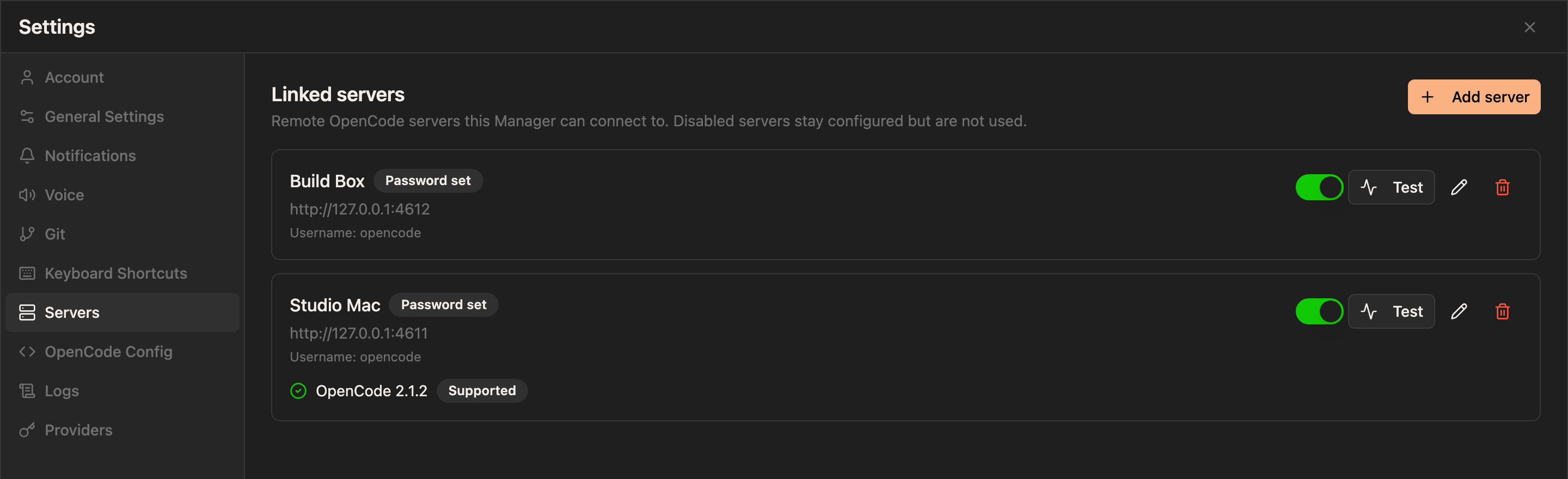
Deleting a server only removes it from the Manager. Its sessions and files stay on the remote machine.
## Pairing with `ocm link`
On the machine that runs the OpenCode service (`opencode serve --service`), run:
```bash
ocm link
```
The command detects the service and reuses its stored password, so no flags are needed. With an explicit password it looks like this:
```bash
OPENCODE_SERVER_PASSWORD=your-server-password ocm link
```
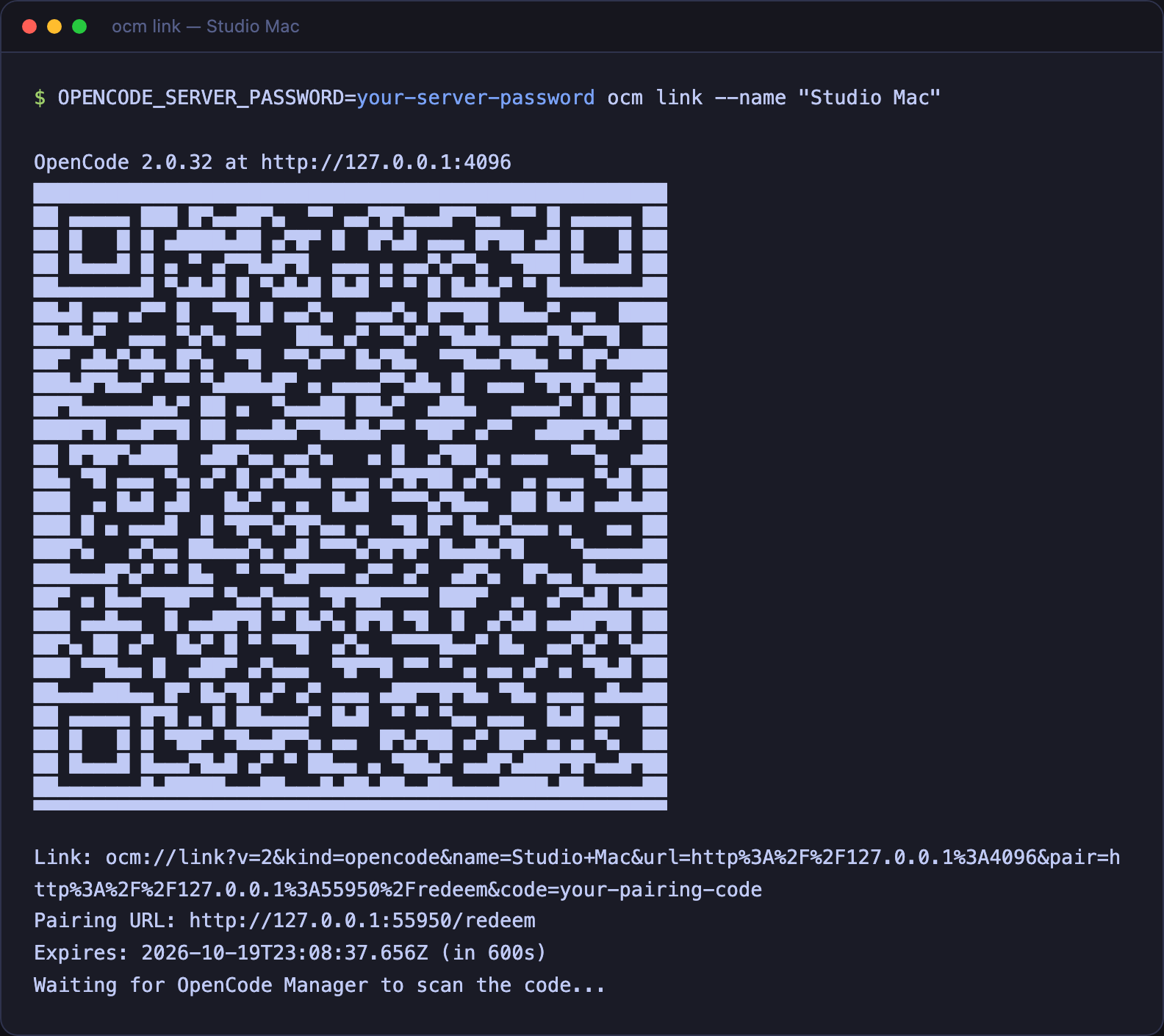
`ocm link` reads the service registration in `$XDG_STATE_HOME/opencode/service.json`, then the `opencode service` config in `$XDG_CONFIG_HOME/opencode/service.json`, which supplies the hostname (default `127.0.0.1`), the port (default `49374`, or `45278` on Windows), and the password. A wildcard host such as `0.0.0.0` is replaced with the machine's LAN IPv4 address, and a service that only listens on loopback gets a warning, because a remote Manager cannot reach it — run `opencode service set hostname 0.0.0.0` to expose it.
An explicit `--url` or `$OPENCODE_SERVER_URL` skips that detection, so pass the password too:
```bash
OPENCODE_SERVER_PASSWORD=your-server-password ocm link --url http://192.168.1.20:4096
```
The command checks `GET /api/info`, prints a terminal QR code and an `ocm://link` URL, and waits for the Manager to redeem it. Keep it running until the Manager finishes saving; it prints `Linked` and exits after a successful pairing.
| Flag | Default |
|------|---------|
| `--url ` | `$OPENCODE_SERVER_URL`, else the detected OpenCode service URL, else the first non-internal IPv4 address at port `4096`; an explicit value skips service detection |
| `--password ` | `$OPENCODE_SERVER_PASSWORD`, else the detected OpenCode service password; an explicit URL needs one of the two |
| `--username ` | `$OPENCODE_SERVER_USERNAME`, else `opencode` |
| `--name ` | the machine hostname |
| `--pair-host ` | the host of `--url` |
| `--pair-port ` | `0` (an ephemeral port) |
| `--ttl ` | `300` |
| `--no-qr` | print only the link |
A wrong password stops the command with `401`. An unreachable server only warns and still prints a code, so you can pair first and fix reachability later.
The pairing listener must be reachable from the Manager, not from your browser. It serves one `POST /redeem`, accepts a code for five minutes by default, and exits after three wrong attempts. Links use version `v=2`; a Manager that expects a different version rejects the link with a message to update one side.
## Switching Servers
When at least one linked server is enabled, the sidebar shows a server switcher above **Sessions**:
- The trigger names the current server, **OC Manager** or the selected linked server, and shows its activity and, for a linked server, its connection dot.
- The menu lists **OC Manager** and every enabled linked server. Linked rows show a connection dot and the same running or needs-input indicator as a repository.
- A dot on the trigger flags activity on any server other than the selected one.
- In the collapsed desktop rail the switcher becomes a single icon.
- On mobile the same switcher sits in the sessions sheet, beside its search field.
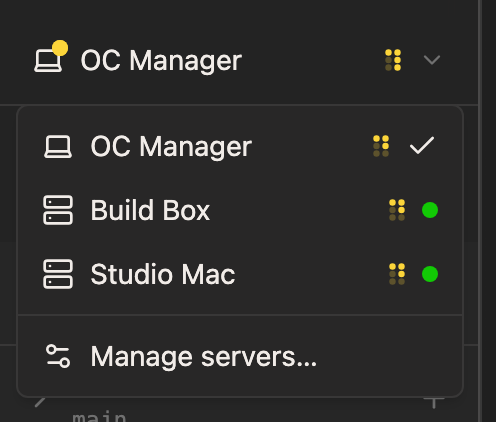
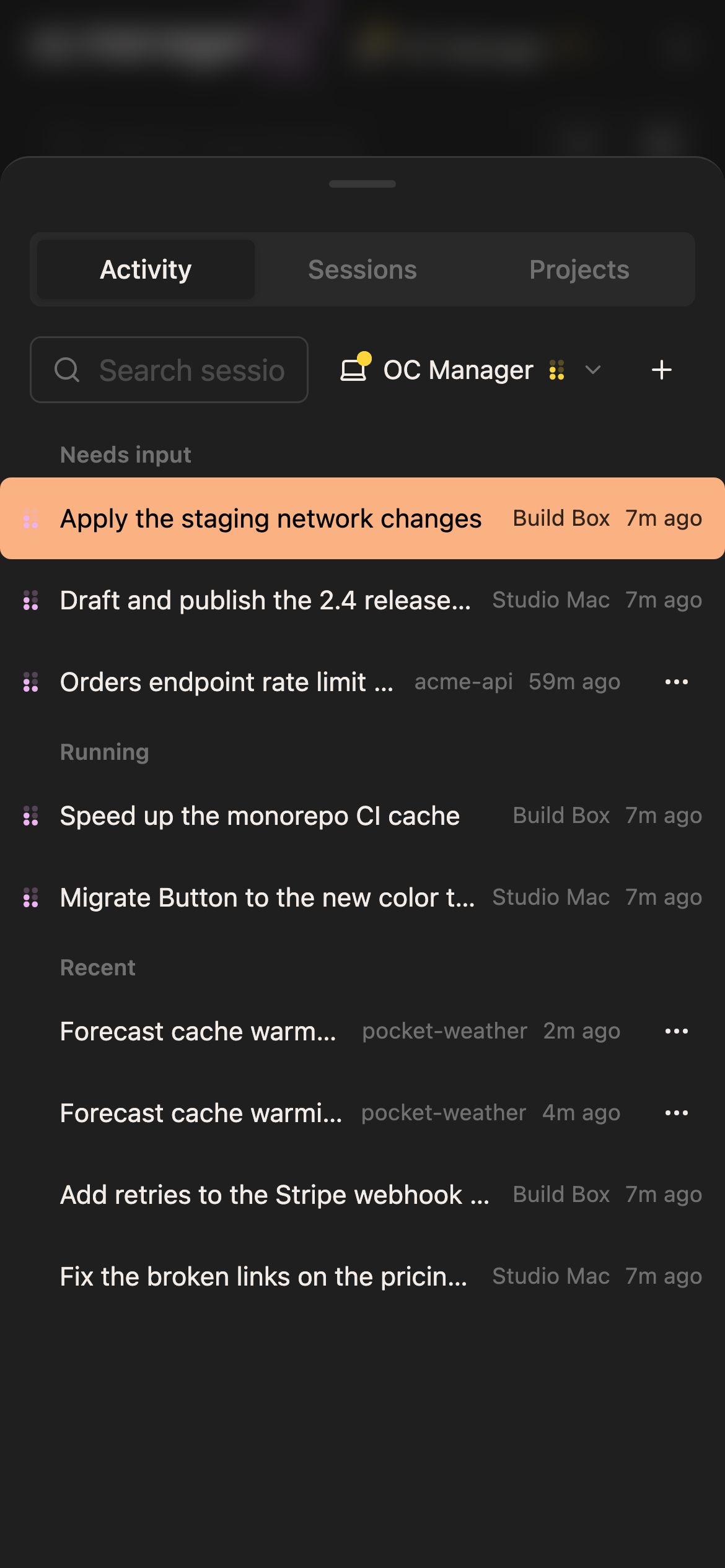
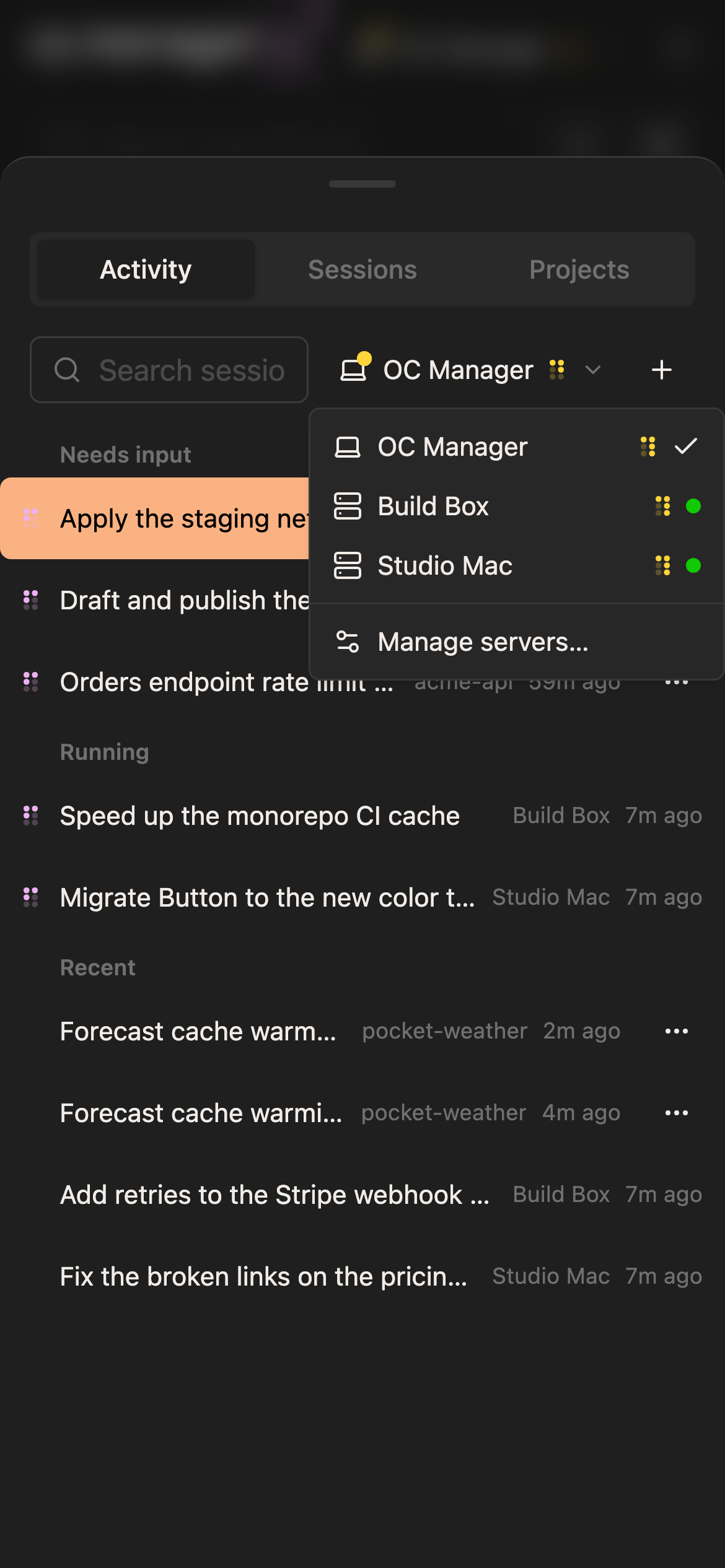 Selecting a server changes what the sidebar and the home page list; it does not navigate. Opening a local repository or the Assistant moves the selection back to **OC Manager**, and opening a linked-server project or session selects that server. A link to `/servers/` selects that server and redirects to `/`, and a selected server that is deleted or disabled falls back to **OC Manager** in the switcher. **Manage servers…** opens **Settings → Servers**.
With a linked server selected, the sidebar lists its projects and recent sessions, and search stays inside that server.
## Remote Projects and Sessions
The home page follows the switcher. With a linked server selected, `/` lists that server's projects instead of local repositories, using the same cards, search, and row actions:
- Each card shows the project name, its directory, a git branch icon for a git project, a folder icon otherwise, its activity, and when the server last updated it.
- **New session**, **Schedules**, and **Multi-run** are inline icons on desktop and a **⋮** menu on mobile.
- The folder button beside the search field opens **Open directory**, which starts a session in any absolute path on that machine. It is the way to reach a directory the server does not list as a project yet.
- The header's server switcher shows the selected server's activity and connection dot, and its menu ends with **Manage servers…**. **All Schedules** is desktop-only, and **Settings** opens the settings dialog on every screen size.
- A server that is unreachable gets a card with the error and **Retry**; a server that is disabled or no longer configured gets a card that opens **Settings → Servers**.
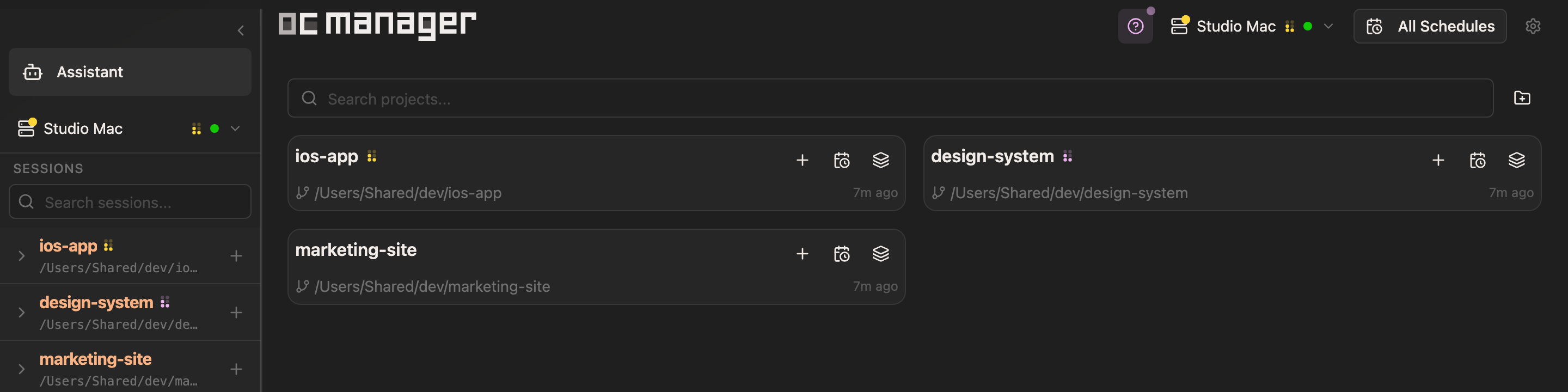
On mobile the tab bar keeps **Sessions**, **Assistant**, **Schedules**, and **More** while a linked server is selected; **Files** stays on local routes.
Opening a project goes to `/servers//projects?directory=`. The page shows the project's branch and linked server, its session list, and the same new-session, schedules, and multi-run actions. Its back button returns to `/`. On desktop the tool rail offers Sessions, MCP, Skills, Source Control, and Terminal; on mobile these open from the **More** drawer.
A remote session lives at `/servers//sessions/`. Its header names the linked server and directory, and its back button returns to that project page; on mobile, swiping back from the screen edge goes there too. Prompts, permission answers, forms, and session updates all go to the server that owns the session.
## What Works on a Linked Server
- **Chat & sessions** — prompts, agent and model selection from the server's catalog, permissions, forms, session goals, permission modes, session picker, and the session keyboard shortcuts. Favorites, recents, and variants are shared with every other server; the picker only lists models in that server's catalog.
- **Source Control** — read-only **Working changes** and **Branch changes** with per-file diffs. See [Remote source control](https://opencodemanager.app/docs/features/git#linked-servers).
- **Terminal** — terminals open on the linked machine and survive a page reload the same way local terminals do. See [Terminal](https://opencodemanager.app/docs/features/terminal).
- **MCP** — list, connect, and disconnect the server's MCP servers for a directory.
- **Skills** — list the skills available to the server and load one into a session.
- **Schedules** — recurring jobs that run in place in a project directory.
- **Multi-run** — run one prompt across several models, isolated on the linked machine or shared in the project directory, and fuse the results.
- **Activity & notifications** — activity lists sessions from every enabled linked server, and push notifications open the linked-server session with the server name.
## What Stays Local
These Manager features still run only against the Manager's own server and local filesystem, and are hidden or unavailable on linked-server routes:
- Repository management: cloning, discovery, deletion, worktrees, and branch integration.
- The file browser and file editing.
- Preview.
- Project actions.
- Change walkthroughs.
- Agent sandboxing (and the per-session sandbox toggle).
- Schedule worktree workspace modes. Schedules on a linked server always run **in place**.
- MCP OAuth sign-in. Authorize an OAuth MCP server where the remote OpenCode runs.
- Skill installation, deletion, and the Manager's managed skill library.
- The Assistant workspace and its internal API.
- **Reset Permissions** for a repository.
Remote source control is read-only because OpenCode exposes status and diffs, not commit, stage, or push operations. Use a terminal on the linked server for those.
## Related
- [OpenCode Server Health](https://opencodemanager.app/docs/features/server-health) — the Manager's own OpenCode server.
- [`ocm` CLI](https://opencodemanager.app/docs/ocm-cli#link-a-remote-opencode-server) — `ocm link` and the rest of the CLI.
- [Authentication](https://opencodemanager.app/docs/configuration/authentication) — securing the Manager itself.
---
Source: https://opencodemanager.app/docs/features/git
# Repository & Git
Comprehensive git integration for managing repositories and source control.
## Cloning Repositories
Clone any git repository:
1. Open **Home** (the repository list) from the sidebar footer
2. Click **Add Repository**
3. Paste the repository URL
4. Click **Add Repository**
## Discovering Existing Repositories
Import repositories you already have on disk without recloning them:
1. Open **Home** (the repository list) from the sidebar footer
2. Click **Add Repository**
3. Select **Folder**
4. Enter a parent folder such as `/Users/you/Development`
5. Click **Discover Repositories**
OpenCode Manager scans that folder for nested git repositories and links each one into the workspace. If standalone OpenCode already has chats stored for those same paths, the sessions show up automatically.
### Private Repositories
For private repositories, configure a GitHub Personal Access Token:
1. Go to **Settings > Git > Credentials**
2. Enter your GitHub PAT
3. Ensure the token has `repo` scope
### SSH Repositories
SSH key authentication added for git repositories. Configure SSH keys in Settings > Git > Credentials.
## Git Worktrees
Work on multiple branches simultaneously without switching:
1. In the repository list, open the repository row's **Create Worktree** action
2. Choose **New branch** (enter a name and pick a base branch) or **Existing branch** (pick a local or remote branch to check out)
3. Click **Create Worktree**; a new workspace is created with that branch checked out
Inside a repository, **Worktree +** next to the branch tab (or **New worktree** on the **Worktrees** tab once one exists) creates an OpenCode worktree from the current commit instead. Give it an optional **Name** (generated if empty); it is used as the folder name and its label under **Worktrees**.
Worktrees share the same git history but have independent working directories. This is useful for:
- Comparing implementations across branches
- Working on a feature while keeping main branch accessible
- Testing changes without disrupting your main work
### Integrating a Worktree Branch
From a worktree's Branches tab, click **Integrate** to bring its commits into another branch:
1. Choose the target branch. It must be checked out cleanly in another managed worktree, with no uncommitted changes or operation already in progress.
2. Choose a strategy: **Merge commit** integrates all commits with a merge commit, while **Cherry-pick commits** replays each commit onto the target. Cherry-pick integration skips commits already applied to the target and skips merge commits.
3. Click **Integrate**.
If the target stops on conflicts, the operation banner appears in the dialog so you can resolve, continue, or abort the integration.
### Deleting a Worktree
Deleting a worktree offers three branch options:
- **Keep branch** - Leave the branch in the parent repository.
- **Delete local branch** - Remove the branch from the parent repository.
- **Delete local and remote branch** - Also delete the branch from origin.
**Delete local branch** and **Delete local and remote branch** use a safe delete: if the branch has unmerged commits it is kept, and a warning names it. Force-delete it from the Branches tab if intended.
The remote branch is deleted only when the branch's upstream has the same name. If the upstream has a different name, nothing is deleted and the reason is shown. Without force, deleting the remote branch also requires the branch to be merged into the checked-out branch.
## Source Control Panel
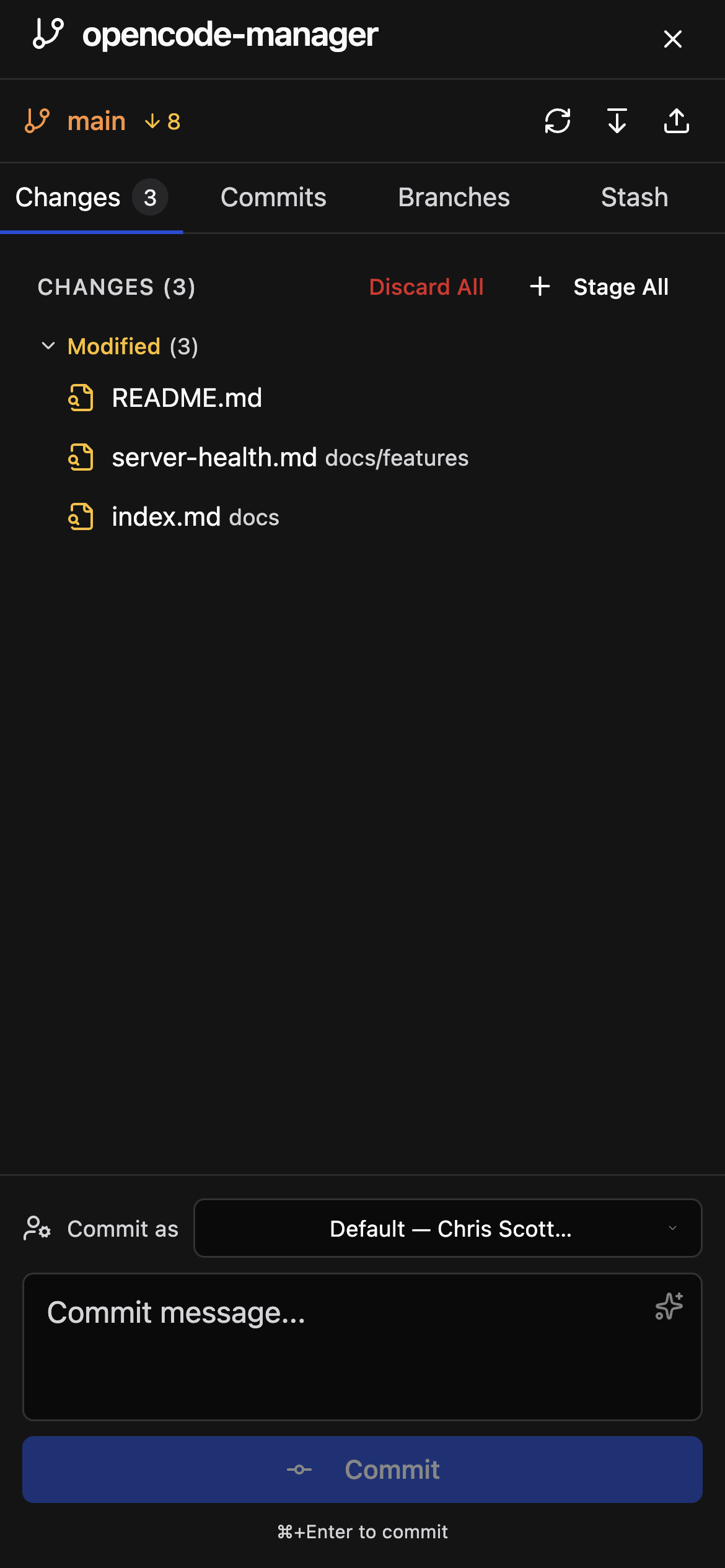
Access comprehensive git operations from the **Source Control** tool in the tool rail (desktop) or the **More** drawer (mobile).
### Changes Tab
- View all modified, added, deleted, and untracked files
- Stage/unstage individual files or all changes
- Discard changes to revert modifications
- View diffs inline for any changed file
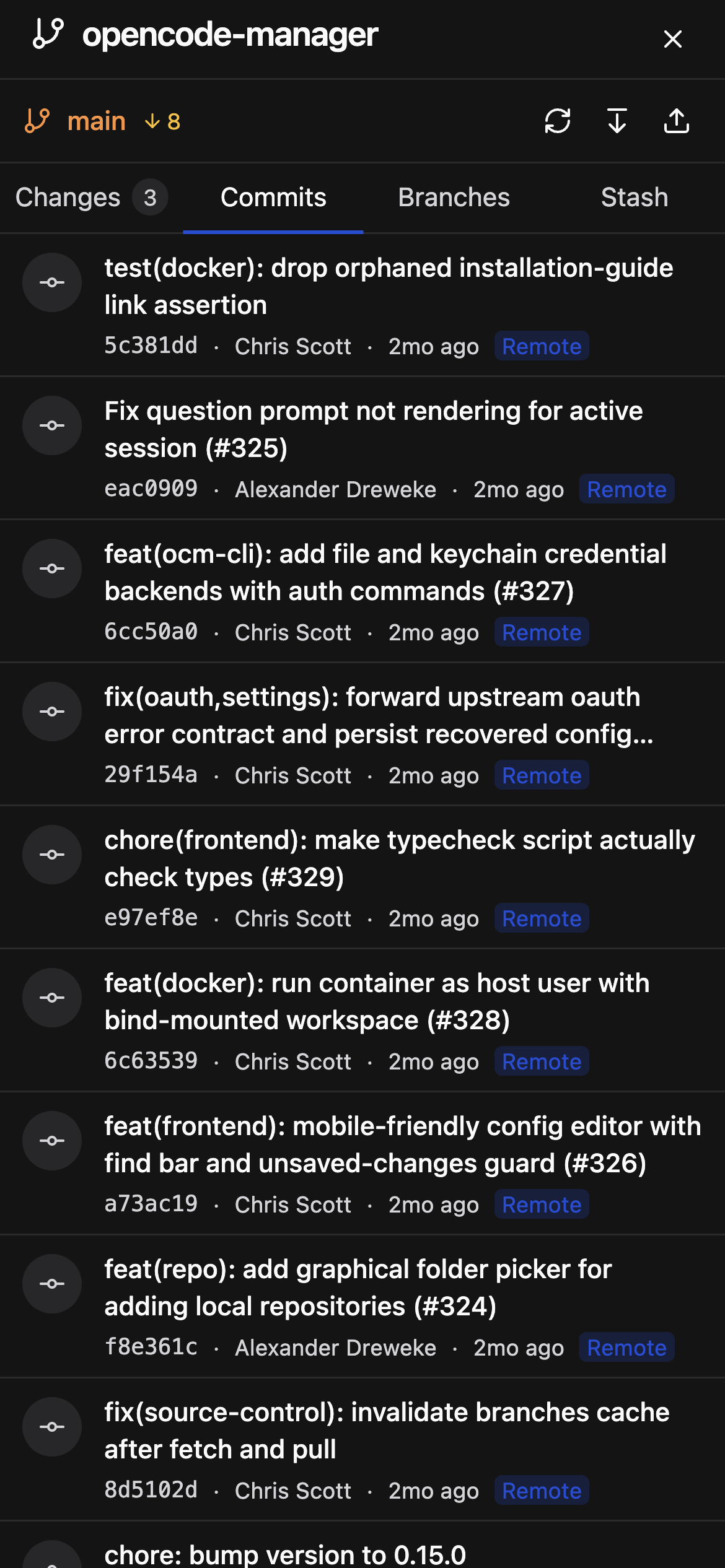
 ### Commits Tab
- Browse commit history
- View commit details including message, author, and date
- See file changes in each commit
- Track ahead/behind status with remote
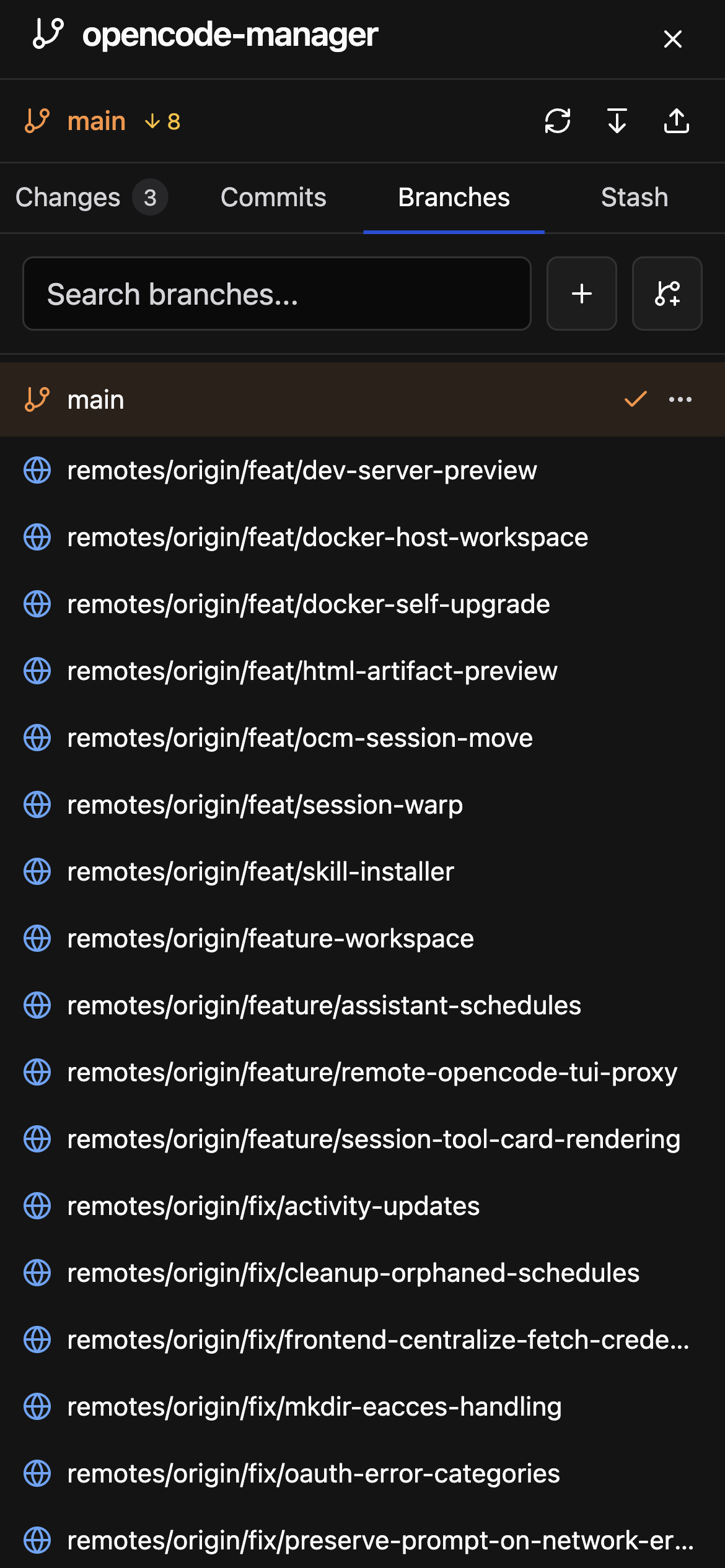
 ### Branches Tab
- List all local and remote branches
- Create new branches from current HEAD
- Switch branches (checks out the branch)
- Rename a local branch from its actions menu. Renaming also updates the base branch of schedules in every checkout of the same git repository that used the old name. A worktree's folder keeps the old branch name; `ocm` mirroring looks for a folder named after the new branch, so mirroring the renamed branch fails while that worktree exists.
- Delete local branches, optionally force-deleting an unmerged branch and, when the branch's upstream has the same name, also deleting the remote branch. The current branch and branches checked out in another worktree cannot be deleted.
 ### Stash Tab
Stash work in progress and restore it later:
- Enter an optional message and choose whether to include untracked files
- **Stash changes** saves the working tree and index
- Each stash shows its branch and date, with **Apply** (restore and keep the stash), **Pop** (restore and remove the stash), and **Drop** (delete the stash)
- The stash list is shared by a repository and all its worktrees. Apply, Pop, and Drop verify the stash is still the one shown and ask you to refresh if the list changed.
### Merge, Rebase and Cherry-pick Conflicts
When a merge, rebase, or cherry-pick stops on conflicts, an operation banner appears at the top of the source control panel:
- Shows the operation kind and the list of conflicted files
- **Continue** finishes the operation once every conflict is resolved
- **Abort** cancels the operation and restores the previous state
- **Resolve with agent** opens a new session in the repository, primed with the conflicted files, so an agent can resolve them
### Committing
Commit staged changes with a message. Press ⌘/Ctrl+Enter to commit without clicking the button.
#### AI Commit Messages
Use the sparkle button in the commit box to generate a commit message from the staged changes using the model configured in your global OpenCode config (or OpenCode's default model when none is set). Only staged changes are used, and the generated message replaces the current text after confirmation.
#### Commit Identities
Configure identities in **Settings > Git**:
- **Default identity** - Written to Manager's own git config file (`.config/git/config` in the workspace). When the name or email is empty and a GitHub token credential is configured, the missing parts come from the GitHub account. It applies to Manager commits, agent shells, terminals, and scheduled runs without restarting OpenCode. Because it is a global-level git config file, a repository's own identity and, on non-Docker installs, your `~/.gitconfig` identity take precedence over it.
- **Saved identities** - Presets that can be applied to individual repositories.
Each repository has a **Commit as** selector in the commit box. Choosing a saved preset writes it into the repository's local git config (`user.name` / `user.email`), which git shares with all worktrees of the repository (Manager worktrees, OpenCode workspaces, and scheduled-run worktrees). Choosing **Default** removes the repository's local identity. An identity you set yourself in the repository's local git config is respected and shown as **Custom**; the selector asks before replacing it. The selector shows the effective identity and where it comes from (repository, Manager default, git global config, or not configured). Removing a saved preset does not change repositories that use it.
Sandboxed shells receive the resolved identity for their directory.
### Linked Servers
A linked server's sessions and project pages get a read-only Source Control panel instead of the repository panel above. It shows the current branch, a **Working changes** tab with the remote working tree's files, a **Branch changes** tab that compares the branch with the base OpenCode infers, and per-file diffs.
There is no staging, commit, discard, stash, fetch, pull, push, branch, or worktree control. OpenCode on the linked server exposes status and diffs only, so make those changes in a [terminal](https://opencodemanager.app/docs/features/terminal) on that machine. Branch changes shows OpenCode's error when the history is too ambiguous to infer a review base.
## Diff Viewer
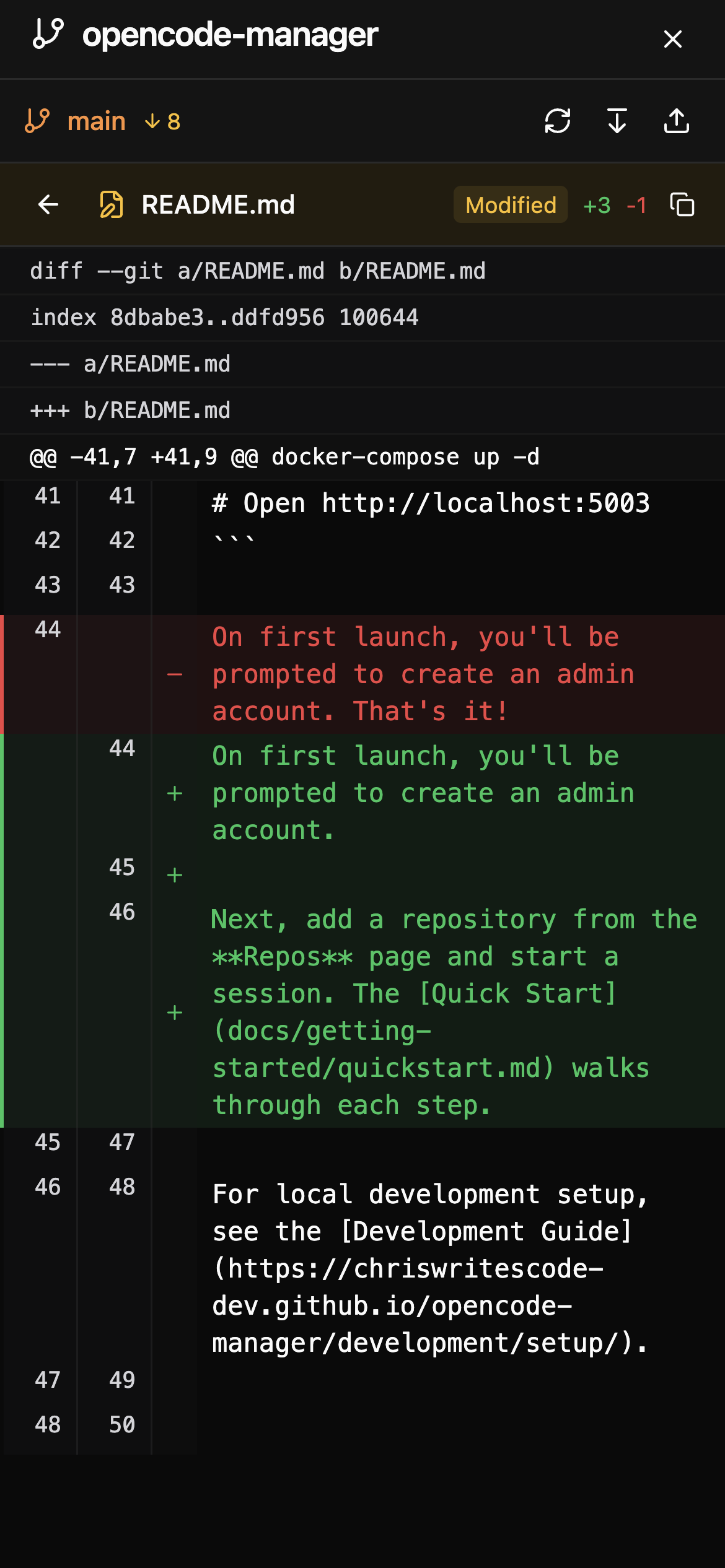
View file changes with a unified diff format:
- **Line Numbers** - Both old and new line numbers displayed
- **Syntax Highlighting** - Code is highlighted based on file type
- **Change Markers** - Additions in green, deletions in red
- **Change Counts** - Summary of lines added/removed
### Accessing Diffs
- Click any changed file in the Source Control panel
- Diffs appear inline or in a modal depending on context
- Use the expand/collapse toggle for large diffs
 ## Repository Actions
### Fetch, Pull and Push
The source control panel header shows the current branch and its ↑/↓ counts, with three buttons:
- **Fetch from remote** - update remote-tracking branches without merging
- **Pull** - fetch and merge the upstream branch
- **Push** - push the current branch to its remote
Errors appear in a banner at the top of the panel.
### Delete Repository
Remove a repository from the workspace:
1. Select a repository
2. Click **Delete**
3. Confirm deletion
## Ahead/Behind Tracking
The UI shows your branch's relationship to its remote:
- **↑ N** - You have N commits not pushed to remote
- **↓ N** - Remote has N commits you haven't pulled
- **↑ N ↓ M** - Both local and remote have diverged
---
Source: https://opencodemanager.app/docs/features/files
# File Browser
Navigate, view, and manage files within your repositories.
## Directory Navigation
### Tree View
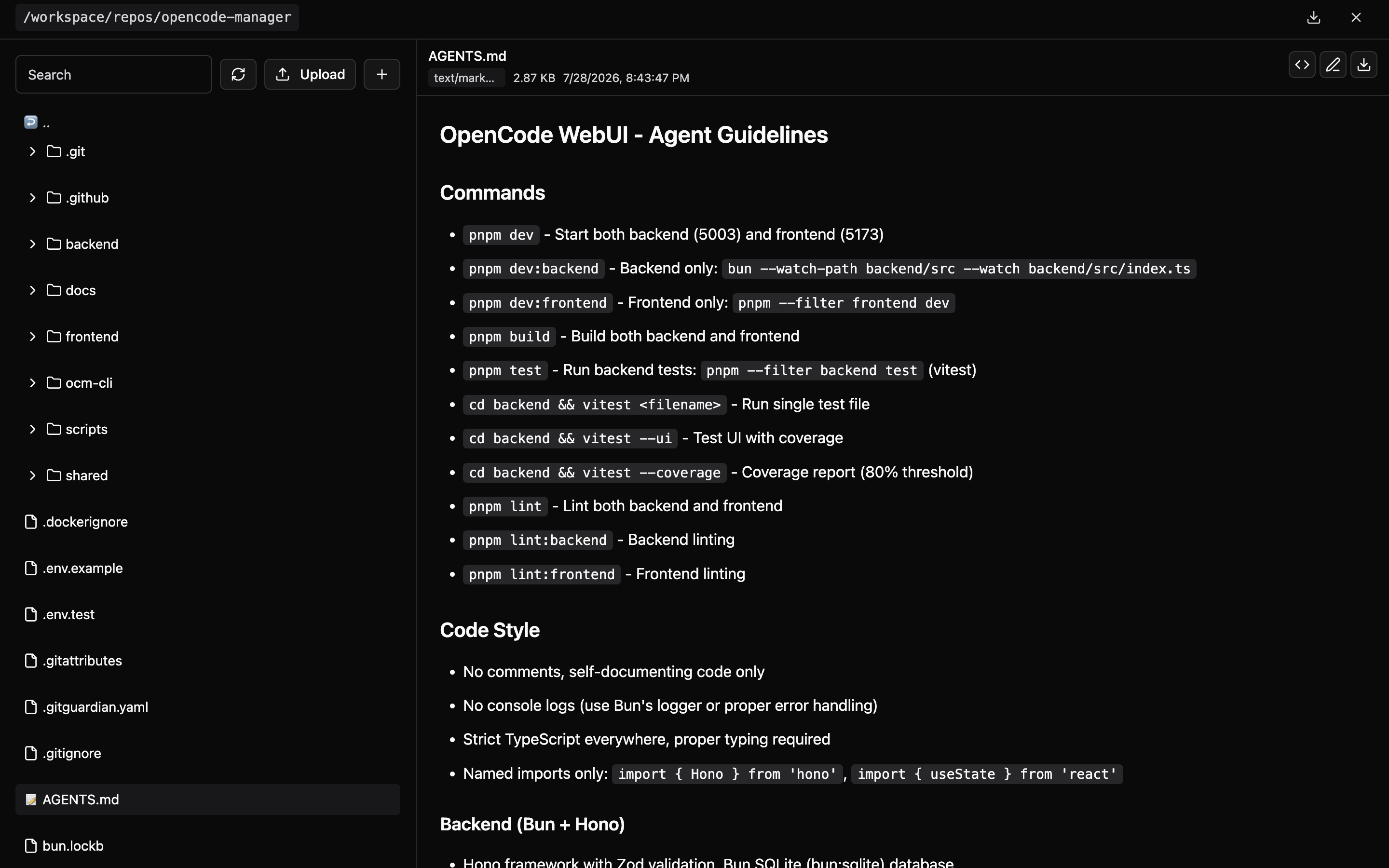
The file browser displays your repository as an expandable tree:
- Click folders to expand/collapse
- Click files to preview content
- Icons indicate file types
### Breadcrumbs
Navigate quickly using the breadcrumb path at the top:
- Click any segment to jump to that directory
- Shows current location in the file tree
### Search
Filter files by name:
1. Type in the always-visible **Search** box
2. Results update as you type
## File Preview
Click any file to preview with:
- **Syntax Highlighting** - Support for common languages
- **Line Numbers** - Easy reference for code discussions
- **Large File Support** - Virtualization for files with many lines
### Supported Languages
Syntax highlighting is provided for common languages including:
- JavaScript, TypeScript, JSX, TSX
- Python, Ruby, Go, Rust
- HTML, CSS, SCSS
- JSON, YAML, TOML, XML
- Markdown, SQL, Shell scripts
- And many more...
### Editing
Text files can be edited in place: click the pencil button in the preview header, make your changes, and click **Save** (or cancel to discard). Large files stay virtualized while editing and show **Unsaved changes** until saved.
### Rendered Previews
Markdown and HTML files open rendered; toggle the raw source with the eye/code button. Markdown is sanitized before rendering, and rendering is skipped for Markdown files over 1 MB. HTML renders in a sandboxed frame without access to the Manager; **Open HTML in new tab** opens the raw file. Images preview inline.
Markdown images render inline too, in the file viewer and in messages. A relative path resolves against the file's directory (or the session directory in messages), and an absolute workspace path is used as-is; local images load through the file API. Remote `http`/`https` URLs and `data:` image URIs render unchanged. Clicking an image opens a full-size preview, and an image that fails to load falls back to its alt text.
The preview header also has line wrap, download for the single file, and fullscreen.
## File Operations
### Create File
1. Click the **+** button in the file browser toolbar
2. In the **Create New** dialog, choose **File**
3. Enter a filename with extension
4. Click **Create**; the list refreshes with the new file
### Create Folder
1. Click the **+** button in the file browser toolbar
2. In the **Create New** dialog, choose **Folder**
3. Enter a folder name
4. Click **Create**; the folder is created in the current directory
### Rename
1. Open the row's **⋮** menu and choose **Rename**
2. Enter new name
3. Press Enter to confirm, or Escape to cancel
### Delete
1. Open the row's **⋮** menu and choose **Delete**
2. Confirm deletion
:::warning
Deletion is permanent and cannot be undone through the UI. Use git to recover deleted files if needed.
:::
## File Upload
### Drag and Drop
Upload files by dragging them into the browser:
1. Open the target folder
2. Drag files from your computer
3. Drop into the file browser area
4. Files are uploaded to current directory
### Multiple Files
You can drag multiple files at once. They'll all be uploaded to the current directory.
### Upload Limitations
- Large files may take time to upload
- Binary files are supported
- File permissions are set by the server
## ZIP Download
Download directories or repositories as ZIP archives directly from the file browser:
:::note
In the mobile app the archive is handed to the native share sheet instead of the browser download.
:::
### Download Options
Click the download icon in the file browser header to access download options:
**Current Directory**
- Downloads the folder you're currently viewing
- Includes all subfolders and files
- Useful for archiving specific parts of a project
**Entire Repository**
- Downloads the complete repository
- Same as the download button on repository cards
- Perfect for full repository backups
### Download Process
Both download options follow the same process:
1. Click the download icon in the file browser header
2. Choose **Current Directory** or **Entire Repository**
3. Review the confirmation dialog, optionally ticking ignored paths to include
4. Click **Download** to begin
5. Wait while the ZIP archive is created (progress indicator shown)
6. ZIP automatically downloads to your computer
### Archive Features
The ZIP archives:
- Exclude `.gitignore`d paths and the `.git` directory by default. The confirmation dialog lists the ignored paths; tick individual ones, or **Download All**, to include them
- Uses compression to reduce file size
- Includes proper file permissions
- Preserves directory structure
:::note
Download confirmation ensures you're downloading the correct content. Large repositories may take time to create the archive.
:::
## Large File Handling
For files with many lines, the viewer uses virtualization:
- Only visible lines are rendered
- Smooth scrolling through large files
- Memory-efficient display
---
Source: https://opencodemanager.app/docs/features/terminal
# Terminal & Dev Loop
Run interactive shells against a repository, workspace directory, or linked-server project without leaving the WebUI.
:::note[Mobile app]
The native app has its own terminal screen with tabs, an auto-created shell, the same key bar, and close confirmation, and its local dev links open Preview. See [Mobile & PWA](https://opencodemanager.app/docs/features/mobile#terminal).
:::
## Opening a Terminal
Open the terminal from either surface:
- **Desktop** — click the **Terminal** icon in the tool rail on the right edge of a repository, session, linked-server project, linked-server session, or Assistant page. The terminal opens in the docked side panel next to the page; click the icon again or **×** to close it.
- **Mobile** — open the **More** drawer and select **Terminal**.
On desktop the terminal opens in the docked side panel; on mobile it opens as a dialog. If nothing is running in the selected directory, opening the panel starts a shell automatically; exited terminals do not count. Opening a specific terminal — such as a project action or worktree setup — shows that terminal instead and starts nothing extra.
Terminals are scoped to the selected repository, OpenCode workspace directory, or linked-server project directory. A terminal opened from a repo runs in that repo's path; a terminal opened from a session runs in the session's working directory; a terminal on a linked server runs on the machine that hosts that server. Switching directories shows that directory's terminals.
## Tabs and Reconnect
Each terminal runs in its own tab:
- Click **+** to create another terminal in the same directory.
- Click a tab to focus it.
- Click the **×** on a tab to close it. Closing a running terminal asks for confirmation, then stops the process.
- A shell that exits successfully removes its tab, and the panel closes when it was the last terminal in the directory. A shell that exits with a non-zero code keeps its tab and output and shows `exited` with its exit code.
Terminals are backed by OpenCode PTYs, so they survive a browser close or reload: reopening the panel reattaches and replays the buffered output. They do **not** survive an OpenCode restart, which ends every PTY.
## Mobile Key Bar
On mobile, the panel shows a key bar above the keyboard with keys that are awkward to reach on a soft keyboard:
- **Esc**, **Tab**
- **Ctrl** — tap to arm, then tap a key to send the modified combination; arming is consumed by the next key.
- Arrow keys
- `|`, `~`, `/`
## Runtime and Environment
Terminals run as OpenCode PTYs on the host, using the user's configured shell. They are **not sandboxed**: sandbox enforcement applies to agent `shell` tool calls, not to PTY terminals (see [Agent Sandboxing](https://opencodemanager.app/docs/features/sandboxing)).
Each terminal receives the repository's GitHub token environment (`GH_TOKEN`, `GITHUB_TOKEN`) resolved for its directory, so `gh` authenticates with the repo's GitHub credential. Commits made in the terminal take their author from git config: the repository's own identity when one is set, otherwise the Manager default identity (see [Git identities](https://opencodemanager.app/docs/features/git)).
`git` itself authenticates with the same credentials as the OpenCode server process, which the Manager configures from its saved git credentials.
On a linked server, the PTY runs on that machine with its own shell and git configuration. The Manager does not inject its repository GitHub credentials into remote terminals, so `gh` and `git` there use whatever the remote machine already has.
## Related
- [Project Actions](https://opencodemanager.app/docs/features/project-actions) — run and stop long-lived commands as terminals from the header menu.
- [Preview](https://opencodemanager.app/docs/features/preview) — open a dev server started in a terminal.
---
Source: https://opencodemanager.app/docs/features/project-actions
# Project Actions
Define repeatable commands for a repository and run them from the header menu.
Project actions are long-lived commands — a dev server, a build watcher, a test runner — that run in a terminal. They are configured in one of two places:
- **My settings** (personal) — stored in the Manager database, keyed to the repository's main checkout, so they apply across the repository and all its worktrees.
- **The repository file** — `.ocm/project.json` at the repo root, committed and shared with everyone who clones it.
Both sources are merged in the **Project Actions** panel and the header menu.
:::note[Mobile app]
The native app shows the same **Project actions** button in repository and session headers, with run, stop, **Trust and run**, and **Manage actions…**. Its Manage actions screen edits personal and repository actions and worktree setup commands. See [Mobile & PWA](https://opencodemanager.app/docs/features/mobile#project-actions).
:::
## Actions
An action has these fields:
| Field | Description |
|-------|-------------|
| `id` | Stable identifier. Letters, digits, `_` and `-`, up to 64 characters. |
| `name` | Label shown in the menu, up to 60 characters. |
| `command` | Shell command, up to 4000 characters. |
| `icon` | Optional icon: `play`, `build`, `test`, `lint`, `terminal`, `server`, `bug`, or `rocket`. |
| `url` | Optional URL template opened for the action. |
| `autoOpenUrl` | When enabled, the resolved URL opens automatically after the action starts. |
Actions run as `/bin/sh -c ` in a PTY. Starting an action that is already running focuses its existing terminal instead of starting a second process. Stopping an action removes its PTY.
### URL Templates
The `url` field accepts two placeholders:
| Placeholder | Resolves to |
|-------------|-------------|
| `{worktree}` | The basename of the current directory. |
| `{branch}` | The current git branch of the directory, from `git rev-parse --abbrev-ref HEAD`. |
For example, `http://localhost:5173/{worktree}` becomes `http://localhost:5173/feature-login` in a worktree named `feature-login`. On a detached HEAD, `{branch}` becomes `HEAD`. If the git command fails (for example, the directory is not a git checkout), the whole template is left unchanged, including `{worktree}`.
When the resolved URL is a local dev URL (`http://localhost:PORT`, `127.0.0.1`, `0.0.0.0`, or `[::1]`), it opens in the [Preview](https://opencodemanager.app/docs/features/preview) panel rather than a new browser tab.
## Running and Stopping
The repository and session headers show a **Project actions** play button. The menu lists every configured action:
- Select an action to start it. The terminal opens automatically.
- A running action shows a dot. Select **Stop** under it to remove its PTY.
- Select **Manage actions…** to open the Project Actions panel.
Actions defined in the repository file never run until trusted (see [Trust](https://opencodemanager.app/docs/features/project-actions#trust)).
## Repository Configuration File
`.ocm/project.json` defines actions and worktree setup commands for the repository. The format:
```json
{
"version": 1,
"projectActions": [
{
"id": "dev",
"name": "Dev server",
"command": "pnpm dev",
"icon": "server",
"url": "http://localhost:5173/{worktree}",
"autoOpenUrl": true
}
],
"setupWorktree": [
"pnpm install"
]
}
```
- `version` is required and must be `1`.
- `projectActions` and `setupWorktree` are optional. Up to 20 setup commands are allowed, each up to 4000 characters. Personal actions are limited to 50; the file itself has no action limit.
- `environment` and `env` are optional, and map [secrets and variables](https://opencodemanager.app/docs/features/secrets) into the shells actions and setup commands run in.
- An action `url` must start with `http://` or `https://` and is limited to 500 characters.
- A repository action whose `id` matches a personal action is not listed or run, and the panel reports a warning, so personal actions always win. It is still part of the file's trusted content (see [Trust](https://opencodemanager.app/docs/features/project-actions#trust)).
- `.ocm` and `.ocm/project.json` must be regular files and directories. A symbolic link at either path is reported as an invalid file and is never written through.
- The file is read from the selected repository or workspace directory, so each worktree can carry its own version. Trust is stored once per project, so trusting the file in one worktree does not trust a different version of it in another.
Project actions are not available in the Assistant workspace.
## Moving Actions and Setup Commands
The Project Actions panel moves items between personal settings and the repository file from each row's **⋯** menu:
- **Move to repository** writes the item into `.ocm/project.json` and removes it from personal settings. Because the user authored it, the file is trusted automatically, unless it already holds untrusted actions or setup commands; in that case it stays untrusted until reviewed.
- **Move to my settings** removes the item from `.ocm/project.json` (deleting the file if it becomes empty) and stores it in personal settings.
Moves are transactional: if the file write or the settings update fails, the file is restored.
## Trust
Commands in `.ocm/project.json` run on your machine, so the Manager does not run them until you trust the file:
- Trust covers everything in the file that can run or open: each action's `id`, `name`, `command`, `url` and `autoOpenUrl` (including actions hidden because a personal action has the same `id`), every setup command, and the `environment`/`env` mapping. Changing any of these resets trust; changing an icon does not.
- Both trust prompts — **Review** in the panel and **Trust and run** in the header menu — list every action, the environment mapping, and every setup command that trusting covers, not only the one you clicked.
- Trusting requires echoing the exact hash of the content shown, so a file cannot be swapped between review and trust.
- Untrusted repository commands never run — not from the header menu, and not as worktree setup commands.
- The panel shows a banner above its tabs while the file is untrusted. **Review** lists the untrusted commands, and **Trust these commands** confirms. Attempting to run an untrusted action prompts for trust first.
- Moving an item into the file auto-trusts it, because the user authored it, unless the file already holds untrusted actions or setup commands.
## Worktree Setup Commands
Setup commands run once after a new working directory is created — Manager worktrees and OpenCode workspaces created through the Manager, including workspaces created by multi-run and by agents through `ocm`. Multi-run fusions run them too, because each fusion gets a new workspace. Workspaces created directly in OpenCode and schedule run worktrees do not run setup commands. They run in a PTY with `set -e`, so the first failing command stops the rest.
- `$ROOT_PROJECT_PATH` is available in the environment and points at the repository's main checkout.
- Personal setup commands always run. Repository setup commands are skipped while the file is untrusted; the skipped result is reported.
- Setup commands are configured in the **Worktree setup** tab of the Project Actions panel. Edits are saved together with **Save setup**, which is enabled once there are unsaved changes.
## Related
- [Terminal & Dev Loop](https://opencodemanager.app/docs/features/terminal) — the PTY terminals actions run in.
- [Preview](https://opencodemanager.app/docs/features/preview) — open an action's URL in the preview panel.
---
Source: https://opencodemanager.app/docs/features/secrets
# Secrets and Variables
Store a value once in the Manager, then map it into a repository's shell environment from `.ocm/project.json`. Secrets and variables use the GitHub Actions reference syntax, so the same mapping text works in a workflow and in the Manager.
## Scopes
A value is stored at one of three scopes:
| Scope | Applies to | Managed in |
|-------|------------|------------|
| **Global** | Every repository on the Manager | **Settings → OpenCode Config → Server maintenance → Secrets and variables** |
| **Repository** | One repository and its worktrees | The repository's **Secrets** tool in the desktop tool rail, or **More → Secrets** on mobile |
| **Environment** | A repository entry labelled with an environment name, such as `e2e` | The same **Secrets** tool: a repository entry has an optional **Environment** field |
When the same name exists at several scopes, the most specific one wins: an environment entry first, then the repository entry without an environment, then the global entry. Global entries cannot carry an environment.
Secrets and variables are separate namespaces, so `API_URL` can exist as both. Secret values are encrypted in the Manager database and are never shown again once saved; variable values are stored in plain text and stay visible.
## Mapping Values Into a Repository
Storing a value does nothing on its own. A repository opts in from `.ocm/project.json`, in the same file that defines its [project actions](https://opencodemanager.app/docs/features/project-actions) and worktree setup commands:
```json
{
"version": 1,
"environment": "e2e",
"env": {
"OPENAI_API_KEY": "${{ secrets.OPENAI_API_KEY }}",
"BASE_URL": "${{ vars.BASE_URL }}"
}
}
```
- `environment` is optional. When it names an environment, repository entries stored under that name are visible to this repository; entries without an environment stay visible either way.
- `env` maps an environment variable name to a value template. Up to 100 entries are allowed.
- A template may be a single reference or literal text around one, such as `postgres://app:${{ secrets.DB_PASSWORD }}@localhost/app`.
- The reference context is case-insensitive and the name is normalized to upper case. Only `${{ secrets.NAME }}` and `${{ vars.NAME }}` are accepted; any other expression makes the file invalid.
- A reference with no matching secret or variable resolves to an empty string, matching GitHub Actions. The rest of the template is still used.
## Where Values Are Injected
Values reach the shells the Manager and the agent start, and nothing else:
| Execution path | Receives the mapping |
|----------------|----------------------|
| Agent `shell` tool calls in a local repository | Yes |
| Composer `!command` shell mode | Yes |
| PTY terminals, including the [Terminal panel](https://opencodemanager.app/docs/features/terminal) | Yes |
| [Project actions](https://opencodemanager.app/docs/features/project-actions) and worktree setup commands | Yes |
| Agent `shell` tool calls in a [sandboxed](https://opencodemanager.app/docs/features/sandboxing) session | Yes, forwarded into the microVM |
| OpenCode file tools, plugins, custom tools, MCP servers, formatters, LSP servers, hooks | No; they run in OpenCode's own process environment |
| Repositories on a linked server | No; a linked server runs its own OpenCode process |
The mapping is resolved per directory: a worktree of the repository resolves the same values as the main checkout, because both belong to the same project, and a shell started outside a repository the Manager knows resolves nothing.
## Trust
The `environment` and `env` mapping is part of the content that must be trusted, alongside actions and setup commands:
- Until the file is trusted, the mapping is ignored and no values are injected.
- Trust covers the whole file, so reviewing a file for its actions also trusts the mapping it declares.
- Both trust prompts list the mapping: the environment name and each `KEY = template` line appear under **Environment variables**, so you can see what a file will read before you trust it.
- Changing the mapping resets trust, exactly like changing an action's command.
## Masking
Values that came from `${{ secrets.NAME }}` are replaced with `***` in tool output before the model sees it, so `printenv` or `env` does not put the secret into the transcript.
Masking is a display safeguard, not confinement:
- Only secret values are masked. Values from `${{ vars.NAME }}` are shown as-is.
- Masking matches the exact string, and only values of four characters or more. `base64`, `rev`, a split, a substring, or an escaped form defeats it.
- The agent can read its own environment, so a prompt-injected agent can still exfiltrate a value through a command whose output the mask does not recognize.
## Naming and Limits
| Rule | Value |
|------|-------|
| Secret and variable name | Letters, numbers, and underscores, starting with a letter or underscore; upper-cased on save; at most 255 characters; must not start with `GITHUB_` |
| Reserved names and prefixes | `PATH`, `HOME`, `NODE_OPTIONS`, `TMPDIR`, `XDG_*_HOME`, `OCM_*`, `OPENCODE_*`, `GIT_CONFIG_*`, `MSB_*`, `LD_*` |
| Secret value | At most 48 KiB, non-empty |
| Environment name | 1–64 characters of letters, numbers, dots, underscores, or hyphens; lower-cased on save |
| `env` variable name | The same name pattern; `GH_TOKEN`, `GITHUB_*`, and `GIT_*` are reserved for git; the Manager supplies `GH_TOKEN` / `GITHUB_TOKEN` from the repository's GitHub credential and `GIT_AUTHOR_*` / `GIT_COMMITTER_*` from its git identity |
| `env` value | At most 4000 characters |
## Related
- [Project Actions](https://opencodemanager.app/docs/features/project-actions) — the repository file these values are mapped in, and its trust rules.
- [Agent Sandboxing](https://opencodemanager.app/docs/features/sandboxing) — how the mapping crosses into a session's microVM.
- [Environment Variables](https://opencodemanager.app/docs/configuration/environment) — the server-side variables that configure the Manager itself.
---
Source: https://opencodemanager.app/docs/features/preview
# Preview
Open a running dev server inside the WebUI through an authenticated gateway.
The Preview panel lists the loopback ports that are currently listening, then proxies the selected one through a dedicated gateway origin. This lets you view a Vite, Next.js, or other dev server without exposing its raw port or weakening the Manager's own origin.
:::note[Mobile app]
The native app has a Preview screen with the port picker, path, reload, and open-in-browser controls, and refuses a preview on the Manager's own origin. See [Mobile & PWA](https://opencodemanager.app/docs/features/mobile#preview).
:::
## Port List
Open **Preview** from the tool rail on the right edge (desktop) or the **More** drawer (mobile), including in the Assistant workspace. The port menu at the start of the toolbar lists every listening loopback port on the host as `:PORT command`, with the process's working directory underneath. Type in the menu to filter by port, command or directory. Working directories are read on Linux hosts (including the Docker image) and macOS; ports whose process runs inside the selected repository or workspace directory are grouped under **This repo** at the top, and the rest under **Other ports**. When no port belongs to the repository, the list is shown without group headings. Other platforms list no ports.
Until a port is selected, the panel body lists the dev servers of this repo so one click opens the preview, and counts the other listening ports. When nothing is listening, it points to the Terminal and Actions to start a dev server.
The list excludes reserved ports — the Manager port (`PORT`, default 5003), the OpenCode server port (default 5551) and the preview gateway port itself — and only includes ports at or above 1024. Any other listening loopback port can be previewed; there is no per-port allow-list. This grants nothing an authenticated user does not already have, because the [Terminal](https://opencodemanager.app/docs/features/terminal) can reach the same ports.
Until a preview is open, the port list refreshes every 2 seconds. While a preview is open it refreshes only when you open the port menu.
Selecting a port creates a preview session and renders the target in an iframe on the gateway origin. The iframe keeps that origin (`allow-same-origin`) so dev servers can use cookies and storage; isolation from the Manager comes from the separate origin, not from an opaque sandbox. Selecting a different port starts a new session for it.
When preview is unavailable — `PREVIEW_PORT=0`, or the gateway could not listen on its port — the panel shows **Preview is unavailable**.
If the requested port is not listening yet, the panel shows **Waiting for port N…** and refetches the list every 2 seconds. After 60 seconds it shows an error with a **Retry** button, but keeps polling, so the preview still opens if the port starts listening later.
## Gateway
The preview gateway listens on `PREVIEW_PORT` (default 5004) on its own origin. It is a separate origin from the Manager on purpose: preview content is untrusted and must not share the Manager origin. Setting `PREVIEW_PORT=0` disables the gateway. If the port is already in use, the Manager still starts, logs a warning, and reports preview as unavailable.
Access requires an authenticated preview session:
1. The Manager API mints a **single-use start token** for a listening port.
2. The browser navigates to `/__ocm_preview/start?token=…&path=…` on the gateway origin.
3. The gateway consumes the token (it expires after 60 seconds and cannot be reused) and sets an `ocm_preview` session cookie.
Requests then carry the cookie. Manager auth cookies are stripped before proxying, because host-scoped cookies are shared across ports; the preview target never sees them. In the other direction, any `Set-Cookie` from the preview target that names a Manager auth cookie or `ocm_preview` is dropped, so preview content cannot overwrite the Manager session. The start `path` must stay on the gateway origin; anything else redirects to `/`.
The gateway asks the target for uncompressed responses. When you use the preview remotely, put a compressing reverse proxy in front of it.
The gateway also proxies **WebSocket upgrades** on the same origin, so dev-server HMR works through the panel. The upstream socket must connect within 10 seconds, and the socket is closed if either direction falls more than 4 MiB behind. If the preview session has expired the socket closes; reopen the preview from the panel.
### Isolation level
A gateway on another port of the same host — or a `PREVIEW_PUBLIC_URL` on a subdomain of the Manager's domain — is a different origin but the **same site** as the Manager, so the browser still sends the Manager's `SameSite=Lax` session cookie with requests from preview content. The Manager therefore rejects state-changing API requests (`POST`, `PUT`, `PATCH`, `DELETE`) whose `Sec-Fetch-Site` is `same-site` or `cross-site` unless their `Origin` is listed in `AUTH_TRUSTED_ORIGINS`. Never add the preview gateway origin to `AUTH_TRUSTED_ORIGINS`.
A browser can hold one preview target per gateway origin at a time: the `ocm_preview` cookie names a single session. Opening a different port replaces the current target.
## Opening Previews
A preview can be opened from more than one place:
- **Port menu** — pick a port in the toolbar, or a dev server listed in the panel body.
- **Terminal links** — clicking a local dev URL (`http://localhost:PORT`, `127.0.0.1`, `0.0.0.0`, or `[::1]`) printed in a terminal opens the Preview panel at that port and path instead of a new browser tab. External links still open in a new tab.
- **Project actions** — an action's resolved URL opens in the Preview panel when **Auto-open URL** is enabled.
## Toolbar
- **Port** — the port menu described in [Port List](https://opencodemanager.app/docs/features/preview#port-list). Press Escape to close the menu without closing the panel.
- **Path** — enter a path and press **Go** (or Enter) to start a session for that path.
- **Reload** — creates a fresh preview session and remounts the iframe with it.
- **Open in new tab** — creates a fresh session and opens its start URL in a new tab with `noopener`. Start tokens are single-use, so this always mints a new one.
- **Viewport** — switch between Mobile (390 px), Tablet (820 px), and Full width. Hidden on small screens, where the panel is already phone-width.
## Behind HTTPS or a Reverse Proxy
By default the panel builds the gateway origin as `${location.protocol}//${location.hostname}:${PREVIEW_PORT}`. When the Manager is served over HTTPS (directly or behind a reverse proxy), the browser blocks the iframe for two reasons:
- **Mixed content** — an `https://` page cannot embed an `http://` preview.
- **Third-party cookies** — the `ocm_preview` cookie is blocked in a cross-site iframe.
Set `PREVIEW_PUBLIC_URL` to a same-site HTTPS origin that proxies the preview gateway, for example `https://preview.example.com`. Do not add it to `AUTH_TRUSTED_ORIGINS` (see [Isolation level](https://opencodemanager.app/docs/features/preview#isolation-level)). The panel then builds preview URLs from that origin instead, however the Manager itself was opened. As a fallback, **Open in new tab** opens the preview as a top-level page, where the session cookie is first-party.
:::warning[Turn off caching for the preview origin]
The gateway passes the dev server's cache headers through unchanged, and every port shares the one preview origin. A CDN or caching proxy in front of the gateway can therefore serve stale files, mix files between projects, and serve cached files without the preview login. Bypass caching for the preview hostname.
:::
For a complete setup through a Cloudflare Tunnel, including the cache rule and Cloudflare Access, see [Cloudflare Tunnel](https://opencodemanager.app/docs/configuration/cloudflare-tunnel).
## Related
- [Environment Variables](https://opencodemanager.app/docs/configuration/environment) — `PREVIEW_PORT` and `PREVIEW_PUBLIC_URL`.
- [Docker](https://opencodemanager.app/docs/configuration/docker) — exposing the preview gateway port.
- [Terminal & Dev Loop](https://opencodemanager.app/docs/features/terminal) — start a dev server in a terminal.
---
Source: https://opencodemanager.app/docs/features/chat
# Chat & Sessions
Chat with AI agents and jump between sessions across every repository.
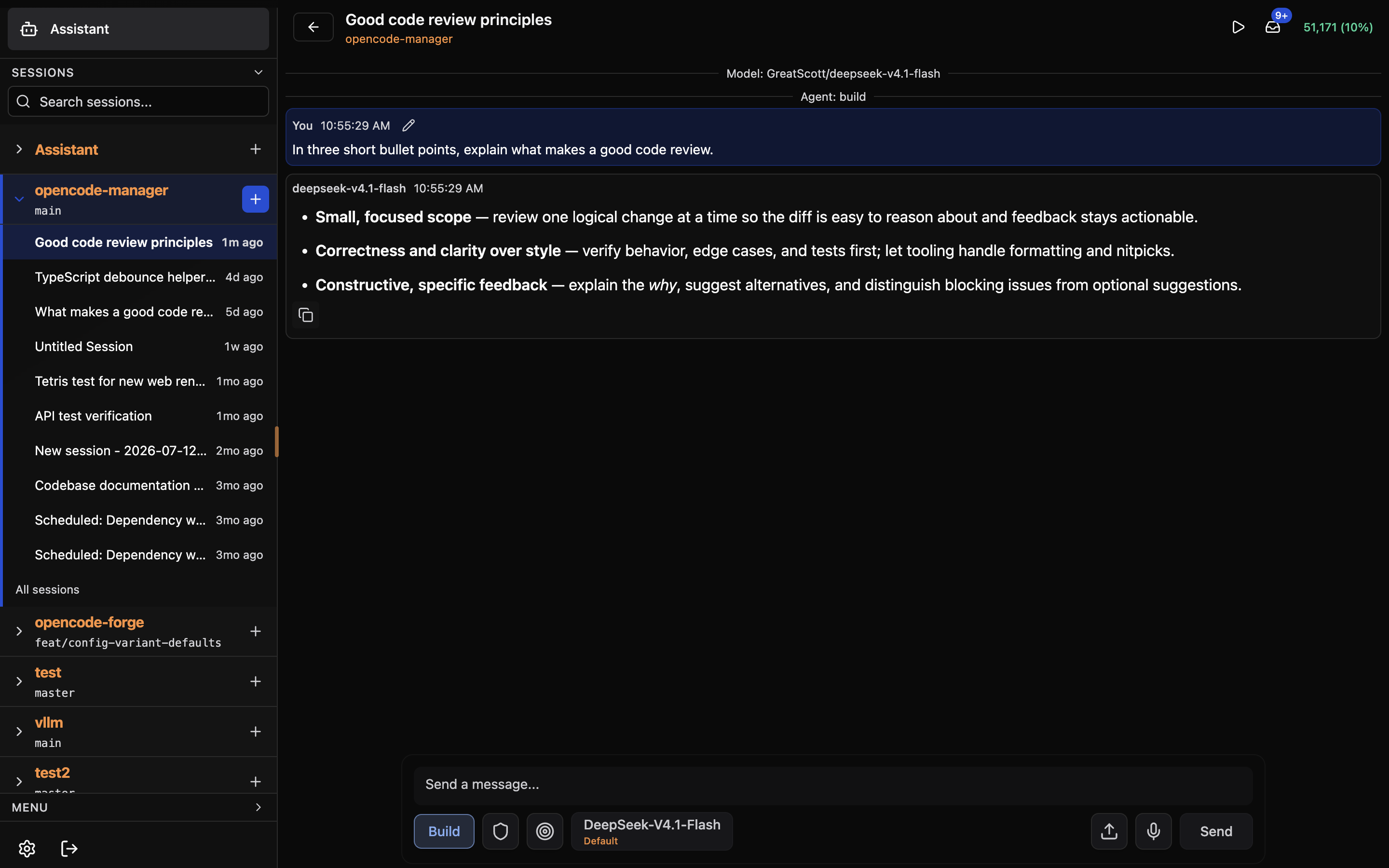
## Session Picker
Every session in every repository is one search away. In a session, type `/sessions` (or `/resume`, `/continue`), or press `Ctrl+X` then `L`, to open the session picker. It opens on the **Sessions** tab; press `Ctrl+S` while the picker is open to cycle through **Activity**, **Sessions**, and **Projects**. On desktop, `/sessions` and the **Sessions** tool in the right tool rail open the same picker in the side panel.
**Activity** lists the sessions that need attention across every repository, in three groups:
- **Needs input** - waiting on a permission request or a question form.
- **Running** - the session, one of its shells, or one of its subagents is working.
- **Recent** - updated within the recent activity window (see [Active work](https://opencodemanager.app/docs/features/chat#active-work)).
Subagent activity rolls up to its root session, and a session running in a worktree is listed under the repository that owns the worktree. Schedule worktree sessions appear only while they are running or need input. Selecting a row opens that session.
**Sessions**:
- **This project / All sessions** (`Ctrl+A`) - tap the selected tab, or press `Ctrl+A` while it is open, to switch between sessions from the current project (including its worktrees, labelled with the worktree folder) and sessions from every repository, each tagged with its repository name. The choice is remembered.
- **Search** - type to filter by title.
- **Grouped by recency** - sessions are listed under **Pinned**, **Today**, and then by day, and the session you are in is marked.
- **Keyboard first** - **↑/↓** (or `Ctrl+P`/`Ctrl+N`) and **Enter** open a session; `PageUp`/`PageDown` jump ten rows.
- **Manage in place** - press `Ctrl+D` twice to delete the highlighted session, or use a row's **⋯** menu to pin, unpin, or delete it. Deleting the session you are in returns you to the session list.
**Projects** lists every repository; type to filter by name or branch, and pick one to switch to it.
## Active work
The **Sessions** tool on the desktop tool rail opens the session picker in the side panel, on the same **Activity**, **Sessions**, and **Projects** tabs as the picker. Its rail button carries a count pill of the sessions that need input or are running, coloured for input.
- **Needs input** - waiting on a permission request or a question form. Selecting the row opens that session with the pending form ready to answer.
- **Running** - the session, one of its shells, or one of its subagents is working.
- **Recent** - updated within the recent activity window.
Subagent activity rolls up to its root session. A session running in a worktree is listed under the repository that owns the worktree and shows its worktree branch, and schedule worktree sessions appear only while they are running or need input. Sidebar repository rows and repository cards show a braille spinner while any of their sessions are active, in the info colour while running and the warning colour when input is needed.
The panel is docked beside the page on desktop: choosing a session keeps it open on the destination. Opened as a floating overlay, it closes on selection.
**Recent activity window** - **Settings → General → Activity** sets how far back the panel and the picker's Activity tab look: 15, 30, 60, 120, 240, 480, or 1440 minutes (default 30).
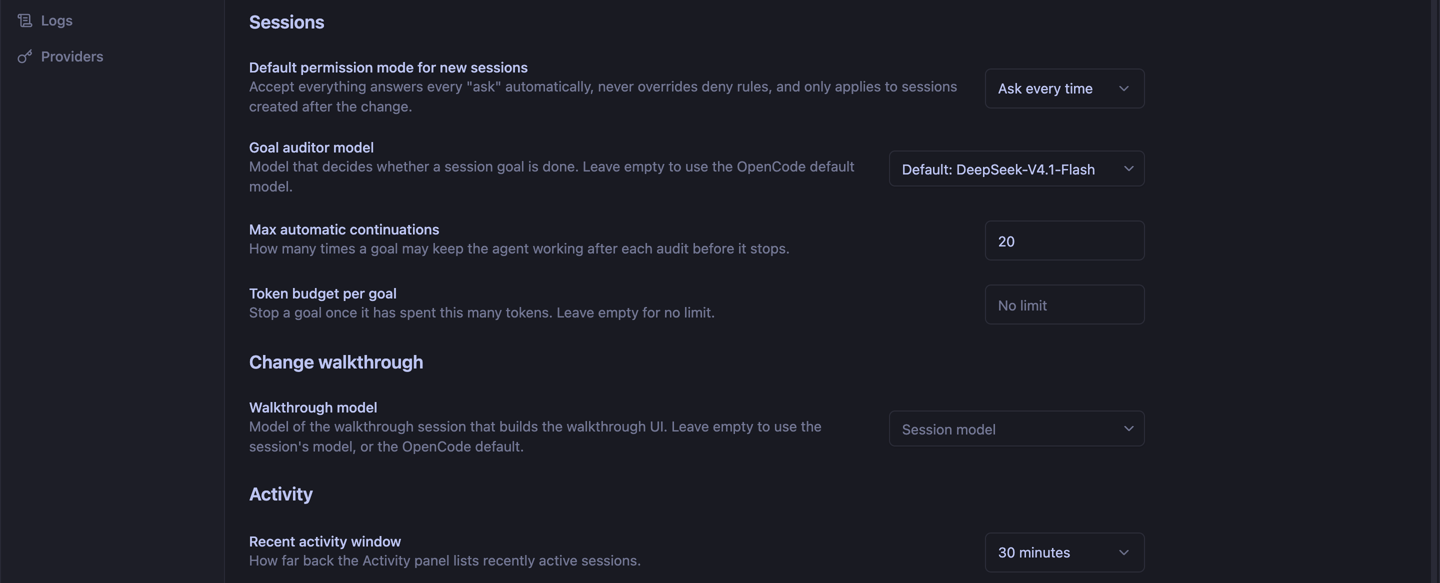
On mobile, the **Sessions** tab opens the session picker as a sheet with the same tabs; see [Mobile](https://opencodemanager.app/docs/features/mobile).
## Background Work
While a shell command or subagent is running, **Move to background** above the prompt lets it keep running while the session continues. The background tasks bar lists each background shell and subagent with its status:
- **running** - still working
- **completed** / **failed** - finished, using the shell exit code or the subagent outcome
- **killed** - you stopped the shell from the bar
- **interrupted** - the subagent was interrupted
- **unavailable** - OpenCode no longer knows the shell and the session has no completion notice for it
Shell rows can show live output and be killed; subagent rows open the child session. Statuses are reconciled when the connection returns, so work that finished while you were away is shown as finished. After a page reload, a shell you killed is shown as **failed**, which matches OpenCode's own notice for it.
The session's own status indicator reflects this too: while a background shell or subagent is still working, the composer scanner and the session's row keep showing **Background tasks running** even after the session itself goes idle.
## Model Selection
Click the **model name** in the chat prompt area to open the quick model switcher, where you can switch models, mark favorites, and pick variants without leaving the chat. Switching agents applies that agent's configured model. See [AI Configuration](https://opencodemanager.app/docs/features/ai-config#model-selection) for the full reference.
Press `Ctrl+R` to cycle through your favorite models, or `Ctrl+X` then `M` to open the model switcher.
Favorites, recent models, and variant choices are stored in OpenCode's `model.json` in the same format the OpenCode TUI uses, so they follow you between the Manager and the TUI.
## Slash Commands
Type `/` to see available commands. Matching is fuzzy: `/tl` finds `/timeline`, and typing three or more characters also searches command descriptions. With nothing typed, your five most recently used commands are listed first and tagged **recent**. Built-in commands are covered in the [Quick Start](https://opencodemanager.app/docs/getting-started/quickstart#useful-commands). OpenCode's own commands, such as `/init` and `/review`, appear in the same list.
The **Fork** shortcut (unbound by default) opens the same message picker as `/fork`.
### Custom Commands
Create your own commands in **Settings → OpenCode Config → Commands**:
```yaml
name: review
description: Request a code review
template: |
Please review the following code for:
- Security vulnerabilities
- Performance issues
- Best practices
- Code style
$ARGUMENTS
```
Use with `/review` in chat. Use `$ARGUMENTS` for everything typed after the command, or `$1`, `$2`, … for individual arguments. A command can also set an agent, model, Top P, or **Run as subtask**. A custom command with the same name as a built-in command replaces the built-in.
## Mentions
Type `@` to mention a file, agent, or skill. Suggestions are tagged **file**, **agent**, or **skill** and fuzzy-matched; select one to insert it.
- **Files** - the selected file's contents are attached to the message. Only files picked from the list are attached; folders are not suggested.
- **Agents** - `@` asks that agent to handle the request.
- **Skills** - `@` loads that skill for the message.
### Multiple Files
You can mention multiple files in one message by picking each from the list:
```
@src/components/Button.tsx @src/styles/button.css
Can you refactor the Button component to use CSS modules?
```
## Shell Commands
Type `!` at the start of an empty prompt to switch the composer to shell mode (badge **BASH**). Enter a command and send it to run it in the session; its output appears in the conversation. Press **Escape** or delete the `!` to leave shell mode.
## Agents: Plan and Build
Pick the agent for your next message from the agent button in the composer, or cycle through primary agents with `/agent` or **Shift+Tab** in the prompt. OpenCode's two built-in primary agents behave as follows, and custom primary agents appear in the same list:
### Plan (Read-Only)
- AI can read and analyze files
- AI cannot modify, create, or delete files
- Safe for exploration and planning
### Build (Full Access)
- AI can create new files
- AI can edit existing files
- AI can delete files
- Use for implementation tasks
## Permission modes
Control who answers OpenCode permission requests for a session. The shield button in the composer toggles between two modes:
- **Ask every time** (default) - each permission request waits for you in the permission dialog.
- **Accept everything** - every "ask" request is answered automatically.
The mode is owned by the backend, so a session in Accept everything keeps working while the browser is closed. Accept everything answers each request once and never saves a permanent rule, and it never overrides a `deny` rule. When you switch a session to Accept everything, requests already waiting are answered immediately.
Child sessions inherit the mode of their root session and cannot change it, and the composer toggle is disabled for them with an explanation. A session forked from another starts with the source session's mode, except that forks of scheduled runs stay **Ask every time**.
Sessions started by a scheduled run always use their schedule's own permission configuration; the composer toggle is disabled there with an explanation. Sessions created or forked by an agent through the `ocm` tool always start in **Ask every time**, regardless of the default, though an agent can still send follow-ups to a session you switched to **Accept everything**.
If Manager restarts or loses its connection to OpenCode, permission requests already waiting in **Accept everything** sessions are answered when it reconnects.
To change the default for new sessions, go to **Settings → General → Sessions** and pick a **Default permission mode for new sessions**. The default is stamped onto a session when it is created, so changing it only affects sessions created afterwards, never existing ones.
Auto-accepted requests send no push notification, so you are not alerted for a request the session answered itself.
The permission dialog shows the request in context: the tool or command, the session it came from, and the scope **Allow Always** would cover. When more than one request is pending it keeps showing the one on screen until it is answered, and otherwise prefers a request from the session you are viewing (or one of its subagent sessions) over the rest. **Open session** jumps to the session that asked.
If you answer a permission request or question that has already expired on the server — for example it was answered from another device — Manager shows **Permission request expired** (or **Form expired**) and removes it instead of showing an error.
## Session goals
A goal keeps a session working on an objective until an auditor model decides it is done or blocked, without you sending follow-up messages.
Arm goal mode with the target button in the composer, then send your message. That message becomes the goal objective, and it is sent to the session as usual. Goals cannot be started on scheduled-run sessions or subagent (child) sessions, and the goal button is disabled there. If you arm a goal and send while the agent is still responding, the message is queued and the goal starts; auditing begins after that queued turn. While a goal is active, each time the session goes idle the auditor decides the next step:
- **done** - the objective is verifiably achieved, and the goal completes.
- **blocked** - the agent needs a decision or access it cannot obtain. Three consecutive blocked verdicts stop the goal as blocked.
- **continue** - the agent keeps working toward the objective.
The auditor only sees the objective and the agent's latest reply; it cannot run tools or read files. Automatic continuations are capped by **Max automatic continuations**, and you can also set a **Token budget per goal** to stop a goal once it has spent that many tokens. A failed turn stops the goal, an interrupted turn pauses it, a goal whose auditor cannot reach a verdict pauses with **Audit failed** (resume it once the auditor model works), and deleting the session stops it.
The goal is persisted and driven by the backend, so it survives closing the browser and a Manager restart: an active goal resumes auditing once the session is idle again.
A status bar above the message list shows the goal state, the objective (expand it to read it in full), the turn count, token usage, and the latest reason, with **Pause** (or **Resume**) and **Cancel** while the goal runs, and **Dismiss** once it has finished.
Goal settings live in **Settings → General → Sessions**:
- **Goal auditor model** - the model that decides whether the goal is done. Pick one from the list or type `provider/model`; leave empty to use the OpenCode default model.
- **Max automatic continuations** - how many times a goal may continue before it stops (1-200, default 20).
- **Token budget per goal** - stop once the goal has spent this many tokens. Empty means no limit.
## Mermaid Diagrams
AI responses can include Mermaid diagrams that render automatically:
```mermaid
graph TD
A[User Request] --> B[AI Processing]
B --> C{Valid?}
C -->|Yes| D[Execute]
C -->|No| E[Error Response]
D --> F[Return Result]
```
Supported diagram types:
- Flowcharts
- Sequence diagrams
- Class diagrams
- State diagrams
- Entity-relationship diagrams
- Gantt charts
- And more...
HTML in replies is rendered but sanitized to GitHub's allow-list: scripts, frames, and event handlers are removed, while safe formatting and syntax highlighting are kept.
Markdown images in replies render inline. A local or absolute path inside the workspace loads through the file API, while `http(s)` links and `data:image/*` sources render as they are; click an image to open it full size.
## HTML artifacts
Ask the agent for a self-contained HTML page and to show it, for example "build an interactive chart of the data in `reports/q3.csv` and show it with `show_artifact`". The agent writes one `.html` file and calls the `ocm` tool's `show_artifact` with a title and the file path; the page then renders inline in the chat in a sandboxed frame, with **Reload** and **Open in new tab** controls. Editing the file and reloading shows the new version, so the agent never resends the document.
- The file must be `.html` or `.htm`, at most 5 MB, and inside the session's directory (a relative path is resolved against it). A path that escapes the directory, including through a symlink, is rejected.
- Inline your own CSS and JavaScript; libraries can load from public CDNs. Scripts run in an opaque origin without the Manager's cookies or API access, and forms, popups, cookies, and local storage are blocked. Sibling `.js` and `.css` files do not load.
## Tool Calls
Consecutive file reads, searches, and web fetches are collapsed into one summary line such as **Explored: 5 reads, 2 searches** (**Exploring:** while they are still running), matching the OpenCode TUI. Click it to see the individual calls. A call waiting for permission stays visible even while its group is collapsed. Turn grouping off with **Group exploration** in **Settings → General**; **Expand tool calls** opens groups by default.
## Change Walkthroughs
Open a walkthrough with `/walkthrough`, the **Walkthrough** tool (on desktop, from the tool rail on the right edge, which opens docked in the side panel; on mobile, **More** → Workspace → Walkthrough, which opens full screen as "Change walkthrough"), or the **Walkthrough** button on multi-run entries and fusions (which opens a sheet).
You can also ask the agent, for example "walk me through what changed". It calls the `ocm` tool's `open_walkthrough` action, which starts the walkthrough for that session (optionally for a specific source) and waits until it is ready. On desktop the docked panel opens by itself once the walkthrough is ready; on mobile, tap **Open walkthrough** on the tool call in the chat.
Choose what to walk through with the source picker in the header: **This session** (the default), **Uncommitted**, **Staged**, **Unstaged**, **Branch vs base**, or **Pull request**. Branch vs base and Pull request show a **Base branch** field (empty means the default branch); Pull request also needs a **Pull request number**. A pull request is fetched from `upstream` (or `origin`) only when you generate, using the repository's stored credentials; it needs a remote that publishes `refs/pull//head` (GitHub style).
Click **Generate walkthrough**. Each request spawns a separate walkthrough agent session, titled `Walkthrough · `, in the same directory, with repository edits denied outside its own output folder. The agent reads the changes through the `ocm` tool's `walkthrough_changes` action and publishes a self-contained HTML walkthrough with `publish_walkthrough`. While it works the panel shows "Building the walkthrough in a separate session…" with **Stop** and **Open walkthrough session**, and it renders the walkthrough as soon as the first version is published, continuing to refine and republish it. A run that has not published within 15 minutes fails.
<video src="/docs/videos/agent-walkthrough.mp4" poster="/docs/videos/agent-walkthrough.jpg" autoplay loop muted playsinline controls aria-label="Generating a change walkthrough in a separate agent session and viewing it in the panel"></video>
The published walkthrough shows with **Reload**, **Open in new tab**, and **Open walkthrough session**. The refine box below it asks the walkthrough agent for a change and is disabled while the agent is working.
Lock files, snapshots, minified files and source maps are never sent to the agent as text; the outline lists them as mechanical files with +/− counts. Binary files, renames/mode changes without content, and files that do not fit the budget are listed as omitted.
Walkthroughs are saved per session and per source. When the changes move on, a banner "Changes have been updated since this walkthrough was generated" offers **Update walkthrough**. **Regenerate** (refresh icon in the header) starts from scratch in a new walkthrough session.
Model: Settings → General → **Change walkthrough** → **Walkthrough model**. It sets the model of the walkthrough session that builds the walkthrough UI; empty means the session's model, or the OpenCode default. A small, fast model works well.
## Session Management
### Switching Sessions
Use the [Session Picker](https://opencodemanager.app/docs/features/chat#session-picker) to jump to any session in any repository without leaving the chat.
### Viewing Sessions
Access your sessions from the sidebar:
- Sessions are organized by repository; the current repository is expanded and one repository is open at a time
- Pinned sessions appear first, followed by the most recent sessions
- A live indicator marks sessions that are working, retrying, or compacting
- **All sessions** opens the repository's full session list when it has more sessions than the sidebar shows
- Repositories that are still cloning, or whose clone failed, show **Repository not ready** until they are ready
- On desktop, type in the sidebar search box to search sessions across all repositories as you type; a repository whose name matches shows its recent sessions. Press **Escape** or empty the box to clear
- Click a session to resume
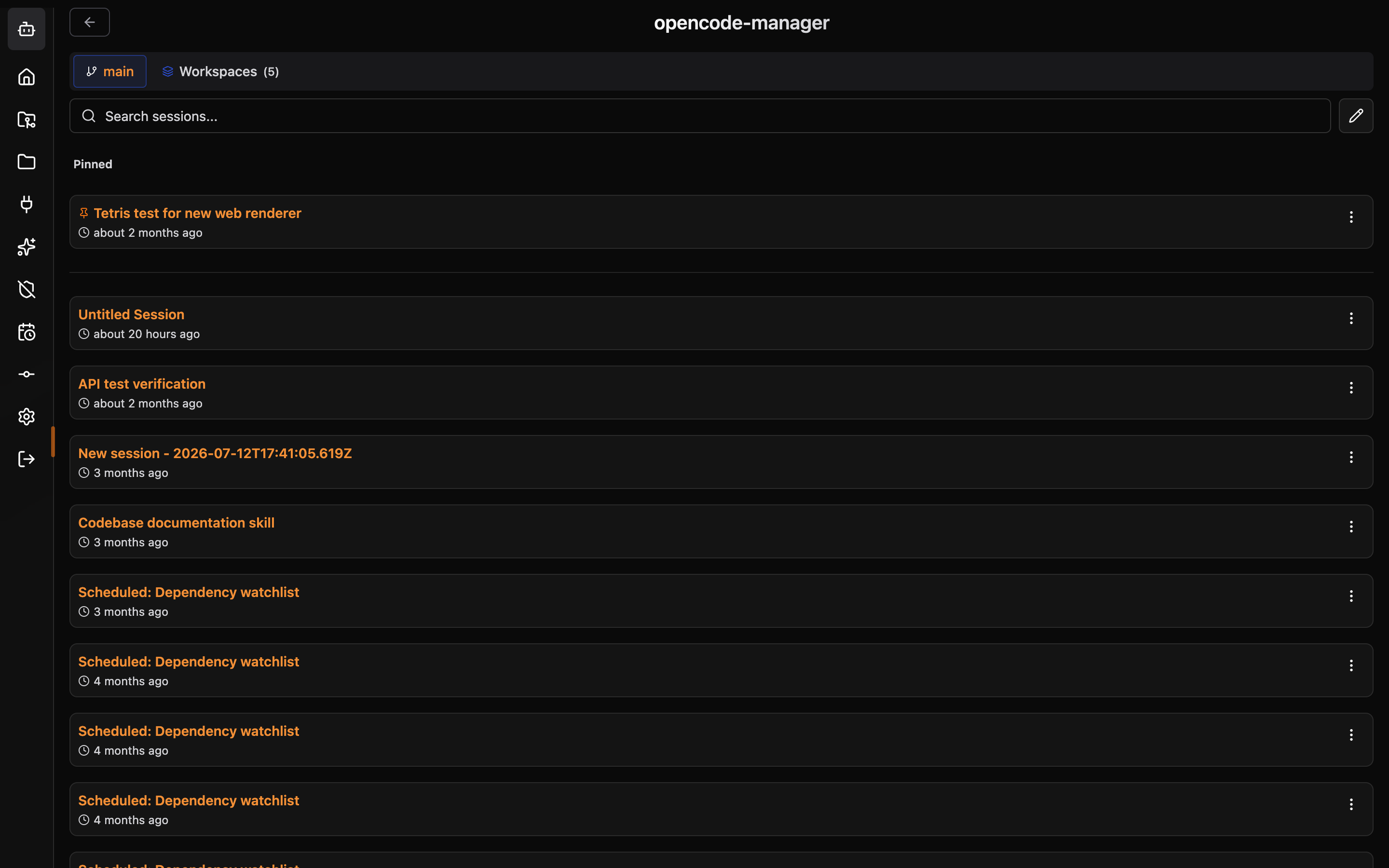
### Searching Sessions
Find sessions by title:
1. Type in the always-visible **Search sessions...** box in the sessions panel
2. Results filter as you type
### Pinning Sessions
Pin important sessions to the top of the list. See [Session Pinning](https://opencodemanager.app/docs/features/session-pins) for details.
### Deleting Sessions
Remove sessions you no longer need:
1. Swipe a session left to reveal the delete button, then tap it
2. Or click the **Manage sessions** icon and use the trash button on a session
3. Or press `Ctrl+D` twice in the session picker
4. Confirm deletion
### Bulk Delete
Remove multiple sessions at once:
1. Click the **Manage sessions** icon in the sessions panel
2. Check the sessions to delete
3. Click **Delete**
4. Confirm deletion
## Context Management
Sessions maintain context of your conversation. As context grows, you may need to manage it:
### Compacting Context
Use `/compact` to reduce context size:
- Summarizes earlier messages
- Preserves important information
- Frees up context for new messages
### Starting Fresh
Use `/new` to start a new session when:
- Context is too large
- Topic has changed significantly
- You want a clean slate
## Keyboard Shortcuts
### Composer keys
These keys apply while the composer is focused:
| Shortcut | Action |
|----------|--------|
| `Enter` | Send on mobile, or run a complete slash command; otherwise a new line on desktop |
| `/` | Open command suggestions |
| `@` | Mention a file, agent, or skill |
| `!` | Shell mode (at the start of an empty prompt) |
| `↑` / `↓`, `Enter` | Move through and pick a suggestion |
| `Escape` | Close suggestions; otherwise interrupt the running response, or clear the prompt (or leave shell mode) when idle |
### App shortcuts (desktop)
| Action | Default |
|--------|---------|
| Send message | `Cmd+Enter` (Ctrl+Enter outside macOS) |
| Interrupt the running response | `Escape` |
| Clear prompt (macOS) | `Ctrl+C` |
| Next agent (prompt focused) | `Shift+Tab` |
| Cycle model variant | `Ctrl+T` |
| Cycle favorite models | `Ctrl+R` |
| Scroll messages half a page up / down | `Ctrl+U` / `Ctrl+D` |
| Read aloud the messages on screen (press again to stop) | leader `S` |
| Undo / redo | leader `U` / `R` |
| Compact session | leader `C` |
| Timeline | leader `G` |
| Export session (Markdown) | leader `X` |
| Select model | leader `M` |
| Session picker | leader `L` |
| Switch session picker tab | `Ctrl+S` (only while the picker is open) |
| New session | leader `N` |
| Close session (back to list) | leader `W` |
| Toggle Files panel | leader `B` |
| Toggle terminal | leader `T` |
| Fork, Toggle Source Control, Settings | unbound |
The leader key is `Ctrl+X` on every platform, matching the OpenCode TUI; press it, then the letter within two seconds. Open **Settings → Keyboard Shortcuts** to rebind keys, clear them, or switch an action between leader and direct. **Import from OpenCode TUI** reads your `cli.json` (or legacy `tui.json`, usually in `~/.config/opencode`) in the browser and maps its keybinds; conflicting defaults are unbound and the toast lists what was unbound or skipped. While a terminal is focused, only the leader key and the terminal toggle are intercepted. Keyboard shortcuts are not available on mobile.
To edit a message, use the edit action on the last user message while the session is idle.
---
Source: https://opencodemanager.app/docs/features/session-pins
# Session Pinning
Pin important sessions to the top of your session list so you can find them quickly without searching.
## Overview
Session pinning lets you mark any session as "pinned" — it moves to a dedicated **Pinned** section above your other sessions. This is useful for:
- Active feature branches you switch between throughout the day
- Long-running investigations or debugging sessions
- Sessions with important context you want to keep accessible
## Pinning a Session
Each session card has an actions menu (the **⋮** button, hidden in manage mode); its entry toggles pinning:
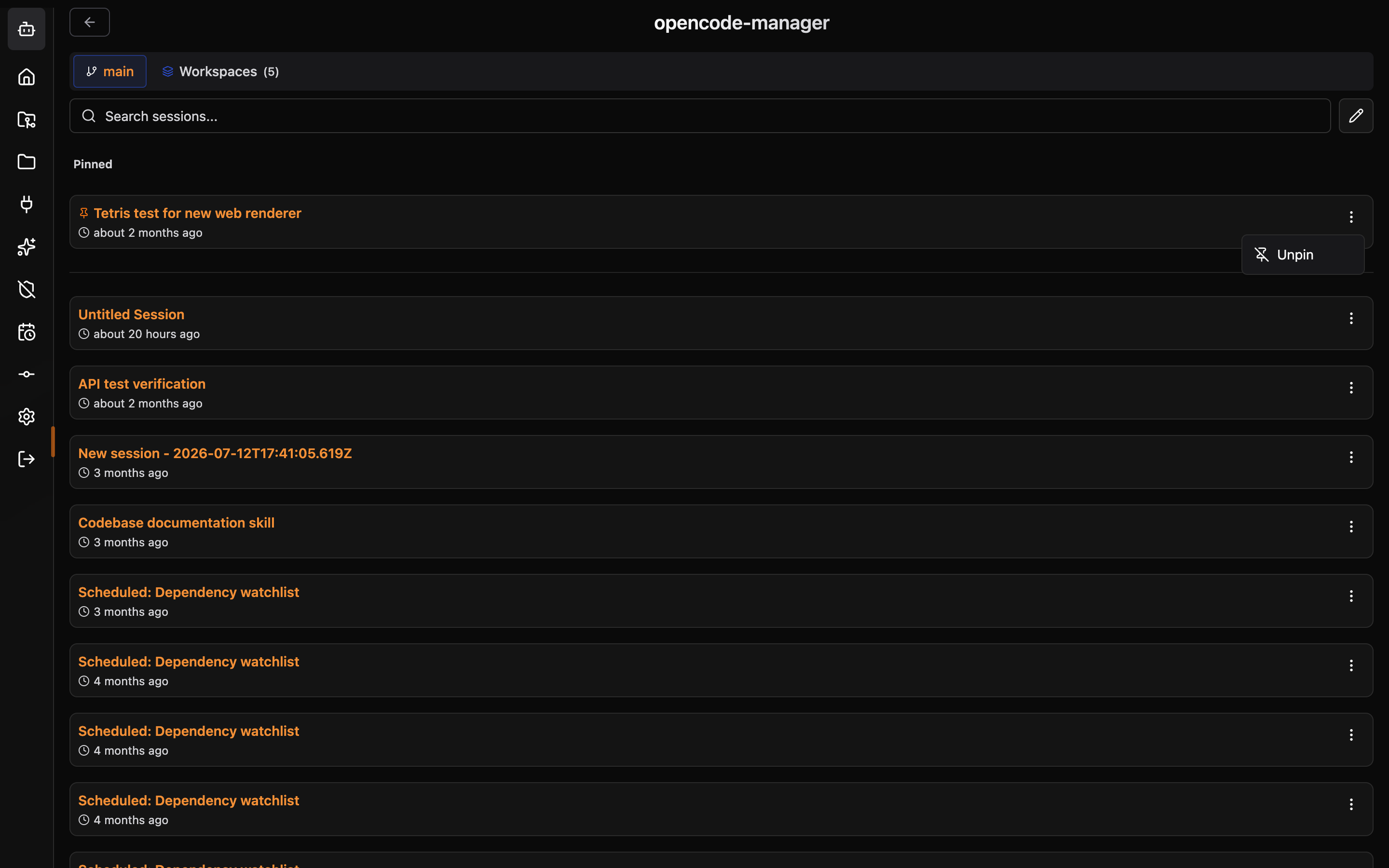
The pinned session appears in a **Pinned** section above the **Today** section and older sessions. Unpinned sessions stay in those sections, sorted by last activity.
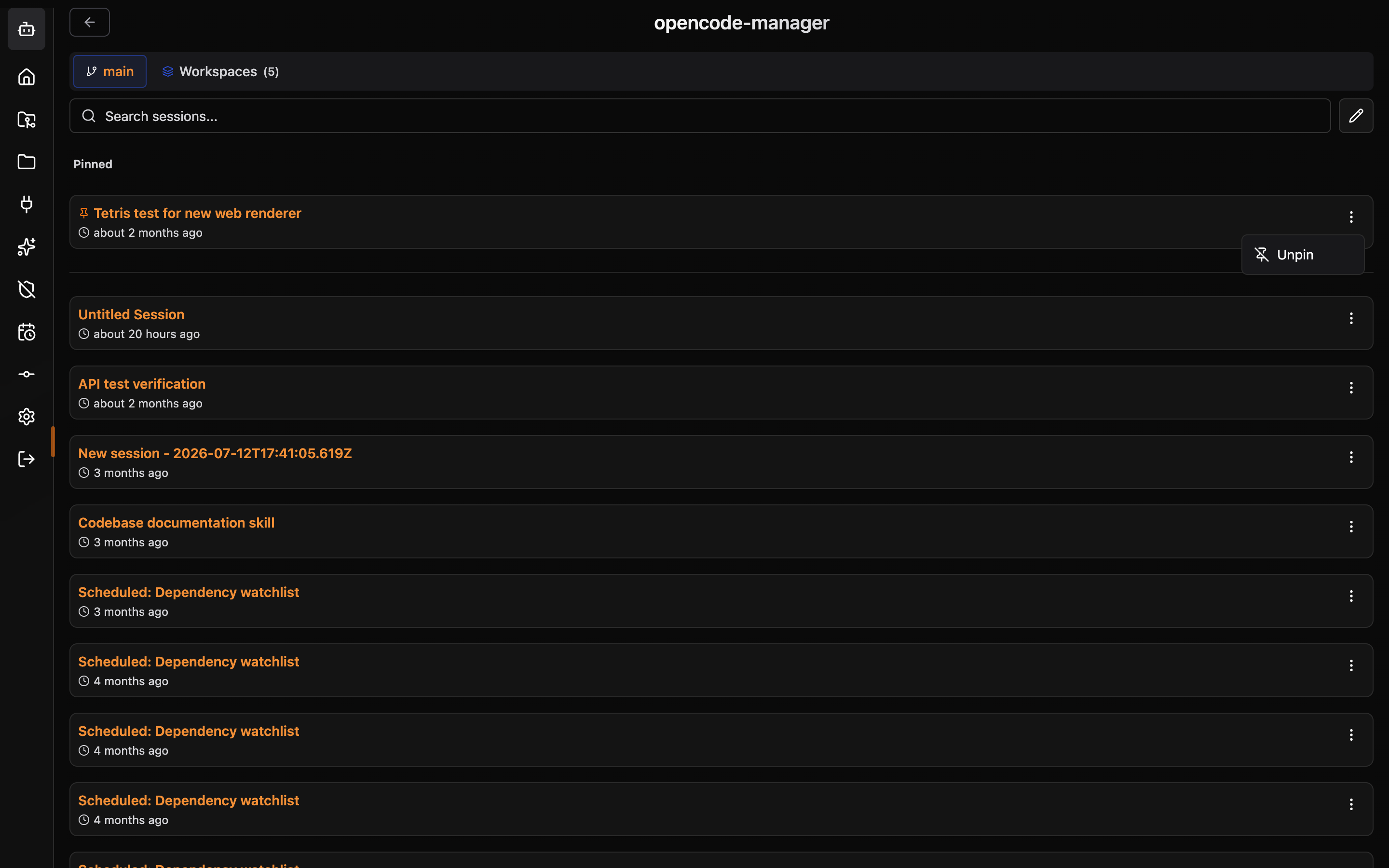
Pin state persists across page reloads and browser sessions. Pinned sessions remain at the top until you unpin them.
## Managing Pins
| Action | How |
|--------|-----|
| **Pin a session** | Open the session actions menu and select **Pin to top** |
| **Unpin a session** | Open the session actions menu and select **Unpin** — it moves back to the Today or older sessions |
| **Bulk operations** | Pin/unpin is per-session. Bulk delete and other management tools work as normal on pinned sessions |
## What Happens When a Pinned Session is Deleted
Deleting a pinned session from the Manager also removes its pin. A pinned session deleted elsewhere, such as from the OpenCode TUI, disappears from the Pinned section, but its pin record stays in the Manager database.
## Notes
- In the sidebar, pinned sessions are always shown, even ones too old to have loaded. The full session list loads 25 sessions at a time, so an older pinned session appears in its Pinned section only after scrolling loads it.
- On a repository's **Worktrees** tab, sessions are grouped by worktree instead, so there is no Pinned section there; the actions menu still pins and unpins sessions.
- The Pinned section supports any number of pinned sessions.
- Pinning is stored server-side in the Manager and is Manager-wide rather than per-user, so the same pins are shown on every device and browser.
---
Source: https://opencodemanager.app/docs/features/schedules
# Schedules & Recurring Jobs
Create recurring repo jobs that run reusable prompts against a repository, store run history, and link every run back to a normal OpenCode session.
## What Schedules Are Good For
Schedules make OpenCode Manager proactive instead of purely session-driven. Good examples include:
- **Repo health reports** for a quick morning review
- **Dependency watchlists** to catch upgrade pressure early
- **Release readiness checks** before a ship window
- **Docs drift reviews** to spot stale setup instructions
- **Tech debt triage** for recurring cleanup planning
Each run is stored with status, timestamps, logs, assistant output, and a linked session you can open and continue.
Cancelling during startup stops model loading and prevents later prompt submission. If session creation was already in flight, the returned session is interrupted rather than prompted.
## Creating a Schedule
1. Open a repository
2. Click **Schedules**
3. Click **New Schedule**
4. Configure the job name, prompt, timing, and optional overrides
5. Save the schedule
The schedule is scoped to the current repository. To see another repository's schedules, or every schedule at once, click the page title in the schedules header and pick a repository or **All repos**.
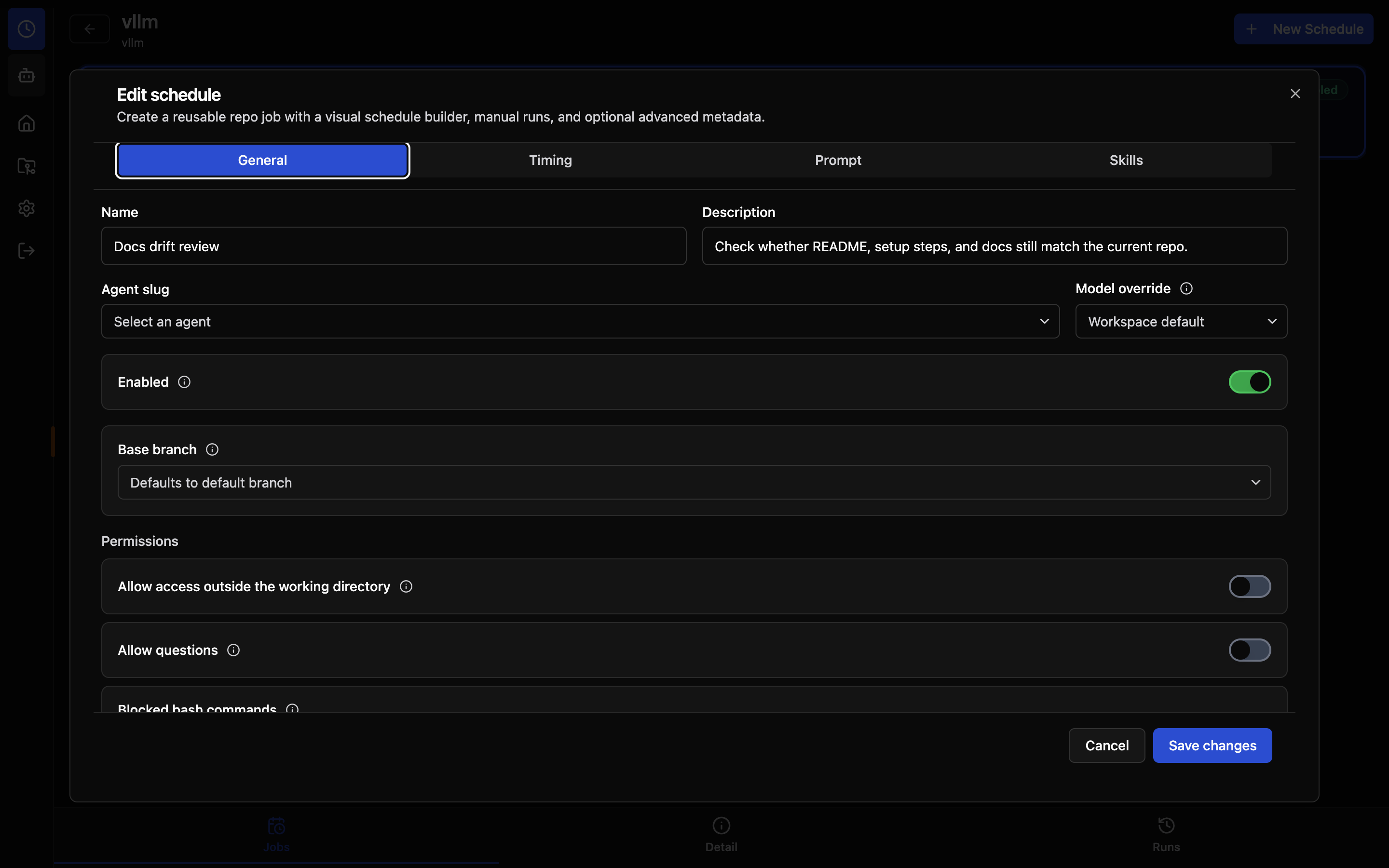
## Timing Options
The schedule builder supports both simple presets and advanced cron:
- **Interval** - Repeat every N minutes
- **Hourly** - Run once each hour at a chosen minute
- **Daily** - Run once per day at a chosen time
- **Weekdays** - Run Monday through Friday
- **Weekly** - Pick one or more weekdays and a time
- **Monthly** - Run on a day of the month
- **Advanced** - Enter a cron expression directly
Cron-based schedules also store a timezone so runs happen when expected.
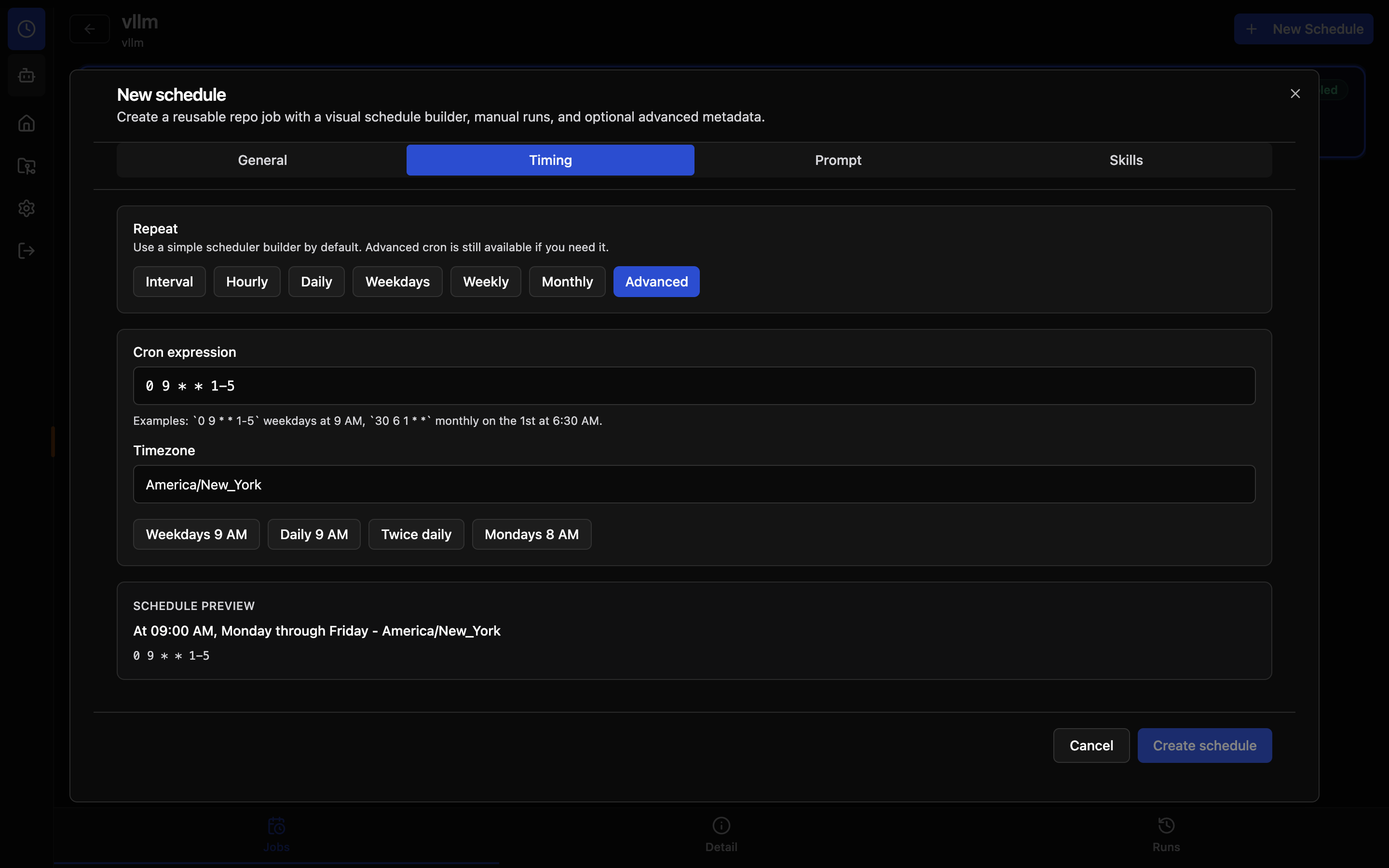
## Prompt Templates
Built-in prompt templates help you start quickly with recurring jobs like:
- Repo health report
- Dependency watchlist
- Release readiness review
- Test stability audit
- Docs drift review
- Tech debt triage
- Security and config review
- CI and ops review
Applying a template fills the schedule name, description, and prompt so you can customize from a strong default instead of starting from scratch.
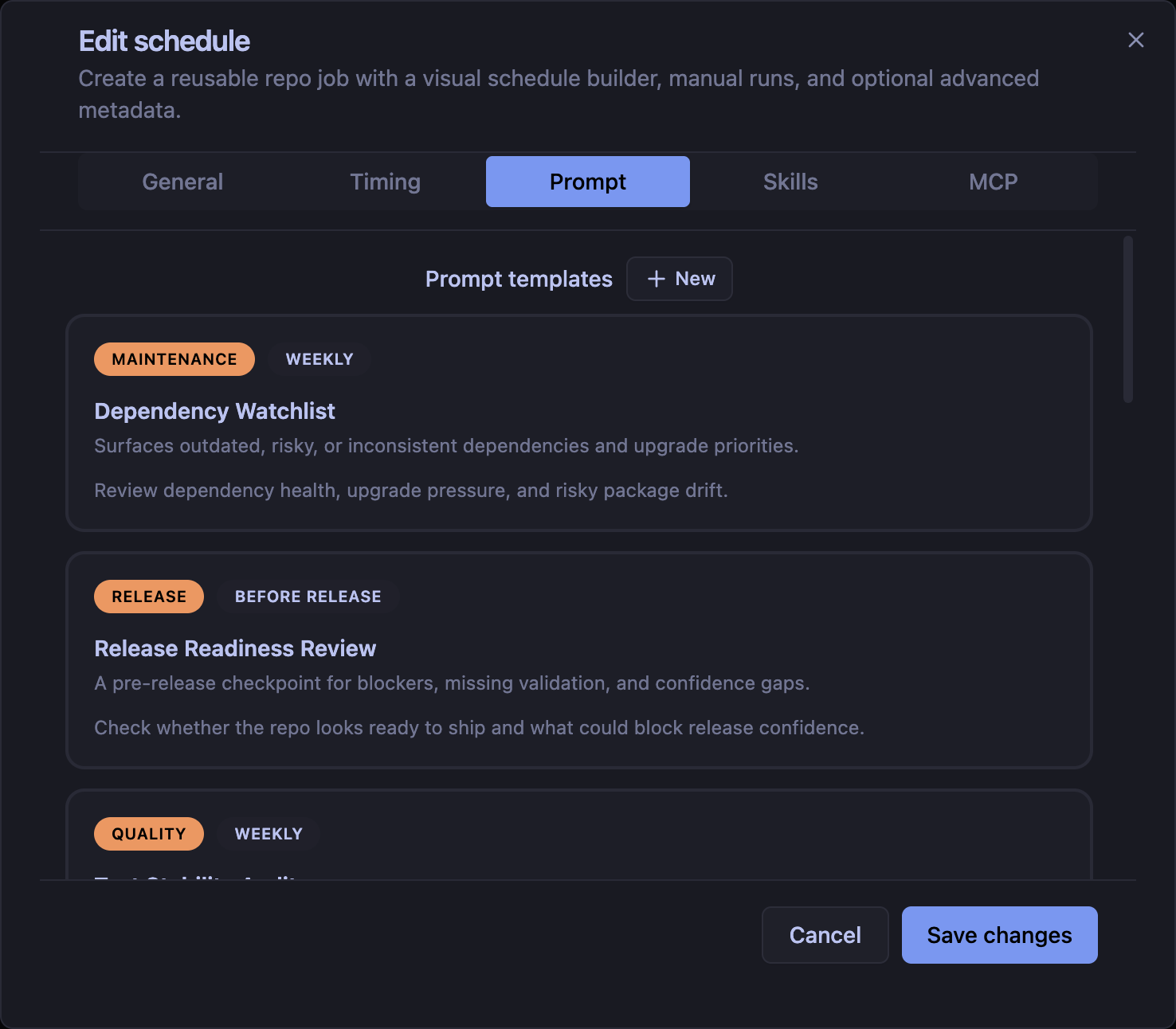
## Agent and Model Overrides
Schedules can run with:
- the default workspace agent and model
- a custom agent slug
- a specific model override when needed
OpenCode Manager allows up to 15 seconds for a fresh worktree's model catalog to load before treating a missing requested or configured model as unavailable. It prefers the schedule override, then the configured model, then OpenCode's default, then the first enabled model. A fallback can use a different provider. Model-catalog requests are bounded by that deadline.
## Skills
Each schedule can optionally attach skill slugs and notes. Skills modify the agent's behavior during the run — for example, you could attach a review-focused skill to a weekly code review schedule.
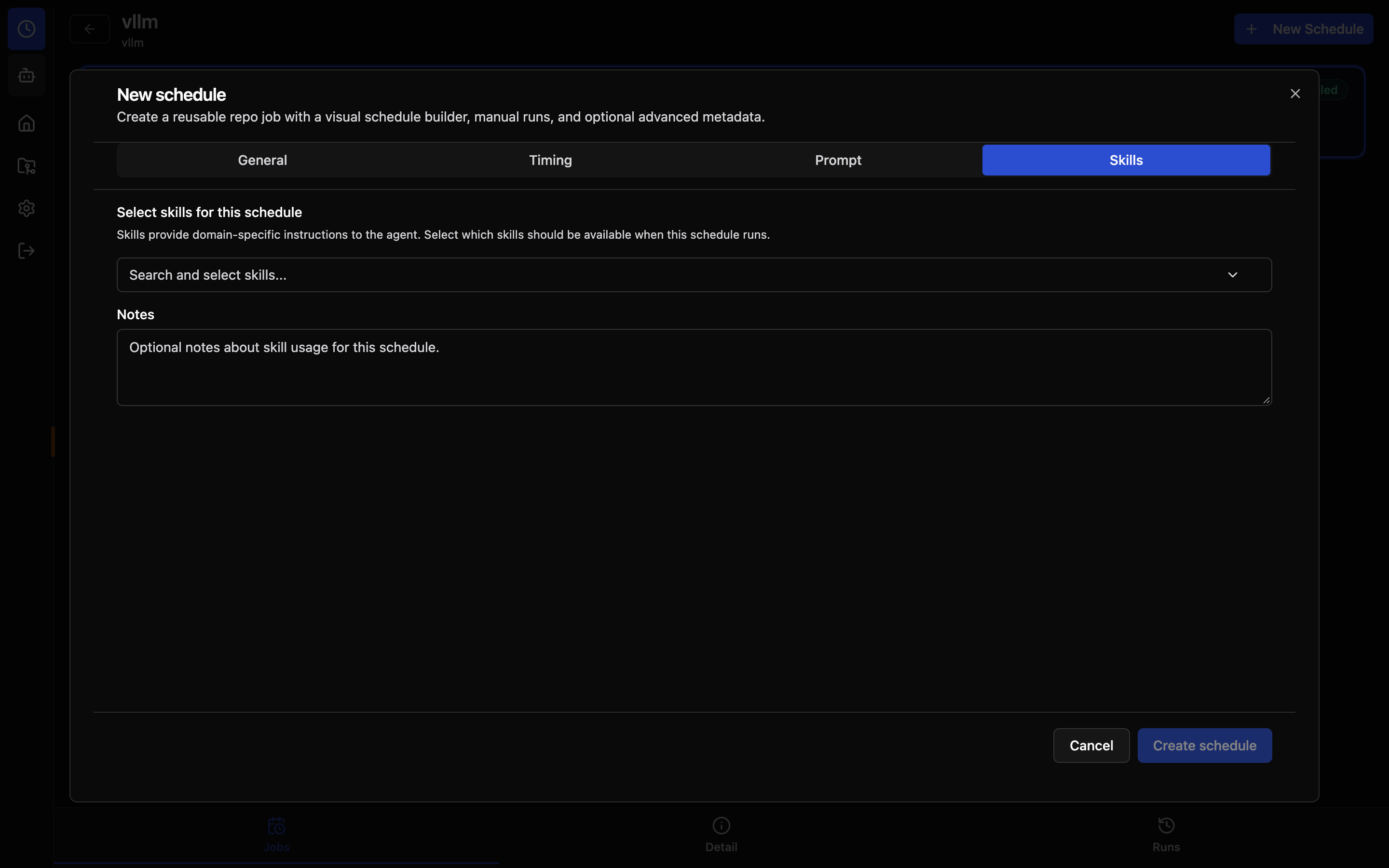
The **Skills** tab in the schedule dialog lets you:
- Select one or more **skill slugs** from a multi-select input
- Add free-form **notes** (max 2000 characters) that the agent receives as additional context
When the run starts, the Manager resolves the selected skill slugs against the skills available in the run's location and attaches the matching skills directly to the submitted prompt, making them available to the agent for that run only. Skill slugs that are not available in the location are omitted, and if the available skills cannot be listed the run continues without any skill attachments.
## MCP Servers
The **MCP** tab attaches MCP servers to a schedule. A run in a worktree is a location OpenCode has not seen before. MCP servers you connected by hand in the repo are not connected there, so any server a run needs has to be attached here.
- **Configured MCP servers** - Choose from the servers available in the repo, including ones turned off in the OpenCode configuration. Each run connects the selected servers before it starts.
- **Schedule-only MCP servers** - Define a local or remote server that exists only for this schedule. It is added to each run's location and never written to the OpenCode configuration. The definition is stored with the schedule, so use `{env:NAME}` or `{file:path}` placeholders instead of pasting secrets.
The Manager connects every attached server before it creates the run's session. The run fails with the server name and reason if a server is not configured for the location, cannot connect, or needs OAuth authorization. Runs are unattended and cannot complete an OAuth flow, so authorize OAuth servers in **Settings > MCP Servers** before attaching them.
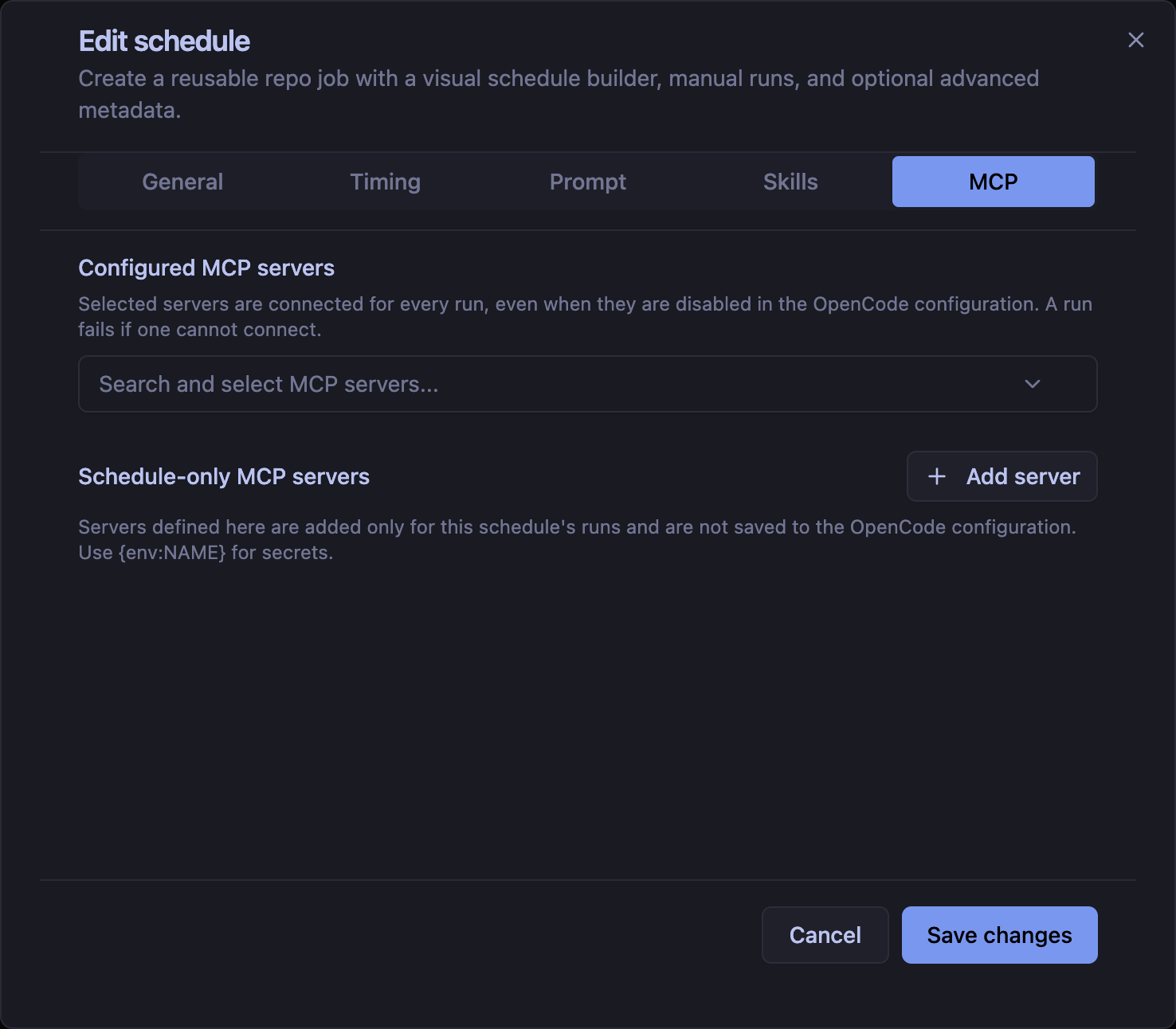
Connections are made at the run's directory, so they do not affect other sessions. OpenCode stops a run location's MCP servers once that location has been idle for about an hour. Schedules without a worktree, such as Assistant schedules, run in the repo directory itself. There, a connection stays until OpenCode restarts, just like turning on the server in the repo's MCP panel.
## Workspace Modes
The **Workspace** setting on the General tab chooses where a schedule's runs work:
| Mode | Where each run works | After the run |
|------|----------------------|---------------|
| **Fresh worktree, cleaned up** (default) | A new worktree on branch `schedule/{jobId}/run-{runId}` | Changes are committed to the run branch and the worktree is removed. A branch without a commit is deleted. |
| **Fresh worktree, kept** | A new worktree on branch `schedule/{jobId}/run-{runId}` | Changes are committed to the run branch and the worktree stays on disk so you can continue in it. |
| **Shared worktree** | One worktree on branch `schedule/{jobId}/shared`, reused by every run | Changes are committed to the shared branch, so work builds up from run to run. |
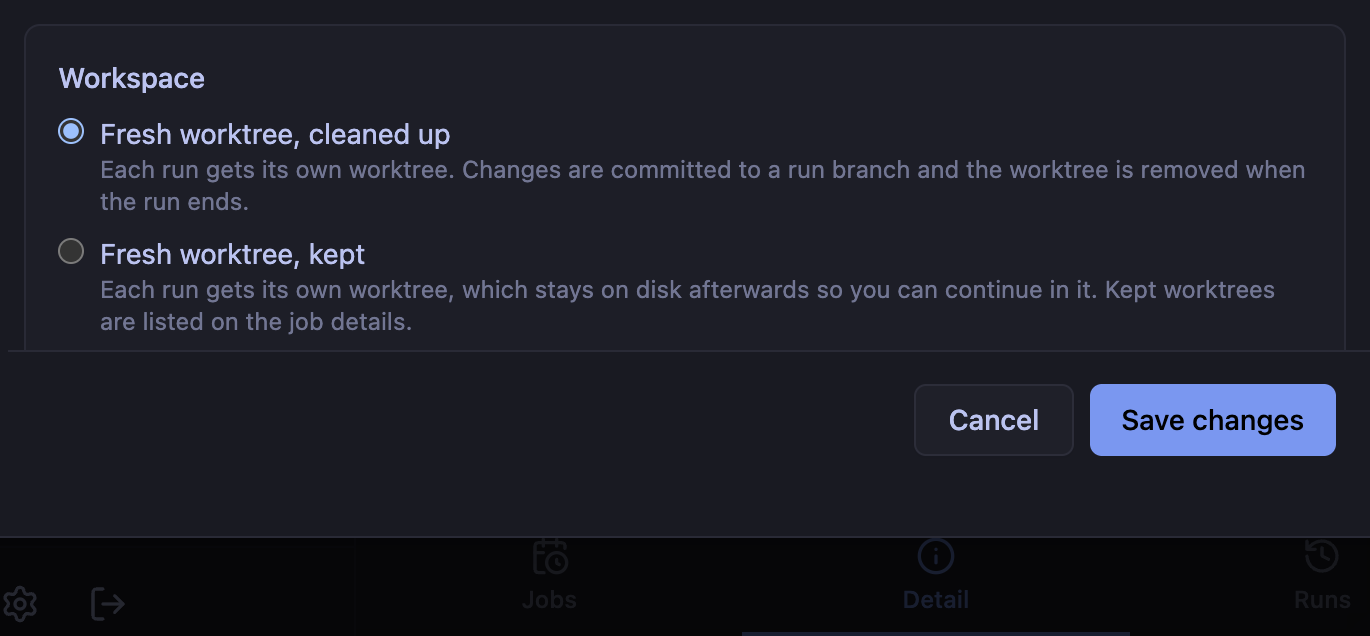
Every schedule in a git repository runs in a worktree. Assistant schedules, and schedules in a folder that is not a git repository, run in the directory itself and have no workspace setting.
Run worktrees live under `<workspace>/schedule-worktrees/`, named `job-{jobId}-run-{runId}`, or `job-{jobId}-shared` for a shared worktree.
A run fails if its branch is already checked out somewhere else, such as your main checkout. Switch that checkout to another branch so the schedule can run.
The Workspace setting cannot be changed while a run is in progress, and a schedule or its repository cannot be deleted until its running run is cancelled. Deleting a repository removes its schedules' worktrees the same way deleting a schedule does.
Schedule worktrees do not run [worktree setup commands](https://opencodemanager.app/docs/features/project-actions#worktree-setup-commands), so have the prompt install anything the run needs.
A worktree gives a run its own checkout: ordinary checkout changes and branch switches happen there instead of in your working directory. A worktree is not a filesystem jail: shell commands may affect other accessible paths, including the main checkout.
Manager does not automatically push schedule branches, but an agent with shell access can push explicitly.
Deleting a run or clearing run history deletes the run branches of runs whose worktree is already gone. When kept worktrees are still on disk, you choose what happens to them:
- **Commit and remove**: pending changes are committed to each run branch, then the worktree folders are removed. The branches are kept.
- **Force delete**: the worktree folders are force-removed and their run branches deleted. Any uncommitted changes are lost.
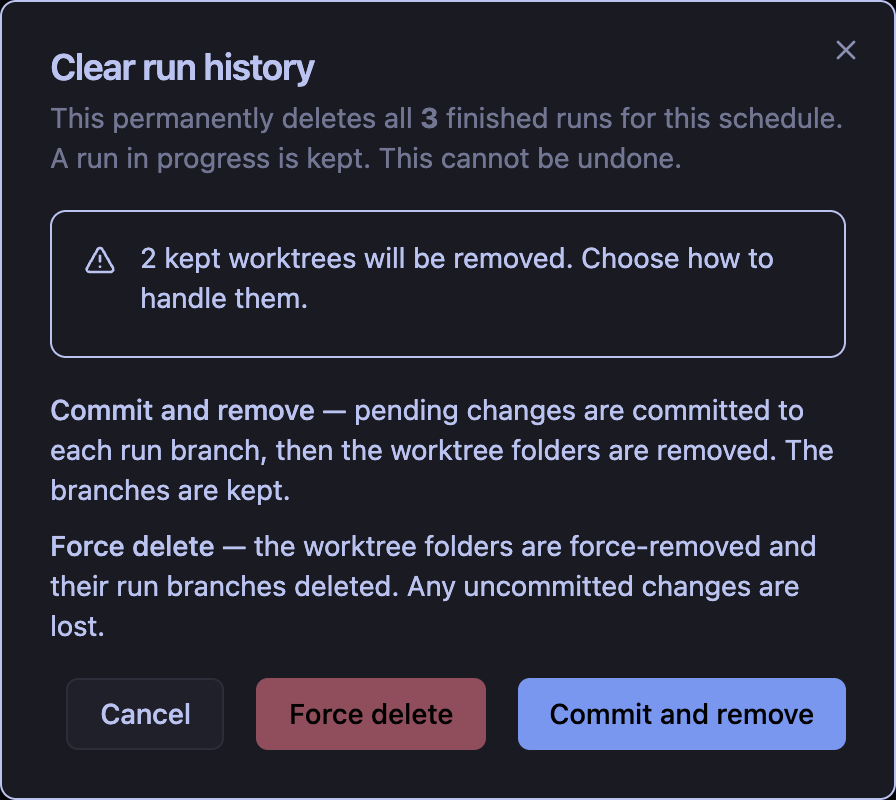
Clearing history never touches the shared worktree or its branch. Deleting branches does not guarantee immediate erasure of Git objects or outputs saved elsewhere.
### Managing Kept and Shared Worktrees
The job details list every worktree the schedule still has on disk, with its branch. Remove one, or use **Remove all**; a worktree in use by a running run cannot be removed. Removing a worktree commits any pending changes to its branch first and keeps the branch. Deleting the schedule does the same for all of its kept and shared worktrees.
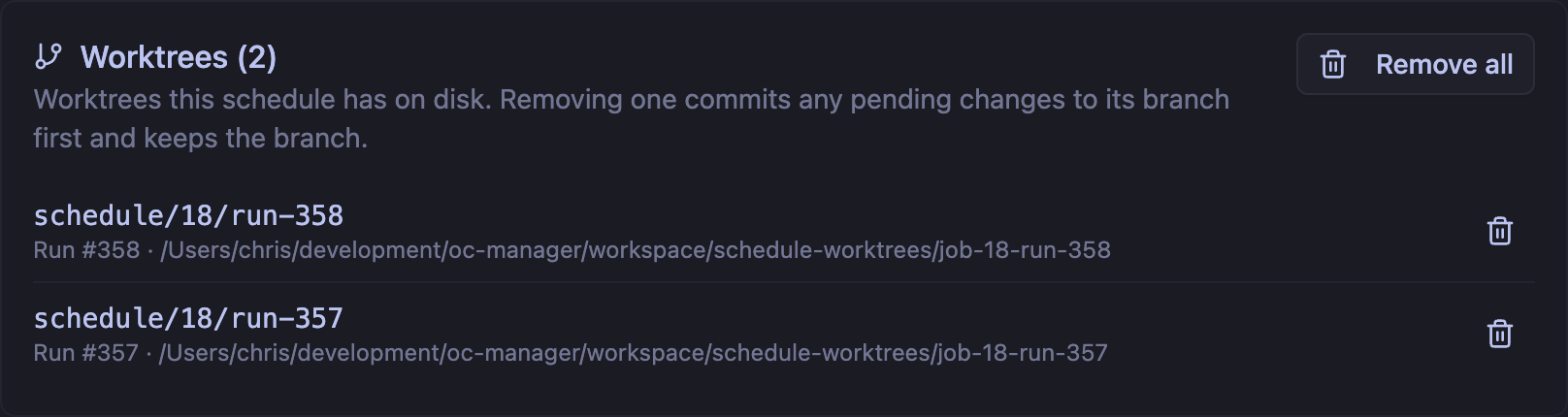
A repository's **Worktrees** tab also shows schedule worktrees, grouped under their schedule, so you can open a session or a terminal in a kept run's worktree.
### Branch Configuration
By default, run worktrees branch off the repository's default branch. You can override this by specifying a **base branch** in the schedule settings. A shared worktree only uses the base branch when it is first created.
## Linked Servers
Schedules also run on linked OpenCode servers. Select a linked server in the switcher and click **Schedules** on one of its project rows, or open the project and use the same button, to create a job scoped to that server and project directory.
Remote schedules always use the **in place** workspace mode: each run works directly in the project directory on the linked machine. The workspace options and base branch are hidden, because there is no Manager checkout or worktree to branch from. Everything else works as it does locally, including timing, prompt templates, agent and model overrides, attached MCP servers, permissions, run history, and opening the linked session.
If the server is disabled or no longer registered when a run is due, the run is recorded as failed instead of starting. The **All repos** view of the schedules page includes linked-server jobs, labelled with the server name, and opening one goes to its project page on that server.
The **Skills** tab still lists the skills managed by the Manager and attaches the selected slugs to each run; a skill that the linked server does not expose is dropped from that run.
## Permission Configuration
Every schedule includes a **Permissions** section in the General tab. These settings control what the agent can access and execute during unattended runs.
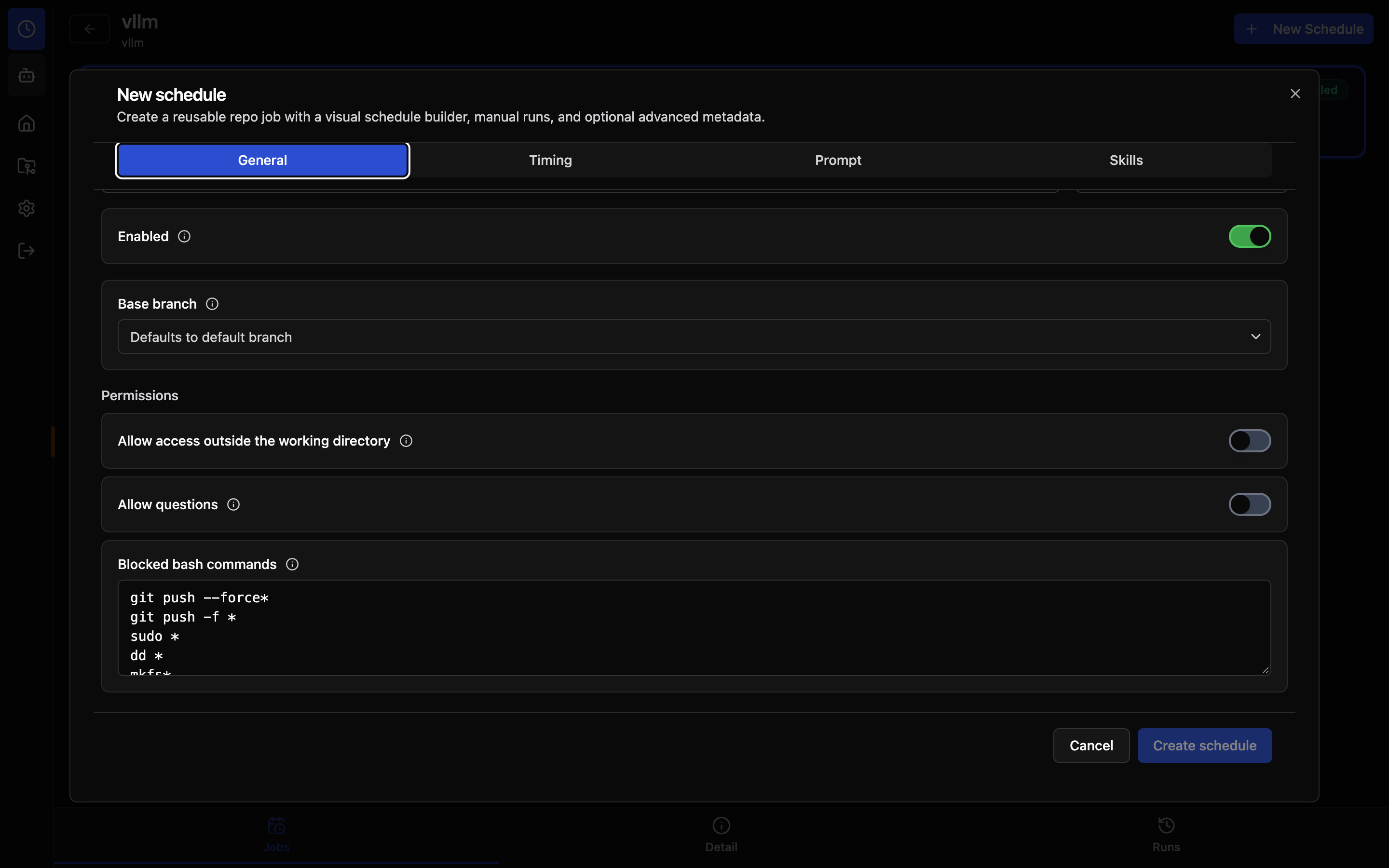
### Allow Access Outside the Working Directory
When **disabled** (the default), OpenCode's `external_directory` permission is denied. This blocks file-tool operations that request that permission; it is not comprehensive filesystem confinement. Enable this if the schedule requires file tools to access paths outside its working directory (e.g., a shared configuration directory).
This is a file-tool boundary, not a per-worktree jail for shell commands. A sandboxed run's `shell` commands run in the run's own microVM, which mounts only that run's worktree (or the repo directory for Assistant schedules) and the repository's shared git directory, so it cannot reach other repositories or worktrees; see [Sandbox](https://opencodemanager.app/docs/features/schedules#sandbox).
### Allow Questions
When **disabled** (the default), the agent's `question` tool is denied so an unattended run cannot stall waiting for an answer nobody is there to give. Enable it only when the run is supervised, since an unattended run that asks a question can stall waiting for an answer.
### Blocked Bash Commands
The following bash command patterns are always blocked by default:
```
git push --force*
git push -f *
sudo *
dd *
mkfs*
shutdown*
reboot*
halt*
kill -9 *
killall *
```
These patterns prevent dangerous commands whose blast radius escapes the run's worktree. File-mutating commands (`rm -rf`, `git reset --hard`, etc.) are intentionally omitted because a worktree is meant to be disposable; a shell command can still reach paths outside the worktree, so treat the deny list as a guard against the worst host-level commands rather than a complete sandbox.
You can customize the deny list by adding or removing glob patterns. One pattern per line. Changes apply to all future runs of that schedule.
## Sandbox
The General tab has a **Sandbox** section with **Run in sandbox**. When it is on, each run's session — and every subagent of that session — runs its agent `shell` commands inside a dedicated microVM instead of the Manager container. The Manager's own shells, file tools, and extensions are unaffected; see [Agent Sandboxing](https://opencodemanager.app/docs/features/sandboxing).
- **CPUs** and **Memory (GiB)** are optional. Leave both blank to use the server defaults, or the sandbox defaults from **Settings → OpenCode Config → Server maintenance → Sandbox** when those are set. Enter both or neither: 1–64 CPUs and 1 GiB–1 TiB. A value above the host's CPUs or memory is rejected.
- The job details show the setting as **Off**, **On · server defaults**, or **On · 2 CPUs · 4 GiB**.
- Each run gets a fresh microVM, so guest storage and Docker data from one run never reach the next. Files a run writes to its working copy do persist, so an in-place run leaves them in the repository directory itself.
The switch is disabled, with the reason shown, when:
- Sandboxing is turned off in **Settings → OpenCode Config → Server maintenance → Sandbox**.
- The host cannot sandbox (no `/dev/kvm`); see [Host Requirements](https://opencodemanager.app/docs/features/sandboxing#host-requirements).
- The job runs on a linked server. Sandboxed schedules run only on the local OpenCode server, and the option is hidden for a linked-server job.
A run's microVM mounts the run's own working copy — its worktree, or the repository directory for in-place and Assistant runs — plus the repository's shared git directory and the same Manager directories a session sandbox mounts. Only that working copy is a valid working directory, so a `shell` command cannot reach another run's worktree. Docker is available inside the guest after `ocm-dockerd-start`, with a data volume private to the run.
When the run finishes, fails, or is cancelled, the run's sandbox is removed along with its Docker data volume. Turning sandboxing off for the server while a job still has it enabled makes the next run fail with the reason instead of running unsandboxed.
## Run History
Each schedule stores a run history panel with:
- **Status** - Running, completed, failed, or cancelled (a running run can be stopped with **Cancel run**)
- **Trigger source** - Manual or scheduled
- **Log output** - Execution metadata and captured results
- **Assistant output** - Rendered markdown, with a **Read aloud** button when Text-to-Speech is enabled
- **Errors** - Failure details when a run does not complete
This makes recurring jobs easy to review without digging through raw session data first.
### Unread Reports
A completed or failed run stays unread until you open it. Unread runs show a **NEW** pill in the run list, and a schedule whose latest run is unread shows one too. The **Reports** bell lists unread reports and offers **Mark all read**. In the run drawer, **Next unread (N)** jumps to the next unread run. On mobile, the Schedules tab shows a badge while any report is unread.
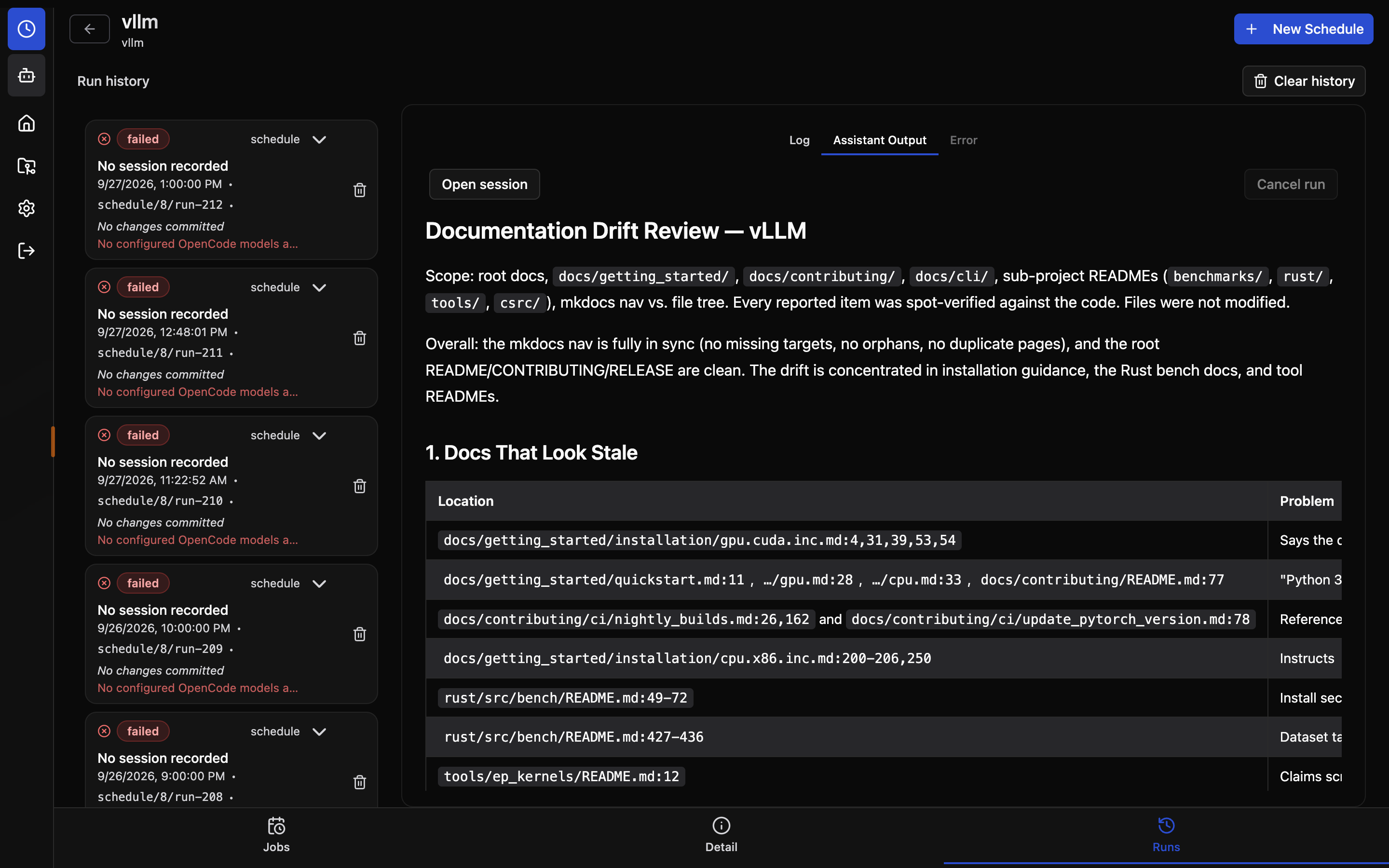
## Linked Sessions
Every run creates or attaches to a normal OpenCode session.
Use **Open session** to continue from the generated report, answer follow-up questions, or debug provider, permission, or tool issues.
What it opens depends on where the run worked:
- **In the repository (Assistant schedules), in a kept or shared worktree, or still running**: the run's own session.
- **In a cleaned-up worktree that has finished**: the worktree is removed when the run ends, so the original session can no longer do any work. Instead, a new session opens in the repository with the run's full output, any error, and the branch and commit holding the run's changes added as context. It uses your normal permissions rather than the run's unattended ones, and nothing is sent to the model until you write a message.
This keeps automation connected to the rest of the OpenCode Manager workflow instead of creating a separate silo.
On mobile, the native app exposes the same schedules through its **Schedules** tab, with an **Inbox** of unread reports that reads them in a row, each repository's **Schedules** screen, a run detail screen, and a header **Reports** tray with **Mark all read**. See [Mobile & PWA](https://opencodemanager.app/docs/features/mobile#schedules).
## Best Practices
- Keep prompts focused on one recurring outcome
- Prefer a few high-value schedules per repo over many overlapping jobs
- Use manual runs to validate a prompt before relying on the schedule
- Review failed runs quickly so broken provider or permission setups do not go unnoticed
- Treat schedules as reusable repo routines, not long-running background workers
## Troubleshooting
### Run Failed
1. Open the run from **Run History**
2. Check the **Error** tab for the failure message
3. Use **Open session** to follow up on the failure with the agent
4. Verify provider credentials, model availability, and any pending agent questions or permissions
### No Assistant Output
If a run starts but does not produce assistant output:
1. Open the linked session
2. Check for a provider error
3. Check whether the agent asked a question or needed permission
4. Re-run the schedule manually after fixing the issue
### Prompt Needs Iteration
Use **Run now** to test prompt changes immediately before waiting for the next scheduled run.
---
Source: https://opencodemanager.app/docs/features/multi-run
# Multi-run
Run one prompt across several models at once to compare their results, then fuse the best parts into one implementation.
## Launching a Multi-run
Open a repository and click **Multi-run** in the header, next to **New Session**. A side sheet opens on the **Runs** tab. To start a run, switch to **New run**:
1. Give the run group a **Group name**.
2. Enter the **Prompt** to send to every model.
3. Select up to **five models**. Search with **Search models...**, or pick from the list: your default model, **Favorites**, and **Recent** come first, then the remaining models grouped by provider.
4. Leave **Isolate runs** on to give each model its own workspace.
5. With **Isolate runs** on, optionally change **Start from**: a local or `origin` branch. It defaults to the repository's current branch.
Click **Launch**. Each selected model gets its own session, and the same prompt is sent to all of them. Models are checked before any workspace is created, so a model that is not available fails its entry without creating a workspace while the other models still launch. Launching is parallel, and one model failing does not stop the others: the failed entry records its error while the rest keep running. After launching, the sheet switches back to **Runs**. The native app opens the same runs and launch UI as a full screen from the repository header's **Multi-run** button, with **Runs** and **New run** tabs.
## Isolation
With **Isolate runs** on, each run is created in its own OpenCode worktree: a detached checkout of the repository at the chosen ref, with no branch created. These worktrees appear in the repository's **Worktrees** tab, and the session for an isolated run opens with that tab selected. With isolation off, every run shares the repository directory.
In the **Worktrees** tab, a multi-run's isolated worktrees and its fusion worktrees are grouped under one collapsible card named after the run group. The card shows how many worktrees it holds and a **Clean up** action that removes them all; each worktree inside keeps its own new-session, terminal, and delete actions.
## Linked Servers
A linked server's project page and each of its project rows on the home page have their own **Multi-run** button. Runs are scoped to that server and project directory, and their history is stored in the Manager like local runs.
With **Isolate runs** on, every workspace is created on the linked machine, not on the Manager, so it does not appear in a local repository's **Worktrees** tab. **Start from** is a free-text branch or ref there, because the Manager cannot list that repository's branches. Discarding an isolated entry removes its workspace on the linked server. Fusion also runs on the linked server in a new workspace.
The **Walkthrough** action is not available for linked-server entries, because walkthroughs are built by the Manager from local working trees.
## Runs
The **Runs** tab lists the 20 most recent groups as cards, newest first and expanded. Each card shows the prompt (long prompts collapse behind **Show more**), the model count, whether runs are isolated or share the repository checkout, the base ref, and when it started.
Each entry shows its model and status: **Starting**, **Running** (with the live session indicator), **Ready** once its session is idle, **Failed** with the error, or **Discarded**. From an entry you can:
- **Open** its session.
- **Walkthrough** — open a step-by-step [change walkthrough](https://opencodemanager.app/docs/features/chat#change-walkthroughs) of the session's changes.
- **Discard** (⋮ menu) after confirmation. Discarding an isolated run also removes its worktree directory; if that worktree was already removed, for example from the Worktrees tab, discarding still succeeds. A non-isolated run keeps its session in the repository.
Discarding is irreversible and cannot be repeated on an already discarded run. Deleting a repository removes its multi-run history.
## Fusing Results
Fusion combines the best parts of two to five finished runs into one new session.
1. On a run card, click **Fuse results** (available once at least two entries have started).
2. Tick the entries to combine. Only **Ready** entries can be selected; others show why they are unavailable.
3. Pick a **Synthesis model**, optionally change **Base ref** (defaults to the run's base; blank uses the current HEAD), and optionally add **Instructions** (up to 4,000 characters).
4. Click **Start fusion**. The fusion session opens when it starts.
A fusion always runs in a new worktree, `<group>-fusion-<n>`, as a session titled `<group> · fusion`. Fusion needs a Git repository, so it is not available in the Assistant workspace. The prompt contains the original objective, your instructions, and each source's final reply and diff, truncated to fit; truncated sources are marked **(truncated)**. If the selected results are too large, fusion stops with **Too much context** — select fewer sources or shorten the instructions.
Sources are read-only. The fusion session can read each source worktree but cannot edit it. In its own worktree everything is allowed except agent questions, access to other directories, and destructive shell commands such as `git push --force` or `sudo`.
Before starting, the server checks every selected source again. A source that is still running, has no final reply, failed, was interrupted, or whose session was deleted is marked on its row. Resubmitting the same fusion request never starts a second fusion. If an attempt recorded as failed turns out to have started its session after all, it is marked as started and the new request stops with **An earlier attempt is already running**; **Open** takes you to it.
Each card lists its **Fusions** with model, status, source count, and **Open** / **Walkthrough** actions.
---
Source: https://opencodemanager.app/docs/features/ai-config
# AI Configuration
Configure AI models, providers, and custom agents.
## Model Selection
### Quick Model Switcher
A compact model switcher is embedded directly in the chat interface. Click the **model name** in the prompt area or chat header to open the quick-select sheet:
| Item | Description |
|------|-------------|
| **Header** | The active model with its provider and context size. Models with variants show a **variant** dropdown: **Default** or a named tier (e.g., fast or pro). |
| **Favorites** | Starred models, listed first. Click the star on any row to add or remove a favorite. The active model shows a checkmark. |
| **Recent** | Your last 10 used models, excluding favorites. The trash icon removes one from the list. With no favorites or recents, the first few available models are listed instead. |
| **More models** | Opens the full model browser when you need a model not in recents or favorites. |
Favorites, recents, and variant choices are stored in OpenCode's own state file (`.opencode/state/opencode/model.json` in the workspace), so they are shared with the OpenCode TUI and survive Manager restarts. The same preferences apply on every server you open, local or [linked](https://opencodemanager.app/docs/features/linked-servers), while the picker only lists models in the current server's catalog. The active model itself is not persisted. Without a pick of your own, it resolves the same way the OpenCode TUI does: the current agent's `model`, then the `model` set in `opencode.json`, then your most recent available model, then the first available model. A model you pick is kept per location and agent (per session and agent inside a session) until the page is reloaded.
### Per-Agent and Per-Session Models
Each agent can declare its own `model` in `opencode.json`, which becomes that agent's default. When you open an existing session, the model, agent, and variant used by its last message are restored from the session itself, so switching between sessions keeps each one's selection.
### Full Model Browser
To browse all available models:
1. Click **More models** in the quick-select popover
2. Filter by provider or search by name
3. Click a model to select it
### Changing Models Mid-Session
You can switch models at any point during a session without losing context. The new model is used for all subsequent messages.
## Providers
Configure API keys or OAuth for AI providers.
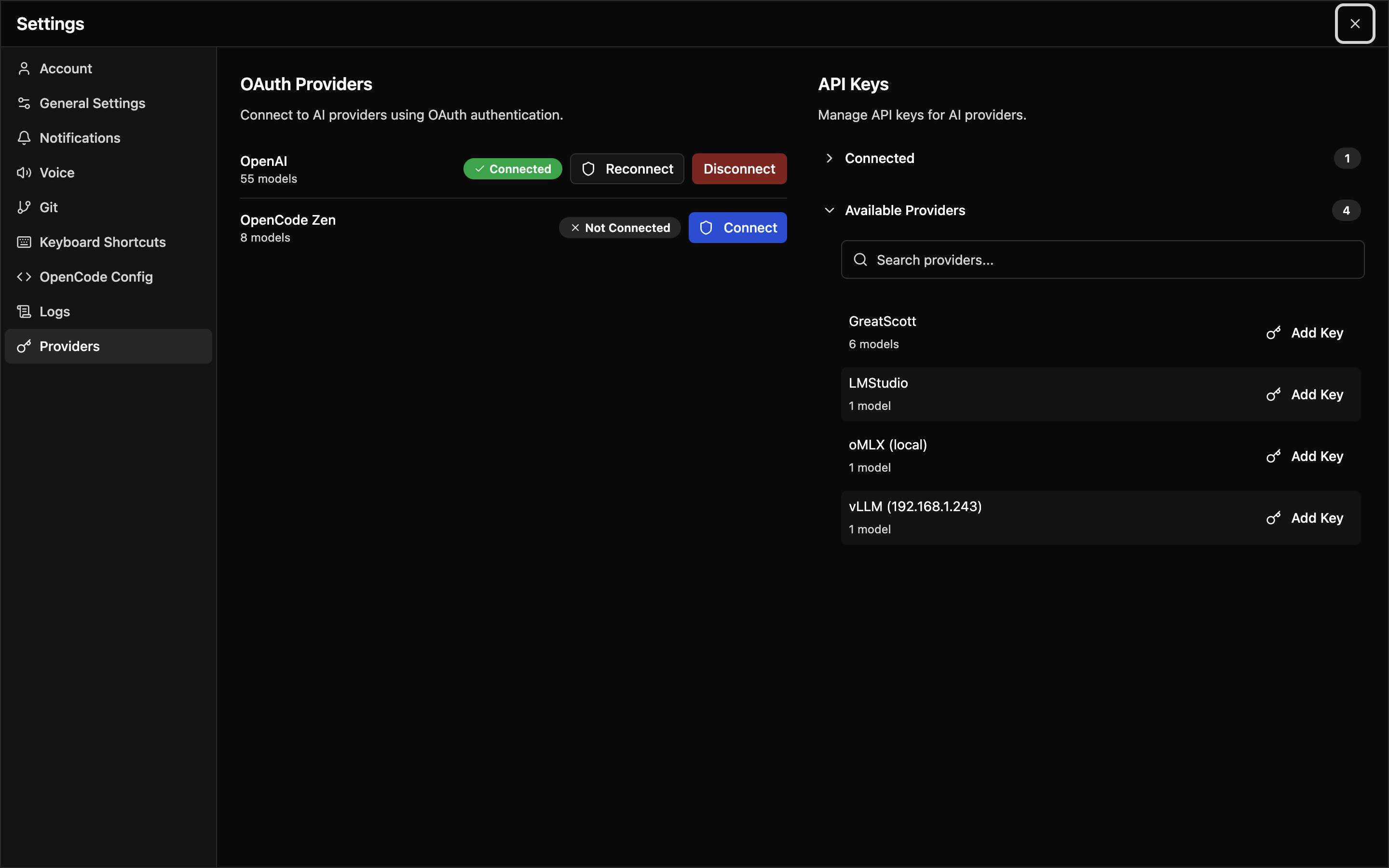
### API Key Method
1. Go to **Settings > Providers**
2. Select a provider (OpenAI, Anthropic, etc.)
3. Enter your API key
4. Click **Save**
### OAuth Method
For providers that support OAuth (Anthropic, GitHub Copilot):
1. Go to **Settings > Providers**
2. Under **OAuth Providers**, click **Connect** (or **Reconnect**) on the provider
3. In the **Connect to <provider>** dialog, choose an authentication method
4. Complete the flow:
- Browser-based methods open the provider's sign-in page
- Code-based methods show an **Authorization Code** field; paste the code and click **Complete Authentication**
### Testing Credentials
After adding credentials:
1. Open a chat session and click the model selector
2. Models from that provider should appear
3. Select a model and try sending a message
If models don't appear, verify your API key and check for errors.
## Custom Models
Add models that are not in a provider's catalog, such as an OpenAI-compatible endpoint you host:
1. Go to **Settings → OpenCode Config → Models**
2. Click **Add Model**
3. Pick an existing provider, or turn on **Create new provider** and set its **Provider Type** (API endpoint or NPM package), **Provider ID**, **Display Name**, and **Base URL** or **NPM Package**. For an API provider, an optional **API Key (for discovery)** fetches the endpoint's model list.
4. Set the model's **Config Key**, **Provider Model ID**, and **Display Name**, plus optional family, status, release date, and context, input, and output limits
5. Click **Create**
Models are written under `provider.<id>.models` in the OpenCode configuration.
## Custom Agents
Create specialized AI agents with custom configurations.
### Creating an Agent
1. Go to **Settings → OpenCode Config → Agents**
2. Click **Add Agent**
3. Configure:
- **Agent Name** - Identifier for the agent (e.g., `my-agent`)
- **Description** - What this agent does
- **Prompt** - The system prompt that defines the agent's behavior
- **Mode** - Subagent, Primary, or All
- **Temperature**, **Top P** - Optional sampling settings
- **Model** - Model to use; leave empty for the OpenCode default
- **Tools Configuration** - Toggle the built-in Write, Edit, Bash, and Web Fetch tools
- **Permissions** - Ask, Allow, or Deny for Edit, Bash, and Web Fetch
- **Disable agent** - Keep the definition but prevent the agent from being used
4. Click **Create** (or **Update** when editing)
### System Prompt Tips
Write effective system prompts:
```
You are a code review expert specializing in TypeScript and React.
When reviewing code:
1. Check for type safety issues
2. Look for potential bugs
3. Suggest performance improvements
4. Ensure consistent code style
Be concise but thorough. Prioritize issues by severity.
```
### Tool Permissions
The **Tools Configuration** section toggles each built-in tool on or off:
- **Write** - Create and modify files
- **Edit** - Edit existing files
- **Bash** - Run shell commands
- **Web Fetch** - Fetch content from the web
The **Permissions** section sets each of **Edit**, **Bash**, and **Web Fetch** to **Ask**, **Allow**, or **Deny**.
This is useful for:
- Security-focused agents that shouldn't modify files
- Research agents that only need read access
- Specialized agents for specific tasks
### Using Custom Agents
1. Start a new session
2. Click the agent selector
3. Choose your custom agent
4. Chat with the specialized agent
## Context Usage
Monitor token usage with the context indicator:
- Shows the tokens used and, when the model's context limit is known, the percentage of that limit
- Computes the total the same way the OpenCode TUI does: the input, output, reasoning, cache read, and cache write tokens reported by the last assistant message that recorded usage, counting from the most recent completed compaction (a compaction resets the count)
- Shows the percentage only when the model's context limit is known, rounded to the nearest percent
- Updates as the conversation grows
- Colored green below 50%, yellow below 80%, and red at 80% or more
### Managing Context
When context is running low:
1. Use `/compact` to summarize history
2. Start a new session with `/new`
3. Be more concise in prompts
4. Remove unnecessary file mentions
### Context Limits
Different models have different context limits. Check your provider's documentation for exact limits per model.
---
Source: https://opencodemanager.app/docs/features/skills
# Skills
Skills are reusable instruction sets that provide domain-specific workflows and guidance to OpenCode AI agents. They are stored as `SKILL.md` files and can be scoped globally or per-project.
## Scopes
| Scope | Location | Description |
|-------|----------|-------------|
| **Global** | `$WORKSPACE_PATH/.config/opencode/skills/<name>/SKILL.md` (defaults to `./workspace/.config/opencode/skills/`) | Available across all repositories |
| **Project** | `<repo>/.opencode/skills/<name>/SKILL.md` | Scoped to a specific repository |
When [sandboxing](https://opencodemanager.app/docs/features/sandboxing) is enforced, only the global skills directory is mounted into the microVM; project skills are reachable only through the session's own repository mount. A global skill that bundles scripts or reference files can therefore run them from a sandboxed `shell` call, while a project skill is visible only in a session working in that repository. Because the global mount is writable, an agent command can also modify a global skill, which affects every later session in every repository.
## Skill File Format
Each skill is a `SKILL.md` file with YAML frontmatter and a markdown body:
```markdown
---
name: my-skill
description: Short description of what this skill does
---
Your skill instructions go here. This is the content that gets
injected into the AI agent's context when the skill is loaded.
```
### Frontmatter Fields
| Field | Required | Description |
|-------|----------|-------------|
| `name` | Yes | Lowercase alphanumeric with hyphens (e.g., `my-skill`). Max 64 characters. |
| `description` | Yes | What the skill does. Max 1024 characters. |
### Naming Rules
Skill names must match the pattern `^[a-z0-9]+(-[a-z0-9]+)*$`:
- Lowercase letters and numbers only
- Hyphens allowed between words
- No spaces, underscores, or uppercase letters
- Examples: `test-skill`, `code-review`, `deploy-helper`
## Managing Skills
Create and edit skills in **Settings → OpenCode Config → Skills**. The **Skills** tool in a repository's tool rail (desktop) or **More** drawer (mobile) lists the skills available there and can install, delete, and load them into a session. Skills can also be managed through the API.
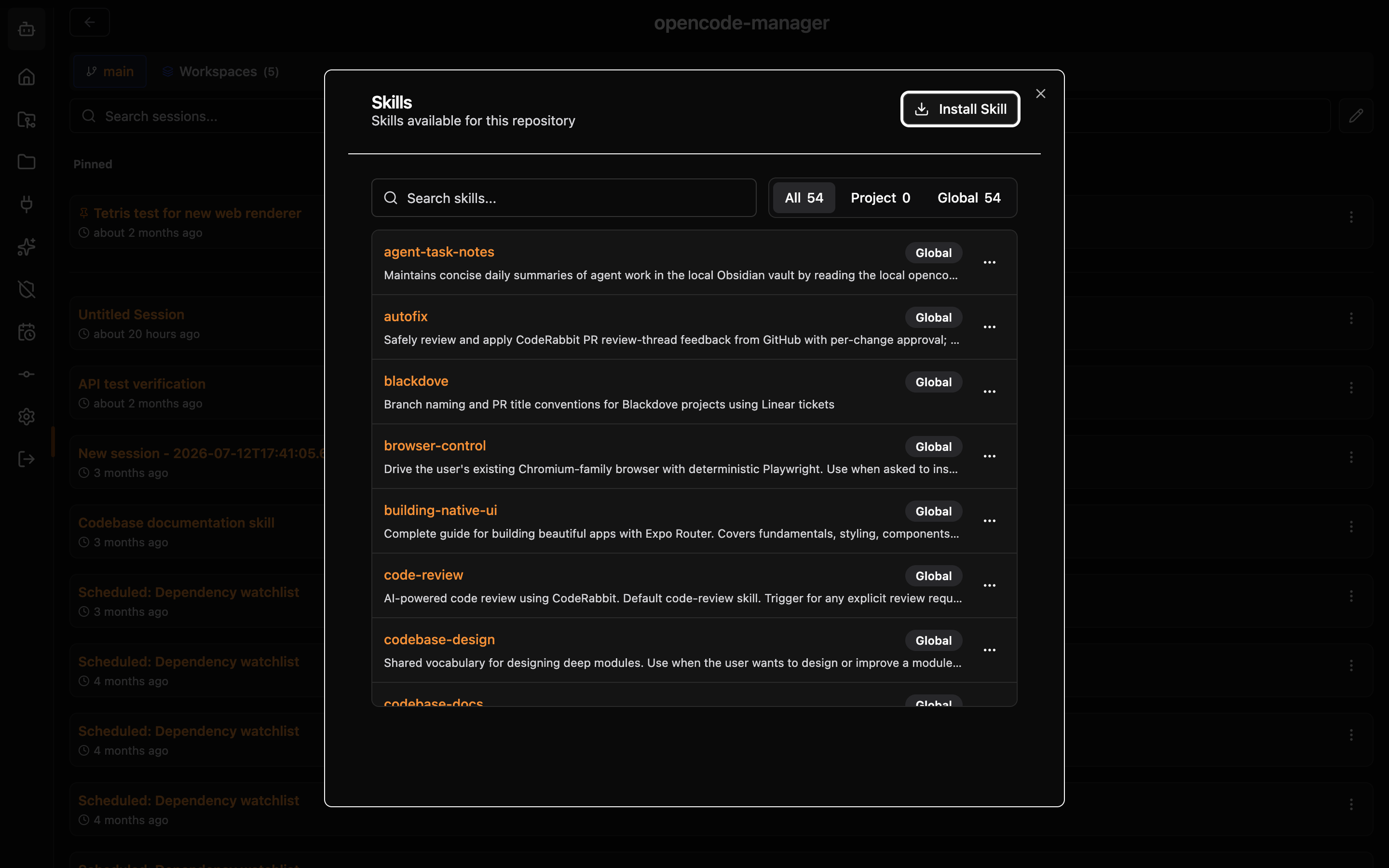
### API Endpoints
All paths are relative to `/api/settings`. `repoId` is required whenever `scope=project`.
| Method | Path | Description |
|--------|------|-------------|
| `GET` | `/skills` | List all skills (optional `?repoId=` or `?directory=` filter) |
| `POST` | `/skills/install` | Install a skill from a GitHub URL (JSON body with `sourceType: "github"`, `url`, `scope`, `repoId`, `overwrite`) or from uploaded files (multipart form) |
| `GET` | `/skills/:name` | Get a specific skill (requires `scope` query param) |
| `POST` | `/skills` | Create a new skill |
| `PUT` | `/skills/:name` | Update an existing skill (requires `scope` query param) |
| `DELETE` | `/skills/:name` | Delete a skill (requires `scope` query param) |
Creating, updating, installing, or deleting a skill reloads OpenCode so the change applies on the next message; the response's `restartRequired` is `true` only when that reload fails. Creating a name that already exists returns `409`; reading, updating, or deleting a skill that does not exist returns `404`.
### Create Request
```json
{
"name": "my-skill",
"description": "Runs type check and lint",
"body": "Instructions for the AI agent...",
"scope": "global"
}
```
`repoId` is required when `scope` is `"project"`.
### Update Request
All fields are optional. Omit fields you do not want to change.
```json
{
"description": "Updated description",
"body": "Updated instructions"
}
```
---
Source: https://opencodemanager.app/docs/features/mcp
# MCP Servers
Configure Model Context Protocol (MCP) servers to extend AI capabilities.
## What is MCP?
MCP (Model Context Protocol) allows AI models to interact with external tools and data sources. Servers provide:
- **Tools** - Functions the AI can call
- **Resources** - Data the AI can access
- **Prompts** - Pre-defined prompt templates
## Adding Servers
### Local Servers (Command-based)
Local servers run as processes on your machine:
1. Go to **Settings → OpenCode Config → MCP Servers**
2. Click **Add Server**
3. Set **Server Type** to **Local (Command)**
4. Configure:
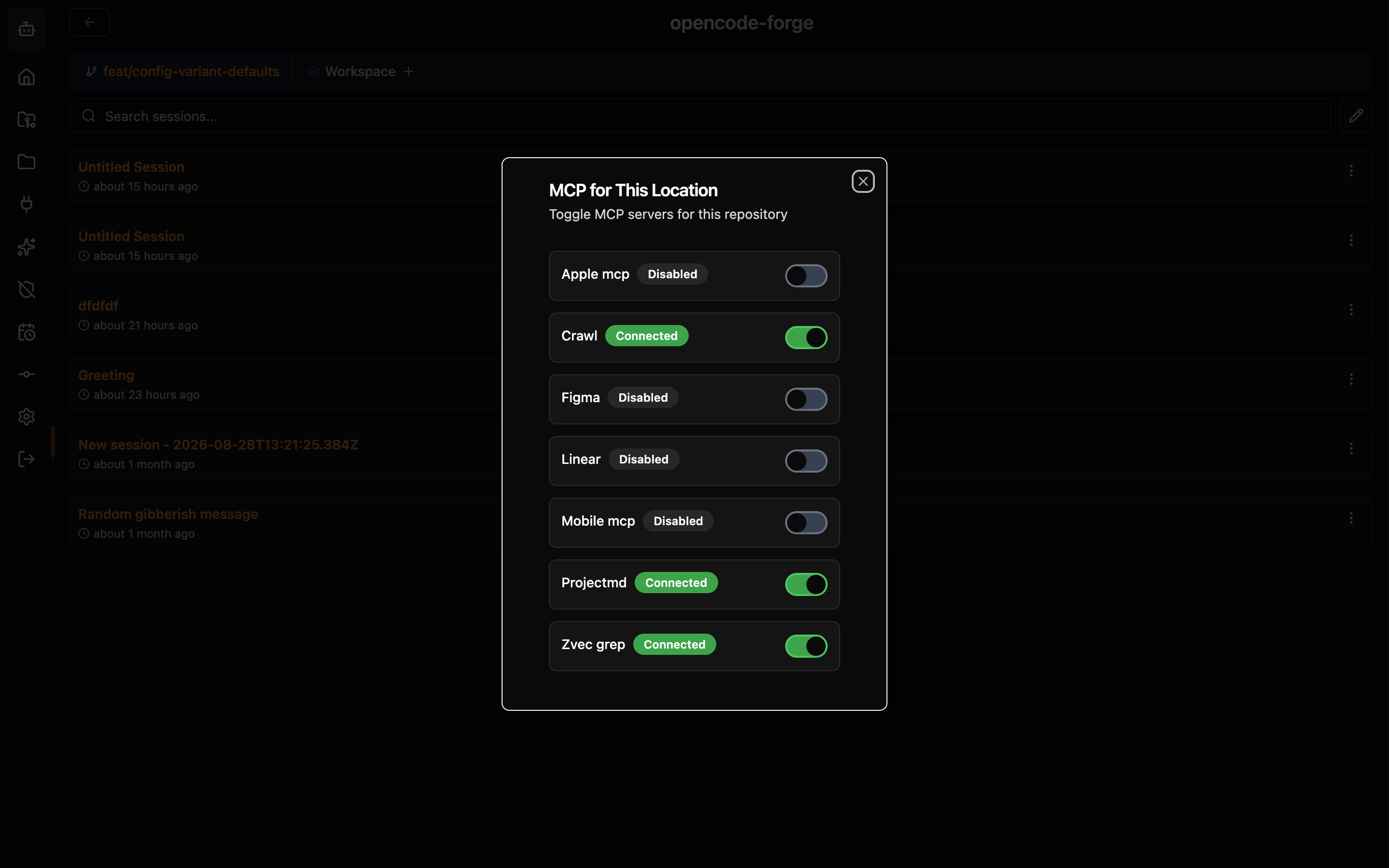
```json
{
"mcp": {
"servers": {
"filesystem": {
"type": "local",
"command": [
"npx",
"-y",
"@modelcontextprotocol/server-filesystem",
"/workspace"
]
}
}
}
}
```
| Field | Description |
|-------|-------------|
| Name (key under `mcp.servers`) | Unique identifier |
| `command` | Executable and its arguments, as one array |
| `environment` | Environment variables (optional) |
### Remote Servers (HTTP)
Remote servers are accessed over HTTP/SSE:
1. Go to **Settings → OpenCode Config → MCP Servers**
2. Click **Add Server**
3. Set **Server Type** to **Remote (HTTP)**
4. Configure:
```json
{
"mcp": {
"servers": {
"remote-tools": {
"type": "remote",
"url": "https://mcp.example.com/sse"
}
}
}
}
```
| Field | Description |
|-------|-------------|
| Name (key under `mcp.servers`) | Unique identifier |
| `url` | Server endpoint |
| `headers` | HTTP headers (optional) |
| `oauth` | OAuth settings (optional), or `false` to turn OAuth off |
### Add MCP Server Dialog
| Field | Applies to | Writes |
|-------|------------|--------|
| **Server ID** | Both | The key under `mcp.servers` (lowercase, no spaces) |
| **Server Type** | Both | `type`: **Local (Command)** or **Remote (HTTP)** |
| **Command** | Local | `command`, split on spaces into the array |
| **Environment Variables** | Local | `environment` |
| **Server URL** | Remote | `url` |
| **Enable OAuth** | Remote | `oauth` with optional **Client ID**, **Client Secret**, and **Scope**; leave them blank to use the server's OAuth discovery. Off writes `oauth: false`. |
| **Headers** | Remote | `headers`, for example `Authorization: Bearer <token>`. Turn OAuth off when authenticating with a token. |
| **Timeout (ms)** | Both | `timeout.catalog` and `timeout.execution`, the limit for listing and calling tools |
| **Connect immediately after adding** | Both | Off writes `disabled: true` |
A repository's **MCP** panel (*MCP for This Location*) does not add servers. It turns configured servers on or off for that location only.
## Example Configurations
Configurations for common MCP servers, in the OpenCode 2 `mcp.servers` shape the Manager writes. Copy them into the add dialog or `opencode.jsonc`:
### Filesystem
Access local files and directories:
```json
{
"mcp": {
"servers": {
"filesystem": {
"type": "local",
"command": [
"npx",
"-y",
"@modelcontextprotocol/server-filesystem",
"/path/to/dir"
]
}
}
}
}
```
### GitHub
Interact with GitHub repositories:
```json
{
"mcp": {
"servers": {
"github": {
"type": "local",
"command": [
"npx",
"-y",
"@modelcontextprotocol/server-github"
],
"environment": {
"GITHUB_TOKEN": "your-token-here"
}
}
}
}
}
```
### PostgreSQL
Query PostgreSQL databases:
```json
{
"mcp": {
"servers": {
"postgres": {
"type": "local",
"command": [
"npx",
"-y",
"@modelcontextprotocol/server-postgres"
],
"environment": {
"DATABASE_URL": "postgres://user:pass@host:5432/db"
}
}
}
}
}
```
### Brave Search
Web search capabilities:
```json
{
"mcp": {
"servers": {
"brave-search": {
"type": "local",
"command": [
"npx",
"-y",
"@modelcontextprotocol/server-brave-search"
],
"environment": {
"BRAVE_API_KEY": "your-api-key"
}
}
}
}
}
```
## Managing Servers
### Enable/Disable
Toggle servers on/off:
1. Go to **Settings → OpenCode Config → MCP Servers**
2. Find the server
3. Click the toggle switch
Disabled servers won't be started or connected.
### Delete Server
Remove a server:
1. Click the **Delete Server** action
2. Confirm deletion
### OAuth Actions
A remote server that uses OAuth offers more row actions:
- **Authenticate** - shown while the server needs authorization, or when an OAuth server failed
- **Re-authenticate** - run the OAuth flow again for a connected server
- **Remove Auth** - discard the stored OAuth credentials for a connected server
### Refresh Status
Use the refresh button in **Settings → OpenCode Config → MCP Servers** to reload the current connection status after changing a server outside the UI or completing OAuth.
### Configuration Shape
The Manager writes and edits the OpenCode 2 shape, `mcp.servers.<name>`, with `disabled` for the toggle. OpenCode also still accepts the older flat `mcp.<name>` shape with `enabled` and normalizes it on load, so a configuration written by an earlier version (or by hand) keeps working. The Manager manages only `mcp.servers` entries; move a flat entry under `mcp.servers` to manage it.
Saving an MCP change reloads the OpenCode configuration, which reconnects only the servers whose configuration changed, with `{env:}` and `{file:}` values expanded. A remote server that has gone through OAuth in the Manager holds a runtime override that takes precedence over the file, so later edits to that server take effect after an OpenCode restart from Settings.
## Server Status
Monitor server health:
| Status | Description |
|--------|-------------|
| Connected | Server is active and connected |
| Connecting | Connection is pending |
| Disabled | Server is configured but disabled |
| Auth Required | Remote server needs OAuth authentication |
| Failed | Server failed to start or connect |
| Unknown | The server reported a status the Manager does not recognize |
## Tool Permissions
The MCP server manager adds, toggles, authenticates, and deletes server configurations. Tool access is controlled by the active OpenCode configuration and any custom agent configuration, not by a separate global MCP permission mode in this screen.
## Troubleshooting
### Server Won't Start
1. Check the command is installed: `npx -y @modelcontextprotocol/server-<name>`
2. Verify environment variables are set
3. Check the displayed status error
4. Try running the command manually
### Tools Not Appearing
1. Verify server status is "Connected"
2. Check server provides the expected tools
3. Refresh server status
4. Check AI model supports tool use
### Connection Issues
For remote servers:
1. Verify URL is correct
2. Check network connectivity
3. Verify authentication headers
4. Check server is running and accessible
---
Source: https://opencodemanager.app/docs/features/assistant-mode
# Assistant Mode
Assistant Mode gives OpenCode Manager a dedicated AI workspace — an isolated directory (`repos/assistant/`) where a built-in assistant agent can manage repositories (list and clone), sessions, scheduled jobs, and the OpenCode configuration, send push notifications, and read or update settings through the `ocm` tool.
## What Is Assistant Mode?
The assistant workspace is a special repository-like directory managed and maintained by OpenCode Manager. When initialized it contains:
| File | Purpose |
|------|---------|
| `AGENTS.md` | Workspace description the agent reads on every session start |
| `opencode.json` | OpenCode configuration scoped to the assistant agent |
| `.opencode/agents/assistant.md` | Agent definition with system prompt and permissions |
| `.opencode/skills/` | Auto-generated skills teaching the agent to use the `ocm` tool |
## Skills Provided
Five skills are provisioned automatically when assistant mode is initialized:
| Skill | What it teaches |
|-------|----------------|
| `schedule-management` | Create, list, update, delete, and run scheduled jobs through the `ocm` `request` action |
| `notifications` | Send push notifications to registered user devices with the `ocm` `send_notification` action |
| `manager-settings` | Read and patch user preferences, read and update the OpenCode configuration file, and reload the assistant workspace, through the `ocm` `request` action |
| `repo-management` | List managed repositories and clone a new one from a git URL through the `ocm` `request` action |
| `session-management` | List, create, follow up, read the reply of, and fork sessions through the `ocm` `request` action |
The assistant manages the Manager's global OpenCode configuration file through the `ocm` tool (`/opencode-config`), and the file on disk is the source of truth.
See [Assistant Internal API](https://opencodemanager.app/docs/features/assistant-internal-api) for the full API reference these skills expose.
## Assistant Persona
The assistant's system prompt, behavior, and durable preferences live solely in `.opencode/agents/assistant.md`. This file is the single source of truth for the assistant agent's personality and self-editing rules. The `opencode.json` configuration no longer duplicates the agent persona — it only stores agent mode and workspace-level settings.
When the assistant self-edits its agent definition (e.g., to refine behavior or add durable preferences), it uses the `manager-settings` skill to call the `POST /assistant/reload` endpoint through the `ocm` `request` action. This rebuilds every loaded location so the changes take effect on the next message. The reload endpoint is rate-limited to 5 requests per minute; the assistant always asks the user before reloading.
## Getting Started
1. Click **Assistant** in the sidebar or mobile tab bar
2. The page opens the Assistant session list
3. Click **New Session** to start a session with the built-in assistant
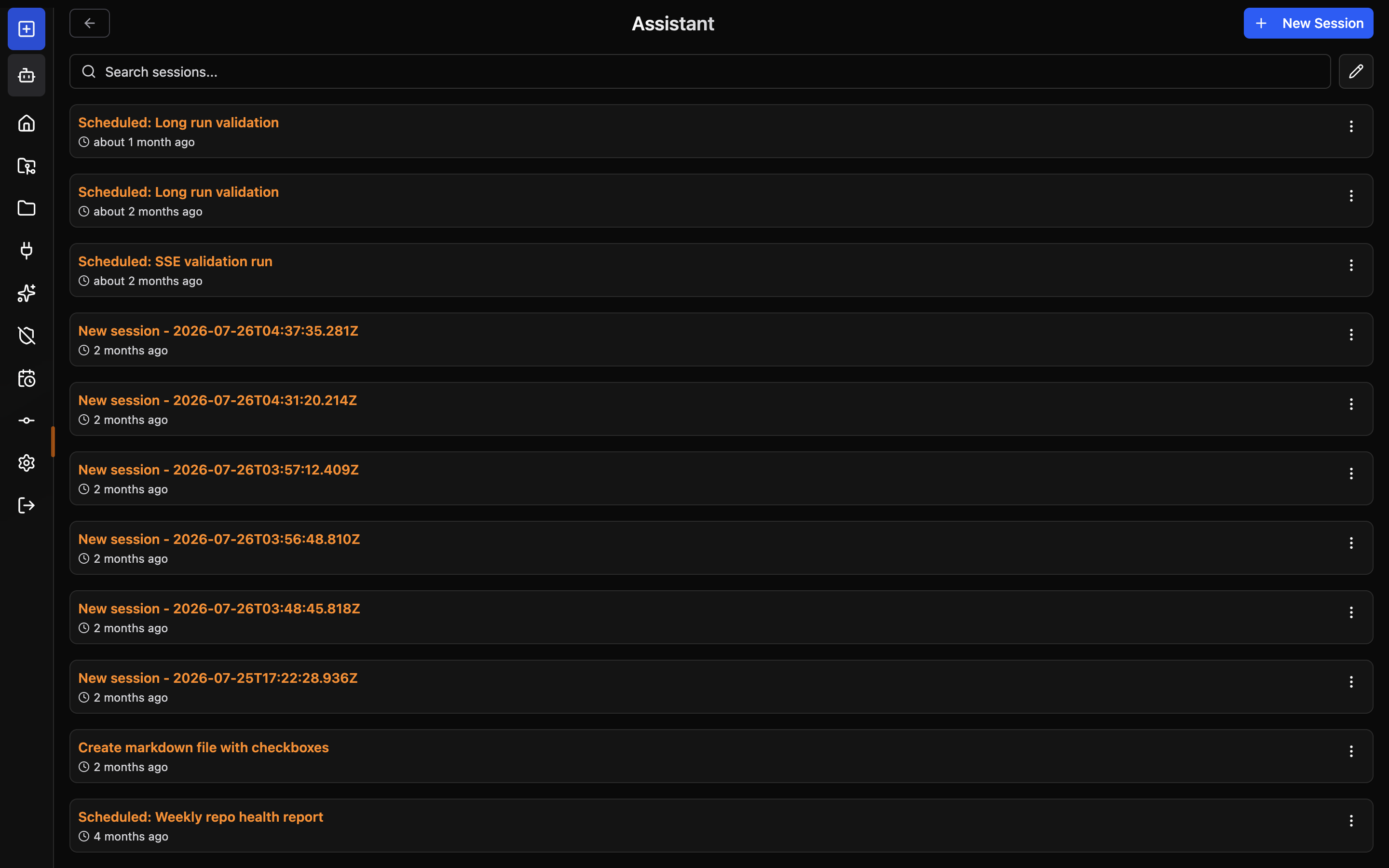
No manual setup is required. The workspace directory and all managed files are created automatically when the Manager starts.
## Session Views
The Assistant page (`/assistant`) shows the Assistant session list. Selecting a session opens it; **New Session** starts a new one. The page exposes the same management panels as regular repos — file browser, MCP servers, skills, source control, terminal, preview, and permissions reset. On mobile, the **Files** tab opens the Assistant workspace.
## Workspace Initialization
The workspace is initialized idempotently. Managed files are only rewritten when OpenCode Manager has updated their content. User customizations to managed files are preserved.
### Warnings
If a managed file was modified after initialization, the next session will receive an inline prompt explaining which files were preserved and what the expected content is. This surfaces configuration drift without silently overwriting your changes.
### Re-initializing
The workspace is re-applied to its latest defaults automatically when the Manager starts; managed files are only rewritten when their content changed. To clear the Assistant workspace's saved "Allow Always" permissions, open the **Reset Permissions** dialog from the Assistant tool rail (desktop) or the **More** drawer (mobile) and confirm.
---
Source: https://opencodemanager.app/docs/features/assistant-internal-api
# Assistant Internal API
The Assistant Internal API provides capabilities for OpenCode agents to interact with the manager backend. Agents reach it through the `ocm` tool, which authenticates on their behalf; the HTTP surface itself is a secure bearer-token API.
> For a user-facing overview of how to use and set up assistant mode, see [Assistant Mode](https://opencodemanager.app/docs/features/assistant-mode).
## Authentication
The raw HTTP endpoints require the internal token, sent as a bearer token:
```
Authorization: Bearer <token>
```
HTTP Basic authentication with the token as the password (any username) is accepted as well.
The token has two in-product consumers, neither of which is an agent:
| Consumer | How it obtains the token |
|----------|--------------------------|
| Generated plugins (`ocm-manager.js`, `ocm-sandbox.js`, `ocm-gh-env.js`) | The `OCM_INTERNAL_TOKEN` environment variable, injected into the OpenCode child process |
| External clients such as the `ocm` CLI | Settings → OpenCode Config → Server maintenance → Manager Internal Token, served by `GET /api/settings/manager-token` |
The generated plugins are OpenCode 2 plugin modules — plain, dependency-free objects that default-export `{ id, setup }` and register their hooks and tools through the `setup` context. The Manager writes them to `<config home>/opencode/plugins/`; the legacy `opencode/plugin/` files are removed on install.
Agents never authenticate against this API themselves. They call the `ocm` tool, which holds the token inside the Manager process.
## The `ocm` Tool
The Manager installs a generated plugin (`ocm-manager.js`) that gives every agent an `ocm` tool. The tool calls this API from inside the Manager's own OpenCode process, so it needs no token, no base URL, and no network access from the agent shell.
That makes it the only path that works everywhere: a scheduled run often executes in its own worktree with no token of its own, and a sandboxed `shell` call runs in a microVM where `localhost` is the guest, not the Manager.
OpenCode 2 validates the tool's arguments against a JSON Schema before it calls `execute`, so the `ocm` tool declares its `action` and `params` shape as a JSON Schema derived from the same Zod definitions the tool uses.
The tool has two actions.
### `send_notification`
Send a push notification to every device the user has registered.
```ts
{
action: 'send_notification',
params: { title: string, body: string, url?: string, tag?: string, priority?: 'normal' | 'high' }
}
```
The tool adds the calling session's id to the request, so a notification sent from a scheduled run opens that run's report instead of `url` (see [Notifications](https://opencodemanager.app/docs/features/assistant-internal-api#notifications)).
### `request`
Call an allow-listed internal API route and return the raw response body text.
```ts
{
action: 'request',
params: { method: 'GET' | 'POST' | 'PUT' | 'PATCH' | 'DELETE', path: string, body?: object }
}
```
The `path` is relative to the internal API base (for example `/settings` or `/repos/0/schedules`) and query strings are allowed. The action resolves the path against the internal API base and rejects anything that resolves outside it (absolute URLs and `..` traversal), then rejects any method plus path that is not in the allow-list. The schema accepts `PUT`, but no allow-listed route uses it, so a `PUT` request is always rejected.
Each request times out after 60 seconds. A non-2xx response fails the tool call, with the status and the response body in the error message.
**Allow-listed routes:**
```
GET /settings
PATCH /settings
GET /opencode-config
GET /opencode-config/effective
GET /opencode-config/mcp
PATCH /opencode-config
POST /assistant/reload
GET /repos
POST /repos
GET /repos/*/git-info
GET /opencode-workspaces
GET /schedules/all
GET /schedules/all/runs
GET /repos/*/schedules
POST /repos/*/schedules
GET /repos/*/schedules/*
GET /repos/*/schedules/*/worktrees
PATCH /repos/*/schedules/*
DELETE /repos/*/schedules/*
POST /repos/*/schedules/*/run
GET /repos/*/schedules/*/runs
DELETE /repos/*/schedules/*/runs
GET /repos/*/schedules/*/runs/*
DELETE /repos/*/schedules/*/runs/*
POST /repos/*/schedules/*/runs/*/cancel
GET /sessions
POST /sessions
POST /sessions/*/prompt
GET /sessions/*/reply
POST /sessions/*/fork
```
**Deliberately not allow-listed:**
- `POST /notifications/send` — use the `send_notification` action instead.
- `GET /git-credentials/gh-env` — returns the GitHub CLI environment (`GH_TOKEN`, `GITHUB_TOKEN`) for a working directory for the OpenCode host process; it must not be readable by the agent.
- `POST /sandbox/shell` — the sandbox planner's internal route that resolves and pins the shell for a `shell` call; exposing it would let the agent drive shell planning directly.
- `/repos/*/mirror/*` — the repo mirror protocol that the `ocm` CLI uses to sync entire repositories; it can create, replace, patch, or delete whole repos, so it stays reserved for the CLI.
- `PUT /opencode-config` — the redacted whole-document write; agents patch only the paths they change with `PATCH /opencode-config`.
- `DELETE /repos/*/schedules/*/worktrees` — the user removes schedule worktrees in the Manager UI.
- `GET /schedules/all/runs/unread`, `POST /schedules/all/runs/viewed`, `POST /schedules/all/runs/*/viewed` — the unread report state behind the UI's Reports bell.
- `/session-goals` and `/multi-runs` — goals and multi-runs are started from the UI or the `ocm` TUI plugin, not by agents (see [Session Goals and Multi-Runs](https://opencodemanager.app/docs/features/assistant-internal-api#session-goals-and-multi-runs)).
Agents should use the `ocm` tool rather than the raw bearer-token endpoints below. Those endpoints remain available to the frontend, generated plugins, and other Manager-internal clients.
## Endpoints
### Notifications
**POST `/api/internal/notifications/send`**
Send push notifications to the user's registered devices. Prefer the `ocm` tool with the `send_notification` action.
**Request Body:**
```ts
{
title: string // 1-120 characters
body: string // 1-500 characters
url?: string // Optional: deep link (1-500 chars)
tag?: string // Optional: notification tag (max 80 chars)
priority?: 'normal' | 'high' // Defaults to 'normal'
sessionId?: string // Optional: the sending session; the ocm tool fills it in
}
```
When `sessionId` belongs to a scheduled run, the notification opens that run's report (`/schedules?scheduleTab=runs&runId=<runId>`) instead of `url`. Without a `tag`, the notification is tagged `assistant-<timestamp>`.
**Query Parameters:**
- `userId` (optional): Defaults to `"default"`
**Response:**
```ts
{
delivered: number
expired: number
failed: number
noSubscriptions: boolean
}
```
**Rate Limiting:** 10 requests per minute per token. Returns `429 Too Many Requests` with `Retry-After` header when exceeded.
**Status Codes:**
- `200`: Notification sent
- `400`: Invalid request body
- `401`: Missing or invalid bearer token
- `429`: Rate limit exceeded
- `503`: Push notifications not configured (missing VAPID)
### Settings
**GET `/api/internal/settings`**
Retrieve the user's full settings and preferences. Stored credentials are replaced with `<redacted>`: each git credential's `token`, `sshPrivateKey`, `sshPrivateKeyEncrypted`, and `passphrase`, `tts.apiKey`, `stt.apiKey`, every `serverEnvVars[].value`, and `lastKnownGoodConfig`. An empty value stays empty, so an empty field means none is set.
**Query Parameters:**
- `userId` (optional): Defaults to `"default"`
**Response:**
```ts
{
preferences: {
theme: 'dark' | 'light' | 'system',
colorTheme?: string, // 'manager' or an OpenCode theme id from shared/src/themes; unknown stored ids read as 'manager'
mode: 'plan' | 'build',
defaultModel?: string,
defaultAgent?: string,
autoScroll: boolean,
expandDiffs: boolean,
expandToolCalls: boolean,
groupToolCalls: boolean,
showReasoning: boolean,
simpleChatMode: boolean,
leaderKey?: string,
directShortcuts?: string[],
keyboardShortcuts: Record<string, string>,
customCommands: Array<{ name: string; description: string; promptTemplate: string }>,
notifications?: { enabled: boolean; ... },
repoOrder?: number[],
repoSortMode?: 'recent' | 'manual' | 'name',
gitCredentials?: [...], // Read-only; token, SSH key, and passphrase redacted
defaultGitCredentialId?: string, // Read-only
gitIdentity?: {...}, // Read-only
gitIdentities?: [...], // Read-only
tts?: {...}, // apiKey redacted; endpoint read-only
stt?: {...}, // apiKey redacted; endpoint read-only
serverEnvVars?: Array<{ key: string; value: string }>, // Read-only; values redacted
disabledDefaultServerEnvVars?: string[], // Read-only
sandbox?: {...}, // Read-only
sessionDefaults?: {...}, // Read-only
lastKnownGoodConfig?: string, // Internal; redacted
},
updatedAt: number
}
```
**PATCH `/api/internal/settings`**
Update a subset of safe user preferences.
**Allowed Keys:**
The following preference keys can be modified:
- `theme`, `colorTheme`, `mode`, `defaultModel`, `defaultAgent`
- `autoScroll`, `expandDiffs`, `expandToolCalls`, `groupToolCalls`, `showReasoning`
- `simpleChatMode`, `leaderKey`, `directShortcuts`
- `keyboardShortcuts`, `customCommands`, `notifications`
- `repoOrder`, `repoSortMode`
- `colorTheme` must be `manager` or a catalog theme id; unknown ids return 400.
- `tts` — Non-secret TTS preferences (`enabled`, `provider`, `autoPlay`, `voice`, `model`, `speed`). TTS must already be configured in the UI (the endpoint returns 400 otherwise).
- `stt` — Non-secret STT preferences (`enabled`, `provider`, `model`, `language`). STT must already be configured in the UI (the endpoint returns 400 otherwise).
**Restricted Keys:**
The following keys are **NOT** allowed and will be rejected:
- `gitCredentials` - Git credentials must be managed via the full UI
- `gitIdentity` - Git identity must be managed via the full UI
- `gitIdentities` - Git identity presets must be managed via the full UI
- `tts.apiKey` - TTS credentials must be managed via the full UI
- `tts.endpoint` - TTS endpoint must be managed via the full UI
- `stt.apiKey` - STT credentials must be managed via the full UI
- `stt.endpoint` - STT endpoint must be managed via the full UI
- `lastKnownGoodConfig` - Internal state, do not modify
**Request Body:**
Partial object with any of the allowed keys.
**Response:**
Returns the updated settings object, with stored credentials redacted the same way as `GET`.
**Status Codes:**
- `200`: Settings updated
- `400`: Invalid request body or disallowed key
- `401`: Missing or invalid bearer token
### OpenCode Configuration
The global OpenCode configuration files in the workspace `.config/opencode/` directory are the source of truth, and these endpoints are the only supported way to change them. The two sources OpenCode 2 reads are merged in order — `opencode.json`, `opencode.jsonc` — with later files overriding earlier ones. A legacy `config.json` is folded into a recognized source and archived; it is never read as a live source. The schema accepts both V1-compatible keys and native OpenCode 2 fields, so a V2-native config passes validation. The endpoints apply the same rules as the Settings UI: any semantic change is written to disk and applied to the running server, and it is flagged as restart required only when that apply fails; comment-only edits do nothing, and `mcp` changes go through the same location reload, which reconnects only the servers whose configuration changed.
The agent-facing surface is redacted: every read and write response replaces secret values with `<redacted>` and omits the raw source text, a write containing `<redacted>` is rejected, and `PATCH` changes only the paths it names, so an agent never has to read or reproduce the whole file. The public surface the Settings UI uses keeps full fidelity and the whole-document `PUT`.
**GET `/api/internal/opencode-config`**
Read the merged persisted configuration and its source files, with secret values redacted and the raw source text omitted. This is not the running instance configuration: project overrides and expanded environment values are not included.
**Response:**
```ts
{
path: string // Absolute path of the preferred write target
content: object // Merged configuration across all sources, secrets replaced with "<redacted>"
sources: Array<{ // Recognized source files, in merge order, raw content omitted
name: 'opencode.json' | 'opencode.jsonc'
path: string
content: object
isValid: boolean
validationIssues?: Array<{ path: string, message: string }>
updatedAt: number
}>
revision: string // Hash of the source set; send back as expectedRevision
isValid: boolean // Whether every source passes schema validation
validationIssues?: Array<{ path: string, message: string }>
updatedAt: number // Newest source mtime
redactedPaths: string[] // Dotted paths whose values were replaced
}
```
**Status Codes:**
- `200`: Configuration state returned
- `401`: Missing or invalid bearer token
- `404`: No config source found
- `500`: Server error
**GET `/api/internal/opencode-config/mcp`**
List the configured MCP servers with their stored shape, enabled state, and live connection status. Header and environment values are never returned.
**Response:**
```ts
{
revision: string | null
servers: Array<{
name: string
type: 'local' | 'remote'
command?: string[] // For local servers
url?: string // For remote servers
enabled: boolean
shape: 'servers' | 'legacy' // Native mcp.servers.<name> or flat mcp.<name>
status?: 'connected' | 'pending' | 'disabled' | 'failed' | 'needs_auth'
error?: string
}>
}
```
**Status Codes:**
- `200`: MCP server list returned
- `401`: Missing or invalid bearer token
- `500`: Server error
**GET `/api/internal/opencode-config/effective`**
Read the configuration OpenCode resolves for the workspace location as `entries`: the configuration documents and discovery directories in precedence order, lowest first, each shaped as `{ type: 'document', path, info }` or `{ type: 'directory', path }`. Its `info` values are expanded for the running server, so never copy this response into a save. Secret values in `info` are replaced with `<redacted>`.
**Status Codes:**
- `200`: Effective configuration returned
- `401`: Missing or invalid bearer token
- `502`: OpenCode returned an error
- `503`: OpenCode server unavailable
**PATCH `/api/internal/opencode-config`**
Change only the paths the request names. Only those paths are patched into the preferred existing source (`opencode.jsonc` > `opencode.json`; a new installation gets `opencode.jsonc`); comments, unknown keys, and untouched inherited values are preserved. A `null` value removes a path. Removing a path defined only in a lower-priority source is rejected (`409`).
The public route keeps the whole-document `PUT` for the Settings UI. The internal route also accepts a redacted whole-document `PUT` for token clients, but only `PATCH` is allow-listed for the `ocm` tool, so an agent never sends the whole file.
**Request Body:**
```ts
{
patch: object // Nested paths to set; null removes a path
expectedRevision?: string // From GET; a stale value is rejected with 409
source?: 'opencode.json' | 'opencode.jsonc'
}
```
**Response:**
Returns the refreshed redacted configuration. Semantic changes, including `mcp`, are applied with an OpenCode location reload, without a restart; only the MCP servers whose configuration changed reconnect. Adds `restartRequired: true` only when that apply fails.
**Status Codes:**
- `200`: Configuration written
- `400`: Invalid request body, invalid configuration, a source file that is not valid JSON/JSONC (`sources` lists them), or a value equal to `<redacted>` (`paths` lists them)
- `401`: Missing or invalid bearer token
- `409`: Stale `expectedRevision` (`expectedRevision`/`actualRevision` in the body), or the patch would remove a value defined only in a lower-priority source (`paths`/`sources` in the body)
- `500`: Server error
### Assistant
**POST `/api/internal/assistant/reload`**
Reload the OpenCode server configuration, rebuilding every loaded location. Use this after editing `.opencode/agents/assistant.md` or `opencode.json` so changes take effect on the next message. Returns `400` with `validationIssues` when the OpenCode configuration is invalid.
**Rate Limiting:** 5 requests per minute per token. Returns `429 Too Many Requests` with `Retry-After` header when exceeded.
**Example:**
```json
{
"action": "request",
"params": {
"method": "POST",
"path": "/assistant/reload"
}
}
```
**Response:**
```ts
{ "success": true }
```
**Status Codes:**
- `200`: Assistant workspace reloaded
- `400`: OpenCode configuration is invalid (`validationIssues` in the body)
- `401`: Missing or invalid bearer token
- `429`: Rate limit exceeded
- `502`: Failed to reload (upstream OpenCode error)
### Repos
**GET `/api/internal/repos`**
Retrieve a list of all managed repositories, ordered by the user's repo preference order.
**Response:**
```ts
{
repos: Array<{
id: number
name?: string // Custom display name set in the UI
repoUrl?: string // Git remote URL (absent for local-only repos)
localPath: string // Relative path under repos root
fullPath: string // Absolute filesystem path
sourcePath?: string // Source worktree path (for worktrees)
branch?: string // Current branch name (for worktrees)
defaultBranch: string // e.g. "main"
cloneStatus: 'cloning' | 'ready' | 'error'
clonedAt: number // Timestamp when repo was cloned
lastPulled?: number // Timestamp of last pull
lastAccessedAt?: number // Timestamp of last access
isWorktree?: boolean // Whether repo is a worktree
isLocal?: boolean // Whether repo is local-only
}>
}
```
**Status Codes:**
- `200`: Repository list returned
- `401`: Missing or invalid bearer token
- `500`: Server error (database failure)
**POST `/api/internal/repos`**
Clone a git repository into the repos root and register it with OpenCode Manager. Accepts HTTPS and SSH URLs. If the same URL and branch is already registered, the existing repo is returned instead of cloning again.
**Body:**
```ts
{
repoUrl: string // e.g. https://github.com/owner/name
branch?: string // branch to check out; created locally if the remote has none
directoryName?: string // directory under the repos root; defaults to the repo name
}
```
**Response:** the repo object (same shape as an entry in `GET /repos`) with `cloneStatus: 'ready'` when the clone has finished, or `'cloning'` when an identical clone is still running. Poll `GET /repos` until it is `'ready'` before using the repo. Large clones can outlast the `ocm` tool's 60-second request timeout while the clone keeps running; poll the same way. An existing registration is returned as-is, including one whose `cloneStatus` is `'error'`.
**Status Codes:**
- `200`: Repository cloned or already registered
- `400`: Invalid request body
- `401`: Missing or invalid bearer token
- `409`: The target directory already holds a different repository; retry with a different `directoryName`
- `500`: The clone failed; the error message carries the git failure
**GET `/api/internal/repos/:repoId/git-info`**
Read a repository's git state.
**Response:**
```ts
{
repoId: number
repoName: string
directory: string
originUrl: string | null
head: string | null // HEAD commit
branch: string | null
dirty: boolean // true when the working tree has uncommitted changes
}
```
**Status Codes:**
- `200`: Git state returned
- `400`: Invalid `repoId`
- `401`: Missing or invalid bearer token
- `404`: Repository not found
- `409`: Repository is still cloning
- `500`: Git failure
### OpenCode Workspaces
**GET `/api/internal/opencode-workspaces`**
List the repositories whose clone is ready, with the directory and remote OpenCode needs to target each one.
**Response:**
```ts
{
workspaces: Array<{
repoId: number
name: string
branch: string | null
cloneStatus: 'ready'
directory: string
originUrl: string | null
projectId: string | null // OpenCode project id, null when it cannot be resolved
isWorktree: boolean
extra: { repoId: number; localPath: string; fullPath: string }
}>
}
```
**Status Codes:**
- `200`: Workspace list returned
- `401`: Missing or invalid bearer token
- `500`: Server error
### Schedules
The schedule routes are the ones the Schedules UI uses, so the shapes match [Schedules](https://opencodemanager.app/docs/features/schedules). Validation and service errors return `{ error }` with the matching status.
| Route | Response |
|-------|----------|
| `GET /api/internal/schedules/all` | `{ jobs }` across every repo; each job carries its repo and `retainedWorktreeCount` |
| `GET /api/internal/schedules/all/runs` | `{ runs }`; query `limit` (1-100, default 20), `offset`, `status`, `repoId`, `jobId`, `triggerSource`, `runId`, `search` (max 200 characters) |
| `GET /api/internal/repos/:id/schedules` | `{ jobs }` |
| `POST /api/internal/repos/:id/schedules` | `201 { job }` |
| `GET /api/internal/repos/:id/schedules/:jobId` | `{ job }` |
| `PATCH /api/internal/repos/:id/schedules/:jobId` | `{ job }` |
| `DELETE /api/internal/repos/:id/schedules/:jobId` | `{ success: true }` |
| `GET /api/internal/repos/:id/schedules/:jobId/worktrees` | `{ worktrees: Array<{ worktreePath, branch, runId: number \| null, inUse }> }`; `runId` is null for the shared worktree |
| `POST /api/internal/repos/:id/schedules/:jobId/run` | `{ run }` |
| `GET /api/internal/repos/:id/schedules/:jobId/runs` | `{ runs }`; query `limit` (1-100, default 20) |
| `DELETE /api/internal/repos/:id/schedules/:jobId/runs` | `{ cleared }`; query `worktrees=commit\|discard` (default `commit`) |
| `GET /api/internal/repos/:id/schedules/:jobId/runs/:runId` | `{ run }` |
| `DELETE /api/internal/repos/:id/schedules/:jobId/runs/:runId` | `{ success: true }`; query `worktrees=commit\|discard` (default `commit`) |
| `POST /api/internal/repos/:id/schedules/:jobId/runs/:runId/cancel` | `{ run }` |
A job body takes `workspaceMode: 'worktree' | 'kept-worktree' | 'shared-worktree'` (default `worktree`). The `worktrees` query decides what happens to run worktrees still on disk: `commit` commits pending changes and keeps their branches, `discard` force-removes them and deletes their branches.
The service returns `409` when a schedule is already running, when changing `workspaceMode` while a run is in progress, and when deleting a schedule or a run that is still running.
Four more schedule routes are registered but not allow-listed: `DELETE /api/internal/repos/:id/schedules/:jobId/worktrees` (body `{ worktreePath? }`, returns `{ removed }`; without a path it removes every worktree not in use, committing pending changes first and keeping the branches), and the unread-report routes `GET /api/internal/schedules/all/runs/unread` (`{ runs, total, failed }`), `POST /api/internal/schedules/all/runs/viewed`, and `POST /api/internal/schedules/all/runs/:runId/viewed` (both `{ updated }`).
### Sessions
These routes back the `session-management` skill, so an agent can start work in a repo, hand a task to a new session, follow it up, read its reply, and fork it. Session creation always goes through the Manager's session launcher, which validates the repository and the requested model before creating anything. Malformed JSON is rejected with `{ "error": "Invalid JSON" }`; a body that fails validation is rejected with `{ "error": "<first validation message>", "details": [...] }`; unknown upstream failures return `502`.
**GET `/api/internal/sessions`**
List sessions, newest first. Pass `repoId` to restrict the list to one repo — this covers every OpenCode workspace of that repo, not only the repo directory — and `limit` (1-50, default 10) to bound it.
**Query Parameters:**
- `repoId` (optional): Restrict to a repository. An unknown id returns `404`.
- `limit` (optional): 1-50, default 10.
**Response:**
```ts
{
sessions: Array<{
id: string
title: string | null
directory: string
repoId: number | null // null only when the directory belongs to no known repo
busy: boolean // true while the session is running
outcome: 'succeeded' | 'failed' | 'interrupted' | null
updated: number
}>
}
```
**Status Codes:**
- `200`: Session list returned
- `400`: Invalid query
- `401`: Missing or invalid bearer token
- `404`: Repository not found
- `502`: OpenCode error
**POST `/api/internal/sessions`**
Create a session in a repo and send the first prompt. The response returns as soon as the prompt is queued, not when the run finishes; poll `GET /api/internal/sessions/:sessionId/reply` for the result. Pass `worktree: true` to run in a new isolated workspace, with `ref` selecting its base ref. A requested `model` must be available; an unavailable model is rejected with `400` rather than silently substituted. Sessions created here are pinned to **ask** permission mode. With `worktree: true`, creation can take tens of seconds; a request that times out may still have succeeded, so check `GET /api/internal/sessions` before retrying.
**Request Body:**
```ts
{
repoId: number
prompt: string // 1-20000 characters
title?: string // max 200 characters
model?: string
agent?: string
worktree?: boolean
ref?: string
}
```
**Response (`201`):**
```ts
{
sessionId: string
repoId: number
directory: string
workspaceDirectory: string | null
model: string
title: string | null
url: string // deep link to open the session in the UI
}
```
**Status Codes:**
- `201`: Session created and prompt queued
- `400`: Invalid request body, or the requested model is unavailable
- `401`: Missing or invalid bearer token
- `404`: Repository not found
- `502`: OpenCode error
**POST `/api/internal/sessions/:sessionId/prompt`**
Queue a follow-up prompt for an existing session.
**Request Body:**
```ts
{
text: string // 1-20000 characters
}
```
**Response (`202`):**
```ts
{ queued: true }
```
**Status Codes:**
- `202`: Prompt queued
- `400`: Invalid request body
- `401`: Missing or invalid bearer token
- `404`: Session not found
- `502`: OpenCode error
**GET `/api/internal/sessions/:sessionId/reply`**
Read the latest assistant reply for a session and whether it is still running. Poll this after creating a session or queueing a prompt until `busy` is `false`. Pass `waitMs` (0-45000) to wait until the session settles instead of polling in a loop; the response returns when it settles or the timeout elapses. `responseText` is capped at 20,000 characters, with a truncation marker appended when it is longer.
**Response:**
```ts
{
busy: boolean
responseText: string | null // latest assistant text, null when there is none yet
errorText: string | null // assistant error message, null when the turn succeeded
completed: boolean // true once the latest assistant turn finished
}
```
**Status Codes:**
- `200`: Reply state returned
- `400`: Invalid `waitMs`
- `401`: Missing or invalid bearer token
- `404`: Session not found
- `502`: OpenCode error
**POST `/api/internal/sessions/:sessionId/fork`**
Fork a session, optionally before a specific message. Omit `beforeMessageId` to fork from the current point. The forked session is pinned to **ask** permission mode.
**Request Body:**
```ts
{
beforeMessageId?: string
}
```
**Response:**
```ts
{
sessionId: string // the new forked session
directory: string
}
```
**Status Codes:**
- `200`: Session forked
- `400`: Invalid request body
- `401`: Missing or invalid bearer token
- `404`: Session not found
- `502`: OpenCode error
There is no delete route for sessions. The `ocm` tool cannot delete sessions or workspaces, change permission modes, or start goals or multi-runs. The goal and multi-run routes below exist on the internal API for token clients only.
### Session Goals and Multi-Runs
These routes back the `/ocm-goal` and `/ocm-multirun` commands of the `ocm` TUI plugin. They are registered on the internal API but are not on the `ocm` tool's allow-list, so agents cannot call them. Malformed JSON and invalid bodies are rejected with `400` as in [Sessions](https://opencodemanager.app/docs/features/assistant-internal-api#sessions).
**GET `/api/internal/session-goals?sessionId=<id>`**
Read the latest goal of a session. Returns `{ goal: SessionGoal | null }`, or `400` without `sessionId`.
```ts
SessionGoal = {
id: number
sessionId: string
directory: string
objective: string
status: 'active' | 'paused' | 'completed' | 'blocked' | 'stopped'
stopReason: 'cancelled' | 'user_paused' | 'continuation_limit' | 'token_budget'
| 'turn_error' | 'interrupted' | 'audit_failed' | 'session_deleted' | null
turnState: 'waiting' | 'running'
continuationCount: number
maxContinuations: number
tokenBudget: number | null
tokensUsed: number
consecutiveBlocked: number
lastVerdict: 'continue' | 'done' | 'blocked' | null
lastReason: string | null
createdAt: number
updatedAt: number
finishedAt: number | null
}
```
**POST `/api/internal/session-goals`**
Start a goal on a session.
```ts
{
sessionId: string
directory: string
objective: string // 1-20000 characters
maxContinuations?: number // 1-200; defaults to the Manager's session defaults
tokenBudget?: number // positive integer; defaults to the Manager's session defaults
}
```
Returns `201 { goal }`. `409` when the session already has an open goal or belongs to a scheduled run; `400` for a subagent session.
**POST `/api/internal/session-goals/:id/pause`**, **`/resume`**, **`/cancel`**
Pause an active goal, resume a paused one, or cancel an active or paused one. Returns `{ goal }`; `404` when the goal does not exist and `409` when it cannot make that transition.
**GET `/api/internal/multi-runs?repoId=<id>`**
List a repository's multi-runs. Returns `{ runs: MultiRun[] }`.
```ts
MultiRun = {
id: number
repoId: number
name: string
prompt: string
isolated: boolean
baseRef: string | null
createdAt: number
entries: Array<{
id: number
model: string
status: 'starting' | 'started' | 'failed' | 'discarded'
sessionId: string | null
directory: string | null
isolated: boolean
error: string | null
createdAt: number
updatedAt: number
}>
fusions: Array<{
id: number
requestId: string
model: string
instructions: string | null
isolated: boolean
baseRef: string | null
status: 'starting' | 'started' | 'failed'
sessionId: string | null
directory: string | null
error: string | null
sources: Array<{ entryId: number; sessionId: string; model: string; truncated: boolean }>
createdAt: number
updatedAt: number
}>
}
```
**POST `/api/internal/multi-runs`**
Launch the same prompt on several models.
```ts
{
repoId: number
name: string // 1-80 characters
prompt: string // 1-20000 characters
models: string[] // 1-5 unique model references
isolate: boolean // true gives each model its own workspace
baseRef?: string
agent?: string
}
```
Returns `201 { run }`; `404` when the repository is unavailable.
**POST `/api/internal/multi-runs/:id/entries/:entryId/discard`**
Discard a started or failed entry, removing its isolated workspace when it has one. Returns `{ run }`; `404` when the run or entry does not exist and `409` when the entry cannot be discarded from its current state.
**POST `/api/internal/multi-runs/:id/fusions`**
Fuse the results of selected entries in a new session. A fusion always runs in a new worktree.
```ts
{
requestId: string // UUID; repeating it returns the existing fusion
entryIds: number[] // 2-5 unique entry ids
model: string
instructions?: string // max 4000 characters
baseRef?: string
agent?: string
}
```
Returns `201 { run }` for a new fusion and `200 { run }` when `requestId` matches an existing one. `409` when a selected result is not ready to fuse, an earlier fusion attempt is still running, or the repository is not a git repository.
## Skills
The assistant workspace includes five skills that document these capabilities:
1. **Schedule Management** (`.opencode/skills/schedule-management/SKILL.md`) — manage schedule jobs and runs through the `ocm` `request` action.
2. **Notifications** (`.opencode/skills/notifications/SKILL.md`) — send push notifications through the `ocm` `send_notification` action.
3. **Manager Settings** (`.opencode/skills/manager-settings/SKILL.md`) — read and patch user preferences, read and update the OpenCode configuration file, and reload the assistant workspace through the `ocm` `request` action.
4. **Repo Management** (`.opencode/skills/repo-management/SKILL.md`) — list managed repositories and clone a new one from a git URL through the `ocm` `request` action.
5. **Session Management** (`.opencode/skills/session-management/SKILL.md`) — list, create, follow up, read the reply of, and fork sessions through the `ocm` `request` action.
These skills are automatically provisioned when assistant mode is initialized and contain detailed examples and usage patterns.
---
Source: https://opencodemanager.app/docs/ocm-cli
# `ocm` CLI
`ocm` is a small CLI that attaches your local OpenCode TUI to a repo hosted on an OpenCode Manager. Prompts execute on the Manager's filesystem against a single shared OpenCode server, while your laptop terminal hosts the TUI.
## Quickstart
1. **Get your Manager URL** — the web UI address where your OpenCode Manager is running (e.g., `https://manager.example.com`)
2. **Copy your internal token** — open **Settings → OpenCode Config → Server maintenance**, expand **Manager Internal Token**, and copy the token
3. **Install the CLI** — `pnpm add -g @opencode-manager/ocm-cli`
4. **Log in** — `ocm login https://your-manager-url` (paste the token when prompted)
5. **List repos** — `ocm list` to see repos configured on the Manager
6. **Attach** — `ocm use <repo-id>` to start an OpenCode session attached to that repo
## Compatibility
| ocm | OpenCode Manager | Local OpenCode |
|---|---|---|
| 0.4.x | >= 0.19.0 (`/ocm-move` needs a Manager with worktree moves, 0.22.0 or later) | >= 2.0.15, < 3 |
| 0.3.x | >= 0.19.0 | >= 2.0.15, < 3 |
ocm 0.3.0 and later require a local OpenCode 2 client (>= 2.0.15, same major), are configured through the OpenCode 2 `cli.json` `plugins` list, attach through the repo-scoped Manager route `/api/opencode-proxy/repos/:repoId`, and move sessions with OpenCode 2 session export/import. When the Manager does not serve the repo-scoped route (it answers `404`), `ocm` and `/ocm-move` stop before attaching or pushing with:
```text
OpenCode Manager at <url> is too old for ocm <version>; upgrade the Manager to >= 0.19.0
```
`/ocm-move` requires ocm 0.4.0 or later. A newer Manager answers older ocm CLIs with `410 cli_too_old` ("upgrade to ocm-cli >= 0.4.0"). An older Manager is reported as "this OpenCode Manager is too old for /ocm-move worktrees; upgrade the Manager."
Keep ocm 0.2.x for OpenCode Manager < 0.19.0 and OpenCode 1.x: install it pinned with
`pnpm add -g @opencode-manager/ocm-cli@0.2`, and pin the plugin entry to
`@opencode-manager/ocm-cli@0.2` in your OpenCode 1.x TUI config so it does not resolve to
the latest release. ocm is published together with each OpenCode Manager release.
When the Manager rejects the stored token (`401`), returns another error, or cannot be
reached while `ocm` prepares the repo-scoped route, `ocm` and `/ocm-move` stop before
attaching with a message naming the cause. A rejected token points you to copy the
current one from **Manager Internal Token** and run `ocm login <url>` again. A repo that
is missing or not ready on the Manager (`404` with `Repo not found`) is reported as
`repo <id> is not available on OpenCode Manager at <url> (missing or not ready)`. Other
errors and network failures are retried three times with a short backoff before `ocm`
gives up.
## Architecture Overview
| Component | Where it runs | Role |
|---|---|---|
| **`ocm` CLI** | Laptop / local shell | Lists repos, attaches `opencode` against the Manager proxy, mirrors `$PWD` up/down |
| **Manager backend** | Manager server | Exposes repo metadata + token-protected OpenCode proxy + mirror endpoints + internal session-goal and multi-run APIs used by the TUI plugin |
| **Manager web UI** | Manager server | Reads from the shared OpenCode server; sessions created via `ocm` appear normally |
There is no per-repo OpenCode process. All sessions share one OpenCode server on the Manager, with file-level isolation via the location directory (`x-opencode-directory` / `location[directory]`).
---
## 1. Install
The CLI is published as `@opencode-manager/ocm-cli`. There are four install paths.
### Option A — install via OpenCode's plugin loader (recommended)
Add the package to your OpenCode 2 CLI config and OpenCode will fetch it on next start. The package exposes a `./tui` entrypoint, and OpenCode resolves that entrypoint automatically from the package name. The package `postinstall` script self-installs a `~/.local/bin/ocm` symlink for local plugin installs, so the `ocm` binary becomes available on your PATH automatically.
```jsonc
// ~/.config/opencode/cli.json
{
"$schema": "https://opencode.ai/v2/cli.json",
"plugins": ["@opencode-manager/ocm-cli"]
}
```
The next time OpenCode starts it will run `bun install` for the plugin. The installer stays quiet so it does not break the TUI layout; after the plugin loads, OpenCode shows a one-time toast confirming where `ocm` was linked.
If `~/.local/bin` is not on your PATH, add this to your shell rc:
```bash
export PATH="$HOME/.local/bin:$PATH"
```
The `@opencode-manager/ocm-cli` package entry registers the TUI commands `/ocm-move`, `/ocm`, `/ocm-goal`, and `/ocm-multirun` (see [TUI commands](https://opencodemanager.app/docs/ocm-cli#tui-commands)).
### Option B — global package manager install
If you don't use the OpenCode plugin loader, install globally:
```bash
pnpm add -g @opencode-manager/ocm-cli
```
This puts `ocm` on your PATH via the package manager's own bin shim. The `~/.local/bin` symlink is skipped for global installs.
### Option C — vendored, self-contained
The package needs no install step: `dist/ocm.js` bundles everything, and `dist/tui.js` bundles everything except `@opencode/plugin/tui`, `@opentui/core`, `@opentui/solid`, and `solid-js`, which OpenCode provides at runtime. `ocm install` copies the package into your OpenCode config directory, registers the plugin in `cli.json`, and links the binary onto your PATH:
```bash
pnpm dlx @opencode-manager/ocm-cli install
```
If `ocm` is already installed (Option A or B), run the same command directly:
```bash
ocm install
```
The command is idempotent: re-run it to upgrade after a new release, or run the wrapper script below to vendor a local build. It writes the plugin as `./plugin/ocm-cli/dist`, a directory entry — OpenCode 2 loads `tui.js` from a directory entry and skips entries that name a file directly.
| Flag | Effect |
|---|---|
| `--dir <path>` | Install into a different OpenCode config directory (default: `$OPENCODE_CONFIG_DIR`, else `$XDG_CONFIG_HOME/opencode`, else `~/.config/opencode`) |
| `--no-link` | Skip the `~/.local/bin/ocm` symlink |
| `--force` | Replace a non-symlink `ocm` already at the link path |
From this repository, build the package and run the wrapper script instead:
```bash
pnpm --filter @opencode-manager/ocm-cli build
./ocm-cli/scripts/install.sh
```
### Option D — from this repository (dev)
```bash
pnpm install
pnpm --filter @opencode-manager/ocm-cli build
node ocm-cli/scripts/postinstall.mjs
```
The package `postinstall` creates the `~/.local/bin/ocm` symlink, but skips it when `dist/ocm.js` does not exist yet, which is the case during the first `pnpm install` of a fresh clone. Run it again after building, as above.
## 2. Log in
Use the URL where your Manager web UI is accessible:
```bash
ocm login https://your-manager-url
# paste your Manager internal token when prompted
```
Pass `--name <name>` to label the manager, for example `ocm login https://box.example.com --name "Build box"`. The attached TUI shows that name where it would otherwise show the manager host. A name is dropped when you log in to a different manager URL without `--name`; logging in to the same URL again keeps it. `ocm status` prints the stored name.
The token is stored in a platform-specific token store: the macOS Keychain (service `opencode-manager`, account = manager URL) on macOS, or `~/.config/opencode-manager/credentials.json` at mode `0600` on Linux. On Linux the token is plaintext JSON protected only by file permissions. Run `ocm status` to see the active store. The manager URL itself is persisted to `~/.config/opencode-manager/state.json`.
Windows is not supported: the CLI falls back to the same file store, but the `0600` mode is not enforced there and hidden token entry requires `bash`.
View, copy, or rotate your internal token from **Settings → OpenCode Config → Server maintenance → Manager Internal Token** (Settings cog in the sidebar). A token exists by default: the disclosure shows it behind an eye toggle with a copy button. Click the refresh icon to rotate it; a second click confirms, invalidating the previous token and marking an OpenCode server restart as pending.
---
## 3. Commands
```text
ocm Attach to the Manager repo matching $PWD's OpenCode
project id; inside a git repo with no match, launch
local opencode; outside a git repo, use the last
selected repo, else launch local opencode
ocm login <url> [token] [--name <name>]
Save manager URL + token (token via stdin if
omitted); --name labels the manager in the TUI
ocm logout Forget saved token and state
ocm status Show current manager URL and name, repo, and whether
token is set
ocm list List ready repos from the manager
ocm use <repoId|name> Attach to a specific repo and remember it as last
ocm push [repoId] [--force] [--create] [--yes] [--full] Mirror $PWD to the matching Manager repo (fast bundle/patch sync by default)
ocm pull [repoId] [--force] [--full] Mirror the matching Manager repo over $PWD (fast bundle/patch sync by default)
ocm install [--dir <path>] [--force] [--no-link] Vendor the CLI + TUI plugin into the OpenCode config dir
ocm link [--url <url>] [--password <pw>] [--username <name>] [--name <name>]
[--pair-host <host>] [--pair-port <port>] [--ttl <seconds>] [--no-qr]
Pair a raw OpenCode server with a Manager via QR or link
ocm --version Show the installed ocm version
ocm --help Show this help
```
`ls` is an alias for `list`, `attach` for `use`, `help`/`-h` for `--help`, and `version`/`-v` for `--version`.
### How bare `ocm` resolves the target
1. If `$PWD` is inside a git repo, compute its OpenCode project id (the same identity OpenCode uses: the normalized origin remote hash, else the cached `<git-common-dir>/opencode` id, else the sorted first root commit). If exactly one ready Manager repo shares that project id, attach to it and remember it as `last`.
2. If multiple Manager repos share it, fail with a hint to use `ocm use <repoId>`, listing each match's id, kind (repo or worktree), branch, and path.
3. If `$PWD` is inside a git repo but no Manager repo matches, launch local `opencode`; the last selected repo is not consulted.
4. Only when `$PWD` is outside a git repo does `ocm` fall back to the previously used repo (`last`), and launch local `opencode` when there is no `last`.
### Attach command equivalent
Under the hood, `ocm` execs (OpenCode 2 connects with `--server` and reads the password from `OPENCODE_PASSWORD`):
```bash
OCM_REMOTE_MANAGER_URL=https://manager.example.com \
OCM_REMOTE_REPO_NAME=my-repo \
OCM_REMOTE_REPO_ID=42 \
OPENCODE_PASSWORD=<manager-token> \
opencode --server https://manager.example.com/api/opencode-proxy/repos/42
```
A warp after `/ocm-move` also passes `--session <id>` to open the moved session.
`OPENCODE_PASSWORD` is set only on this local `opencode` client invocation that `ocm` execs, from the stored Manager token; you do not need to export it yourself. Never put `OPENCODE_PASSWORD` in the OpenCode Manager server environment: the Manager strips it from its own env because it would override the Manager-managed OpenCode server password.
The repo-scoped proxy mount resolves the request location: a requested directory inside
the Manager workspace root (for example a worktree) passes through unchanged, while a
missing or out-of-workspace directory is replaced by the repo directory. This applies to
the `x-opencode-directory` header (always set to the resolved directory), a
`location[directory]` query, the session list `directory` filter, and a `location` in a
JSON body, so the child TUI can run from any local working directory. It is convenience scoping, not isolation: routes addressed by
session ID are not restricted to the repo, and the Manager token grants full access to
the OpenCode API through the unscoped `/api/opencode-proxy/*` route as well. The child takes over the terminal
(`stdio: inherit`); closing the TUI exits `ocm` but leaves the Manager-side session
intact.
When the TUI plugin is installed, these internal child-process variables add a `<host> · <repo>` indicator to the prompt and home footers of Manager-attached TUI windows and tell `/ocm`, `/ocm-goal`, and `/ocm-multirun` which Manager and repo they act on. The host is replaced by the name given to `ocm login --name` when one is stored for that manager. Local launches show no indicator.
### Mirror commands
`ocm push` uses a fast git bundle + working-tree patch by default to sync `$PWD` to the matching Manager repo; the fast path prints a single result line. Pass `--full` to use the legacy tarball mirror (skipping `node_modules`, `dist`, `.next`, `.venv`, `__pycache__`, `.turbo`, `.DS_Store`, `._*`, and anything matched by `.gitignore`), which shows byte-count upload progress. If the fast path fails, `ocm` prompts before reverting to the tarball mirror (and proceeds automatically when there is no TTY to prompt). Creating a repo with `--create` always uploads a tarball.
`ocm pull` uses a fast git bundle + working-tree patch by default to sync the matching Manager repo over `$PWD`. Pass `--full` to use the legacy tarball mirror. If the fast path fails, `ocm` prompts before reverting to the tarball mirror (and proceeds automatically when there is no TTY to prompt). It refuses to overwrite uncommitted local changes unless `--force` is passed.
Safety aborts, such as uncommitted local changes on `pull` or a branch checked out in another worktree, stop the command instead of falling back to the tarball mirror. Without `--force`, `push` asks before discarding server-side work (commits not present locally, or uncommitted changes on the Manager), and `pull` asks before discarding local commits the Manager does not have. Without a TTY both refuse; pass `--force` to override.
When the Manager's main checkout is not on your local branch but a worktree of that repo is (including a `<branch>-ocm` / `<branch>-ocm-N` worktree created by `/ocm-move`), `push` and `pull` target that worktree instead. The exact branch is preferred, then `-ocm`, then `-ocm-N`. Pulling from a suffixed worktree updates your local branch, so no `-ocm` branch is created locally. A targeted worktree has no tarball fallback, and `--full` is refused because it would overwrite the main checkout. Against an older Manager that does not expose the checkout routes, both commands keep the previous behavior and target the main checkout.
A base repo and one of its worktrees can both be registered as ready Manager repos sharing the same OpenCode project id. `ocm push [repoId]` and `ocm pull [repoId]` then take the target repo id; it must belong to one of the repos matching the current project, and any ambiguity message lists each match with its id, kind (repo or worktree), branch, and path.
- `--force` on `push` skips the confirmation before discarding server-side work; on `pull` it skips the uncommitted-changes refusal and the local-commits-ahead confirmation.
- `--create` (on `push`) creates or reuses a Manager repo when no project match is found.
- `--yes` skips the interactive create confirmation (required when stdin is not a TTY).
## Link a Remote OpenCode Server
`ocm link` pairs a raw OpenCode server with a Manager, so you do not copy its password by hand. Run it on the machine that hosts the server; with the OpenCode background service (`opencode serve --service`) running there, no flags are needed:
```bash
ocm link
```
`ocm link` reads the service registration in `$XDG_STATE_HOME/opencode/service.json` (default `~/.local/state/opencode/service.json`), then the `opencode service` config in `$XDG_CONFIG_HOME/opencode/service.json` (default `~/.config/opencode/service.json`), which provides the hostname (default `127.0.0.1`), the port (default `49374`, or `45278` on Windows), and the password. A wildcard host such as `0.0.0.0` is replaced with the machine's LAN IPv4 address. A service that only listens on loopback gets a warning, because a remote Manager cannot reach it; run `opencode service set hostname 0.0.0.0` to expose it.
An explicit `--url` or `$OPENCODE_SERVER_URL` skips that detection, so the detected service password is not reused and you pass one yourself:
```bash
OPENCODE_SERVER_PASSWORD=your-server-password ocm link --url http://192.168.1.20:4096
```
It checks `GET <url>/api/info` with Basic auth and prints a terminal QR code plus an `ocm://link` URL. Scan the code in **Settings → Servers → Add server → Scan QR**, or paste the link, then save the server. The command prints `Linked` and exits after the Manager redeems it.
| Flag | Default |
|------|---------|
| `--url <url>` | `$OPENCODE_SERVER_URL`, else the detected OpenCode service URL, else `http://<first non-internal IPv4>:4096`; an explicit value skips service detection |
| `--password <pw>` | `$OPENCODE_SERVER_PASSWORD`, else the detected OpenCode service password; an explicit URL needs one of the two |
| `--username <name>` | `$OPENCODE_SERVER_USERNAME`, else `opencode` |
| `--name <name>` | the machine hostname |
| `--pair-host <host>` | the host of `--url` |
| `--pair-port <port>` | `0` (an ephemeral port) |
| `--ttl <seconds>` | `300` |
| `--no-qr` | print only the link |
A `401` stops the command with a credentials message. An unreachable server only warns and still prints a code, so you can pair first and fix reachability later.
The pairing listener binds `0.0.0.0` and serves one `POST /redeem`; it must be reachable from the Manager. The code is single use, expires when the TTL ends, and the listener exits after three wrong attempts. It prints `Pairing code expired` or `too many invalid pairing attempts; no Manager was linked` when it gives up. Links use version `v=2`, and a Manager with a different expected version rejects the link with a message to update one side.
The listener and the OpenCode server use plain HTTP unless you put them behind TLS. Use HTTPS or a private network. See [Linked Servers](https://opencodemanager.app/docs/features/linked-servers) for the full setup and what runs on a linked server.
## TUI commands
The TUI plugin registers four commands, also listed in the command palette under **OpenCode Manager**.
### `/ocm-move`
When the TUI plugin entry is installed, `/ocm-move` is available in local OpenCode sessions. Run it after `ocm login` and after the repo exists on the Manager (`ocm push --create` if needed). It pushes your local working tree (commits, staged, unstaged, and untracked files; gitignored files on the Manager are preserved) and never overwrites a server checkout or branch that holds work your local branch lacks. Other server branches present in your local repo are still updated to your local refs unless they are checked out in a worktree. The Manager checkout is replaced in place only when it is already on your branch, clean, and has nothing your local branch lacks. Otherwise the push lands in an OpenCode worktree of the same Manager repo: it reuses the first clean worktree on your branch or on a `<branch>-ocm` / `<branch>-ocm-N` branch whose commits are all in your local branch (including worktrees registered as Manager repos by older versions), or creates a new OpenCode worktree in one step (upload, import of your commits and working-tree changes, then the repo's worktree setup commands; the worktree is removed if the import fails). A new worktree uses your branch name unless that branch is already checked out on the server or the server branch has commits your local branch lacks; it then uses the next free `<branch>-ocm[-N]` branch, so the server branch is never rewound. A failed worktree setup is reported as a warning and the session still moves. A detached HEAD is refused before anything is pushed. A confirmation dialog gates the move before any push; it names the destination path and branch and, for a new worktree, why the server checkout was not used. `-ocm` worktrees are not removed automatically; delete them from the repo's Worktrees tab when done. When multiple Manager repos match, the one already on your branch is chosen; otherwise a select dialog lets you pick the destination. It then exports the active session through the local OpenCode 2 server (`session.export`), rewrites local repo directories and file attachment URIs to the Manager repo directory, imports the session's messages through the Manager proxy (`session.import`), and sends a synthetic reminder (`session.synthetic`) to the remote session (best-effort, never fails the move). The local session is retained. On success you can choose to warp — exit the local TUI and attach to the moved session on the Manager immediately (through the matched repo, opening the moved session in its checkout) — or keep the local copy with the previous toast behavior. While the move runs, a spinner with the current phase (bundling, uploading, server processing, patching, importing) and a progress bar is shown next to the prompt.
Before pushing anything, `/ocm-move` refuses a session that is already on the Manager (run `ocm` to attach to it) and a subagent session whose parent is not on the Manager (move the parent first).
### `/ocm`
`/ocm` switches this TUI to another server, the same way the `ocm` CLI picks one. In a local TUI it finds the Manager repo that matches the current directory (by OpenCode project id) and asks to attach to it; when no repo or several repos match, it shows a picker of the Manager's ready repos, with matches listed first. In a TUI that is already attached, the picker offers the other Manager repos (the current one is listed as disabled) and **Local opencode**, which stays available even when the Manager cannot be reached. Switching exits the TUI and reattaches; switching to a repo also remembers it as the last repo, and switching to local launches `opencode` without the Manager attach variables. The current session stays where it is (use `/ocm-move` to push your local state and bring a local session along).
### `/ocm-goal`
`/ocm-goal [objective]` starts a Manager-driven goal on the current top-level session of an attached Manager repo and sends the objective as the next message (queued if the session is busy). With no objective, a dialog asks for it, plus optional max turns (1-200) and token budget (a positive whole number); blank uses the Manager defaults. `tab` moves between fields and `ctrl+s` starts the goal.
The objective is sent as plain text with the session's current agent and model: the plugin cannot read the composer's selection, so send a message first if you switched agent or model, and `@file` mentions are not attached. If the objective cannot be sent, the goal is cancelled. Scheduled runs and subagent sessions are rejected by the Manager.
While a goal is open, a one-line status above the composer shows `<status> · Turn n/max`, token usage when the goal has a token budget, and the first line of the objective. The TUI keeps following the goal after you leave the session, and a toast reports the outcome with an option to open the session. Running `/ocm-goal` while a goal is open shows its live status with `p` to pause or resume and `x` (twice) to cancel.
### `/ocm-multirun`
`/ocm-multirun [prompt]` runs one prompt across several models on the attached Manager repo. With a prompt it opens a launch dialog: prompt, name (defaults to the prompt's first line), a filterable model checklist (up to 5, `enter` toggles), isolated workspaces (recommended) or the shared repo directory, and, for isolated workspaces, an optional ref to start from (default: current HEAD). `ctrl+s` launches; the started sessions open in tabs, or the first one opens when tabs are off.
With no prompt, `/ocm-multirun` opens the runs browser for the attached repo:
| Where | Key | Action |
|---|---|---|
| Run list | `↑` / `↓` | Select a run |
| Run list | `enter` / `→` | Open the run |
| Run list or run | `n` | Start a new multi-run |
| Run list or run | `r` | Refresh |
| Run | `enter` / `o` | Open the entry or fusion session |
| Run | `space` | Select a started result for fusion |
| Run | `d` (twice) | Discard an entry (and remove its workspace when isolated) |
| Run | `←` | Back to the run list |
| Run list or run | `f` | Open the fusion form (with nothing selected, the run's started results are preselected) |
| Fusion form | `ctrl+s` / `ctrl+b` | Fuse / go back |
A fusion needs 2-5 started results. The fusion form takes a synthesis model, an optional ref to start from, and optional instructions. A fusion always runs in a new isolated workspace.
### Older Managers
`/ocm-goal` and `/ocm-multirun` need an OpenCode Manager release that exposes `/api/internal/session-goals` and `/api/internal/multi-runs`. An older Manager rejects these routes with `401 Unauthorized` even for a valid token, or with a non-JSON `404`; on a `401` the TUI checks the token against another Manager route and then reports that the Manager must be upgraded instead of asking you to log in again.
`/ocm-move` likewise needs a Manager that serves `/api/internal/repos/:repoId/mirror/checkouts` and `/mirror/worktree`; on a `401` with a valid token it reports that the Manager is too old for /ocm-move worktrees.
These commands, and `/ocm`, authenticate with the token stored for the attached Manager URL (or `OCM_TOKEN`), not with `OPENCODE_PASSWORD`; `/ocm-multirun` also needs `OCM_REMOTE_REPO_ID` from the attach.
---
## 4. Environment variables
The CLI's environment and token inputs:
| Variable | Description |
|---|---|
| `OPENCODE_MANAGER_URL` | Manager base URL (e.g., `https://manager.example.com`). Not currently consumed by the CLI — use `ocm login`. |
| `OPENCODE_PASSWORD` | Set by `ocm` on the local `opencode` child only (value = Manager token). Client-side only; never set it in the Manager server environment, which strips it. |
| `OCM_REMOTE_MANAGER_URL` | Internal child-process context set by `ocm attach`; shows the remote TUI indicator and is the Manager that `/ocm`, `/ocm-goal`, and `/ocm-multirun` authenticate against (with the token stored for that URL, or `OCM_TOKEN`). Not a login setting. |
| `OCM_REMOTE_REPO_NAME` | Internal child-process context set by `ocm attach`; labels the remote TUI indicator. Not a login setting. |
| `OCM_REMOTE_REPO_ID` | Internal child-process context set by `ocm attach`; the attached Manager repo id. Required by `/ocm-multirun` and marks the current repo in `/ocm`. Not a login setting. |
| `OPENCODE_CONFIG_DIR`, `XDG_CONFIG_HOME` | Select the OpenCode config directory `ocm install` writes to when `--dir` is not given. |
| `OCM_TOKEN` | Read-only override for the stored token; takes priority over the platform token store. `ocm login` never writes it, and `ocm logout` cannot remove it. Because the manager URL still comes from `state.json`, CI must run `ocm login` first, so this override does not yet avoid writing a token to disk. |
| Token store entry under `<manager url>` | Token used for Bearer auth on Manager API calls and Basic auth on the OpenCode proxy. macOS Keychain (service `opencode-manager`) or `~/.config/opencode-manager/credentials.json` (mode `0600`) on Linux. |
---
## 5. Related endpoints
| Endpoint | Method | Purpose |
|---|---|---|
| `/api/internal/opencode-workspaces` | GET | List ready repos with directory + originUrl |
| `/api/internal/repos/:repoId/mirror/begin` | POST | Begin a chunked tarball upload (main checkout only; pass `repoId` `0` with `create` to create the repo) |
| `/api/internal/repos/:repoId/mirror/parts/:uploadId/:index` | PUT | Upload one tarball chunk (main checkout only) |
| `/api/internal/repos/:repoId/mirror/commit` | POST | Commit the uploaded chunks into the repo dir (main checkout only) |
| `/api/internal/repos/:repoId/mirror/uploads/:uploadId` | DELETE | Abort an upload and clean up staging |
| `/api/internal/repos/:repoId/mirror` | GET | Stream a tarball of the repo dir (the `--full` pull; main checkout only) |
| `/api/internal/repos/:repoId/mirror/bundle` | POST | Upload a git bundle (fast push; optional `directory` query targets a worktree of the repo) |
| `/api/internal/repos/:repoId/mirror/bundle` | GET | Download a git bundle (fast pull; optional `directory`) |
| `/api/internal/repos/:repoId/mirror/patch` | GET | Snapshot branch, HEAD, and working-tree patch (optional `directory`) |
| `/api/internal/repos/:repoId/mirror/patch` | POST | Apply a working-tree patch (fast push; optional `directory` in the body) |
| `/api/internal/repos/:repoId/mirror/head` | GET | Read the server branch, HEAD, and dirty state (optional `directory`) |
| `/api/internal/repos/:repoId/mirror/contains/:sha` | GET | Check whether a commit is in the server HEAD (optional `directory`) |
| `/api/internal/repos/:repoId/mirror/checkouts?branch=` | GET | Main checkout and candidate worktree states for a branch (`/ocm-move`, push/pull targeting) |
| `/api/internal/repos/:repoId/mirror/worktree` | POST | Create an OpenCode worktree and import an uploaded bundle into it (`/ocm-move`) |
| `/api/internal/repos/:repoId/mirror/target` | GET, POST | Removed; answers `410 cli_too_old` |
| `/api/internal/session-goals?sessionId=` | GET | Read a session's latest goal (`/ocm-goal`, composer status) |
| `/api/internal/session-goals` | POST | Start a goal |
| `/api/internal/session-goals/:id/pause` | POST | Pause a goal |
| `/api/internal/session-goals/:id/resume` | POST | Resume a goal |
| `/api/internal/session-goals/:id/cancel` | POST | Cancel a goal |
| `/api/internal/multi-runs?repoId=` | GET | List a repo's multi-runs (`/ocm-multirun` runs browser) |
| `/api/internal/multi-runs` | POST | Launch a multi-run |
| `/api/internal/multi-runs/:id/fusions` | POST | Fuse started results |
| `/api/internal/multi-runs/:id/entries/:entryId/discard` | POST | Discard a multi-run entry |
| `/api/opencode-proxy/*` | ALL | Token-protected proxy from Manager to single OpenCode server (ticketed PTY WebSocket connects skip the token check) |
| `/api/opencode-proxy/repos/:repoId/*` | ALL | Token-protected proxy that resolves the request location to the repo directory unless a directory inside the Manager workspace is requested |
---
Source: https://opencodemanager.app/docs/features/tts
# Text-to-Speech
Listen to AI responses with built-in or external TTS.
## Overview
OpenCode Manager supports two TTS providers:
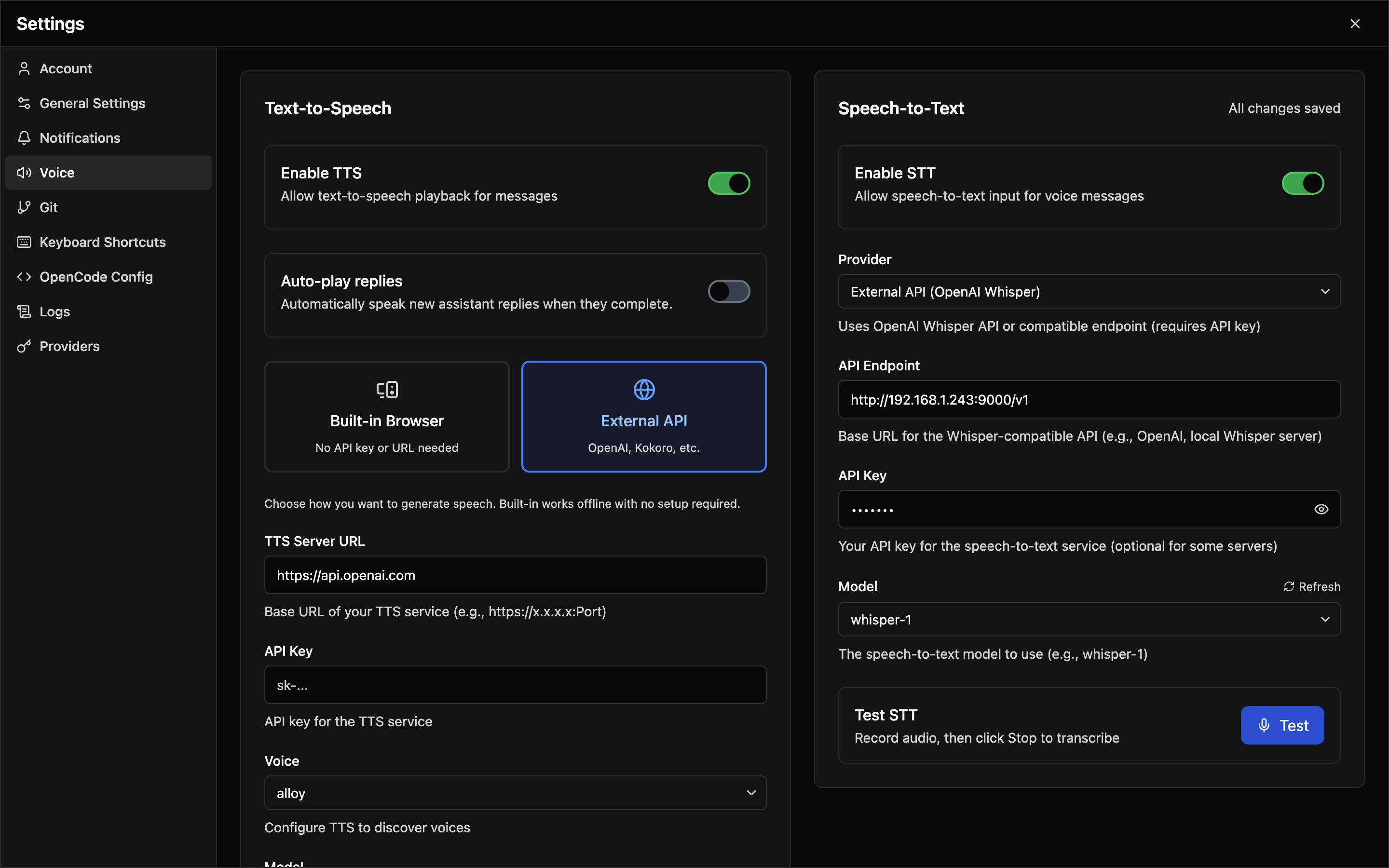
1. **Built-in Browser** - Uses your browser's Web Speech API
2. **External API** - OpenAI-compatible TTS endpoints
## Built-in Browser TTS
Uses your browser's built-in speech synthesis via Web Speech API.
### Advantages
- No API key required
- Works offline
- No server communication needed
- Free to use
### Limitations
- Voice quality varies by browser/OS
- Limited voice selection
- No audio caching
- Requires browser support
### Browser Support
Works in modern browsers:
- Chrome, Edge, Safari, Firefox
### Setup
1. Go to **Settings > Voice**
2. Turn on **Enable TTS**
3. Select **Built-in Browser** provider
4. Choose a **Browser Voice** (use **Check for Voices** if none appear)
5. Adjust **Speed** if desired
6. Click **Test** to verify
### Voice Selection
Available voices depend on your operating system:
- **Chrome** - Google voices and system voices
- **Safari** - macOS voices (Alex, Samantha, etc.)
- **Firefox** - System voices
- **Edge** - Microsoft voices
### Web Speech API Detection
The system automatically detects if your browser supports Web Speech API. If not supported, you'll see a warning and should switch to External API.
## External API TTS
Connect to OpenAI-compatible TTS endpoints for higher quality voices.
### Advantages
- Higher quality voices
- Consistent across devices
- Audio caching on server (`<workspace>/cache/tts`, kept for 24 hours, up to 200 MB)
- More voice options
- Composite voice support
### Limitations
- Requires API key and endpoint
- Requires network connection
- Server-side processing
### Setup
1. Go to **Settings > Voice**
2. Turn on **Enable TTS**
3. Select **External API** provider
4. Enter the **TTS Server URL**:
- OpenAI: `https://api.openai.com`
- Kokoro: `https://your-kokoro-server.com:port`
5. Enter your **API Key**
6. Wait for voice/model discovery
7. Choose voice and model
8. Click **Test** to verify
### Compatible Services
Any OpenAI-compatible TTS API works:
- OpenAI TTS
- Kokoro TTS
- Azure OpenAI
- Local TTS servers
- Self-hosted alternatives
## Voice Configuration
### Voice Discovery
The system automatically discovers available voices and models:
1. On first connection with API key, voices/models are fetched
2. Voice list is cached for 1 hour
3. Click **Refresh** under **Refresh Discovery Data** to force re-discovery if voices change
### Composite Voices
Kokoro-style composite voices are supported. Combine multiple voices for unique effects:
- Example: `am_adam+am_echo`
- Example: `af_bella+af_nova`
## Audio Playback
### Playing Responses
To listen to an AI response:
1. Click the **Read aloud** button on a message, or on a scheduled run's report in **Run History**
2. Audio streams and plays
### Auto-play
Turn on **Auto-play replies** in **Settings > Voice** to speak each new assistant reply when it completes.
When the prompt is empty and the session is idle, a floating speaker button above the chat input plays the latest reply (*Play latest reply*); once you have scrolled up it reads the replies visible on screen instead (*Read visible replies*). Tap it again to stop. Press and hold it to turn auto-play on or off.
### Speak Visible Messages
On desktop, press the leader key (`Ctrl+X` by default) then `S` to read the assistant messages currently visible in the session, in order. Pressing it again while audio is playing stops it. TTS must be enabled, and the shortcut (listed as **Speak Visible** in **Settings → Keyboard Shortcuts**) can be rebound.
### Mobile Replies
When you send a prompt from a phone-sized viewport, the agent is told to write short, plain, conversational replies that read well aloud, avoiding tables, headings, code blocks, long or nested lists, file paths, URLs, and raw symbols unless you ask for them. This only changes how replies are written, not how thoroughly the agent works. It applies to the session until a prompt is sent from a desktop-sized viewport.
### Playback Controls
While audio is playing:
- **Stop playback** - End playback immediately
- Audio stops if you navigate away
### Voice Conversation
In a hands-free [voice conversation](https://opencodemanager.app/docs/features/stt#voice-conversation), every completed reply is read aloud automatically as it arrives when TTS is enabled, with a pause and resume control and a **Continue reading** action when a reply was held mid-read. Auto-play and the per-message **Read aloud** button still work as usual outside a conversation.
## Markdown Sanitization
Before sending text to TTS, markdown is cleaned for better speech:
- Code blocks removed entirely
- Inline code: `code` → code
- Links: `[text](url)` → text
- Images: `` → alt
- Bold/italic/strikethrough markers removed
- Headers: ### Header → Header
- List markers removed
- Tables converted to readable text
- HTML tags removed
- Whitespace cleaned up
This ensures natural, readable speech playback.
---
Source: https://opencodemanager.app/docs/features/stt
# Speech-to-Text
Dictate messages to AI agents, or hold a hands-free voice conversation with one.
## Overview
OpenCode Manager supports two STT providers:
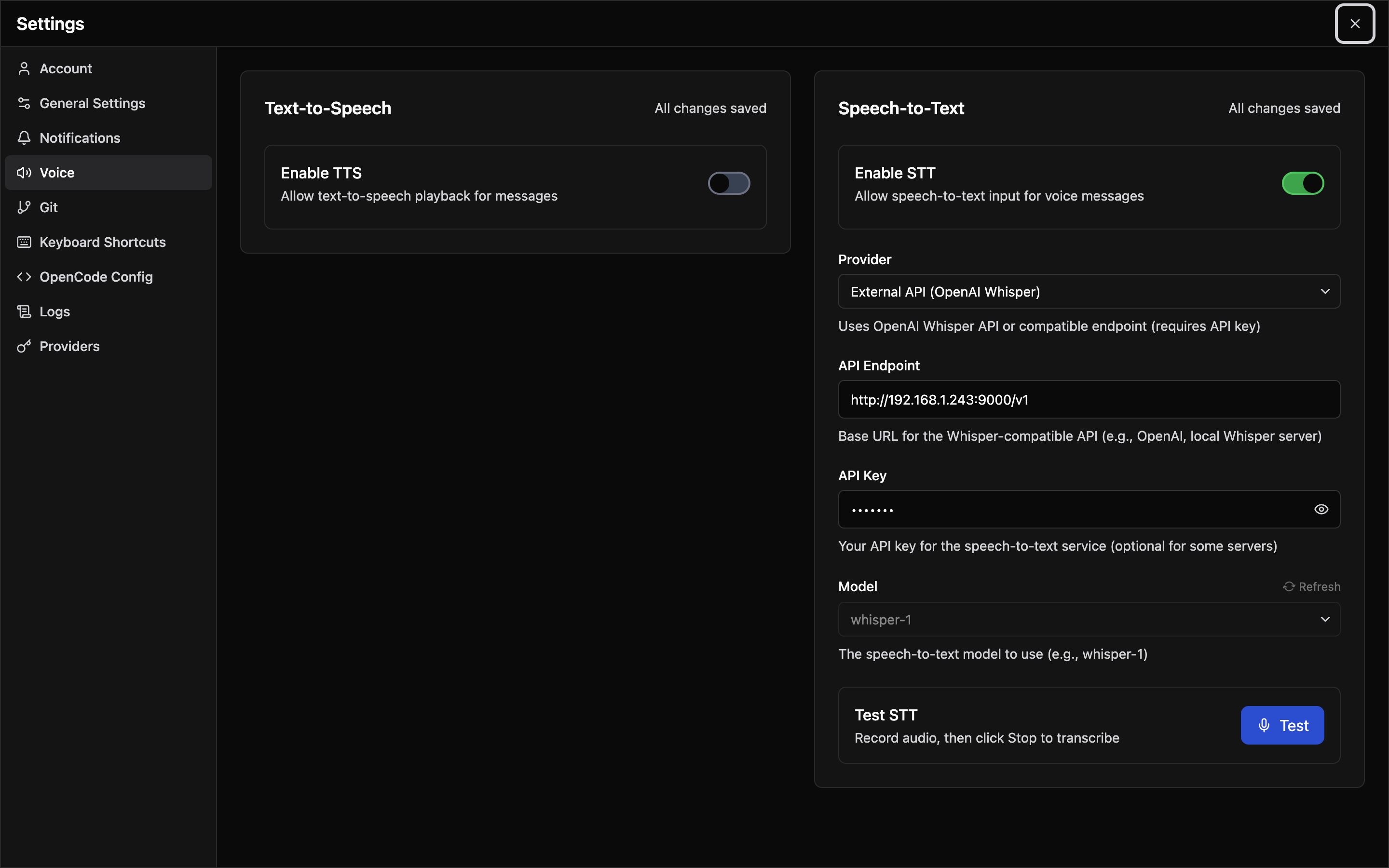
1. **Built-in Browser** - Uses your browser's Web Speech API
2. **External API** - OpenAI-compatible STT endpoints (Whisper)
Both providers drive the composer's [voice conversation](https://opencodemanager.app/docs/features/stt#voice-conversation), which listens, sends each turn, reads the reply aloud, and listens again. The providers differ in how a turn is transcribed and in how it detects the end of your speech.
## Built-in Browser STT
Uses your browser's built-in speech recognition via the Web Speech API.
### Advantages
- No API key required
- Works without server communication
- Free to use
- Partial results appear live in the **Test STT** panel; in a voice conversation the words appear in the bar as you speak
### Limitations
- Voice recognition quality varies by browser/OS
- Not supported in all browsers
- Language support depends on browser
### Setup
1. Go to **Settings > Voice**
2. Under **Speech-to-Text**, turn on **Enable STT**
3. Set **Provider** to **Built-in Browser** (listed only when the browser supports the Web Speech API)
4. Optionally configure **Language**
5. Use **Test STT** to verify
## External API STT
Connect to OpenAI-compatible STT endpoints for higher accuracy transcription.
### Advantages
- Higher accuracy transcription
- Consistent across devices
- Supports many languages
### Limitations
- Requires API key and endpoint
- Requires network connection
- Server-side processing
### Setup
1. Go to **Settings > Voice**
2. Under **Speech-to-Text**, turn on **Enable STT**
3. Set **Provider** to **External API (OpenAI Whisper)**
4. Enter the **API Endpoint**:
- OpenAI: `https://api.openai.com`
5. Enter your **API Key**
6. Wait for model discovery
7. Choose a **Model** (e.g., `whisper-1`)
8. Optionally set **Language**
9. Use **Test STT**: record, then click **Stop** to transcribe
### Compatible Services
Any OpenAI-compatible transcription API works:
- OpenAI Whisper
- Azure OpenAI
- Self-hosted Whisper servers
- Local STT servers with OpenAI-compatible API
## Voice Input
### Voice Conversation
The microphone button in the composer starts a hands-free voice conversation with the session: it listens, sends each turn, reads the reply aloud, and listens again. Both STT providers drive it.
#### Starting and Stopping
1. Turn on STT under **Settings → Voice**. The microphone button appears only while STT is enabled and the selected provider is supported, and is hidden while a permission request is waiting for the session.
2. Tap the microphone button (**Start voice conversation**). The composer is replaced by the conversation bar.
3. Speak. When your turn ends it is transcribed and sent to the session; the reply is read back to you, and the loop starts listening again.
4. Leave with **×** (**Exit voice conversation**), or use the pencil (**Edit in text box**) to stop the conversation and move the words you were speaking into the composer, after any text already there.
#### Phases
The bar names the current phase on its first line, with the latest dictated words beside it, and a hint under the orb names what a tap does:
| Status | Orb tap | What is happening |
|--------|---------|-------------------|
| **Listening** | Send now | The microphone is capturing your turn |
| **Sending…** | - | The transcript is on its way to the session |
| **Working** | Add a message | The agent is producing the reply; a tap records a message that is queued to the session |
| **Needs your approval** | - | A permission request or a question form is waiting; **View** opens it |
| **Speaking** | Skip reply, or add a message while the agent is still busy | The reply is being read aloud |
| **Adding to queue** | Send to queue | A message recorded while the agent worked is being finalized |
| **Paused** | Tap to talk, or tap to continue a held reading | The loop stopped listening |
While the conversation runs, **Pause** stops it without leaving, **Resume** continues, and the square button stops the agent.
#### End of Speech
- **Built-in Browser** uses the browser's own end-of-speech detection. **Settings → Voice → Speech-to-Text → Pause before sending** sets how much silence ends a turn: 0.8 s to 3.0 s, 1.2 s by default.
- **External API** providers do not detect silence; tap the orb to send the current turn.
Ten seconds without any words pauses the loop with **Didn't catch that** (Built-in Browser only), and a listening turn is capped at two minutes before it sends whatever it captured. A turn that produced no speech pauses the loop instead of reopening the microphone.
#### Reading Replies
Every completed assistant reply is read aloud as soon as it arrives, including replies to the messages you queued during the turn.
- With TTS turned off, replies are marked as heard without being spoken, so the loop keeps its rhythm silently.
- Tap the orb while it reads to skip the reply, or to add a message when the agent is still busy.
- Leaving the conversation stops the reading; pausing it holds the reading and **Continue reading** picks it up from where it stopped.
- A reading that stops responding is stopped and reported.
#### Pausing and Resuming
The conversation pauses on its own when the page is hidden, when a turn produced no speech, and when a send fails. It holds on **Needs your approval** without listening while the session waits for a tool or a form, and the **View** button opens the request. **Resume** returns to listening, or continues a reply that was held mid-read.
#### Errors
- A failed capture pauses with **Allow microphone access, then tap to retry**, because the microphone, not the request, is the usual cause.
- A failed send pauses with the session's error message, and the turn is not queued.
- A failed read pauses with **Reading the reply failed**; resuming retries the reply.
#### Voice-Mode Replies
While the conversation runs, the session carries a voice-mode instruction that asks the agent for short, plain, spoken sentences without file paths, code, commands, markdown, lists, or symbols, leading with the outcome. It changes only how replies are written, not how thoroughly the agent works. If the instruction cannot be installed, the bar notes **Replies may include code and paths**.
#### Settings
| Setting | Location | Effect |
|---------|----------|--------|
| **Enable STT** | **Settings → Voice → Speech-to-Text** | Whether the microphone button and voice conversation are available |
| **Pause before sending** | **Settings → Voice → Speech-to-Text** (Built-in Browser) | Silence that ends a turn; 1.2 s by default |
| **Enable TTS** | **Settings → Voice → Text-to-Speech** | Whether replies are read aloud; off runs the loop silently |
### Mobile and iOS
The microphone button sits in the composer's control row on phones as well as on desktop, and the bar replaces the composer while the conversation runs. Sending a turn and starting the conversation give a short impact vibration on a device with haptics.
On iOS, starting the conversation with a tap is also what lets the browser play the replies that arrive later from an external TTS provider, so no second tap is needed for audio. The conversation pauses whenever the page is hidden, which includes switching apps, locking the screen, or changing tab, and **Resume** picks it up again.
---
Source: https://opencodemanager.app/docs/features/notifications
# Push Notifications
Send background notifications when the OpenCode Manager PWA is closed, keeping you informed of agent activity without keeping the app open.
## Overview
Push notifications allow you to receive alerts on your mobile device or desktop when:
- The **agent needs permission** to continue (file operations, tool use, etc.)
- The **agent has a question** for you (clarifications, confirmations)
- A **session encounters an error** during execution
- A **session completes successfully**
A notification is suppressed when a visible tab is already viewing the session that raised it, preventing duplicate alerts while you're actively monitoring that session. Subagent sessions never notify. A permission request that a session answers automatically (Accept everything mode) sends no notification. Goal outcome pushes are not sent when you paused or cancelled the goal yourself, when the turn failed (the regular error notification covers it), or while you are viewing the session.
## Supported Events
| Event | Description | Default |
|-------|-------------|---------|
| `permissionAsked` | Agent requests permission for an action | Enabled |
| `questionAsked` | Agent asks a clarifying question | Enabled |
| `sessionError` | Session encounters an error | Enabled |
| `sessionIdle` | Session completes successfully | Disabled |
| `goalOutcome` | A session goal completes, is blocked, stops, or pauses | Enabled |
## Content and Click Behaviour
The title is the action (`Run Command`, `Edit File`, `Question`, `Error`, `Session complete`) and the body is `<repo> · <detail>`, for example `oc-manager · pnpm test`. Bodies are truncated to 140 characters. Goal notifications are titled **Goal completed**, **Goal blocked**, **Goal stopped**, or **Goal paused**, with the body `<repo> · <objective> — <reason>`, where the reason is the stop reason (for example **Token budget reached** or **Audit failed**) or the auditor's latest reason. Permission and question notifications stay on screen until dismissed; every notification carries the event timestamp and re-alerts when a newer event for the same session replaces it.
Clicking a notification opens the session that raised it (`/repos/<id>/sessions/<sessionId>`). The exception is a **Session complete** or **Session error** event for a session started by a scheduled run: those open the run's report (`/schedules?scheduleTab=runs&runId=<runId>`) instead, landing on the run history rather than the raw session. The service worker prefers a tab already showing that session, then the focused tab, then any visible tab, and only that one tab navigates; with no tab open a new window is opened. Sessions running in OpenCode worktrees or opencode-forge loop worktrees resolve to their parent repository through the shared OpenCode project id, and Assistant sessions open with the `assistant=1` parameter the Assistant view requires.
## Browser Compatibility
Push notifications require HTTPS (except on `localhost`) and browser support:
| Browser | Support | Notes |
|---------|---------|-------|
| Chrome/Edge | ✅ Full | Works well |
| Firefox | ✅ Full | Works well |
| Safari (iOS/macOS) | ✅ Full | Requires `mailto:` VAPID subject |
| Android browser | ✅ Full | Works well |
### iOS/Safari Requirements
Apple's Push Notification Service (APNs) has strict requirements:
1. **HTTPS is required** - `localhost` testing requires Safari Dev Tools
2. **VAPID_SUBJECT must use `mailto:` format** - `https://` subjects are rejected
**Correct:** `VAPID_SUBJECT=mailto:you@yourdomain.com`
**Incorrect:** `VAPID_SUBJECT=https://yourdomain.com`
## Setup
### 1. Generate VAPID Keys
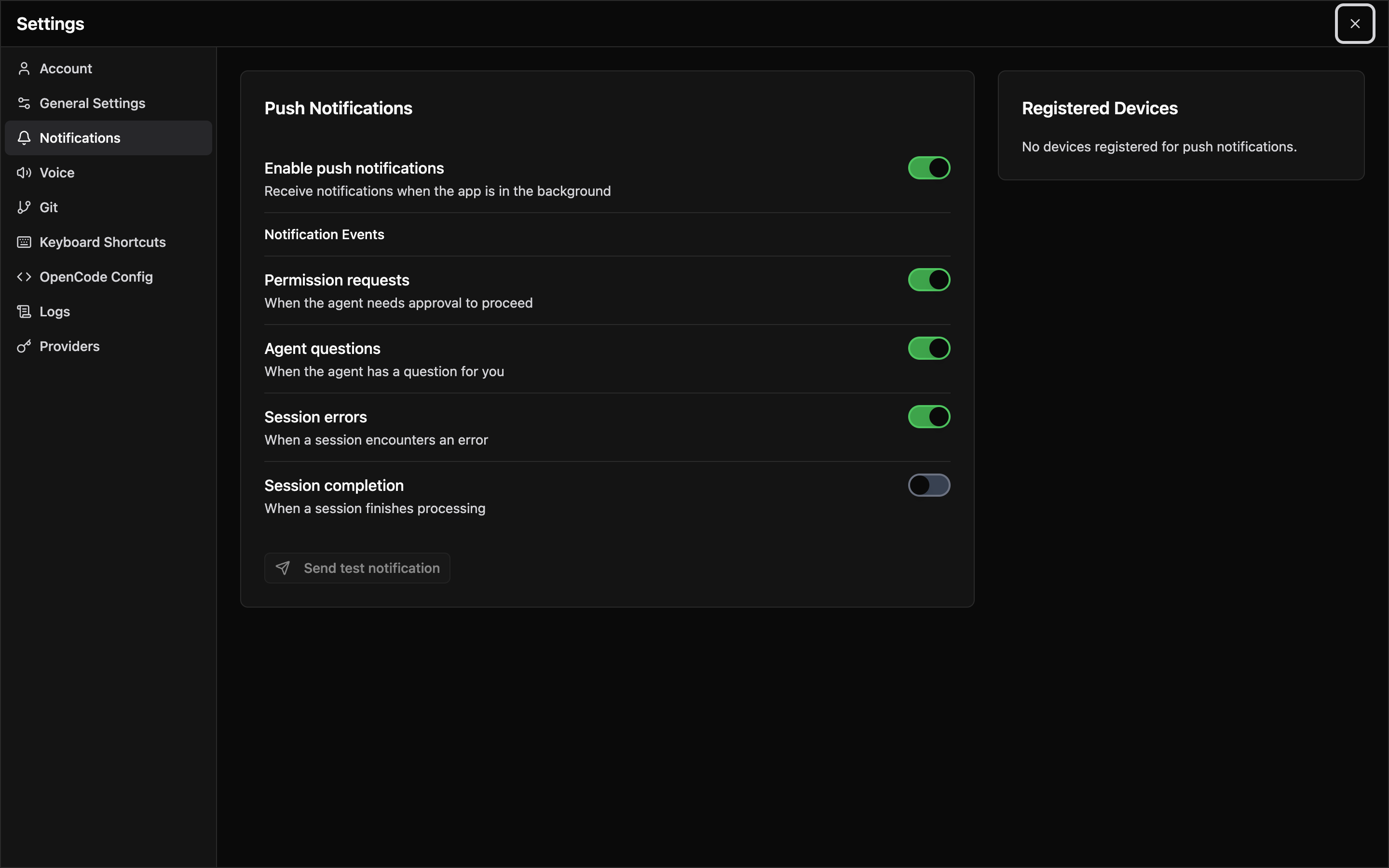
Generate VAPID public/private key pair:
```bash
pnpm dlx web-push generate-vapid-keys
```
Output:
```
=======================================
Public Key:
BMx-123456... (your public key here)
Private Key:
abcd1234... (your private key here)
Subject:
mailto:your-email@example.com
=======================================
```
### 2. Configure Environment Variables
Add to your `.env` file:
```bash
VAPID_PUBLIC_KEY=BMx-123456...
VAPID_PRIVATE_KEY=abcd1234...
VAPID_SUBJECT=mailto:you@yourdomain.com
```
### 3. Subscribe Devices
1. Open OpenCode Manager in your browser
2. Go to **Settings** → **Notifications**
3. Click **Enable Push Notifications**
4. Allow browser permission when prompted
5. Your device is now subscribed
## Managing Subscriptions
### View Subscribed Devices
Navigate to **Settings** → **Notifications** to see all registered devices:
- Device name, or a truncated endpoint when the device has no name
- One relative timestamp: when it was last used, or when it was added if it has never been used
### Remove a Device
Click the **trash** icon next to a device to remove it from receiving notifications.
### Test Notifications
Go to **Settings** → **Notifications** and click **Send Test Notification** to verify your setup is working.
## Notification Preferences
Control which events trigger notifications:
**Notification Settings:**
- **Enable Push Notifications** - Master toggle (default: off)
- **Permission requests** - Get notified when agent needs permission (default: on)
- **Agent questions** - Get notified when agent has a question (default: on)
- **Session errors** - Get notified on session errors (default: on)
- **Session completion** - Get notified when session finishes (default: off)
- **Goal outcomes** - Get notified when a session goal completes, is blocked, stops, or pauses (default: on)
---
Source: https://opencodemanager.app/docs/features/server-health
# OpenCode Server Health & Restart
Monitor the managed OpenCode server's status and control restarts and upgrades from the Settings UI.
## Overview
OpenCode Manager runs a supervised OpenCode server process to handle agent sessions. The **OpenCode Config** tab in Settings shows the server's current status, version information, and provides controls for restarting or upgrading the server without bringing down the Manager itself.
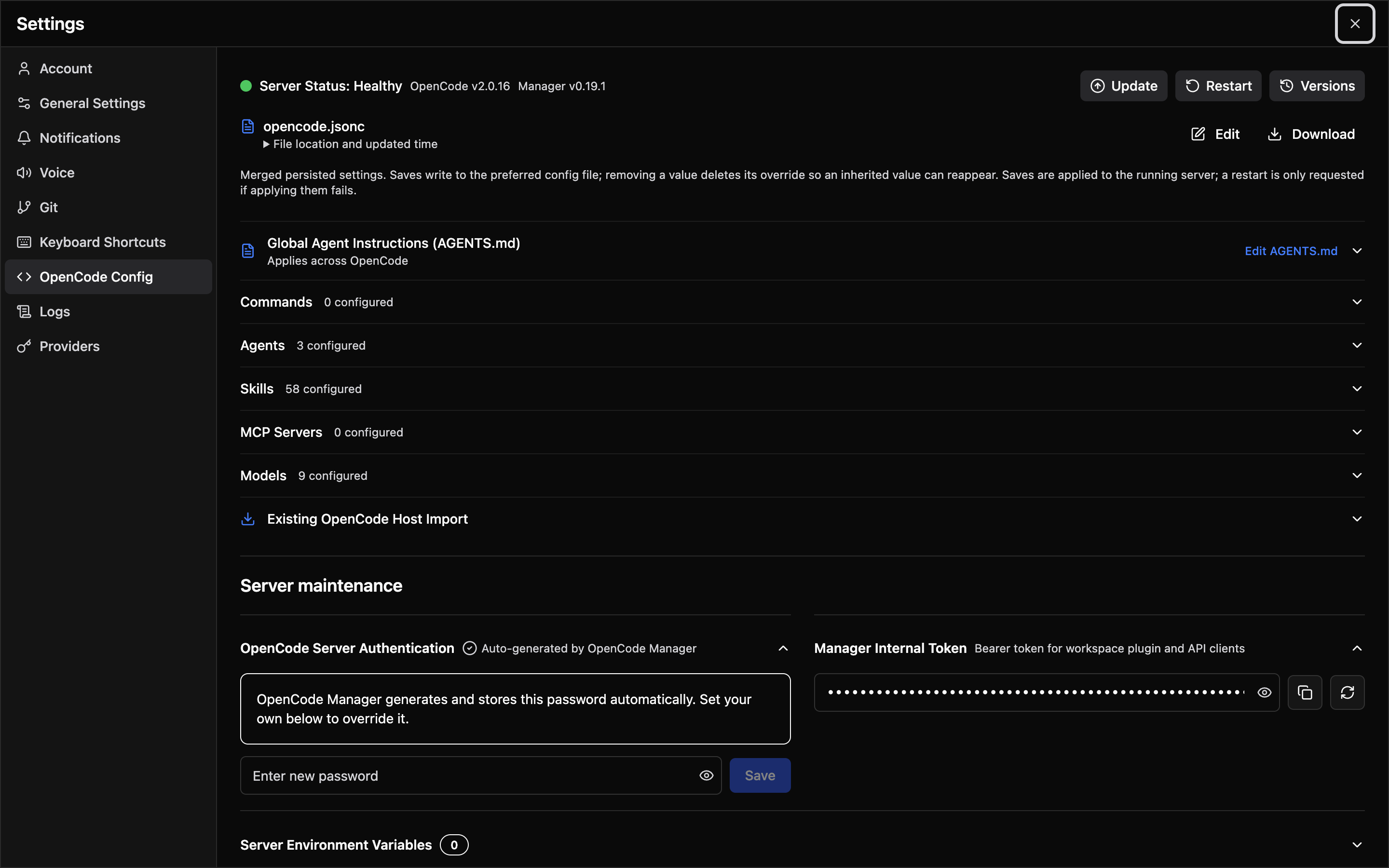
## Server Status
| Indicator | Meaning |
|-----------|---------|
| **Healthy** | The OpenCode server is running and responding to health checks |
| **Unhealthy** | The server is not responding. The Manager will attempt automatic recovery. |
The panel shows a single **Server Status** value, `Healthy` or `Unhealthy`. A server that is still starting after a restart or Manager startup is reported as **Unhealthy** until its first successful health check.
The panel also displays:
- **OpenCode version** — The installed version of the OpenCode server, shown as `OpenCode v2.1.2`. OpenCode Manager requires OpenCode 2.x at 2.1.2 or newer; a 1.x or older 2.x binary fails to start.
- **Manager version** — The current OpenCode Manager version, shown as `Manager v1.1.0`
Next to the status are the **Update**, **Restart**, and **Versions** buttons.
## Health Monitoring
The Manager periodically polls the OpenCode server's health endpoint (`GET /api/info`, authenticated with the managed password). A 401 or a non-JSON response counts as unhealthy. If the server becomes unresponsive:
1. The Manager logs the failure and increments a failure counter
2. After a configurable number of consecutive failures (default: 2), automatic recovery begins
3. Recovery restarts the OpenCode server process
4. OpenCode 2 resumes interrupted executions natively on boot, so the Manager makes no abort or `continue` calls itself
### Configuration
Health monitoring is configured through environment variables:
| Variable | Default | Description |
|----------|---------|-------------|
| `OPENCODE_HEALTH_WATCH_ENABLED` | `true` | Enable health watcher and recovery (`false` in tests) |
| `OPENCODE_HEALTH_POLL_MS` | `30000` | Poll interval in milliseconds |
| `OPENCODE_HEALTH_FAILURE_THRESHOLD` | `2` | Failed checks before recovery starts |
## Configuration Recovery
The on-disk global configuration files in `.config/opencode/` are the source of truth. OpenCode 2 reads the two recognized sources in order — `opencode.json`, then `opencode.jsonc` — with later files overriding matching keys from earlier ones. The Manager reads and edits the same set: saves patch only the changed paths into the preferred existing source (`opencode.jsonc` > `opencode.json`), preserving comments and untouched keys, and a fresh installation is seeded with `opencode.jsonc`. The schema accepts both V1-compatible keys and native OpenCode 2 fields, so a V2-native config is not flagged invalid. MCP servers are always written in the native OpenCode 2 shape under `mcp.servers.<name>` — `type` (`local` with `command`, optional `cwd` and `environment`; or `remote` with `url`, optional `headers` and `oauth` using `client_id`, `client_secret`, `scope`, and `redirect_uri`), plus optional `disabled` and `timeout` (`startup`, `catalog`, `execution` in milliseconds). Legacy flat `mcp.<name>` entries are never written; OpenCode 2 still normalizes them on load, so they appear in Settings → MCP from the running server's status but must be moved under `mcp.servers` to be edited or removed from the Manager. A legacy `config.json`, which OpenCode 2 ignores, is folded into the lowest-precedence source it does not override and archived on startup. When a source exists at boot but fails validation, the Manager logs a warning and starts with the files unchanged — an invalid config is never automatically replaced or rolled back during boot.
The health-watch ladder is the only automatic repair path. When the supervised OpenCode server fails repeated health checks, recovery runs these actions in order until the server is healthy:
1. **Restart** — restart the server process
2. **Debug capture** — capture a diagnostic snapshot, then restart
3. **Rollback to last known good** — archive the broken config and restore the last known good config
4. **Seed default config** — write the minimal seed config and restart
Because the ladder only runs after repeated failed health checks, a config file that fails validation but does not make the server unhealthy is left in place. Setting `OPENCODE_HEALTH_WATCH_ENABLED=false` disables the ladder entirely, leaving no automatic repair path.
## Failure Reporting
When startup fails without a recovery path, or every recovery action has been tried, the server enters the **failed** state:
- A persistent error toast shows the failure reason, with **View logs** (opens Settings → Logs) and **Restart** actions. It appears once per distinct failure, including when the app is opened while the server is already failed, and is replaced by a "back online" notice once the server is healthy again. Transient unhealthy or recovering states do not toast.
- The Settings → Logs tab shows the failure reason and the recovery actions already attempted above the log stream.
- A server process that exits or cannot be launched (for example, a missing executable) fails startup immediately with its exit code and the tail of its stderr, rather than waiting for the 30-second health timeout.
The last known good config is a snapshot of every recognized source file (including which ones exist), captured before every write made through the Settings UI, the internal API, or a host config import, so any of those can be undone with `POST /api/settings/opencode-rollback` or by the ladder. Restoring a snapshot rewrites the sources it contains and removes recognized sources it does not. Archived broken configs and debug snapshots are kept under `.opencode/state/health-watch/` in the workspace, pruned to the newest 20 files.
Earlier releases stored named configuration profiles in the Manager database. On first start after upgrading, each profile is archived to `.config/opencode-configs-archive/<name>.json` in the workspace, the default profile is restored to `opencode.json` if that file does not exist yet, and the database table is dropped.
## Restart with Session Resume
When you restart the OpenCode server (manually or through an upgrade), active sessions are handled gracefully:
1. **Restart** — The OpenCode server process is stopped with a grace period so in-flight turns are suspended, then started fresh
2. **Resume** — OpenCode 2 resumes interrupted executions natively on boot and continues each turn in its transcript; the Manager makes no abort or `continue` calls itself and does not report individual sessions
### Confirmation
If there are active sessions when you click **Restart**, a confirmation dialog shows how many sessions will be interrupted. You can proceed or cancel.
## Upgrading OpenCode
Click **Update** to check for and install the newest supported OpenCode 2 version. The process:
1. Checks the currently installed version against the newest stable release of the `@opencode/cli` package on npm that is inside the supported range (at or above the pinned version, same major version); newer major versions are never selected
2. Downloads the matching binary from `https://opencode.ai/files/bin/<version>/` and verifies it before installing to `~/.opencode/bin/opencode`
3. Restarts the server using the same session-resume flow described above
4. The new version is displayed in the status panel after restart
Click **Versions** to open **Select OpenCode Version** and install a specific version; it works the same way, and versions outside the supported range are rejected before any download. A failure before the installed binary is replaced (registry lookup, download, or extraction) returns an error without restarting the server. If the failure happens after the binary is replaced and the server recovers to a usable state, a recovery notice is shown with the fallback version.
When `OPENCODE_BIN` is set, the OpenCode binary is managed outside the Manager: **Update** and version installs are refused with `409` and nothing is downloaded or restarted.
## Manual Restart Triggers
Besides the explicit **Restart** button, the server is automatically restarted when:
- **Config import completes** — Importing a standalone OpenCode config into the workspace
- **Version upgrade** — After installing a new OpenCode version
Saving the OpenCode configuration never restarts the server. A change to the merged configuration is written to disk and applied immediately with an OpenCode location reload, which re-reads the configuration, agents, commands, skills, plugins, and `AGENTS.md` for every loaded location without interrupting running sessions. Comment-only edits do nothing, and changes limited to the `mcp` section are applied by the Settings UI through the MCP API. The change is flagged as **restart required** only when the reload fails, for example because the server is unavailable. Changes to how the server process is launched still need a restart: server environment variables, Git credentials, sandbox enforcement, manager token rotation, the server password, and OpenCode version installs. The default git identity applies without a restart: it is written to Manager's own git config file, which the running OpenCode process and its agent shells already read. Saving a provider credential, or completing a provider OAuth flow, applies to the running server immediately without a restart, because OpenCode 2 stores credentials in its database and broadcasts the change.
A save is rejected with `409` when the files changed since you loaded them (stale revision), or when it would remove a value that is defined only in a lower-priority source file — removing it from the preferred file would leave the inherited value in effect.
---
Source: https://opencodemanager.app/docs/features/logs
# Manager Logs
View the Manager's own log lines and the managed OpenCode server's output directly in the Settings UI, without shell access to the container or host.
## Overview
The **Logs** tab in Settings shows a live stream of what the Manager and the OpenCode server are doing — startup messages, session activity, warnings, and errors. This is the quickest way to answer "why did that just fail?" while the app is running.
Each entry shows a timestamp, severity level, source, and message:
- **Manager** — Lines emitted by the Manager's own logger (the same lines written to the console/container logs)
- **OpenCode server** — stdout and stderr captured from the supervised OpenCode server process
## Filters
| Control | Behavior |
|---------|----------|
| **Level** | Minimum severity filter: *All levels*, *Info and above*, *Warnings and above*, or *Errors* |
| **Source** | Show only **Manager** lines, only **OpenCode server** lines, or both |
| **Search messages** | Case-insensitive text search applied to the displayed entries |
## Controls
- **Pause / Resume** — Stop and resume the live stream. While paused, entries arriving from the backend are not added to the view.
- **Clear** — Empty the local view without affecting the backend buffer.
- **Copy** — Copy the currently visible (filtered and searched) entries to the clipboard.
- **Follow scrolling** — The view scrolls to the newest entry automatically. Scrolling up pauses following; scrolling back to the bottom resumes it.
When the buffer has evicted entries, a notice below the view reports how many earlier entries have been dropped since the Manager started.
## OpenCode Server Issues
While the OpenCode server is unhealthy, recovering, or failed, a panel above the log stream shows the current failure reason (including the server's exit code and stderr tail when it crashed during startup) and the recovery actions already attempted. **Show errors only** switches the filters to errors from all sources, so the Manager's startup messages appear alongside the server's own output.
## Limits and Behavior
- The buffer is **in-memory** on the Manager backend and holds up to **2,000** entries (`DEFAULTS.LOGS.BUFFER_CAPACITY`). Older entries are evicted first.
- Individual entries are truncated at **4,000** characters (`DEFAULTS.LOGS.MAX_ENTRY_LENGTH`).
- The buffer is **cleared when the Manager process restarts**. When the frontend detects a backend restart it resets its view and re-polls from the start.
- OpenCode server stdout and stderr are captured in every mode; in development they are also mirrored to the terminal.
- The frontend polls the backend every **3 seconds** (`DEFAULTS.LOGS.POLL_INTERVAL_MS`); backend pages are capped at 1,000 entries per response.
- `docker-compose logs` remains the fallback for failures that happen **before** the Manager's HTTP server is up — nothing can be captured in-app at that point.
---
Source: https://opencodemanager.app/docs/features/sandboxing
# Agent Sandboxing
Run OpenCode agent `shell` tool commands inside an isolated microVM instead of directly in the Manager container. Sandboxing does not restrict trusted OpenCode configuration or extensions and is not a per-project permission boundary.
Sandboxing is per session. Each sandboxed session gets its own microVM that mounts only that session's repository, so one session cannot see another session's repositories. Sandbox *support* is switched on for the server once; each session then carries its own sandbox flag.
## Turning Sandboxing On
Sandboxing needs a Linux host with `/dev/kvm` and the sandbox compose overlay. Start the Manager with the overlay:
```bash
docker compose -f docker-compose.yml -f docker-compose.sandbox.yml up -d
```
Then:
1. Open **Settings → OpenCode Config → Server maintenance → Sandbox**.
2. Turn on **Sandbox**. If the host cannot sandbox, the section shows the reason and the switch stays disabled.
3. Restart the OpenCode server when prompted.
The switch turns on sandbox *support* for the server, and it is restart-gated: until the OpenCode server restarts, the running server keeps its previous state. Enabling support does not sandbox existing sessions by itself — see [Per-Session Sandboxing](https://opencodemanager.app/docs/features/sandboxing#per-session-sandboxing).
Docker Desktop on macOS and Windows cannot provide `/dev/kvm`, so the switch stays disabled there. See [Host Requirements](https://opencodemanager.app/docs/features/sandboxing#host-requirements) for the overlay's devices and capabilities.
## Per-Session Sandboxing
Once support is on, every root session has its own sandbox flag:
- **New sessions** start sandboxed when **Sandbox new sessions by default** is on (the default). Turn it off to make new sessions start unsandboxed.
- **Desktop composer** — the box icon next to the permission toggle opens a menu with **Sandbox commands** and, for a sandboxed session, **Sandbox resources…**.
- **Mobile composer** — the same items are in the composer options menu, behind the **+** button.
- **Child sessions** inherit their root session's flag and cannot be toggled on their own; the menu shows **Inherited from parent session**.
- **Scheduled runs** — a schedule job's **Run in sandbox** option sandboxes each run's session and its subagents; see [Schedules → Sandbox](https://opencodemanager.app/docs/features/schedules#sandbox).
- Toggling a session, and changing its resources, applies immediately with no restart.
While server support is off, the control is hidden and every session reports unsandboxed.
## What Gets Sandboxed
| Execution path | Sandboxed |
|----------------|----------|
| Agent `shell` tool calls in a sandboxed session | Yes |
| Subagent `shell` tool calls | Yes, in their root session's microVM |
| Agent `shell` tool calls in an unsandboxed session | No; run on the host |
| WebUI `!command` shell mode (`POST /api/session/:sessionID/shell`) | No; it is not attributed to a session, so it runs on the host |
| Shell API (`POST /api/shell`) | No; runs on the host |
| Slash-command shell templates (`` !`cmd` ``) | No; OpenCode expands each interpolation with the configured shell, on the host |
| PTY terminals, including the [Terminal panel](https://opencodemanager.app/docs/features/terminal) and [project actions](https://opencodemanager.app/docs/features/project-actions) | No; normal OpenCode behavior with the configured shell |
| OpenCode file tools, plugins, custom tools, local MCP servers, formatters, LSP servers, hooks, and custom provider modules | No; normal OpenCode behavior |
Only the agent `shell` tool is routed into a microVM. The command the agent wrote is never rewritten, so the recorded tool call, the permission rules, and the model's own context all keep the original command.
Each sandboxed `shell` call is marked `sandbox` in its tool metadata, which the WebUI shows as a green badge on the tool call. When another sandbox provider wins the call — for example an `opencode-forge` loop session — the badge reads `sandbox · <provider>`. Metadata is not sent to the model.
Sandboxing fails closed: if a sandboxed session's command cannot be prepared, the call fails instead of running on the host.
## One microVM per Sandboxed Session
- Each sandboxed root session gets its own microVM, created on the session's first sandboxed command. Child sessions run in their root session's microVM.
- The microVM mounts only the session's repository or worktree, at the same path the Manager uses, plus a small set of shared directories. A session cannot see other repositories from inside its sandbox.
- It also gets its own Docker data volume, so Docker state is private to the session.
- The Manager verifies the microVM's image, resources, mounts, network policy, and labels before reuse. A stale or mismatched microVM is removed and recreated automatically, keeping its Docker data volume.
- A command whose working directory is outside the session's mounts is refused rather than run on the host.
## Mounts and Secrets
Each session's microVM receives writable bind mounts for:
| Host path | Why it is mounted |
|-----------|-------------------|
| The session's repository or worktree | The git top level of the session's location directory, or that directory itself when it is not in a repository |
| The repository's git common directory | Only for a linked worktree, when it lies outside the top level |
| `/workspace/.opencode/state/opencode/tool-output` | Where OpenCode saves the full content of a truncated tool result before handing the agent that absolute path |
| `/workspace/.config/opencode/skills` | Global skills, including the scripts and reference files a skill bundles and refers to by absolute path |
| `/workspace/.opencode/tmp/opencode` | The temporary directory OpenCode's environment instructions tell agents to prefer for work outside the workspace |
Each is mounted at the identical guest path. That is the point: OpenCode hands the model absolute host paths, and the host-side `read`, `write`, and `glob` tools resolve them against the container. A path that is not mounted resolves for those tools but not for a sandboxed `shell` call, which is how an agent ends up searching for a file it was just told the exact location of.
:::warning[Known gap: shell output files]
OpenCode writes background and truncated `shell` output to files under `/workspace/.opencode/state/opencode/shell/` and tells the agent their paths. That directory is not mounted, so a sandboxed `shell` call cannot read them; the host-side `read` tool can.
:::
Only the session's repository or worktree is a valid working directory. The other mounts are readable and writable but are never a valid working directory, so `shell` calls still have to run inside a repository or a worktree.
A repository's [secrets and variables](https://opencodemanager.app/docs/features/secrets) are resolved on the host for the command's directory and forwarded into the microVM as ordinary environment variables, so sandboxed commands see the same mapped values as host commands.
The microVM also mounts a runtime-owned tmpfs at `/tmp`, sized to one quarter of the microVM memory and clamped to 1–512 MiB, so agent commands get guest-only scratch space that is not backed by a host filesystem.
The agent temporary directory is separate from that tmpfs. The Manager sets `TMPDIR=/workspace/.opencode/tmp` on the OpenCode child, which puts OpenCode's own temporary directory at `/workspace/.opencode/tmp/opencode` — the path its environment instructions advertise — so the same files are visible to sandboxed commands and to the host-side file tools. Everything else under `TMPDIR` (temporary files from host-side `git`, `gh`, and MCP servers) stays out of the guest. The Manager empties the mounted directory each time it starts the OpenCode child, matching the lifetime it had in the container's `/tmp`; it clears the contents rather than the directory itself, because replacing the directory would detach a running microVM's bind mount.
The following remain outside every microVM:
| Host path | Contents |
|-----------|----------|
| `/workspace/config` | SSH configuration and known hosts |
| `/workspace/.ssh-keys` | Repository SSH private keys |
| `/workspace/.config/opencode/plugins`, `/workspace/.config/ocm` | Generated plugins and the shell shim — the enforcement mechanism itself |
| `/workspace/.config/opencode` (except `skills`) | OpenCode configuration |
| `/workspace/.opencode/state` (except `opencode/tool-output`, `opencode/worktree`, and `opencode/forge/worktrees`) | Provider and MCP credentials, the forge database |
OpenCode's host process still reads these paths normally. They are omitted only from the agent command environment.
No internal API token exists anywhere under the mounted roots. The token lives in the Manager's database and reaches the generated plugins only through the `OCM_INTERNAL_TOKEN` environment variable of the Manager's own OpenCode process, which is never part of the guest environment. Because `localhost` inside the microVM is the guest rather than the Manager, an agent command cannot call the internal API with `curl`; agents reach the Manager through the `ocm` tool instead, which executes in the Manager's own OpenCode process.
The configuration directory also holds `service.json`, where the Manager writes the managed OpenCode server password for service mode. That password grants the full OpenCode API, including unsandboxed PTY terminals, so while sandboxing is enforced the agent's file tools are denied access to `service.json`, to `grep`/`glob` searches rooted at the configuration directory or an ancestor, and to `external_directory` grants targeting that directory. The denial is specific to `service.json`: a sibling configuration file such as `opencode.json` is not denied for `read`, and a relative `grep`/`glob` search path is not matched. Agents should use the `ocm` tool for configuration reads and changes.
## Sandbox Settings
**Settings → OpenCode Config → Server maintenance → Sandbox**:
| Setting | Effect |
|---------|--------|
| **Sandbox** | Turns on sandbox support for the server. Restart-gated. |
| **Git credentials in sandbox** | Forwards git credentials into the microVM so sandboxed `git` and `gh` commands can authenticate. Off by default; see [Git Credentials in the Sandbox](https://opencodemanager.app/docs/features/sandboxing#git-credentials-in-the-sandbox). |
| **Sandbox new sessions by default** | Whether new root sessions start sandboxed. Applies immediately. |
| **Default CPUs** | Default CPUs for a session's microVM. Blank uses the server default. |
| **Default memory (GiB)** | Default memory for a session's microVM. Blank uses the server default. |
| **Remove idle sandbox VMs after (minutes)** | How long a microVM may sit unused before it is removed. Default 30. |
| **Max running sandbox VMs** | How many session microVMs may run at once. Default 4. |
Per-session CPU and memory overrides are set from the composer's **Sandbox resources…** dialog, which has a **Use defaults** action to clear the override.
## Limits and Lifecycle
- **Resources.** A session's override is used first, then the Settings default, then the server default (`SANDBOX_CPUS` 2 CPUs, `SANDBOX_MEMORY` 4G). CPUs may be 1–64 and memory 1024 MiB–1 TiB; a value above the host's CPU count or memory is rejected. A resource change applies on the session's next sandboxed command and recreates its microVM, keeping its Docker data volume.
- **Idle removal.** A microVM and its Docker data volume are removed after the longer of the idle-stop setting (default 30 minutes) and the per-command timeout (`SANDBOX_EXEC_TIMEOUT_MS`, default 10 minutes) without a sandboxed command. The next sandboxed command creates a fresh microVM, so installed packages and Docker images are lost.
- **Running limit.** At most the configured number of session microVMs run at once. Starting another stops the least recently used running microVM that has been idle for at least the per-command timeout; if none qualifies, the command is refused with a reason naming the limit.
- **Removal.** Turning a session's sandbox off removes its microVM and Docker data volume in the background, and so does deleting a session. Turning server sandbox support off and Manager shutdown stop every managed microVM.
- **Warm-up.** The Manager caches the guest image at startup and whenever support is switched on, but it does not boot a microVM until a session's first sandboxed command.
## Host Requirements
Sandboxing requires KVM on a Linux host and access to Linux `/proc` for process identity attestation. The overlay exposes `/dev/kvm`, `/dev/net/tun`, and `NET_ADMIN` without enabling full container privilege. `/dev/net/tun` and `NET_ADMIN` provide guest networking for `SANDBOX_NET=public`; if `msb` reports a missing device or capability on a particular host, add that specific entry rather than enabling full privilege. Docker Desktop on macOS and Windows cannot provide `/dev/kvm`, so the sandbox switch stays unavailable there.
## Worktree Placement
- Scheduled runs use raw git worktrees under `/workspace/schedule-worktrees`.
- OpenCode's own worktrees (`/workspace/.opencode/state/opencode/worktree`, created through its `/api/worktree` API) and opencode-forge loop worktrees (`/workspace/.opencode/state/opencode/forge/worktrees`) are project roots, so agent `shell` calls run inside them without further configuration.
- A worktree created outside those roots is created normally; only a later agent `shell` call whose working directory is outside the session's mounts is refused.
## Git Credentials in the Sandbox
By default the guest receives no credentials, so a sandboxed `git push`, `git pull`, or `gh` call fails to authenticate. The repo's git identity (`GIT_AUTHOR_*` / `GIT_COMMITTER_*`) is always forwarded, so `git commit` works either way.
Forwarding is opt-in, off by default:
| Scope | Where | Effect |
| --- | --- | --- |
| Global | Settings → OpenCode Config → Server maintenance → Sandbox → **Git credentials in sandbox** (`preferences.sandbox.gitCredentials`) | Default for every repo |
| Per repo | `repo_settings.sandboxGitCredentials` | Overrides the global default in either direction. The planner honours it when resolving credentials, but nothing writes it yet — there is no UI or API for the per-repo override |
The forwarding switch is read per command, so turning it on or off takes effect on the next sandboxed command without restarting the OpenCode server.
When enabled, credentials are resolved on the host and forwarded into the microVM:
- One `http.<host>.extraheader` pair per configured host, so a command can authenticate against every host you have a credential for, not just the repo's own remote.
- Where several credentials share a host, the repo-bound credential wins, then `defaultGitCredentialId`. Exactly one credential is ever sent per host — git treats `http.<url>.extraheader` as multi-valued and would otherwise send competing `Authorization` headers.
- `GH_TOKEN` / `GITHUB_TOKEN` for `gh`.
- At most 16 hosts. Beyond that the Manager logs a warning and forwards the first 16 rather than emitting a `GIT_CONFIG_COUNT` that git would reject.
Understand the trade-off before enabling it. The token is visible in the `msb` process arguments on the host and in the guest environment for that command's lifetime, and a prompt-injected agent inside the microVM can read and exfiltrate any credential you forward. The global switch is the only exposed control today, so enabling it applies to every repo; leave it off while any agent handles untrusted input.
## Sandbox Guest Image
`SANDBOX_IMAGE` defaults to a digest-pinned reference of `docker.io/cstechdev/ocm-sandbox`. The `Sandbox Image` workflow (`.github/workflows/sandbox-image.yml`) builds `Dockerfile.sandbox` natively: `linux/amd64` on `ubuntu-latest` and `linux/arm64` on `ubuntu-24.04-arm`. Pull requests from this repository that touch the Dockerfile, the workflow, or `scripts/sandbox-dockerd-start.sh` run build-time verification without publishing or requiring registry credentials. A manual `workflow_dispatch` publishes both platforms by digest and merges them into one manifest list, tagged with the commit SHA, package version, and optional `tag` input (default `latest`). Publishing requires `DOCKERHUB_USERNAME` and `DOCKERHUB_TOKEN` repository secrets. The job summary prints the index digest to pin.
Native runners avoid the x86_64 `rustc` segmentation fault observed under qemu-user on the arm64 build host. Later uv releases also failed in that environment. Neither platform skips toolchain execution to work around emulation failures. A single-platform local build on an arm64 host is:
```bash
docker buildx build --platform linux/arm64 -t ocm-sandbox:local -f Dockerfile.sandbox --load .
```
After a publish, update the pin in `shared/src/config/defaults.ts` (`SANDBOX.IMAGE`) and in the `docker-compose.sandbox.yml` default to the new `@sha256:` digest. That bump is what makes deployments adopt a rebuilt guest image, and it is deliberate rather than convenient:
- msb caches images by reference. `msb pull docker.io/cstechdev/ocm-sandbox:latest` reports "already cached" without contacting the registry, and `pull_policy: IfMissing` never re-pulls, so a host that pulled a mutable tag once keeps that content forever.
- Sandbox attestation compares the image *reference string*. A floating tag therefore keeps passing attestation while its content drifts, so the running microVM is never recreated either.
A digest reference sidesteps both: it is a cache key no host has seen before, so `IfMissing` pulls it, and it fails the reference comparison against a microVM created from the old reference, so the Manager removes and recreates that microVM on its own. No manual cleanup is required on deploy; to reclaim the superseded image afterwards, run `msb image prune` or `msb image rm <old reference>`.
It is built from the same `node:24.21.0-trixie` tag as the Manager image (Debian 13, `buildpack-deps` based), so both track one Node and one Debian release and the compile toolchain is already present. pnpm, Bun, uv, fallow, Rust, Go, and Playwright have build-argument version pins; base-image and apt tools follow their package sources:
| Tool | Source | Notes |
| --- | --- | --- |
| `gcc` / `g++` / `make` / `ld` / `pkg-config` | base image | GCC 14, GNU Make 4.4 |
| `glib-2.0` | base image | With `pkg-config` metadata |
| `git`, `ssh`, `python3`, `curl`, `wget`, `unzip` | base image | |
| `python` | apt (`python-is-python3`) | The base image ships only `python3`; a skill or script invoking `python` would otherwise fail |
| `ping`, `ip`, `ss`, `netstat`, `dig`, `host`, `nslookup`, `nc`, `traceroute`, `lsof`, `rsync` | apt | The base image ships no network diagnostics at all. The image build fails if any of these is missing |
| `pnpm` | `npm install -g` (`PNPM_VERSION`) | Installed into `/usr/local` as root. A project `packageManager` pin of a different version is honoured by pnpm itself, which downloads it into the pnpm store on first use; the build verifies that as an unknown uid |
| `bun`, `bunx` | official installer (`BUN_VERSION`) | Installed to `/opt/bun`, world-readable, both symlinked onto `PATH` |
| `uv`, `uvx` | Astral installer (`UV_VERSION`) | Standalone binaries on `PATH`; `uv tool` shims land in `/opt/agent-tools/bin`, which is on `PATH`. Pinned at 0.12.7 |
| `fallow` | `npm install -g` (`FALLOW_VERSION`) | Dead-code and unused-export analysis CLI |
| `rustc`, `cargo`, `rustup` | rustup (`RUST_VERSION`, minimal profile) | `RUSTUP_HOME=/usr/local/rustup` and `CARGO_HOME=/usr/local/cargo` follow the official rust image layout and are opened to every uid afterwards, so the exec user can `cargo install` and add toolchains; `/usr/local/cargo/bin` is on `PATH` |
| `go` | official tarball (`GO_VERSION`) | Unpacked to `/usr/local/go`, on `PATH`. `GOBIN=/opt/agent-tools/bin` puts `go install` binaries next to the other agent tools; `GOPATH` and the module cache default under the writable `HOME` |
| `npm -g`, `pnpm -g` | npm / pnpm | Global installs redirect to `/opt/agent-tools` (`npm_config_prefix`, `PNPM_HOME`), so they are writable for the exec user and their binaries are on `PATH` |
| `sudo` | apt | Passwordless for every guest user via `/etc/sudoers.d/ocm-guest`; system-wide `apt-get install` works from the exec user |
| `pip`, `venv` | apt | `python3-pip` and `python3-venv` on top of the base `python3`. Debian's externally-managed marker is removed, so `pip` and `uv pip --system` are not refused; system-wide writes still need `sudo`, so use `--user` or a venv |
| `jq`, `ripgrep`, `less`, `tree`, `file`, `procps` | apt | Common CLI tools agent workflows expect; Debian 13 carries jq 1.7 and ripgrep 14 |
| `gh` | official `cli.github.com` apt repo | Current release. Debian's own package is several years stale |
| Docker Engine, CLI, Buildx, Compose | official Docker Debian apt repo | `ocm-dockerd-start` starts the guest daemon on demand and waits for readiness. The Manager adds the provisioned exec user to the guest's Docker group. No host Docker socket is mounted |
| Chromium | Playwright (`PLAYWRIGHT_VERSION`, default `1.63.0`) | Installed to `PLAYWRIGHT_BROWSERS_PATH=/ms-playwright`, world-readable so `SANDBOX_EXEC_USER` can launch it |
`NODE_PATH=/usr/local/lib/node_modules` is set so agent code can `require("playwright")` from any working directory. It is only a resolution fallback; a project-local `node_modules` still wins.
Before using Docker inside the guest, run `ocm-dockerd-start`. The helper is safe to call repeatedly, serializes concurrent starts, and probes only the guest's Unix socket regardless of `DOCKER_HOST` or `DOCKER_CONTEXT`. It supervises `dockerd` for up to 180 seconds, relaunching it if it exits before `docker info` succeeds, because a fresh microVM's `dockerd` can exit with "timeout waiting for containerd to start". Daemon startup logs are in `/var/log/dockerd.log`. Docker data lives on a per-session 20 GiB disk volume mounted at `/var/lib/docker`; Docker's overlay storage cannot use the sandbox's overlay root filesystem. The volume is private to the session, survives that microVM's restarts and recreation, and is not shared with the host Docker daemon. Removing the microVM also removes its Docker data volume, so its images, containers, and volumes are lost. Sandbox attestation requires exactly this named mount in addition to the session's project mounts.
The guest runs every command as a numeric host uid that has no `/etc/passwd` entry in the image, so the uncorrected default `HOME` is `/` and anything that writes per-user state — the pnpm store, uv and pip caches, `git config`, `gh` config, the cargo registry, the Go module cache — dies with `EACCES` on the first run. The image therefore sets `HOME=/home/ocm-agent` (mode 1777), opens the rust homes to every uid, and puts a world-writable `/opt/agent-tools/bin` on `PATH` for `uv tool`, `go install` and global package-manager installs. Image `ENV` reaches `msb exec` commands verbatim, including for unknown uids. The image build verifies the whole toolchain as an unprivileged uid — including a `cargo build` and a `go run` — so a root-only regression fails the build instead of the agent.
The pnpm store itself is pinned to a container-internal path with `PNPM_CONFIG_STORE_DIR=/home/ocm-agent/.local/share/pnpm/store`. The pin goes through pnpm's own config env var because pnpm 11 no longer reads `npm_config_*` variables; with the store unpinned, pnpm places it on the mounted project filesystem, which pollutes the repository, slows installs over the host bind mount, and can end up committed.
`sudo` also needs the exec user to exist in the guest, which the image cannot know at build time. The Manager provisions the `/etc/passwd`, `/etc/group`, and `/etc/shadow` entries for the exec uid through an idempotent root exec (verified by `getent`, so repeats are no-ops) when a microVM is created and when a stopped microVM is started. A freshly created microVM does not accept `msb exec` until its guest agent is up, so provisioning first waits on `msb ping` (bounded by `SANDBOX_START_TIMEOUT_MS`). Without the entries, `sudo` refuses with "you do not exist in the passwd database" or a PAM "account validation failure". Provisioning is deliberately non-fatal: if it fails, the Manager logs a warning and the sandbox still runs commands — only `sudo` is unavailable. A microVM created from an older image reference is replaced automatically when the digest pin changes, so it picks up both sudo and the fixed toolchain without manual cleanup.
Chromium launches headless as the non-root exec user without extra flags. If your host kernel restricts user namespaces so Chromium's own sandbox fails, pass `--no-sandbox` — the microVM is already the isolation boundary.
The image is around 5 GB unpacked against a 1.6 GB base; Chromium with its dependencies (about 1.1 GB) and the Rust and Go toolchains (about 0.8 GB) account for most of the rest. When sandboxing is enabled, the Manager caches the image at startup, and whenever support is switched on, in the background (`msb pull`, bounded by `SANDBOX_START_TIMEOUT_MS`; raise it on slow links). It does not boot a microVM until a session's first sandboxed command. The pull is a no-op once cached, `docker-compose.sandbox.yml` persists the microsandbox store in the `microsandbox-data` volume so the download survives container replacement, and the shutdown handler stops any running microVM.
### Using your own image
Point `SANDBOX_IMAGE` at any OCI reference the host can pull. It must contain every tool the agent expects to run, and a shell at `/bin/sh`. Changing the value is safe at runtime: the running microVM fails image attestation and is recreated automatically.
To build it on the server instead of pulling:
```bash
docker build -f Dockerfile.sandbox -t my-sandbox:local .
# then set SANDBOX_IMAGE=my-sandbox:local
```
Pin a concrete tag or digest rather than a floating one. Attestation compares the image *reference string*, so a mutable tag keeps passing attestation while the underlying image drifts.
Override any tool pin at build time with its `ARG`, for example `--build-arg PLAYWRIGHT_VERSION=1.62.0` or `--build-arg RUST_VERSION=1.97.0`; the build asserts the installed version, so a typo fails early instead of shipping a stale tool. If your project drives Playwright itself, match this version to the one in your `package.json`; a mismatched browser revision makes Playwright refuse to launch. Rebuild and republish the guest image, then update the `SANDBOX.IMAGE` digest, whenever you change a pin.
The Manager image itself carries the same Chromium browser and `playwright` package, installed by `playwright install --with-deps chromium` for the same `PLAYWRIGHT_VERSION` at build time and made world-readable. That is what makes browser automation run in a container with sandboxing off, where the agent has no root or sudo to install them at runtime; `NODE_PATH=/usr/local/lib/node_modules` lets agent code resolve `playwright` from any working directory. Both images track one pin, so bumping `PLAYWRIGHT_VERSION` refreshes the sandbox browser and the Manager's browser together.
## Troubleshooting
- The sandbox switch is disabled and the section shows a reason. The host cannot sandbox: `/dev/kvm` is missing or not writable, the `msb` CLI is not available, the configured `SANDBOX_EXEC_USER` cannot write the workspace, or process identity attestation failed. Start the Manager with the sandbox overlay on a KVM-capable Linux host, and check `SANDBOX_EXEC_USER`.
- A command fails with a message naming the session's sandbox. The working directory is outside the session's mounts. Only the session's repository or worktree is a valid working directory.
- A command fails with a reason naming the running-VM limit. Too many session microVMs are running; wait for one to finish or go idle, or raise **Max running sandbox VMs**.
- Packages or Docker images you installed are gone. The microVM was removed after going idle, or the session's sandbox was turned off. The next sandboxed command creates a fresh microVM.
- `sudo` fails inside the sandbox. The Manager could not provision the exec user's guest account; the sandbox still runs commands, but `sudo` is unavailable.
- `dockerd` did not become ready. Run `ocm-dockerd-start` again — it supervises `dockerd` for up to 180 seconds — and check `/var/log/dockerd.log`.
## Caveats
- With sandboxing enabled, the guest image is cached at Manager startup, so commands normally do not wait for the pull. A command that runs before the cache completes waits on it, bounded by `SANDBOX_START_TIMEOUT_MS`.
- `SANDBOX_IMAGE` must contain every tool the agent expects to run.
- `SANDBOX_EXEC_USER` must match the workspace owner so commands can write mounted files.
- A `shell` the user configured does not apply to the agent `shell` tool in a sandboxed session; PTY terminals and slash-command shell templates still use it.
- Credentials injected into OpenCode's host shell environment are not forwarded into the microVM unless git credential forwarding is enabled; see [Git Credentials in the Sandbox](https://opencodemanager.app/docs/features/sandboxing#git-credentials-in-the-sandbox).
- Message parts recorded by older releases still hold the old `msb exec` wrapper; the WebUI unwraps them for display and still badges them.
- Plugins and other configured host-process extensions are trusted and are not isolated by agent `shell` sandboxing.
---
Source: https://opencodemanager.app/docs/features/mobile
# Mobile & PWA
OpenCode Manager is designed mobile-first and works as a Progressive Web App.
## Mobile-First Design
The UI is optimized for mobile devices:
- Touch-friendly controls
- Responsive layouts
- Adaptive components
- Gesture support
<img src="/docs/images/mobile-sessions.png" alt="Mobile Sessions View" class="phone" />
## Tab Bar
On mobile a tab bar sits at the bottom of the home, schedules, Assistant, repository, and linked-server project pages:
- **Sessions**, **Files**, **Assistant**, and **More**, plus **Git** inside a repository and **Schedules** elsewhere (with a dot when there are unread run reports).
- **Files** opens the current repository's files, or the Assistant workspace's files while you are in the Assistant; elsewhere it opens the general file browser.
- In the web app a repository's schedules page switches the bar to **Jobs**, **Detail**, and **Runs**; the native app hides the bar there and shows the same tabs in a top strip.
- With a linked server selected, the home page is **Sessions**, **Assistant**, **Schedules**, and **More**; **Files** is local-only. On a linked-server project it is **Sessions**, **Git**, **Assistant**, and **More**; **Git** opens the read-only Source Control panel.
The bar is hidden inside a session, where swipe gestures and the More drawer take over. That includes sessions on a linked server, whose header keeps a **More** button.
## Session Picker
The session picker (`/sessions`) uses the same **Activity**, **Sessions**, and **Projects** tabs on mobile. **Activity** lists the sessions that need input, are running, or changed recently; **Sessions** searches sessions by title, with **This project** / **All sessions** to switch scope; **Projects** jumps straight to a repository. See [Chat & Sessions](https://opencodemanager.app/docs/features/chat#active-work) for the Activity tab.
<img src="/docs/images/mobile-sessions-sheet.png" alt="Mobile sessions sheet on the Activity tab, grouping sessions that need input, are running, or changed recently" class="phone" />
## Worktrees and Multi-run
The native app gives a repository's worktrees and multi-runs their own screens.
### Worktrees
A repository's header shows its current branch in a tab strip. Once the repository has worktrees, **Worktrees** appears beside it with a count; with none, the header offers **Worktree +** instead. The **Worktrees** tab lists every worktree with the sessions running in it:
- **All**, **OpenCode**, **Schedules**, and **Git** chips filter by owner and show how many worktrees each lists.
- **Expand all** and **Collapse all** toggle the cards. Schedule worktrees nest under their schedule, and multi-run worktrees nest under their run group; each nested group has a **Clean up** action that removes all of its worktrees.
- A worktree card starts a session with **New session** and removes the worktree with the delete action. Deleting asks for confirmation: OpenCode worktrees are removed with their sessions, schedule worktrees commit pending changes to their branch first, and other git worktrees are only removed when they have no uncommitted changes.
**Create Worktree** is in a repository's actions menu, and on the **Branches** tab in **Source Control**, next to **+ Branch**. The sheet offers **New branch** and **Existing branch** modes, lets you search for the base branch, and reports how the worktree setup commands went.
### Multi-run
The **Multi-run** button in a repository header opens the multi-run screen with **Runs** and **New run** tabs. **New run** sends one prompt to up to five models, optionally each in its own worktree started from a local or remote branch. **Runs** lists recent groups with each entry's live status and **Open**, **Walkthrough**, and **Discard** actions; **Fuse results** combines two to five ready entries into a new worktree session with its own synthesis model, base ref, and instructions.
### Terminal
The native app has its own terminal screen, reached from the More sheet's **Terminal** row and from the **Open terminal** action on a worktree. It:
- Shows the selected directory's terminals as tabs and starts a shell automatically when none is running; **New terminal** starts another.
- Keeps exited terminals with an `exited (code)` badge. Closing a running terminal asks for confirmation, then stops it.
- Places the key bar above the keyboard: **Esc**, **Tab**, **Ctrl** (armed for the next key), the arrow keys, and `|`, `~`, `/`.
- Opens a local dev URL printed in the terminal in the in-app [Preview](https://opencodemanager.app/docs/features/mobile#preview); other links open outside the app.
- Opens the terminal that runs worktree setup as soon as setup starts, so its output appears without further navigation.
## Project Actions
A repository or session header shows a **Project actions** play button. Its sheet lists every configured action with a running dot and a **Stop** row under each running one; **Manage actions…** opens the actions screen. Starting an action opens its terminal, and an action with **Auto-open URL** opens its resolved local URL in the in-app Preview. Running an untrusted repository action prompts with **Trust and run**, which lists every action and setup command that trusting covers.
**Manage actions…** is the native port of the Project Actions panel: add, edit, and delete personal actions, edit and reorder worktree setup commands, move actions and commands between **My settings** and the repository file, and review and trust an untrusted `.ocm/project.json`. Project actions are not available in the Assistant workspace.
## Preview
**More → Preview** opens the native Preview screen. Its port picker lists **This repo** and **Other ports**, and its toolbar has a path field with **Go**, **Reload**, and **Open in browser**. Selecting a port creates a session and renders it inside the app; a preview that resolves to the Manager's own origin is refused, and a port that is not listening yet shows **Waiting for port N…** until a minute passes, then **Port N is not listening** with **Retry**.
The More sheet lists these workspace tools in order: **Terminal**, then **Walkthrough** on a session, then **Actions** on every repository except the Assistant, then **Preview**.
## Downloads and Repository Order
The native app downloads archives and files through the same server endpoints as the web app, then hands the result to the native share sheet, where you can save it to Files or send it on.
- **Download ZIP** in a repository's actions sheet archives the whole repository.
- The file browser header's **Download** menu offers **Current folder**, and **Repository** when the browser belongs to a repository.
- Long-press a row for **Download** on a file or **Download ZIP** on a folder; the file preview header has **Download file**.
- Each archive asks for confirmation first. The ignored-paths checklist and **Download All** work as they do on the web: tick individual ignored paths to include them, or select every one.
The home screen's sort sheet adds **Reorder…**. Choosing it switches the sort to **Manual** and opens a list where each repository moves up or down. The order is saved to the server, so the web app shows the same order.
## Schedules
Scheduled repo jobs have their own screens in the native app, and unread run reports collect in an Inbox on the global Schedules tab.
### Schedules Tab
The **Schedules** tab sits after **Assistant** on the home, Files, Schedules, and Assistant pages. It carries a dot while any run report is unread. Inside a repository the **Git** tab takes its place, so a repository's schedules open from the native **More** sheet's **Schedules** row, while the global list is reachable from that sheet's **All Schedules** row, which only appears on the home route.
The global screen has **Inbox**, **Jobs**, and **History** segments, and **Inbox** is the default:
- **Inbox** carries the unread count and lists unread run reports, each with its job, repository, time, and a one-line preview, failed reports in red. Swipe a row for **Re-run** or **Read**, **Mark all read** clears the list, and **Start reading (N)** opens the first report.
- **Jobs** is a compact table of every repository's schedules, with the enabled state, the job name over its repository and schedule, the next run, and the last run. A tap opens the job's latest run, or its schedule **Detail** when it has no runs yet; a long press opens its actions, and a swipe offers **Run**, **Pause**/**Resume**, and **Delete**.
- **History** lists every repository's runs 50 at a time with **Load more**, marking unread runs with a dot. A row opens its run.
Each segment has a single **Filter** button that opens a pull-down menu: status and repository on **Inbox**, repository, status, mode, and sort on **Jobs**, and status, repository, trigger, and sort on **History**. The button sits beside a one-line summary of the applied filters and **Clear**, and the magnifying glass in the header opens search on **Jobs** and **History**.
Prompt templates moved to their own **Prompts** screen: search, **New template**, edit, and delete. A template stores a title, category, cadence hint, suggested schedule name and description, its own description, and the prompt. The header **⋯** menu opens it and also offers **Mark all read**.
**New schedule** on the global screen asks for a repository before the job can be saved. The form has **General**, **Timing**, **Prompt**, **Skills**, and **MCP** tabs: name, description, enabled state, agent, model override, and branch and workspace mode for repository jobs; interval and cron timing with a live summary; prompt templates; skill toggles and notes; and configured or schedule-only MCP servers.
A repository's **Schedules** screen has **Jobs**, **Detail**, and **Runs** tabs. **Jobs** searches and creates that repository's schedules. **Detail** shows the selected job's execution settings, permission summary, prompt, skills, and worktrees, where idle worktrees can be removed individually or with **Remove all**. **Runs** lists the job's history, with delete for finished runs and **Clear history**.
### Run Detail
A run opens its own screen with **Log**, **Assistant Output**, and **Error** tabs; a cancelled run labels the last tab **Details**, and **Assistant Output** or **Error** is disabled while it has no content. The header shows the run's status and title, with the run number, timestamp, duration, and branch behind a disclosure on the title row that starts open here and collapsed in the report reader, which leaves the report more room. **Open session** opens the run's worktree session, or starts a repository session with the run's output and branch as context when the worktree was already removed. **Cancel run** stops a running run.
Opening a report from the Inbox or the notifications sheet reads reports in a row. The screen then shows **N of M** with up and down arrows and a progress bar, and **Next** continues to the next unread report; when none remain it shows **All caught up** and **Done**. Opening a finished run still marks it read. A run opened anywhere else offers **Next** to start reading, and the Inbox filters carry into the reader. Once a report is read it no longer counts toward the Schedules tab dot or the header notifications button.
### Notifications
Every header that has one carries the same **Notifications** bell: the home and repository headers and the chat session header. It shows while something is waiting and counts the same things everywhere: pending permission requests, pending forms, and unread run reports together. The bell takes the permission colour while a permission is waiting and the form colour when only forms are, and the pill turns destructive while an unread report failed. A press opens the notifications sheet, which lists pending permissions first, then pending forms, then the unread reports, and shows **All caught up** when nothing is left. From the reports section a row opens the reader, **Mark all read** clears every report, and **Open inbox** opens the Schedules tab's Inbox, so the sheet replaces the separate reports tray and pending-request badges. A session's **More** button stays a plain menu, and its **More** menu's **Inbox** row still opens the Schedules inbox. The global Schedules header keeps its own dot and Inbox instead of a bell.
Tapping a pending permission never leaves the screen you are on. The sheet row, and the bell when that request is the only thing waiting, reopen the app-wide permission dialog on that exact request, which asks for the decision and offers **Open session** for when you want the transcript. The **Approvals** home-screen quick action opens the dialog on the next waiting request once the pending list has loaded, and opens the notifications sheet when no permission is waiting. A long command or edit diff starts as a short preview; tapping its **more lines** note shows all of it before you decide. The dialog asks the request's question at body text size, keeps **Allow Once**, **Allow Always** (only when the request can be saved) and **Deny** in one row with equal widths, and asks for a reason only after **Deny** is pressed: the reason field appears above those actions with **Cancel** to return to the decision, and the sheet shrinks its body so the field and buttons stay above the keyboard. While more requests are queued, **Next request (N more)** in its header moves the dialog to the next one without answering the request on screen. A lone pending form still opens its session, because a form can only be answered there.
## Installing as PWA
### iOS
1. Open OpenCode Manager in **Safari**
2. Tap the **Share** button (square with arrow)
3. Scroll down and tap **Add to Home Screen**
4. Name the app and tap **Add**
:::note
PWA installation only works in Safari on iOS. Chrome and other browsers don't support PWA on iOS.
:::
### Android
1. Open OpenCode Manager in **Chrome**
2. Tap the **menu** (three dots)
3. Tap **Install app** or **Add to Home Screen**
4. Confirm installation
### Desktop
#### Chrome
1. Look for the install icon in the address bar
2. Click **Install**
3. App opens in its own window
#### Edge
1. Click the menu (three dots)
2. Select **Apps > Install this site as an app**
3. Name and install
## PWA Features
### App Shell Caching
Static assets are cached for faster loads:
- App shell (HTML, CSS, JS)
- Icons and images
- Fonts and static assets
Full functionality requires network connection to the backend.
### Background Updates
When a new version has downloaded, a banner at the top of the app reads **A new version of OpenCode Manager is available.** Tap **Reload** to switch to it. The banner stays until you reload. The app checks for updates when it regains focus and about once a minute.
### Native-Like Experience
- Runs in its own window
- No browser chrome
- App icon on home screen
- Task switcher integration
## Mobile Keyboard
### iOS Keyboard Handling
Special handling for iOS virtual keyboard:
- Input field stays above keyboard
- Viewport adjusts automatically
- No content hidden behind keyboard
### Enter Key Behavior
On mobile, pressing Enter:
1. Closes the virtual keyboard
2. Sends the message
Use **Shift+Enter** for new lines.
### Composer Key Bar
While the composer is focused, a key bar along the bottom of the composer inserts the characters that are awkward to reach on a soft keyboard:
- **/ cmd** - open command suggestions
- **@ mention** - mention a file, agent, or skill
- **! bash** - shell mode (only on an empty prompt)
Tap an active key again to remove its trigger. The composer frame shows **COMMAND**, **MENTION**, or **BASH** while a mode is active. The key bar is hidden while a permission request is waiting for the session.
Suggestions fill the space above the composer with the best match closest to your thumb. Tap one to insert it, long-press to read its full description, or swipe a command to the right until **RUN** appears to run it immediately.
Pick an agent with the agent button, and use the composer **+** menu to accept all permissions, turn **Sandbox commands** on or off for the session (see [Agent Sandboxing](https://opencodemanager.app/docs/features/sandboxing)), arm goal mode, attach an image or PDF, or **Dictate**.
## Swipe Navigation
Navigate with gestures:
### Swipe Right
Swipe from the left edge to go back to the previous view, wherever a back target exists.
### Swipe Left
On a session route, swipe from the right edge to open the More drawer.
### Swipe Requirements
- Start from the left edge (first 30px) to go back
- Swipe at least 80px right
### More Drawer
The **More** drawer shows the current repository and branch, unread schedule reports when there are any, and, on a session route, a **Sessions** row with **Assistant** beneath it. Below those comes any ungrouped tool — **Secrets** on a repository page, **All Schedules** on the home page — then a **Workspace** group (Files, Source Control, Terminal, Walkthrough, Preview) and a **Project** group (MCP, Skills, Reset Permissions, Schedules, Actions), with **Settings** and **Logout** at the bottom. On a linked-server session or project the groups reduce to MCP, Skills, Source Control, and Terminal, because the other tools are Manager-local.
The **Sessions** tab opens the session picker as a sheet, with the same **Activity**, **Sessions** and **Projects** tabs as the desktop picker, the linked-server switcher, and add-repo. With a linked server selected, the sheet lists that server's projects and sessions instead of local repositories. Use `/` and `@` in the composer for commands and file mentions.
## Touch Optimizations
### Larger Touch Targets
All interactive elements have minimum 44x44px touch targets for easy tapping.
### Row Actions
Per-item actions are available without a context menu:
- Files: open the **⋮** menu on a row (long-press the row in the native app) for download, rename, and delete
- Messages: use the **copy** button on a message block
- Sessions: swipe a session left to reveal **delete**, or use manage mode to delete several
---
Source: https://opencodemanager.app/docs/configuration/environment
# Environment Variables
Complete reference for all configuration options.
## Authentication
| Variable | Description | Default |
|----------|-------------|---------|
| `AUTH_SECRET` | Session and credential encryption secret. Required for production outside Docker | Docker: generated on first start and kept in `/app/data/.auth-secret`; dev: random per start |
| `ADMIN_EMAIL` | Pre-configured admin email | - |
| `ADMIN_PASSWORD` | Pre-configured admin password | - |
| `ADMIN_PASSWORD_RESET` | Set to `true` to reset admin password | `false` |
| `AUTH_TRUSTED_ORIGINS` | Comma-separated list of trusted origins (frontend + backend). The first entry is the auth base URL that OAuth providers redirect back to. The list also sets the allowed CORS origins and the origins allowed to open terminal and OpenCode proxy WebSockets. Browser requests that change state from another site (`Sec-Fetch-Site: same-site` or `cross-site`) are rejected unless their `Origin` is listed here. `localhost` and `127.0.0.1` are different origins. Never list the preview gateway origin. | Runtime: `http://localhost:5173,http://localhost:5003,http://127.0.0.1:5173,http://127.0.0.1:5003`; Compose: `http://localhost:5003` unless set |
| `AUTH_SECURE_COOKIES` | Use secure cookies (HTTPS only) | Runtime: `true` in prod, `false` in dev; Compose: `false` unless set |
## OAuth Providers
| Variable | Description |
|----------|-------------|
| `GITHUB_CLIENT_ID` | GitHub OAuth client ID |
| `GITHUB_CLIENT_SECRET` | GitHub OAuth client secret |
| `GOOGLE_CLIENT_ID` | Google OAuth client ID |
| `GOOGLE_CLIENT_SECRET` | Google OAuth client secret |
| `DISCORD_CLIENT_ID` | Discord OAuth client ID |
| `DISCORD_CLIENT_SECRET` | Discord OAuth client secret |
## Passkeys (WebAuthn)
| Variable | Description | Default |
|----------|-------------|---------|
| `PASSKEY_RP_ID` | Relying party ID (your domain) | `localhost` |
| `PASSKEY_RP_NAME` | Display name for passkey prompts | `OpenCode Manager` |
| `PASSKEY_ORIGIN` | Origin URL for WebAuthn (backend port) | `http://localhost:5003` |
## Push Notifications (VAPID)
| Variable | Description | Required |
|----------|-------------|----------|
| `VAPID_PUBLIC_KEY` | VAPID public key for push notifications | Yes |
| `VAPID_PRIVATE_KEY` | VAPID private key for push notifications | Yes |
| `VAPID_SUBJECT` | Contact email for VAPID (MUST use `mailto:` format) | Yes |
### Generating VAPID Keys
Generate VAPID public/private key pair:
```bash
pnpm dlx web-push generate-vapid-keys
```
Add to `.env`:
```bash
VAPID_PUBLIC_KEY=BMx-1234567890abcdefghijklmnopqrstuv...
VAPID_PRIVATE_KEY=abcd1234567890abcdef...
VAPID_SUBJECT=mailto:you@example.com
```
:::warning[iOS/Safari Requirement]
`VAPID_SUBJECT` **MUST** use `mailto:` format for iOS/Safari push notifications to work. Apple's push service rejects `https://` subjects.
**Correct:** `VAPID_SUBJECT=mailto:you@yourdomain.com`
**Incorrect:** `VAPID_SUBJECT=https://yourdomain.com`
:::
When configured, users can enable push notifications in Settings → Notifications to receive background alerts for agent events.
## Server
| Variable | Description | Default |
|----------|-------------|---------|
| `PORT` | Server port | `5003` |
| `HOST` | Server bind address | `0.0.0.0` |
| `NODE_ENV` | Environment (`development` or `production`) | `development` |
| `CORS_ORIGIN` | Accepted but currently unused. CORS allows the origins in `AUTH_TRUSTED_ORIGINS`; `/api/opencode-proxy/` and `/api/internal/` allow any origin | `http://localhost:5173` |
| `LOG_LEVEL` | Accepted but currently unused; debug output is controlled by `DEBUG` | `info` |
| `DEBUG` | Enable debug logging | `false` |
## Preview Gateway
The preview gateway serves dev servers through an authenticated, separate origin (see [Preview](https://opencodemanager.app/docs/features/preview)).
| Variable | Description | Default |
|----------|-------------|---------|
| `PREVIEW_PORT` | Port for the preview gateway. Set to `0` to disable preview entirely. If the port is already in use, the Manager starts anyway, logs a warning and reports preview as unavailable. | `5004` |
| `PREVIEW_PUBLIC_URL` | Same-site HTTPS origin that proxies the preview gateway; do not add it to `AUTH_TRUSTED_ORIGINS`. Set this when the Manager is served over HTTPS or behind a reverse proxy, where mixed content and third-party cookies otherwise block the preview iframe. | empty |
## Database
| Variable | Description | Default |
|----------|-------------|---------|
| `DATABASE_PATH` | Path to SQLite database file | `./data/opencode.db` |
## Workspace
| Variable | Description | Default |
|----------|-------------|---------|
| `WORKSPACE_PATH` | Path to workspace directory (supports `~`) | `./workspace` (Docker: `/workspace`) |
| `REPO_BROWSE_ROOT` | Root directory the folder browser may browse (supports `~`). When unset, folder browsing is disabled | empty (disabled) |
## OpenCode Server
| Variable | Description | Default |
|----------|-------------|---------|
| `OPENCODE_SERVER_PORT` | Port for the OpenCode CLI server | `5551` |
| `OPENCODE_HOST` | OpenCode server bind address | `127.0.0.1` |
| `OPENCODE_HEALTH_WATCH_ENABLED` | Enable OpenCode health watcher and recovery | `true` (`false` in tests) |
| `OPENCODE_HEALTH_POLL_MS` | OpenCode health watcher poll interval | `30000` |
| `OPENCODE_HEALTH_FAILURE_THRESHOLD` | Failed health checks before recovery starts | `2` |
| `OPENCODE_SERVER_PASSWORD` | Basic Auth password for the managed OpenCode server. OpenCode 2 always requires one: when unset, OpenCode Manager generates and persists a password (override it any time via Settings → OpenCode → Server Auth). DB-stored passwords override this env var. The default `docker-compose.yml` does not forward this variable from `.env`; add it to the compose `environment:` block or set it via Settings → OpenCode → Server Auth. | auto-generated |
| `OPENCODE_BIN` | Path to an externally managed OpenCode binary. Overrides binary discovery; while set, in-app upgrade and version install are disabled (HTTP 409) | - |
> **Upgrade note:** `OPENCODE_PUBLIC_URL` is no longer used. MCP OAuth redirects now point at the Manager's `/api/mcp-oauth-proxy/callback`, built from the request: the scheme comes from `X-Forwarded-Proto` (first value, `http` or `https` only), then the `Origin` header, then `http`; the host comes from `X-Forwarded-Host` when present, otherwise `Host`. Behind a reverse proxy, forward `X-Forwarded-Proto` and `X-Forwarded-Host` (or preserve `Host`) and remove `OPENCODE_PUBLIC_URL`; the Manager logs a warning at startup while it is still set.
## OpenCode Import
| Variable | Description | Default |
|----------|-------------|---------|
| `OPENCODE_IMPORT_CONFIG_PATH` | Existing standalone OpenCode config file to import on first startup. When set to an existing file, only that file is imported. When unset, or set to a path that does not exist, the host's `opencode.json`, `opencode.jsonc`, and legacy `config.json` in `~/.config/opencode` are mirrored into the workspace, workspace copies absent on the host are removed, and the mirrored legacy file is folded into the workspace config | `~/.config/opencode` files |
| `OPENCODE_IMPORT_STATE_PATH` | Existing standalone OpenCode state directory to import on first startup. The first of this path and the default that contains `opencode.db` is used | `~/.local/share/opencode` |
## Agent Sandboxing
Sandboxed agent commands run inside a per-session microVM managed by `msb` (see [Agent Sandboxing](https://opencodemanager.app/docs/features/sandboxing)). Requires a Linux host with `/dev/kvm` and the sandbox compose overlay.
| Variable | Description | Default |
|----------|-------------|---------|
| `MSB_PATH` | Path to the `msb` executable | `msb` |
| `MSB_LIBKRUNFW_PATH` | Path to the `libkrunfw` firmware library used by `msb` (set in the container image) | `/opt/microsandbox/lib/libkrunfw.so` |
| `MSB_BACKEND` | Backend the microsandbox client uses | `local` |
| `MSB_HOME` | Microsandbox home directory for state | `~/.microsandbox` |
| `MSB_PROFILE` | Microsandbox profile passed through to the client | - |
| `MSB_API_URL` | Microsandbox API URL passed through to the client | - |
| `MSB_API_KEY` | Microsandbox API key passed through to the client | - |
| `SANDBOX_IMAGE` | OCI image the microVM boots from. Digest-pinned by default so a rebuilt guest image is actually adopted; see [Sandbox Guest Image](https://opencodemanager.app/docs/features/sandboxing#sandbox-guest-image) for what the default ships and how to build your own | `docker.io/cstechdev/ocm-sandbox@sha256:9df035cf…` |
| `SANDBOX_MEMORY` | Default microVM memory (e.g. `4G`), used when neither a Settings default nor a per-session override is set | `4G` |
| `SANDBOX_CPUS` | Default microVM CPU count, used when neither a Settings default nor a per-session override is set | `2` |
| `SANDBOX_EXEC_USER` | Guest identity sandboxed commands run as: a numeric `uid`, a numeric `uid:gid`, or a guest username. A numeric uid must match the Manager's effective uid (`PUID`); the compose overlay defaults it to `${PUID:-1000}`. A guest username is resolved to the Manager's effective `uid:gid` so writes to the mounted project roots always succeed. When a configured numeric identity cannot write the workspace, enforcement is reported unavailable | `${PUID:-1000}` via the overlay, otherwise `node` |
| `SANDBOX_NET` | Network mode for the microVM: `public`, `private`, or `host`, or a comma-separated composition (for example `public,host`). Passed to `msb run --net` and attested against the profile's canonical network policy | `public` |
| `SANDBOX_START_TIMEOUT_MS` | Timeout for microVM startup, in milliseconds | `300000` |
| `SANDBOX_EXEC_TIMEOUT_MS` | Timeout for a single sandboxed command, in milliseconds | `600000` |
## Timeouts
| Variable | Description | Default |
|----------|-------------|---------|
| `PROCESS_START_WAIT_MS` | Wait time for OpenCode process to start | `2000` |
| `PROCESS_VERIFY_WAIT_MS` | Wait time for process health verification | `1000` |
| `HEALTH_CHECK_TIMEOUT_MS` | OpenCode liveness probe timeout | `30000` |
## File Limits
| Variable | Description | Default |
|----------|-------------|---------|
| `MAX_FILE_SIZE_MB` | Maximum file size for reading/preview | `50` |
| `MAX_UPLOAD_SIZE_MB` | Maximum upload file size | `50` |
## Frontend (Vite)
| Variable | Description | Default |
|----------|-------------|---------|
| `VITE_API_URL` | Backend API URL for frontend. Empty (the default) means same-origin requests; the Vite dev server proxies `/api` to the backend | empty (same origin) |
| `VITE_SERVER_PORT` | Backend port hint for frontend | `5003` |
| `VITE_OPENCODE_PORT` | OpenCode server port hint | `5551` |
| `VITE_MAX_FILE_SIZE_MB` | File size limit for frontend | `50` |
| `VITE_MAX_UPLOAD_SIZE_MB` | Upload size limit for frontend | `50` |
## Example .env File
```bash
# Server
PORT=5003
HOST=0.0.0.0
NODE_ENV=production
# Required for production outside Docker (Docker generates one when unset)
AUTH_SECRET=generate-with-openssl-rand-base64-32
# Pre-configured admin (optional)
ADMIN_EMAIL=admin@example.com
ADMIN_PASSWORD=your-secure-password
# Remote access (optional - include both frontend and backend ports)
AUTH_TRUSTED_ORIGINS=http://localhost:5173,http://localhost:5003,http://192.168.1.244:5003
AUTH_SECURE_COOKIES=false
# OAuth providers (optional)
GITHUB_CLIENT_ID=your-client-id
GITHUB_CLIENT_SECRET=your-client-secret
# Passkeys (optional - use BACKEND port)
PASSKEY_RP_ID=localhost
PASSKEY_RP_NAME=OpenCode Manager
PASSKEY_ORIGIN=http://localhost:5003
# Push notifications (optional)
VAPID_PUBLIC_KEY=BMx-1234567890abcdefghijklmnopqrstuv...
VAPID_PRIVATE_KEY=abcd1234567890abcdef...
VAPID_SUBJECT=mailto:you@example.com
```
## Generating Secrets
### AUTH_SECRET
Docker generates and persists one automatically, so this is only needed outside Docker or to manage the secret yourself. Generate a secure random secret:
```bash
openssl rand -base64 32
```
Output example:
```
K7gNU3sdo+OL0wNhqoVWhr3g6s1xYv72ol/pe/Unols=
```
### VAPID Keys
Generate VAPID public/private key pair for push notifications:
```bash
pnpm dlx web-push generate-vapid-keys
```
Output example:
```
=======================================
Public Key:
BMx-1234567890abcdefghijklmnopqrstuv...
Private Key:
abcd1234567890abcdef...
Subject:
mailto:you@example.com
===========================================
```
:::warning[iOS/Safari Requirement]
`VAPID_SUBJECT` **MUST** use `mailto:` format for iOS/Safari push notifications to work.
:::
## Environment Precedence
Local runtime loads `.env` from the project root with `dotenv` without overriding variables that are already present in the process environment. Docker Compose reads `.env` for interpolation, then passes the explicit `environment` entries from `docker-compose.yml` into the container.
---
Source: https://opencodemanager.app/docs/configuration/authentication
# Authentication
OpenCode Manager uses single-user authentication designed for personal deployments.
## Overview
The authentication system supports:
- Email/password login
- Passkey/WebAuthn authentication
- OAuth social login (optional)
- Session-based auth with secure cookies
## First-Run Setup
On first launch with no admin account:
1. You're redirected to the Setup page
2. Create your admin account
3. Optionally configure providers
4. Start using the application
## Pre-Configured Admin
Skip interactive setup for automated deployments:
```bash
ADMIN_EMAIL=admin@example.com
ADMIN_PASSWORD=your-secure-password
```
When set:
- Admin user is created automatically
- Setup wizard is skipped
- New account registration is rejected server-side, including account creation through OAuth; the registration page is hidden too. Internal startup provisioning can create the configured admin account.
Both variables must be set. This does not revoke existing accounts or sessions, or restrict API access to an admin role: authenticated users can access Manager resources. Without a preconfigured admin, registration remains enabled. Use Manager for trusted personal deployments, not as a multi-user isolation boundary.
## Password Reset
If you forget your password:
1. Set environment variables:
```bash
ADMIN_EMAIL=your@email.com
ADMIN_PASSWORD=new-password
ADMIN_PASSWORD_RESET=true
```
2. Recreate the container so it picks up the new environment variables:
```bash
docker compose up -d --force-recreate app
```
3. Log in with new password
4. Remove `ADMIN_PASSWORD_RESET=true` from environment and recreate again:
```bash
docker compose up -d --force-recreate app
```
:::warning
Remove the reset flag after successful reset to prevent accidental password changes.
:::
## Session Security
### AUTH_SECRET
Signs session cookies and encrypts stored credentials, so changing it signs every user out. In Docker it is generated on first start and kept in the data volume (`/app/data/.auth-secret`) when unset. Outside Docker it is required for production.
Generate:
```bash
openssl rand -base64 32
```
Configure:
```bash
AUTH_SECRET=your-generated-secret
```
### Session Duration
Sessions last 7 days and slide: once a session is more than a day old, the next request extends it by another 7 days, so an active session does not expire. A new session is created on each login.
### Secure Cookies
Outside Docker, secure cookies default to `true` when `NODE_ENV=production` and `false` otherwise. The default `docker-compose.yml` forwards `AUTH_SECURE_COOKIES=${AUTH_SECURE_COOKIES:-false}`, so a Compose deployment defaults to non-secure cookies even though Compose sets `NODE_ENV=production`. Set it explicitly:
```bash
# HTTPS
AUTH_SECURE_COOKIES=true
# For HTTP on trusted networks only
AUTH_SECURE_COOKIES=false
```
## Remote Access
### Local Network (HTTP)
For accessing via IP on a local network:
```bash
# Include every URL you open the Manager from
AUTH_TRUSTED_ORIGINS=http://localhost:5003,http://192.168.1.244:5003
# Disable secure cookies for HTTP
AUTH_SECURE_COOKIES=false
```
:::note[Origin order]
The first entry in `AUTH_TRUSTED_ORIGINS` is the Manager's auth base URL, which OAuth providers redirect back to. Put the URL you sign in from first. For `pnpm dev`, that is `http://localhost:5173`.
:::
### Production (HTTPS)
For production with HTTPS:
```bash
AUTH_TRUSTED_ORIGINS=https://yourdomain.com
AUTH_SECURE_COOKIES=true
```
### Cloudflare Tunnel
To reach a Manager on your local network through a Cloudflare Tunnel, including the Preview panel, follow [Cloudflare Tunnel](https://opencodemanager.app/docs/configuration/cloudflare-tunnel).
## Passkeys
Passwordless authentication using WebAuthn.
### Setup
Configure your domain:
```bash
# Docker or a production build on this machine
PASSKEY_RP_ID=localhost
PASSKEY_RP_NAME=OpenCode Manager
PASSKEY_ORIGIN=http://localhost:5003
# Local development with pnpm dev (the page is served by Vite)
PASSKEY_RP_ID=localhost
PASSKEY_RP_NAME=OpenCode Manager
PASSKEY_ORIGIN=http://localhost:5173
# Production
PASSKEY_RP_ID=yourdomain.com
PASSKEY_RP_NAME=OpenCode Manager
PASSKEY_ORIGIN=https://yourdomain.com
```
:::note[Origin selection]
- `PASSKEY_ORIGIN` must be the origin of the page you sign in from, which is the URL in the browser's address bar
- `PASSKEY_RP_ID` must be that page's hostname or a parent domain of it
- Browsers only offer passkeys on HTTPS or `localhost`, so plain-HTTP access by LAN IP cannot use passkeys. For LAN or remote access, serve the Manager over HTTPS on a domain (for example, through a [Cloudflare Tunnel](https://opencodemanager.app/docs/configuration/cloudflare-tunnel)) and use that domain
:::
### Adding a Passkey
1. Log in with password
2. Go to **Settings > Account**
3. Optionally enter a passkey name
4. Click **Add Passkey**
5. Follow browser/device prompts
### Supported Authenticators
- Touch ID / Face ID (macOS, iOS)
- Windows Hello
- Hardware security keys (YubiKey, etc.)
- Android fingerprint/face
### Passkey Requirements
- RP ID must match the domain
- Origin must match exactly (including port)
- HTTPS recommended (required for some browsers)
## Mobile App
The mobile app at `apps/mobile` signs in with email/password, OAuth and passkeys against the same server.
### QR pairing
Pairing connects the app to a Manager without typing the URL or signing in by hand.
1. In the Manager, open **Settings → Account → Connect a device**, choose **Show QR code**, and select the **Mobile app** tab.
2. Scan the code with the phone camera to open the app, or copy the `ocm://link` URL and use **Scan pairing QR code** or **Paste pairing link** on the app's Connect screen, or in **Settings → Account → Switch Server**.
3. Confirm the server on the app's pair screen. Pairing replaces the server the app is connected to, signs the old session out, and lists the phone as a paired device on the new server.
The same dialog's **Browser / PWA** tab carries a second code for signing a browser in: scan it with a phone camera and the phone opens the Manager's `/pair` page, which redeems the code and signs that browser in, so neither the URL nor a password has to be typed. It also works for an installed home-screen app, except that on iPhone the home-screen app starts from **Sign in with QR code** on its own sign-in screen. The browser code is single use and expires with the mobile one.
Codes expire after 3 minutes and work once. A code that expired, was already used, or came from a Manager with a different link version shows the reason on the pair screen or in an alert, and the app keeps its current server.
:::note[Plain HTTP and private networks]
The Manager only puts an app link in the QR code when a phone can reach it. A plain-HTTP Manager needs **Allow plain-HTTP app links on private networks** turned on and a private IP address in its server URL; otherwise the Manager shows only the browser pairing page, and scanning it with the app reports that the code signs in a browser. A loopback address such as `localhost` never works from a phone. Use an HTTPS address for remote pairing, for example through a [Cloudflare Tunnel](https://opencodemanager.app/docs/configuration/cloudflare-tunnel).
:::
:::note[Remote access headers]
**Remote access headers** configured on the Manager, such as Cloudflare Access service tokens, travel inside the QR code and are stored in the app's SecureStore. The app sends them with every request its own HTTP client makes to the Manager. Two transports cannot carry them, so a Manager whose proxy requires the headers blocks both: the in-app Preview WebView loads pages without custom headers, and OAuth sign-in opens the system browser. The code contains the header values, so don't show the QR code while screen sharing.
:::
### OAuth
The app completes OAuth through the `@better-auth/expo` contract, so the Manager must load the Better Auth `expo()` plugin and trust the `ocmgrmobile://` origin in `AUTH_TRUSTED_ORIGINS`. `AUTH_TRUSTED_ORIGINS` still needs the server URLs described above, because the first entry is the auth base URL.
How each misconfiguration fails:
- When `ocmgrmobile://` is not trusted, starting sign-in fails with the server's "Invalid callbackURL" error
- When the `expo()` plugin is missing, the browser sheet shows an error page from the Manager because there is no `expo-authorization-proxy` route, and closing it returns to sign-in without an error
- The "did not return a session" message appears when the redirect reaches the app without a session cookie
The server URL entered in the app must use the same host as the Manager's auth base URL (the first `AUTH_TRUSTED_ORIGINS` entry), because the OAuth state cookie is set on the host the app connects to while the provider callback returns to the auth base URL.
### Passkeys
Passkey sign-in is compiled in only with `OCM_PASSKEY_DOMAIN=<domain>` at build time. The value may be a bare host, a host with a port or a full URL; the config keeps only the hostname and fails the build when it cannot parse it. That domain must equal `PASSKEY_RP_ID`, `PASSKEY_ORIGIN` must be `https://<domain>`, and the domain must serve `/.well-known/apple-app-site-association` with a `webcredentials` entry for `<TeamID>.dev.chriswritescode.ocmgrmobile`. For EAS cloud builds, set `OCM_PASSKEY_DOMAIN` in the build profile `env` in `eas.json` or as an EAS environment variable, because the config is evaluated on the build worker.
Passkeys are iOS-only for now: the button is hidden on Android because the build writes only the iOS `webcredentials` entitlement and the Manager accepts a single `PASSKEY_ORIGIN`, so it cannot verify Android's APK-hash origin. Without the variable the passkey button is hidden, which is the default for LAN deployments.
## Troubleshooting
### Can't Log In
1. Clear browser cookies
2. Check credentials are correct
3. Verify AUTH_SECRET hasn't changed
4. Check AUTH_TRUSTED_ORIGINS includes the exact URL in your address bar. `localhost` and `127.0.0.1` are different origins, and the default Docker Compose setup trusts only `http://localhost:5003`
### Session Keeps Expiring
1. Check AUTH_SECRET is persistent across restarts
2. Verify cookies aren't being blocked
3. Check AUTH_SECURE_COOKIES setting
### Passkey Not Working
1. Verify PASSKEY_RP_ID matches domain
2. Check PASSKEY_ORIGIN is exact
3. Try a different browser
4. Ensure WebAuthn is supported
---
Source: https://opencodemanager.app/docs/configuration/oauth
# OAuth Providers
Configure social login with OAuth providers.
## Supported Providers
| Provider | Purpose |
|----------|---------|
| GitHub | Social login |
| Google | Social login |
| Discord | Social login |
:::note[Callback base URL]
Callback URLs are built from the **first** entry in `AUTH_TRUSTED_ORIGINS`. The `localhost:5003` examples below match the Docker default. With `pnpm dev`, the default first origin is `http://localhost:5173`, so register `http://localhost:5173/api/auth/callback/<provider>` instead.
:::
## GitHub OAuth
### Create OAuth App
1. Go to [GitHub Developer Settings](https://github.com/settings/developers)
2. Click **OAuth Apps** > **New OAuth App**
3. Fill in:
- **Application name**: `OpenCode Manager`
- **Homepage URL**: `http://localhost:5003`
- **Authorization callback URL**: `http://localhost:5003/api/auth/callback/github`
4. Click **Register application**
5. Copy **Client ID**
6. Generate and copy **Client Secret**
### Configure
```bash
GITHUB_CLIENT_ID=your-client-id
GITHUB_CLIENT_SECRET=your-client-secret
```
### Callback URL
Adjust the callback URL for your environment:
| Environment | Callback URL |
|-------------|--------------|
| Local | `http://localhost:5003/api/auth/callback/github` |
| Production | `https://yourdomain.com/api/auth/callback/github` |
## Google OAuth
### Create OAuth Client
1. Go to [Google Cloud Console](https://console.cloud.google.com/)
2. Create a new project or select existing
3. Go to **APIs & Services** > **Credentials**
4. Click **Create Credentials** > **OAuth client ID**
5. Select **Web application**
6. Configure:
- **Name**: `OpenCode Manager`
- **Authorized redirect URIs**: `http://localhost:5003/api/auth/callback/google`
7. Click **Create**
8. Copy **Client ID** and **Client Secret**
### Configure
```bash
GOOGLE_CLIENT_ID=your-client-id
GOOGLE_CLIENT_SECRET=your-client-secret
```
### Consent Screen
You may need to configure the OAuth consent screen:
1. Go to **APIs & Services** > **OAuth consent screen**
2. Select **External** (or Internal for Workspace)
3. Fill in required fields
4. Add scopes: `email`, `profile`
5. Save
## Discord OAuth
### Create Application
1. Go to [Discord Developer Portal](https://discord.com/developers/applications)
2. Click **New Application**
3. Name it `OpenCode Manager`
4. Go to **OAuth2** section
5. Add redirect: `http://localhost:5003/api/auth/callback/discord`
6. Copy **Client ID** and **Client Secret**
### Configure
```bash
DISCORD_CLIENT_ID=your-client-id
DISCORD_CLIENT_SECRET=your-client-secret
```
## Using OAuth Login
Once configured:
1. Go to the login page
2. Click the provider button (GitHub, Google, Discord)
3. Authorize on the provider's page (the browser redirects there and back)
4. You're logged in
### First OAuth Login
On first OAuth login:
- An account is created automatically, unless a preconfigured admin (`ADMIN_EMAIL` and `ADMIN_PASSWORD`) is set; then sign-up is disabled and an OAuth login without an existing account is rejected
- Email from provider is used
- No password is set (OAuth-only)
### Linking Accounts
If you have an existing account, logging in with an OAuth provider that uses the same email links the accounts automatically, as long as the provider reports that email as verified. Otherwise the login fails with an "account not linked" error.
## Production Considerations
### Update Callback URLs
Before deploying, update OAuth apps with production URLs:
```
https://yourdomain.com/api/auth/callback/github
https://yourdomain.com/api/auth/callback/google
https://yourdomain.com/api/auth/callback/discord
```
### Verify Domains
Some providers require domain verification:
- Google requires verification for production
- Discord may require verification for many users
### Secrets Management
- Never commit OAuth secrets to version control
- Use environment variables or secrets management
- Rotate secrets periodically
## Troubleshooting
### Redirect URI Mismatch
Error: "redirect_uri_mismatch" or similar
**Solution:**
1. Check callback URL in provider settings
2. Ensure exact match (including trailing slash)
3. Verify protocol (http vs https)
4. Check port number
### Invalid Client
Error: "invalid_client" or "unauthorized_client"
**Solution:**
1. Verify Client ID is correct
2. Check Client Secret hasn't changed
3. Ensure OAuth app is not suspended
### Access Denied
Error: "access_denied" or user cancels
**Solution:**
1. User may have denied permission
2. Check required scopes are configured
3. Verify consent screen is configured properly
---
Source: https://opencodemanager.app/docs/configuration/docker
# Docker Configuration
Advanced Docker setup and configuration options.
## Basic Setup
The [installer](https://opencodemanager.app/docs/getting-started/installation#installer-recommended) sets this up for you. To do it by hand:
```bash
mkdir opencode-manager && cd opencode-manager
curl -fsSL https://raw.githubusercontent.com/chriswritescode-dev/opencode-manager/main/docker-compose.release.yml -o docker-compose.yml
docker compose up -d
```
No `.env` is required. When `AUTH_SECRET` is not set, the container generates one on first start and stores it in the data volume at `/app/data/.auth-secret`, so it survives restarts and image updates. Set `AUTH_SECRET` yourself only to manage it externally; changing it later signs every user out and makes stored encrypted credentials unreadable.
## docker-compose.yml
There are two Compose files with the same configuration:
- **`docker-compose.release.yml`** pulls the image published for each release from `ghcr.io`. The installer and the commands above save it as `docker-compose.yml`. It sets the Compose project name `ocm`, so its volumes are `ocm_opencode-workspace`, `ocm_opencode-data`, and `ocm_opencode-bin`
- **`docker-compose.yml`** in a source checkout builds the image from the checkout instead. See [Building From Source](https://opencodemanager.app/docs/configuration/docker#building-from-source)
The release Compose file:
```yaml
name: ocm
services:
app:
image: ghcr.io/chriswritescode-dev/opencode-manager:latest
container_name: opencode-manager
ports:
- "5003:5003"
- "5004:5004"
- "5100:5100"
- "5101:5101"
- "5102:5102"
- "5103:5103"
environment:
- NODE_ENV=${NODE_ENV:-production}
- PUID=${PUID:-1000}
- PGID=${PGID:-1000}
- HOST=0.0.0.0
- PORT=5003
- OPENCODE_SERVER_PORT=5551
- OPENCODE_HOST=127.0.0.1
- DATABASE_PATH=/app/data/opencode.db
- WORKSPACE_PATH=/workspace
- PROCESS_START_WAIT_MS=2000
- PROCESS_VERIFY_WAIT_MS=1000
- HEALTH_CHECK_TIMEOUT_MS=30000
- MAX_FILE_SIZE_MB=50
- MAX_UPLOAD_SIZE_MB=50
- DEBUG=false
- AUTH_SECRET=${AUTH_SECRET:-}
- AUTH_TRUSTED_ORIGINS=${AUTH_TRUSTED_ORIGINS:-http://localhost:5003}
- ADMIN_EMAIL=${ADMIN_EMAIL:-}
- ADMIN_PASSWORD=${ADMIN_PASSWORD:-}
- ADMIN_PASSWORD_RESET=${ADMIN_PASSWORD_RESET:-false}
- GITHUB_CLIENT_ID=${GITHUB_CLIENT_ID:-}
- GITHUB_CLIENT_SECRET=${GITHUB_CLIENT_SECRET:-}
- GOOGLE_CLIENT_ID=${GOOGLE_CLIENT_ID:-}
- GOOGLE_CLIENT_SECRET=${GOOGLE_CLIENT_SECRET:-}
- DISCORD_CLIENT_ID=${DISCORD_CLIENT_ID:-}
- DISCORD_CLIENT_SECRET=${DISCORD_CLIENT_SECRET:-}
- AUTH_SECURE_COOKIES=${AUTH_SECURE_COOKIES:-false}
- PASSKEY_RP_ID=${PASSKEY_RP_ID:-localhost}
- PASSKEY_RP_NAME=${PASSKEY_RP_NAME:-OpenCode Manager}
- PASSKEY_ORIGIN=${PASSKEY_ORIGIN:-http://localhost:5003}
- PREVIEW_PUBLIC_URL=${PREVIEW_PUBLIC_URL:-}
- VAPID_PUBLIC_KEY=${VAPID_PUBLIC_KEY:-}
- VAPID_PRIVATE_KEY=${VAPID_PRIVATE_KEY:-}
- VAPID_SUBJECT=${VAPID_SUBJECT:-}
volumes:
- ${OCM_WORKSPACE_HOST_PATH:-opencode-workspace}:/workspace
- opencode-data:/app/data
- opencode-bin:/home/node/.opencode/bin
restart: unless-stopped
healthcheck:
test: ["CMD", "curl", "-f", "http://localhost:5003/api/health"]
interval: 30s
timeout: 3s
retries: 3
start_period: 40s
volumes:
opencode-workspace:
driver: local
opencode-data:
driver: local
opencode-bin:
driver: local
```
## Environment Variables
Create a `.env` file next to `docker-compose.yml`. Docker Compose automatically reads variables from `.env`; every variable is optional:
```bash
# Optional - generated on first start and kept in the data volume when unset
AUTH_SECRET=generate-with-openssl-rand-base64-32
# Optional - pre-configured admin
ADMIN_EMAIL=admin@example.com
ADMIN_PASSWORD=your-secure-password
# Optional - OAuth providers
GITHUB_CLIENT_ID=your-client-id
GITHUB_CLIENT_SECRET=your-client-secret
# Optional - passkeys
PASSKEY_RP_ID=localhost
PASSKEY_ORIGIN=http://localhost:5003
# Optional - preview gateway behind HTTPS (see Cloudflare Tunnel)
PREVIEW_PUBLIC_URL=https://preview.example.com
# Optional - push notifications
VAPID_PUBLIC_KEY=BMx-1234567890abcdefghijklmnopqrstuv...
VAPID_PRIVATE_KEY=abcd1234567890abcdef...
VAPID_SUBJECT=mailto:you@example.com
```
## Entrypoint Behavior
The container entrypoint (`scripts/docker-entrypoint.sh`) automatically:
1. **Verifies Bun** is installed (installed at build time, fallback install if missing)
2. **Reconciles the persisted OpenCode home binary** (`/home/node/.opencode/bin/opencode`):
- a persisted binary inside the supported range is retained, including a user-selected version newer than the image-bundled `OPENCODE_BUNDLED_VERSION`. The supported range is a stable `X.Y.Z` release at or above the bundled version with the same major version (`>=OPENCODE_BUNDLED_VERSION <next major`);
- a persisted binary that is malformed, unversioned, a prerelease, or outside the supported range is removed (only that binary), so `PATH` falls back to the image-bundled `/usr/local/bin/opencode` without a download
3. **Installs OpenCode** only when no usable binary is present: if opencode is missing entirely, or if the surviving binary is still outside the supported range, the pinned bundled version is downloaded from `https://opencode.ai/files/bin/` into the persisted `bin` volume
4. **Provides AUTH_SECRET**: an explicit `AUTH_SECRET` is used as is; otherwise the secret in `/app/data/.auth-secret` is used, and generated (32 random bytes, base64, mode `0600`) on first start
5. **Aligns the `node` account** to `PUID`/`PGID` (default `1000`) before chowning the workspace, the `/app/data` directory, and the `node` home directory. If `PUID`/`PGID` are already used by another account in the image, startup aborts with an explicit error. Group alignment runs first, so a free `PGID` combined with an occupied `PUID` mutates `/etc/group` before the UID collision is detected and aborts startup; realign to the original ids or pick a free pair before retrying.
## Port Configuration
### Main Application
The application runs on port 5003 by default:
```yaml
ports:
- "5003:5003"
```
Change the host port if needed:
```yaml
ports:
- "8080:5003" # Access at localhost:8080
```
### Dev Server Ports
Port 5004 is the [preview gateway](https://opencodemanager.app/docs/features/preview). It proxies a running dev server through an authenticated origin and supports HMR, so it is the recommended way to view a dev server:
```yaml
ports:
- "5004:5004"
```
Ports 5100-5103 remain exposed for running dev servers inside repositories and reaching them directly:
```yaml
ports:
- "5100:5100"
- "5101:5101"
- "5102:5102"
- "5103:5103"
```
Exposing these raw ports bypasses the preview gateway's authentication and same-origin isolation. Prefer the gateway unless you need direct access to a dev server.
Configure your dev server to use one of these ports:
::::tabs
:::tab[Vite]
```typescript
// vite.config.ts
export default {
server: {
port: 5100,
host: '0.0.0.0'
}
}
```
:::
:::tab[Next.js]
```bash
next dev -p 5100 -H 0.0.0.0
```
:::
:::tab[Express]
```javascript
app.listen(5100, '0.0.0.0')
```
:::
::::
## Volume Mounts
### Workspace
Repository storage:
```yaml
volumes:
- ${OCM_WORKSPACE_HOST_PATH:-opencode-workspace}:/workspace
```
All cloned repositories are stored here. Defaults to a named volume for data persistence across container recreations.
#### Accessing Repositories From the Host
To work in the cloned repositories from the host instead of through `docker exec`, bind `/workspace` to a host directory and run the container as your host user so the files stay usable from the host without root. Add to `.env`:
```bash
# Output of `id -u` and `id -g` on the host
PUID=1000
PGID=1000
OCM_WORKSPACE_HOST_PATH=/absolute/path/to/opencode-workspace
```
`OCM_WORKSPACE_HOST_PATH` is consumed verbatim as the compose mount source, so an absolute or `./`-relative path becomes a bind mount while the default value (`opencode-workspace`) stays a named volume. `PUID`/`PGID` are applied before the workspace is chowned, so agent-created files are host-owned and both sides share one uid — which also avoids git's "dubious ownership" warning.
To migrate an existing named volume to a bind mount without losing data, copy the volume contents into the host directory with a one-off container — this works whether `<host path>` already exists or not, and avoids depending on Docker's internal storage path (`/var/lib/docker/...` differs on Docker Desktop, rootless Docker, and custom data roots). The destination must be empty; if it is not, the recipe aborts without copying anything so existing files are never overwritten:
```bash
docker compose stop
mkdir -p "<host path>"
# Abort if the destination is non-empty so we never overwrite existing files.
if [ -n "$(ls -A "<host path>")" ]; then
echo "destination '<host path>' is not empty; aborting migration" >&2
exit 1
fi
# `<project>` is the Compose project name, usually the directory containing docker-compose.yml.
docker run --rm \
-v <project>_opencode-workspace:/from:ro \
-v "<host path>":/to alpine sh -c 'cp -a /from/. /to/'
sudo chown -R "$(id -u):$(id -g)" "<host path>"
docker compose up -d
# After confirming /workspace contains your repositories, remove the old volume:
docker volume rm <project>_opencode-workspace
```
The quoted `"<host path>"` keeps paths containing spaces (for example `/Users/name/My Repositories`) intact across `mkdir`, the Docker `-v` argument, and `chown`. With the empty-destination guard in place, `cp -a /from/. /to/` copies the volume's *contents* (not its `_data` directory) directly into the bind-mount root, so repositories land directly beneath the mounted `/workspace`. The named volume is left in place until you confirm the migration succeeded.
:::warning[Set PUID before switching to a bind mount]
A wrong `PUID` makes startup chown the whole host directory. The entrypoint prints a warning naming both uids, but it does not block the chown.
:::
:::warning[Concurrent git access]
Editing a repository from the host while an agent works in the same repository or worktree can collide on `index.lock` and branch state.
:::
:::note[/app keeps the build-time uid]
`/app` and its `node_modules` are chowned to uid 1000 at build time and are read-only at runtime. When `PUID` differs, the container runs the code as a different uid, but since `/app` is only read (never written) at runtime, it is left untouched and startup stays fast.
:::
### Data
Database and configuration:
```yaml
volumes:
- opencode-data:/app/data
```
Contains:
- SQLite database
- User settings
- Session data
- The generated `AUTH_SECRET` (`.auth-secret`), so `docker compose down -v` also resets it
Uses a named volume for data persistence.
### OpenCode Binary
```yaml
volumes:
- opencode-bin:/home/node/.opencode/bin
```
Persists the OpenCode binary that the Manager's installer (from the UI's OpenCode settings) writes into `~/.opencode/bin`, so an upgrade survives container recreations. The volume is limited to the binary and leaves existing workspace and XDG persistence behavior for config, auth, and chat state unchanged.
On startup the entrypoint reconciles the persisted binary:
- a persisted binary inside the supported range (a stable release `>=OPENCODE_BUNDLED_VERSION` with the same major version) is retained, including a user-selected version newer than the image-bundled one;
- a malformed or unversioned persisted binary is removed so `PATH` falls back to the image-bundled `/usr/local/bin/opencode`, avoiding a download;
- a persisted binary outside the supported range (older than the bundled version, a prerelease, or a different major version) is removed so the pinned bundled OpenCode 2 binary is used; it is downloaded from `https://opencode.ai/files/bin/` into this volume only when no supported binary remains on `PATH`.
A fresh volume starts empty and the image-bundled binary is used until an upgrade installs into the volume.
### Import Existing OpenCode Chats From Your Host
If you already use standalone OpenCode on your machine and want Dockerized OpenCode Manager to show those chats on first setup, bind your host OpenCode config/state into the container and bind your repo root to the same absolute path that standalone OpenCode used. The [installer](https://opencodemanager.app/docs/getting-started/installation#installer-recommended) offers to write this setup for you; its repositories mount is read-write so agents can work in those repositories.
Add to `.env`:
```bash
OCM_REPOS_HOST_PATH=/Users/you/Development
OCM_OPENCODE_CONFIG_HOST_PATH=/Users/you/.config/opencode
OCM_OPENCODE_STATE_HOST_PATH=/Users/you/.local/share/opencode
```
Then add a compose override:
```yaml
services:
app:
environment:
- OPENCODE_IMPORT_CONFIG_PATH=/import/opencode-config/opencode.json
- OPENCODE_IMPORT_STATE_PATH=/import/opencode-state
volumes:
- ${OCM_REPOS_HOST_PATH}:${OCM_REPOS_HOST_PATH}:ro
- ${OCM_OPENCODE_CONFIG_HOST_PATH}:/import/opencode-config:ro
- ${OCM_OPENCODE_STATE_HOST_PATH}:/import/opencode-state:ro
```
`OPENCODE_IMPORT_CONFIG_PATH` imports a single file. For a host with multiple config files (`opencode.json`, `opencode.jsonc`, and a legacy `config.json`), omit it and mount `${OCM_OPENCODE_CONFIG_HOST_PATH}` writable at the container's OpenCode config directory (`/home/node/.config/opencode`) instead. Import mirrors the host's files into the workspace, removes workspace copies absent on the host, and folds a mirrored legacy `config.json` into the workspace config.
Why the repo mount uses the host path as the container path:
- standalone OpenCode stores chats against absolute directory paths
- mounting `${OCM_REPOS_HOST_PATH}` to the same path inside the container preserves those paths exactly
- OpenCode Manager can then discover that folder and create its normal workspace links under `/workspace/repos`
With a fresh Docker volume, first startup imports the host OpenCode config and state, and after you add `${OCM_REPOS_HOST_PATH}` in the Manager UI, previously existing chats appear under the discovered repositories.
State import copies durable state, including the database, storage, projects, and plans, and skips caches that can be large or recursive. The skipped top-level entries are `worktree`, `snapshot`, `repos`, `bin`, `log`, `tool-output`, and `shell`, plus files ending in `.log` and any top-level entry that contains the import destination. Nested directories with those names are still imported.
## Agent Sandboxing Overlay
Optional KVM-backed agent sandboxing (see [Agent Sandboxing](https://opencodemanager.app/docs/features/sandboxing)). The sandbox overlay (`docker-compose.sandbox.yml`) grants the container KVM and guest-networking access, passes sandbox tuning through from `.env`, and persists microsandbox state. It deliberately avoids `privileged: true`, granting only the specific devices and capability `msb` needs:
```yaml
services:
app:
devices:
- "/dev/kvm:/dev/kvm"
- "/dev/net/tun:/dev/net/tun"
cap_add:
- NET_ADMIN
environment:
- SANDBOX_IMAGE=${SANDBOX_IMAGE:-docker.io/cstechdev/ocm-sandbox@sha256:9df035cfb1a7c367bac6edbfd660d084b08e02faa051a93e0a6e381272b85342}
- SANDBOX_MEMORY=${SANDBOX_MEMORY:-4G}
- SANDBOX_CPUS=${SANDBOX_CPUS:-2}
- SANDBOX_EXEC_USER=${SANDBOX_EXEC_USER:-${PUID:-1000}}
- SANDBOX_NET=${SANDBOX_NET:-public}
- SANDBOX_START_TIMEOUT_MS=${SANDBOX_START_TIMEOUT_MS:-300000}
- SANDBOX_EXEC_TIMEOUT_MS=${SANDBOX_EXEC_TIMEOUT_MS:-600000}
volumes:
- microsandbox-data:/home/node/.microsandbox
volumes:
microsandbox-data:
driver: local
```
Start the Manager with the overlay:
```bash
docker compose -f docker-compose.yml -f docker-compose.sandbox.yml up -d
```
The overlay requires a Linux host with `/dev/kvm`. Docker Desktop on macOS and Windows cannot provide `/dev/kvm`, so the sandbox toggle in Settings stays disabled there. `/dev/net/tun` and `NET_ADMIN` provide guest networking for `SANDBOX_NET=public`; if `msb` reports a missing device or capability on a particular host, add that specific entry rather than enabling full privilege.
`SANDBOX_EXEC_USER` defaults to the numeric `PUID` (falling back to `1000`), and the Manager runs every sandboxed command as that numeric uid (with the Manager's gid). Because the entrypoint realigns the container's `node` account to `PUID`/`PGID` and re-owns `/workspace`, a non-1000 `PUID` (for example `PUID=1001`) writes to the mounted repositories with the same identity as the workspace owner. If a configured `SANDBOX_EXEC_USER` cannot match the workspace owner, the toggle reports enforcement as unavailable instead of running broken commands.
The `microsandbox-data` volume persists microsandbox's own state (downloaded images, firmware cache) across container recreations, alongside the workspace and data volumes.
## Health Checks
The container includes health checks:
```yaml
healthcheck:
test: ["CMD", "curl", "-f", "http://localhost:5003/api/health"]
interval: 30s
timeout: 3s
retries: 3
start_period: 40s
```
Check health status:
```bash
docker inspect --format='{{.State.Health.Status}}' opencode-manager
```
## Resource Limits
Limit container resources:
```yaml
services:
app:
# ... other config
deploy:
resources:
limits:
cpus: '2'
memory: 4G
reservations:
cpus: '0.5'
memory: 1G
```
## Networking
### Custom Network
Create an isolated network:
```yaml
services:
app:
networks:
- opencode-net
networks:
opencode-net:
driver: bridge
```
### Host Network
Use host networking (Linux only):
```yaml
services:
app:
network_mode: host
```
## Commands
### Basic Operations
```bash
# Start
docker-compose up -d
# Stop (containers removed; named volumes are preserved)
docker-compose down
# Stop and remove containers and all named volumes (workspace, database, OpenCode binary)
docker-compose down -v
# Restart
docker-compose restart
# View logs
docker-compose logs -f
# View logs (last 100 lines)
docker-compose logs --tail 100
```
The package scripts mirror these: `pnpm docker:down` stops and removes containers while preserving all named volumes, and `pnpm docker:reset` is the destructive variant that also deletes the workspace, database, and OpenCode binary volumes.
### Updating
For the release Compose file, re-run the installer, or pull the latest release yourself:
```bash
docker compose pull
docker compose up -d
```
The installer replaces `docker-compose.yml` on update, so keep your changes in `.env` or `docker-compose.override.yml`, which Compose merges automatically.
### Building From Source
In a clone of the repository, `docker-compose.yml` is the release Compose file without `name:` and with a `build:` section in place of `image:`, so it builds from the checkout:
```yaml
services:
app:
build:
context: .
dockerfile: Dockerfile
args:
TOOLS_CACHEBUST: ${TOOLS_CACHEBUST:-0}
```
```bash
# Rebuild image
docker-compose build
# Rebuild without cache
docker-compose build --no-cache
# Update and restart (run from the repo root)
./scripts/docker-upgrade.sh # cached rebuild, pulls first (~1-2 min)
./scripts/docker-upgrade.sh --tools # cached rebuild with a fresh uv/opencode install (~17 min)
./scripts/docker-upgrade.sh --full # full --no-cache rebuild (~25 min)
# Add --no-pull to skip `git pull`, or --logs to follow logs after starting.
# Or manually (equivalent to --full):
docker-compose down
git pull
docker-compose build --no-cache
docker-compose up -d
```
Its Compose project name comes from the checkout directory (usually `opencode-manager`), so its volumes stay separate from a release install's `ocm_*` volumes.
### Debugging
```bash
# Access shell
docker exec -it opencode-manager sh
# View running processes
docker exec opencode-manager ps aux
# Check disk usage
docker exec opencode-manager df -h
# View environment
docker exec opencode-manager env
```
## Global Agent Instructions
The container creates a default `AGENTS.md` file at `/workspace/.config/opencode/AGENTS.md`.
### Default Content
Instructions for AI agents working in the container:
- Reserved ports information
- Available dev server ports
- Docker-specific guidelines
- Pre-installed browser automation (Playwright and Chromium)
### Editing
**Via UI:** Settings > OpenCode > Global Agent Instructions
**Via File:**
```bash
docker exec -it opencode-manager vi /workspace/.config/opencode/AGENTS.md
```
### Precedence
Global instructions merge with repository-specific `AGENTS.md` files. Repository instructions take precedence.
## Exposing the OpenCode Server (Advanced)
By default, the OpenCode server binds to `127.0.0.1` inside the container and is **not reachable from outside the container**. This is the correct and safe default for nearly all users.
### When to Expose Externally
You only need to expose the OpenCode server on an external interface if you have a specific use case that requires other services or machines to connect directly to it.
:::warning[Sandbox enforcement is shell-tool-scoped]
Sandboxing applies to the agent `shell` tool, and only in a session whose sandbox is on. Enforcement runs as a plugin hook inside the OpenCode process, so it guards both proxied and direct connections to the OpenCode server. The WebUI `!command` shell, the shell API (`POST /api/shell`), PTY terminals, and slash-command shell interpolation (a `` !`cmd` `` template is expanded by OpenCode with the configured shell directly on the host) are not sandboxed and follow normal OpenCode behavior while sandboxing is enabled (see [Agent Sandboxing](https://opencodemanager.app/docs/features/sandboxing)).
:::
### How to Expose Safely
To expose the OpenCode server on the host network:
1. **Set `OPENCODE_HOST=0.0.0.0`** in your environment
2. **Add port `5551:5551`** to the compose ports
3. **Set `OPENCODE_SERVER_PASSWORD`** — recommended so the exposed server uses a password you control; without it OpenCode Manager generates and persists one
Example compose override:
```yaml
services:
app:
ports:
- "5551:5551"
environment:
- OPENCODE_HOST=0.0.0.0
- OPENCODE_SERVER_PASSWORD=${OPENCODE_SERVER_PASSWORD:?Set OPENCODE_SERVER_PASSWORD before exposing OpenCode on port 5551}
```
### Password Configuration
OpenCode 2 always requires Basic Auth on the managed server, so a password is always in effect. It is resolved in this order:
1. **Via UI:** Use Settings → OpenCode → Server Auth to set a password at runtime
2. **Environment variable:** Set `OPENCODE_SERVER_PASSWORD` in the compose `environment:` block. The default `docker-compose.yml` does not forward it from `.env`, so setting it there alone has no effect in Docker; use `.env` only for local runs outside Docker
3. **Auto-generated:** When neither is configured, OpenCode Manager generates a random password and persists it in its database
**DB-stored passwords take precedence over the environment variable, which takes precedence over the auto-generated password.**
---
Source: https://opencodemanager.app/docs/configuration/cloudflare-tunnel
# Cloudflare Tunnel
Reach an OpenCode Manager running on your local network from anywhere over HTTPS, without opening ports on your router. This guide covers the Manager itself and the [Preview](https://opencodemanager.app/docs/features/preview) panel, which needs a hostname of its own.
## What You Need
- A domain managed by Cloudflare, for example `example.com`.
- A Cloudflare Tunnel with `cloudflared` running on a machine that can reach the Manager. See Cloudflare's [Create a tunnel](https://developers.cloudflare.com/cloudflare-one/networks/connectors/cloudflare-tunnel/get-started/create-remote-tunnel/) guide.
- Two hostnames on that domain:
| Hostname | Serves | Manager port |
|----------|--------|--------------|
| `oc.example.com` | The Manager | 5003 |
| `preview.example.com` | The [preview gateway](https://opencodemanager.app/docs/features/preview#gateway) | 5004 |
The examples below use these names; replace them with your own.
:::info[Why Preview needs its own hostname]
Preview shows pages from dev servers you run, which is untrusted content. It is served from a separate origin so it can never act as the Manager. Both hostnames must be on the **same domain**: the preview login cookie is `SameSite=Lax`, which the browser only sends to a frame on the same site as the page around it.
:::
:::warning[Quick tunnels are not supported]
`trycloudflare.com` quick tunnels get a random hostname each time they start, so `PREVIEW_PUBLIC_URL` would change on every restart. Use a named tunnel on your own domain.
:::
## 1. Publish Both Hostnames
In your tunnel, add a **published application route** for each hostname. The service URL depends on where `cloudflared` runs.
::::tabs
:::tab[cloudflared in Docker Compose]
Run `cloudflared` next to the Manager in the same `docker-compose.yml`, so it reaches the Manager over the Compose network:
```yaml
services:
app:
# the existing OpenCode Manager service
cloudflared:
image: cloudflare/cloudflared:latest
command: tunnel --no-autoupdate run
environment:
- TUNNEL_TOKEN=${CLOUDFLARE_TUNNEL_TOKEN}
restart: unless-stopped
```
Put the tunnel token from the Cloudflare dashboard in `.env` as `CLOUDFLARE_TUNNEL_TOKEN`, then add these routes:
| Hostname | Service |
|----------|---------|
| `oc.example.com` | `http://app:5003` |
| `preview.example.com` | `http://app:5004` |
:::
:::tab[cloudflared on another machine]
Point the routes at the Manager's LAN address:
| Hostname | Service |
|----------|---------|
| `oc.example.com` | `http://192.168.1.10:5003` |
| `preview.example.com` | `http://192.168.1.10:5004` |
With Docker, ports 5003 and 5004 must be published, as they are in the default `docker-compose.yml`.
:::
:::tab[Locally managed tunnel]
For a tunnel configured with a `config.yml` file:
```yaml
tunnel: <TUNNEL-ID>
credentials-file: /etc/cloudflared/<TUNNEL-ID>.json
ingress:
- hostname: oc.example.com
service: http://192.168.1.10:5003
- hostname: preview.example.com
service: http://192.168.1.10:5004
- service: http_status:404
```
:::
::::
## 2. Configure the Manager
Add to `.env`:
```bash
AUTH_TRUSTED_ORIGINS=https://oc.example.com
AUTH_SECURE_COOKIES=true
PASSKEY_RP_ID=oc.example.com
PASSKEY_ORIGIN=https://oc.example.com
PREVIEW_PUBLIC_URL=https://preview.example.com
```
Then restart the Manager. With Docker: `docker compose up -d`.
| Variable | Why |
|----------|-----|
| `AUTH_TRUSTED_ORIGINS` | Lets the browser sign in from the tunnel hostname. |
| `AUTH_SECURE_COOKIES` | The tunnel serves HTTPS, so session cookies are marked secure. |
| `PASSKEY_RP_ID`, `PASSKEY_ORIGIN` | Passkeys are bound to the hostname. Passkeys added under another hostname (such as `localhost`) do not work here; add a new one from **Settings > Account**. |
| `PREVIEW_PUBLIC_URL` | Without it, the Preview panel loads `https://oc.example.com:5004`, which the tunnel does not serve, and the preview stays blank. |
:::danger[Never add the preview hostname to `AUTH_TRUSTED_ORIGINS`]
The Manager rejects state-changing requests from other origins on the same site unless they are trusted. Trusting the preview hostname would let any page you preview act as you in the Manager. See [Isolation level](https://opencodemanager.app/docs/features/preview#isolation-level).
:::
## 3. Turn Off Caching for the Preview Hostname
**This step is required.** Cloudflare caches JavaScript, CSS, images and fonts by default, and keeps responses that have no cache headers for up to two hours ([Cloudflare default cache behavior](https://developers.cloudflare.com/cache/concepts/default-cache-behavior/)). The cache cannot tell dev servers or users apart. Every dev server shares the one preview hostname, and the gateway picks the target from your login cookie. Without this rule:
- Changes to your files do not appear for up to two hours.
- Two projects that serve the same path, such as `/main.js`, can receive each other's files.
- Cloudflare serves a cached file without going through the preview login, so anyone with its URL can download it.
Create a cache rule in the Cloudflare dashboard:
1. Go to **Caching > Cache Rules** and select **Create rule**.
2. Name it, for example `OpenCode Manager preview: bypass cache`.
3. Under **When incoming requests match**, choose **Custom filter expression**: **Hostname** **equals** `preview.example.com`.
4. Under **Cache eligibility**, select **Bypass cache**.
5. Select **Deploy**.
The Manager hostname does not need this rule.
## 4. Check WebSockets
The Terminal and Preview live reload (HMR) use WebSockets. On your domain's **Network** page in the Cloudflare dashboard, make sure **WebSockets** is **On**.
## 5. Cloudflare Access (Optional)
If you protect `oc.example.com` with [Cloudflare Access](https://developers.cloudflare.com/cloudflare-one/access-controls/applications/http-apps/), choose one of these for the preview hostname:
- **Add it to the same Access application.** In an application with several domains, Access issues the login cookie for the other domains after you sign in once, so the Preview frame never shows a login page ([multi-domain applications](https://developers.cloudflare.com/cloudflare-one/access-controls/applications/http-apps/authorization-cookie/#multi-domain-applications)).
- **Leave it out of Access.** The preview gateway has its own login: it only opens a preview from a single-use token issued by a signed-in Manager, and answers every other request with `401`.
Do not put the preview hostname in a **separate** Access application. The Preview frame would be sent to the Access login page, which cannot be shown inside a frame, and the preview stays blank.
## Using the LAN Address as Well
`PREVIEW_PUBLIC_URL` applies however you open the Manager:
- **Through the tunnel** (`https://oc.example.com`): Preview works in the panel.
- **Through a LAN address** (`http://192.168.1.10:5003`): the panel still loads the preview from `https://preview.example.com`. That is a different site, so the browser blocks the preview cookie inside the frame. Use **Open in new tab** in the Preview toolbar, or use the tunnel hostname.
With `AUTH_SECURE_COOKIES=true` you also cannot sign in over plain HTTP, because browsers do not store secure cookies for `http://` addresses. Sign in through the tunnel hostname.
## Check the Setup
1. Open `https://oc.example.com` and sign in.
2. Start a dev server from the [Terminal](https://opencodemanager.app/docs/features/terminal) or [Actions](https://opencodemanager.app/docs/features/project-actions).
3. Open **Preview** and select its port. The page appears in the panel.
4. Edit a file the dev server serves. The change appears after live reload or a refresh.
5. Optional: open `https://preview.example.com` in a private window. It shows **Preview session expired. Reopen it from OpenCode Manager.** (or the Access login page, if the hostname is behind Access), which confirms that the preview cannot be opened without signing in.
## Troubleshooting
| Symptom | Cause | Fix |
|---------|-------|-----|
| Preview stays blank or cannot connect | `PREVIEW_PUBLIC_URL` is not set, so the panel uses port 5004 on the Manager hostname | Set `PREVIEW_PUBLIC_URL` and restart the Manager |
| **Preview session expired. Reopen it from OpenCode Manager.** inside the panel right after selecting a port | The browser blocked the preview cookie: the hostnames are on different domains, or the Manager was opened by its LAN address | Put both hostnames on the same domain and open the Manager through the tunnel, or use **Open in new tab** |
| **Preview must run on a different origin than OpenCode Manager.** | `PREVIEW_PUBLIC_URL` points at the Manager's own hostname | Use a separate hostname for the preview |
| Old file contents, or another project's files | Cloudflare cached the files | Add the [cache rule](https://opencodemanager.app/docs/configuration/cloudflare-tunnel#3-turn-off-caching-for-the-preview-hostname), then purge the cache under **Caching > Configuration** |
| Live reload does not work, or the Terminal does not connect | WebSockets are off | Turn on [WebSockets](https://opencodemanager.app/docs/configuration/cloudflare-tunnel#4-check-websockets) |
| Access login page or a blank frame in the Preview panel | The preview hostname is in a separate Access application | Follow [Cloudflare Access](https://opencodemanager.app/docs/configuration/cloudflare-tunnel#5-cloudflare-access-optional) |
| Sign-in fails on the tunnel hostname | `AUTH_TRUSTED_ORIGINS` does not include `https://oc.example.com` | Add it and restart the Manager |
## Related
- [Preview](https://opencodemanager.app/docs/features/preview) — how the preview gateway works.
- [Authentication](https://opencodemanager.app/docs/configuration/authentication) — trusted origins, secure cookies and passkeys.
- [Docker](https://opencodemanager.app/docs/configuration/docker) — ports and environment variables.
- [Environment Variables](https://opencodemanager.app/docs/configuration/environment#preview-gateway) — `PREVIEW_PORT` and `PREVIEW_PUBLIC_URL`.
---
Source: https://opencodemanager.app/docs/development/setup
# Local Development Setup
Guide for setting up a local development environment.
## Prerequisites
- [Git](https://git-scm.com/downloads) - Required; `pnpm dev` checks for it
- [Node.js 24](https://nodejs.org/en/about/previous-releases) - Matches the Docker image
- [pnpm](https://pnpm.io/installation) 10 - Package manager (required for workspaces; the repo pins `pnpm@10.28.1`)
- [Bun](https://bun.sh) - Backend runtime
- [OpenCode TUI](https://opencode.ai) 2.x, 2.1.2 or newer - `curl -fsSL https://opencode.ai/v2/install | bash`
## Installation
```bash
# Clone the repository
git clone https://github.com/chriswritescode-dev/opencode-manager.git
cd opencode-manager
# Install dependencies
pnpm install
```
The `pnpm dev` command automatically runs `scripts/setup-dev.sh` first, which:
- Checks prerequisites (pnpm, bun, git, and OpenCode 2.x at 2.1.2 or newer, below 3.0.0)
- Creates `workspace/` with `repos/` and `config/` if it is missing
- Runs `pnpm install`
- Copies `.env.example` to `.env` if missing
Then start development servers:
```bash
pnpm dev
```
This starts:
- **Backend** on http://localhost:5003
- **Frontend** on http://localhost:5173 (with HMR)
- **Preview gateway** on http://localhost:5004 (set `PREVIEW_PORT=0` to disable)
- **OpenCode server** on 127.0.0.1:5551 (internal, supervised by the backend)
## Project Structure
```
opencode-manager/
├── backend/ # Bun + Hono API server
│ ├── src/
│ │ ├── routes/ # API route handlers
│ │ ├── services/ # Business logic
│ │ ├── db/ # Database migrations and queries
│ │ │ └── migrations/ # Migration files, one per id
│ │ ├── types/ # TypeScript types
│ │ ├── utils/ # Utility functions
│ │ └── index.ts # Entry point
│ └── test/ # Backend tests
├── frontend/ # React + Vite SPA
│ ├── src/
│ │ ├── components/ # UI components
│ │ ├── pages/ # Page components
│ │ ├── hooks/ # Custom React hooks
│ │ ├── api/ # API client
│ │ ├── lib/ # Utilities
│ │ ├── stores/ # Zustand stores
│ │ └── contexts/ # React contexts
│ └── public/ # Static assets
├── shared/ # @opencode-manager/shared types and utilities
├── ocm-cli/ # ocm CLI for attaching a local OpenCode TUI to Manager repos
├── workspace/ # Runtime workspace for OpenCode
├── scripts/ # Build and utility scripts
├── Dockerfile # Docker image definition
└── docker-compose.yml # Docker Compose configuration
```
## Available Scripts
### Root Level
```bash
pnpm dev # Start both backend and frontend (runs setup-dev.sh first)
pnpm dev:backend # Start backend only
pnpm dev:frontend # Start frontend only
pnpm build # Build CLI, backend, and frontend
pnpm lint # Lint CLI, frontend, and backend
pnpm test # Run CLI, backend, and frontend tests
```
### Backend
```bash
cd backend
bun --watch-path src --watch src/index.ts # Start with hot reload
pnpm test # Run bun tests, then Vitest with coverage
vitest <file> # Run single test file
vitest --ui # Test UI
vitest --coverage # Coverage report
eslint . --ext .ts # Lint
tsc --noEmit # TypeScript check
```
### Frontend
```bash
cd frontend
pnpm dev # Start Vite dev server
pnpm build # Production build
pnpm lint # ESLint
pnpm typecheck # TypeScript check
```
## Database
Using Bun's built-in SQLite (`bun:sqlite`). Migrations are identified by id and recorded in the `applied_migrations` table.
### Location
- **Development**: `./data/opencode.db`
- **Docker**: `/app/data/opencode.db`
### Schema Changes
1. Add `backend/src/db/migrations/<YYYYMMDDHHmm>-<short-name>.ts`, named with a UTC timestamp (e.g., `202610061345-schedule-workspace-mode.ts`), and set the migration's `id` to the file name. Make `up` safe to run on a database that already has the change, because merged branches may apply migrations in a different order
2. Import it and append it to `allMigrations` in `backend/src/db/migrations/index.ts`
3. Migrations run automatically on startup
### Inspection
```bash
sqlite3 ./data/opencode.db
# Useful commands
.tables # List tables
.schema user # Show table schema
SELECT * FROM user; # View data
```
## Testing
### Running Tests
```bash
# All tests
cd backend && pnpm test
# Single file
cd backend && pnpm exec vitest run test/services/repo.test.ts
# With UI
cd backend && pnpm test:ui
# Vitest suite only, with coverage
cd backend && pnpm test:vitest
```
### Writing Tests
```typescript
import path from 'path'
import { describe, it, expect } from 'vitest'
import { Database } from 'bun:sqlite'
import { getReposPath } from '@opencode-manager/shared/config/env'
import { migrate } from '../src/db/migration-runner'
import { allMigrations } from '../src/db/migrations'
import { createRepoRow } from '../src/services/repo'
describe('createRepoRow', () => {
it('creates a ready local repo row', () => {
const db = new Database(':memory:')
migrate(db, allMigrations)
const { repo, created } = createRepoRow(db, {
name: 'demo',
localPath: 'demo',
fullPath: path.join(getReposPath(), 'demo'),
})
expect(created).toBe(true)
expect(repo.cloneStatus).toBe('ready')
expect(repo.isLocal).toBe(true)
db.close()
})
})
```
### Coverage Requirements
Minimum 80% coverage is enforced.
## Debugging
### Backend
Logs output to terminal when running `pnpm dev`. For verbose debug logging:
```bash
# Add to .env
DEBUG=true
```
### Frontend
1. Open browser DevTools (F12)
2. Check Console for errors
3. Check Network tab for API calls
4. Use React DevTools extension
## Building
### Development Build
```bash
pnpm build
```
### Production Build
```bash
NODE_ENV=production pnpm build
```
### Docker Build
```bash
docker build -t opencode-manager .
```
## Common Issues
### Port Already in Use
```bash
# Find process using port
lsof -i :5003
# Kill process
kill -9 <PID>
```
### Module Not Found
```bash
# Clear node_modules and reinstall
rm -rf node_modules
rm -rf */node_modules
pnpm install
```
### TypeScript Errors
```bash
# Check types
pnpm typecheck
# Clear TypeScript cache
rm -rf */tsconfig.tsbuildinfo
```
### Database Issues
```bash
# Reset database
rm -f data/opencode.db
pnpm dev # Database is recreated
```
---
Source: https://opencodemanager.app/docs/development/contributing
# Contributing
Guide for contributing to OpenCode Manager.
## Getting Started
1. Fork the repository
2. Clone your fork
3. Set up local development (see [Local Setup](https://opencodemanager.app/docs/development/setup))
4. Create a feature branch
5. Make changes
6. Submit a pull request
## Code Style
- No comments — code should be self-documenting
- No console.log — use proper logging
- Strict TypeScript — proper typing everywhere
- Named imports — no default imports
- DRY principles — don't repeat yourself
- SOLID design — follow SOLID principles
## Pull Request Process
### Before Submitting
1. Run linting: `pnpm lint`
2. Run tests: `pnpm test`
3. Check types: `pnpm typecheck`
4. Verify your changes work manually
### Commit Messages
Format: `type(scope): brief description`, where the scope is optional
Types:
- `feat` - New feature
- `fix` - Bug fix
- `docs` - Documentation
- `refactor` - Code refactoring
- `test` - Adding tests
- `chore` - Maintenance
Examples:
```
feat(schedules): add workspace modes and worktree management
fix(proxy): harden remote terminal WebSocket bridging
docs: update installation guide
refactor(git): extract git service from routes
```
---
Source: https://opencodemanager.app/docs/troubleshooting
# Troubleshooting
Common issues and their solutions.
## Installation Issues
### Docker Container Won't Start
**Symptoms:** Container exits immediately or fails health check
**Solutions:**
1. Check logs:
```bash
docker-compose logs -f
```
Once the Manager is running, **Settings → Logs** shows the Manager's own log lines in-app, plus the OpenCode server's stdout/stderr, which the Manager captures in memory and does **not** forward to the container console — so those OpenCode-server lines are visible in-app only. If the container or the Manager itself fails before the Manager's HTTP server is up, use `docker-compose logs`; the in-app viewer has nothing to show at that point.
2. Verify Docker resources (2GB RAM minimum)
3. Check ports aren't in use:
```bash
lsof -i :5003
```
4. Pull the image again:
```bash
docker compose pull
docker compose up -d
```
If you [build from source](https://opencodemanager.app/docs/configuration/docker#building-from-source), rebuild without cache instead: `./scripts/docker-upgrade.sh --full`.
### Installer Stops Before Starting
The installer checks Docker first and stops with the reason:
- **Docker is required**: install [Docker Desktop](https://docs.docker.com/get-docker/) (macOS, Windows) or Docker Engine (Linux)
- **Docker is installed but not reachable**: start Docker Desktop or the docker service; on Linux, make sure your user can run `docker info` without `sudo`
- **Docker Compose v2 is required**: install the [Compose plugin](https://docs.docker.com/compose/install/) so `docker compose` works
- **Is a source checkout of OpenCode Manager**: `OCM_DIR` points at a clone of the repository. Keep updating the clone with `./scripts/docker-upgrade.sh`, or set `OCM_DIR` to another folder
- **Already installed from `<folder>`**: a source checkout's container is running. Keep using it, or stop it there with `docker compose down` first. The installer starts with its own data and does not share the checkout's volumes
- **Already exists outside Docker Compose**: a container named `opencode-manager` was started with `docker run`. Remove it with `docker rm -f opencode-manager` (its volumes are kept) and re-run the installer
- **Did not become healthy**: check `cd ~/opencode-manager && docker compose logs`. On Linux, a `PUID`/`PGID` that collides with an account in the image stops startup; remove `PUID`/`PGID` from `.env`, or set free ids
### Reset a Broken OpenCode Binary
**Symptoms:** Container won't start after an OpenCode upgrade, or the OpenCode settings show a malformed binary
OpenCode versions installed from Settings live in their own named volume (`opencode-bin`); the bundled version is part of the image. On start, the entrypoint already removes a persisted binary that is malformed or outside the supported range. If a persisted version still misbehaves, remove only that volume so the container falls back to the bundled binary, without touching the workspace or database volumes:
```bash
docker-compose down
# <project> is the Compose project name, usually the directory containing docker-compose.yml
docker volume rm <project>_opencode-bin
docker-compose up -d
```
Or via the package scripts:
```bash
pnpm docker:down
docker volume rm <project>_opencode-bin
pnpm docker:up
```
Do not use `docker-compose down -v` (or `pnpm docker:reset`) here: that also deletes the workspace and database volumes.
### Port Already in Use
**Symptoms:** Error about port 5003, 5004, 5100, or 5101 being in use
Docker Compose publishes the Manager (`5003`), the preview gateway (`5004`), and two dev-server ports (`5100`, `5101`); startup fails if any of them is taken.
**Solutions:**
1. Find process using the ports:
```bash
lsof -i :5003 -i :5004 -i :5100 -i :5101
```
2. Stop the process or change port in `docker-compose.yml`:
```yaml
ports:
- "8080:5003" # Use different host port
```
Then add the new URL to the allowed origins in `.env`, or sign-in fails with an invalid-origin error:
```bash
AUTH_TRUSTED_ORIGINS=http://localhost:8080
PASSKEY_ORIGIN=http://localhost:8080
```
If you remap the preview port (`5004`), set `PREVIEW_PUBLIC_URL` to the new public origin of the preview gateway.
### Permission Denied Errors
**Symptoms:** Container can't write to volumes
Startup tolerates workspace directories that already exist with wrong ownership; permission errors then appear on the first write into the directory rather than at startup.
**Solutions:**
1. In Docker, the entrypoint re-owns `/app/data` and `/workspace` on every start, so a host-side `chown` is overwritten. When you bind-mount a host directory with `OCM_WORKSPACE_HOST_PATH`, set `PUID` and `PGID` in `.env` to the host user that owns it:
```bash
PUID=1000
PGID=1000
```
2. For local development, fix ownership of the local directories:
```bash
sudo chown -R $(id -u):$(id -g) ./workspace ./data
```
## Authentication Issues
### Can't Log In
**Solutions:**
1. Clear browser cookies
2. Try incognito/private mode
3. Outside Docker, check `AUTH_SECRET` is set in production
4. Verify `AUTH_TRUSTED_ORIGINS` includes the exact URL in your address bar; `localhost` and `127.0.0.1` are different origins. Signing in from your phone at `http://<lan-ip>:5003` needs that origin listed; the installer adds it when you allow network sign-in
### Session Keeps Expiring
**Solutions:**
1. Ensure `AUTH_SECRET` is persistent across restarts. In Docker, the generated secret lives in the `opencode-data` volume, so keep that volume
2. Check browser isn't blocking cookies
3. Verify `AUTH_SECURE_COOKIES=false` if using HTTP
### OAuth Redirect Error
**Solutions:**
1. Verify callback URL matches exactly in provider settings
2. Check for trailing slashes
3. Ensure protocol matches (http vs https)
### Passkey Not Working
**Solutions:**
1. Verify `PASSKEY_RP_ID` matches your domain
2. Check `PASSKEY_ORIGIN` includes correct protocol and port
3. Try a different browser
4. Ensure WebAuthn is supported
### Password Reset Not Working
**Solutions:**
1. Set all required variables:
```bash
ADMIN_EMAIL=your@email.com
ADMIN_PASSWORD=new-password
ADMIN_PASSWORD_RESET=true
```
2. Recreate the container so it picks up the new environment variables:
```bash
docker compose up -d --force-recreate app
```
3. Remove `ADMIN_PASSWORD_RESET=true` and recreate the container again:
```bash
docker compose up -d --force-recreate app
```
## Git Issues
### Clone Fails for Private Repository
**Solutions:**
1. Configure GitHub PAT in Settings > Git > Credentials
2. Ensure PAT has `repo` scope
3. Check PAT hasn't expired
### Push/Pull Fails
**Solutions:**
1. Verify GitHub PAT is valid
2. Check PAT has write permissions
3. Verify remote URL: `git remote -v`
### Worktree Creation Fails
**Solutions:**
1. Ensure branch doesn't already exist
2. Check disk space
3. Verify repo isn't in detached HEAD state
## Chat Issues
### Messages Not Sending
**Solutions:**
1. Check OpenCode server is running:
```bash
docker exec opencode-manager ps aux | grep opencode
```
2. Verify model is configured
3. Check API key is valid
### Streaming Stops Unexpectedly
**Solutions:**
1. Check network connection
2. Look for errors in browser console (F12)
3. Check container logs for errors
### File Mentions Not Working
**Solutions:**
1. Ensure repository is selected
2. Check file exists
3. Refresh the file browser
### Custom commands missing from `/`
Commands load per project the first time OpenCode opens it, and the list refreshes automatically, including after a reconnect. Wait a moment or reload the page; restarting OpenCode is not needed.
## File Browser Issues
### Files Not Loading
**Solutions:**
1. Refresh the page
2. Check repository is properly cloned
3. Verify workspace volume is mounted
### Upload Fails
**Solutions:**
1. Check file size
2. Verify write permissions
3. Check browser console for errors
## Performance Issues
### Slow Response Times
**Solutions:**
1. Check Docker resources:
```bash
docker stats
```
2. Clear old sessions
3. Use `/compact` to reduce session size
### High Memory Usage
**Solutions:**
1. Limit session count
2. Delete unused sessions
3. Restart container:
```bash
docker-compose restart
```
### Database Errors
**Solutions:**
1. Stop the container without removing it:
```bash
docker compose stop app
```
2. Back up the data directory from the stopped container (`DATABASE_PATH=/app/data/opencode.db` in Compose), including any SQLite WAL/SHM sidecar files:
```bash
mkdir -p ./opencode-data-backup
docker cp opencode-manager:/app/data/. ./opencode-data-backup/
```
3. Start the container again:
```bash
docker compose start app
```
## Mobile Issues
### Keyboard Doesn't Close
**Solutions:**
1. Tap outside input field
2. Update device OS
3. Try Safari on iOS
### PWA Won't Install
**Solutions:**
1. iOS: Must use Safari
2. Android: Must use Chrome
3. Check HTTPS is enabled
### Touch Gestures Not Working
**Solutions:**
1. Start the swipe within 30px of the screen edge
2. Swipe at least 80px
3. Check no UI element is blocking
### Stuck on an old version
Tap **Reload** in the update banner at the top of the app. If no banner appears, close and reopen the app.
## Getting More Help
If your issue isn't covered:
1. Check [GitHub Issues](https://github.com/chriswritescode-dev/opencode-manager/issues)
2. Search [GitHub Discussions](https://github.com/chriswritescode-dev/opencode-manager/discussions)
3. Open a new issue with:
- Steps to reproduce
- Expected vs actual behavior
- Container logs: `docker-compose logs` — required when the Manager fails to start; **Settings → Logs** in-app covers the same Manager lines plus captured OpenCode server output once the Manager is up
- Browser console errors
- Environment info (OS, browser, Docker version)